Send a WhatsApp template or text from any Ringg AI agent, during a call or chat with an on-call tool, or after it ends with a post-call tool, and see each send in Logs.
Send WhatsApp Template and Send WhatsApp Text are integration tools for any agent, voice or WhatsApp, once WhatsApp Business is connected with a Ready number (and, for templates, a Ready template). They work on-call, where the agent sends at the point your prompt names, and post-call, where Ringg sends after the call or chat ends. Each send appears in the call’s transcript in Logs as a tool call, with the sender, recipient, template and Meta’s result.To send a template in the middle of a WhatsApp chat, don’t use these tools: pick the template under WhatsApp Templates instead (how).
Free-form text. Delivered only within 24 hours of the customer’s last WhatsApp message.
On-call only
Neither runs as a pre-call tool. A customer who has never messaged your number is outside the 24-hour window, so for a first contact use the template tool.
Adding Send WhatsApp Template as an on-call and a post-call tool
1
Open the On-call tab
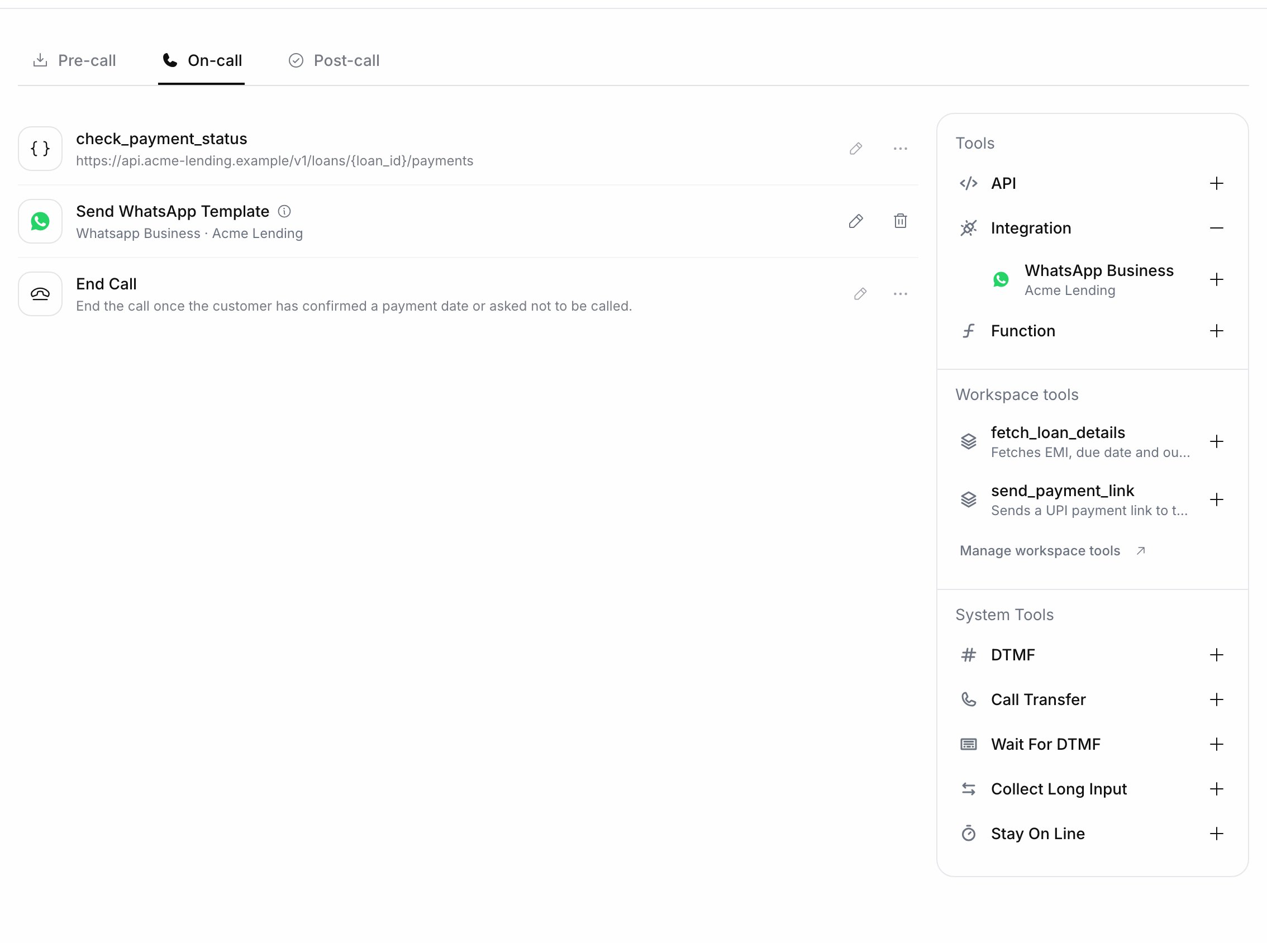
In the agent editor, select Tools in the left menu, then the On-call tab.
2
Pick WhatsApp Business
In the side panel, expand Integration and select WhatsApp Business (your account name is shown beneath it). The account’s Available Tools are listed.
3
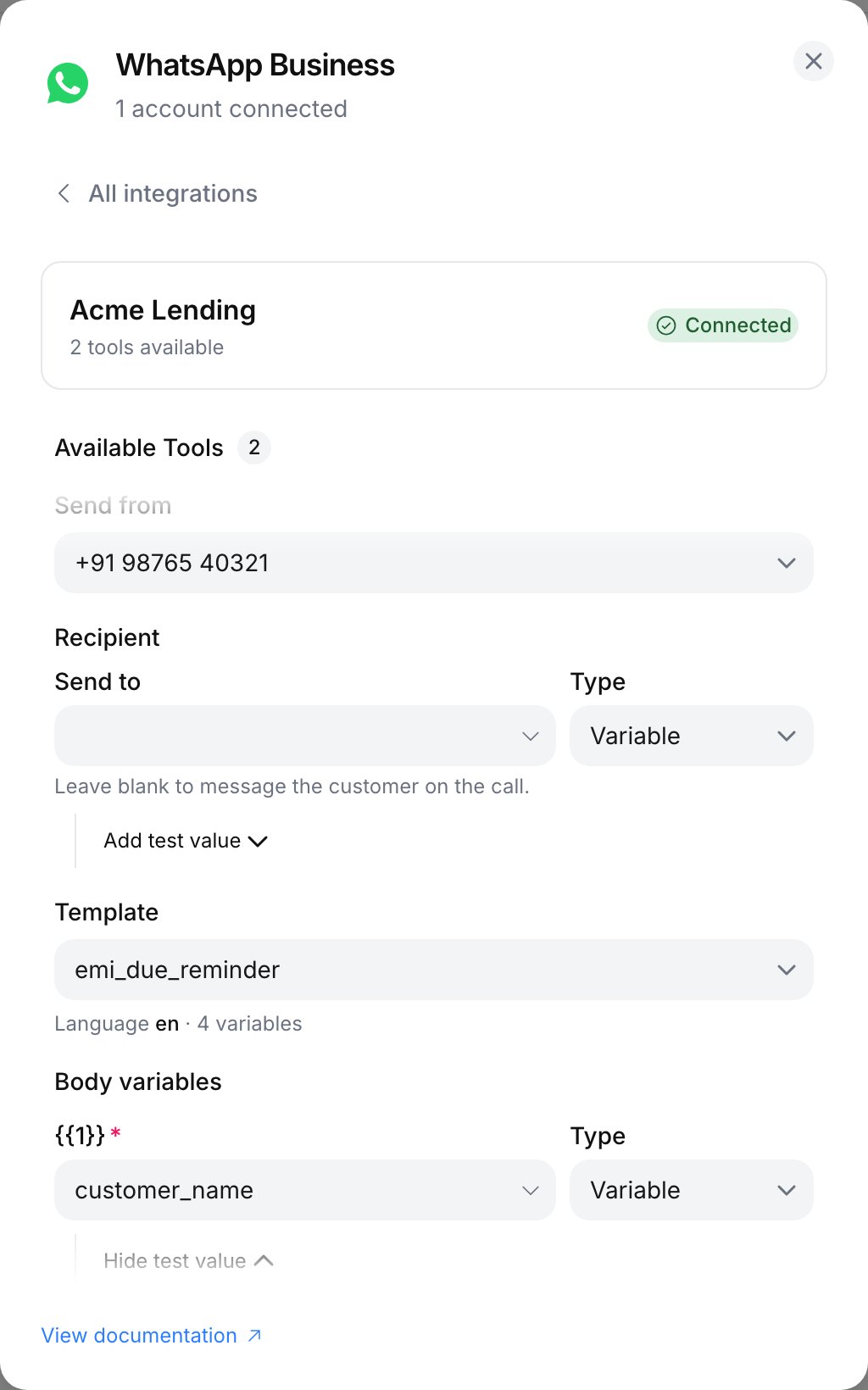
Choose the sender and recipient
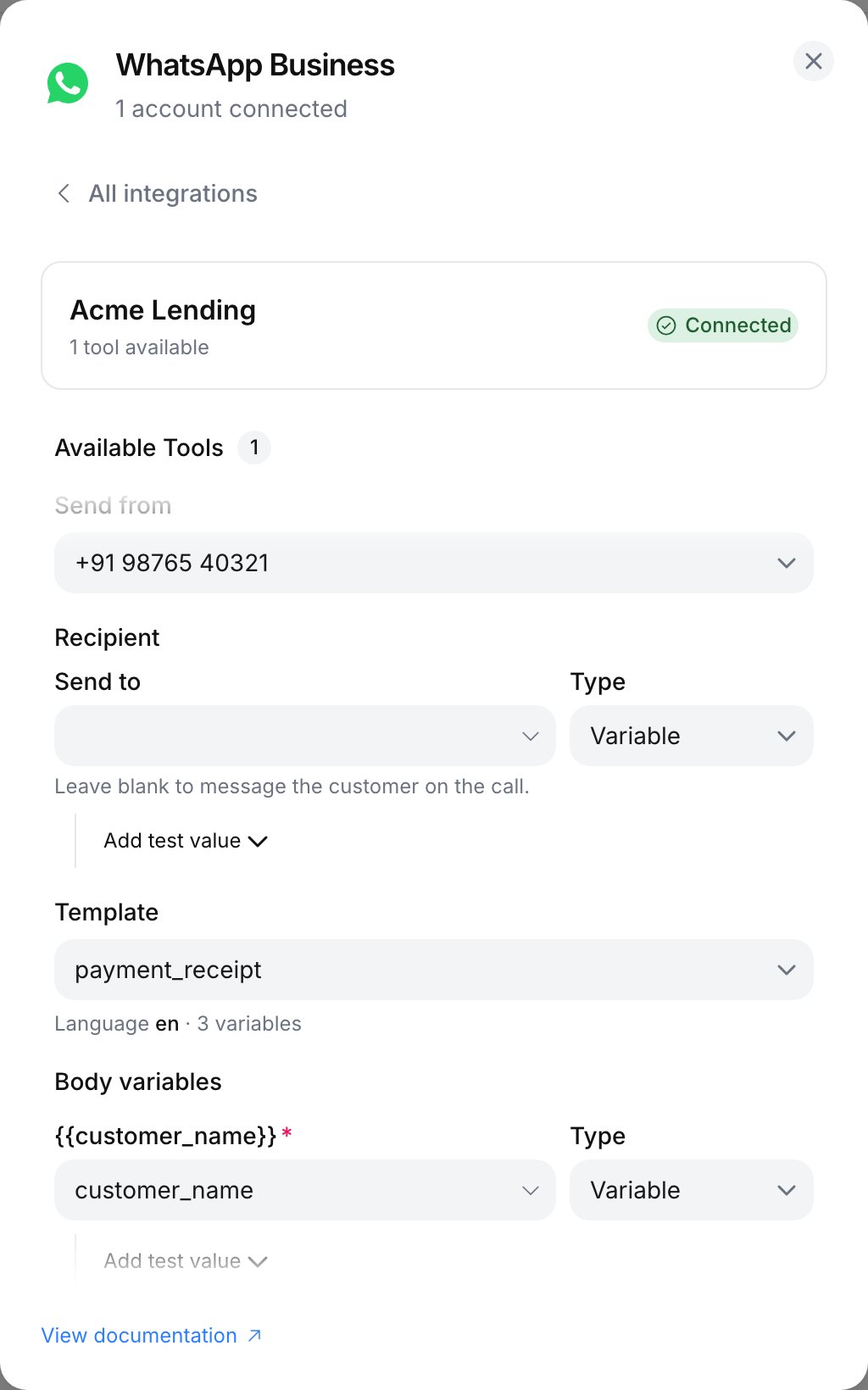
Expand Send WhatsApp Template or Send WhatsApp Text:
Send from: a registered number on the account. If the field is empty with No registered WhatsApp numbers on this account, register one first.
Send to: leave blank to message the customer on the call. To send elsewhere, set it to Variable and pick a custom variable, or to Static and enter a number such as +919876543210.
4
Choose the content
Template tool: pick the Template; its language and variable count show beneath it. Under Body variables, set each variable to Variable (a custom variable, filled when the call runs) or Static (a fixed value).
Text tool: write the Message text.
Send WhatsApp Template configured with a sender, template and body variables
5
Test and import
Add test value gives a variable a sample value. Run test sends a real message with those values and reports “Test message sent.” Import stays disabled until the sender, the template and every variable are set; a test run isn’t required.
The tool appears in the On-call list as Send WhatsApp Template (or Send WhatsApp Text) from your WhatsApp Business account.
The agent calls an on-call tool only where the prompt says to. In the prompt editor, type @ and pick the tool under On-Call API Settings; it is inserted as @||tool_name|| with the tool’s own name. Next to it, say when to send and what to say afterwards:
If the customer asks for the brochure, send it on WhatsApp with@||Acme Lending_send_template_message|| and tell them it is on its way to their WhatsApp.Don't read the link out loud.
The template tool is named <account name>_send_template_message and the text tool <account name>_send_text_message, where the account name is your WhatsApp Business account’s name in Ringg, as shown under WhatsApp Business, spaces included. Use the mention the @ menu inserts.
Variables are filled from the conversation’s custom variables, so declare them in the agent. They can be passed when the call starts or set by a pre-call tool. For a template Hi {{1}}, your {{2}} link: {{3}}:
Variable row
Type
Value
{{1}}
Variable
name
{{2}}
Static
renewal
{{3}}
Variable
renewal_url
With named variables ({{customer_name}}), the rows are labelled with those names instead of numbers.
Add the tool to a voice agent’s post-call tools with a Utility template such as:
Hi {{1}}, thanks for speaking with us about {{2}}. Reply here if you have anyquestions and we'll pick up where we left off.
Map {{1}} to the name custom variable and {{2}} to a static product name. Leave Send to blank so it goes to the number that was called.
Send a summary when a WhatsApp chat closes
Add the tool to the WhatsApp agent itself. It runs when the chat closes, which for a customer who stops replying is after the agent’s idle timeout (3 hours by default). See when a chat opens and closes.
Notify your team instead of the customer
Set Send to to Static with a team member’s number, and use a template whose variables carry the details you need.