Add custom variables to a Ringg AI agent, mention them in the prompt with @, and fill them per call by API, per contact from a campaign CSV, or from tools.
A custom variable is a named value that changes from one call to the next, such as the caller’s name, an amount due or an appointment date. You write the variable once in the agent’s prompt, and each call fills in its own value.In the dashboard: Sidebar → Assistants → open an agent → Custom Variables. On a multi-prompt agent, open Global Settings → Custom variables.Where values come from, and where they go:
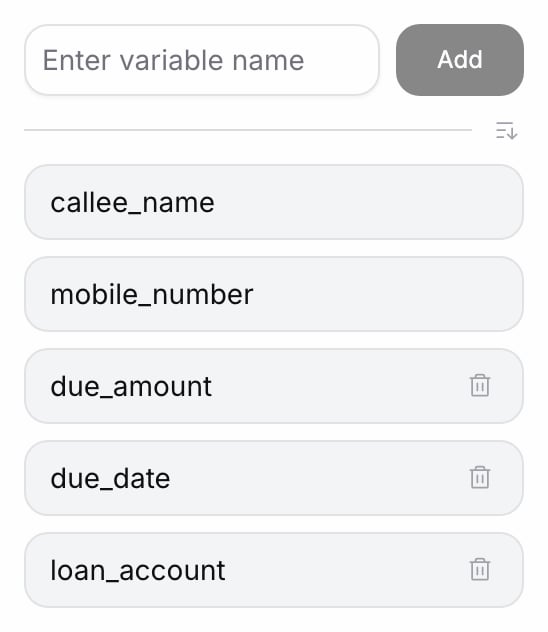
Two variables are permanent: callee_name and mobile_number. The Custom Variables panel shows no remove button for them, and a new multi-prompt agent starts with both.
In the editor sidebar, click Custom Variables. The panel lists the agent’s variables in the order they were added. Type into Enter variable name: as you type, letters become lowercase and spaces become _, so “Due Date” becomes due_date.
2
Add it
Click Add or press Enter. There is no separate Save; the list is saved at once. “Variable already exists” means the name is taken; because input is lowercased, Due_Date and due_date are the same name.
You see “Variables updated successfully”. The new variable is at the bottom of the list, and it appears under Custom Variables when you type @ in the prompt.
The Custom Variables panel after adding loan_account
Remove a variable with the bin icon on its row. Sort the list alphabetically with the sort icon (tooltip Sort alphabetically); click again to return to the order they were added (tooltip Newest first).
Use short, descriptive snake_case names such as emi_amount or due_date. A campaign CSV maps columns by exact name, so the same names in your CSV save mapping work (calling list).You can also create a variable while writing the prompt: type @{{ and a new name, then choose Create ”…” from the menu (Write the prompt). That path keeps the name exactly as typed, so type it in lowercase yourself.
Type @ in the first message or any prompt section and pick the variable under Custom Variables. It appears as a chip; its text form is @{{name}}.
First message:Hello @{{callee_name}}, this is Asha from Acme Finance. Is this a good time to talk?Conversation Script:1. Confirm you are speaking to @{{callee_name}}.2. Tell them their EMI of @{{emi_amount}} is due on @{{due_date}}.3. Ask when they will pay.
Picking the new variable from the @ menu
A token that names a variable the agent does not have is shown in red with a wavy underline: add the variable or fix the spelling. Variables also work in tool parameters and in If Condition blocks.
The same variables are filled in different ways, depending on how the call starts. Values are sent as strings. Write them the way the agent should say them (15 October, not 2025-10-15), or tell the agent in the prompt how to read them.
Test assistant shows one optional field per variable (for example Due date), except mobile_number, which comes from Callee number on a phone call. See Test an agent.
Each variable is mapped to a CSV column under Map variables to CSV columns (map variables to columns), and every variable must be mapped before you can continue. Each row then fills the variables for one call:
callee_name,mobile_number,emi_amount,due_datePriya Sharma,9876543210,"₹4,500",15 October
Initiate Individual Call takes the variables in custom_args_values, an object of name: value pairs. name and mobile_number are required request fields. When you send custom_args_values, it must include every variable the agent has, or the call fails with 400 “Missing custom arguments: …”. When you leave it out, only callee_name and mobile_number are filled. Send your API key in X-API-KEY; from_number is the caller ID.
A pre-call tool runs before the call starts. It can take a variable as an input (offered as custom_args.<name>, for example to look up a customer by custom_args.mobile_number), and its selected response keys go into the prompt as @((tool_name.key)). Use this when the value lives in your system rather than in the CSV or API request. See Tools and the look-up example.
The dashboard does not stop a test call with empty variables. A variable sent as an empty string becomes empty text. A variable that isn’t sent at all stays in the prompt as written, for example @{{due_date}}, and the call goes ahead.Write the prompt so a missing value does not derail the call: “If the due date is not known, ask the customer to check their statement.” Or wrap the sentence in an If Condition block that checks the variable is not empty. That check works only when the variable is sent as an empty string: an unsent variable counts as not empty.
Edit Assistant with "operation": "edit_custom_vars" sets the agent’s variable names in custom_variables, the same list the Custom Variables panel shows. Create Agent takes custom_variables too.The list you send replaces the agent’s list, so include every variable you want to keep, callee_name and mobile_number too: an outbound agent rejects a list without them with 403. The API keeps names exactly as sent, so send them in lowercase snake_case.
The agent says the variable name, or nothing, instead of the value
The call did not receive that variable. Check the call’s Custom variables in Logs, and make sure the key in custom_args_values or the CSV column matches the variable name exactly.