Save and publish Ringg AI agent changes, create versions, split call traffic for A/B tests, compare results and finalize a winner, or call a version by API.
A version is a complete copy of an agent’s configuration (prompt or flow, voice, tools and settings) that you can edit and send calls to on its own. Every agent starts with one version, v1. Add more versions when you want to A/B test a change on real traffic before you commit to it; for a one-off fix, edit the agent and save or publish instead.In the dashboard: Sidebar → Assistants → open an agent. Single-prompt agents use Create Versions in the editor sidebar; multi-prompt agents use the version tabs above the canvas.
Save (or Cmd/Ctrl+S) stores the prompt on the version you are viewing; Discard throws the unsaved edits away. The editor’s save behaviour is in Save or discard.
Edits on the canvas, in node panels and in Global Settings go into a draft, and a banner above the canvas reads This workflow has unpublished changes (or This workflow has not yet been published for a new agent). Callers keep getting the last published flow until you publish.
1
Publish
Click Publish in the top bar. The Publish Changes dialog asks: “Are you sure you want to publish these changes? This will make them live.” Click Publish.
2
Fix issues if the publish is rejected
Ringg checks the flow on every publish. If it finds problems, the banner turns red with “Review and resolve each issue before publishing.” Click Review issues, open each issue to jump to the node or connection, fix it and publish again (connection rules).
The draft banner disappears and Test assistant returns to the top bar. Test the agent to hear the published flow.
Discard reverts the draft to the last published version. Its dialog warns: “Are you sure you want to discard all changes? This action cannot be undone.” Discard stays available even when the draft has issues.If a draft already exists when you open the agent (for example, from an earlier session or the MCP server), the editor opens in draft mode and shows Draft Mode Enabled.
An splits calls between versions of the same agent:The video turns on Create Versions, adds V2, adds a note to it, and splits traffic 70/30.
Adding a version and splitting traffic in the dashboard
1
Turn on versions
In the editor sidebar under Advanced Settings, switch on Create Versions (“A/B Testing Enabled — You can now create multiple versions”). A version bar appears above the editor, showing V1.
2
Add a version
Click + in the version bar. With one version, the new one copies it. With two or more, pick the Base version to copy from. An agent can have up to 5 versions.
The version bar after adding V2
3
Edit the new version
Click a version to switch to it, then change its prompt or settings. Each version keeps its own configuration (prompt, voice, variables, knowledge base). Open a version’s menu to Add notes, Copy version ID (use it in the API), or Delete version (offered when more than one version exists).
4
Assign traffic
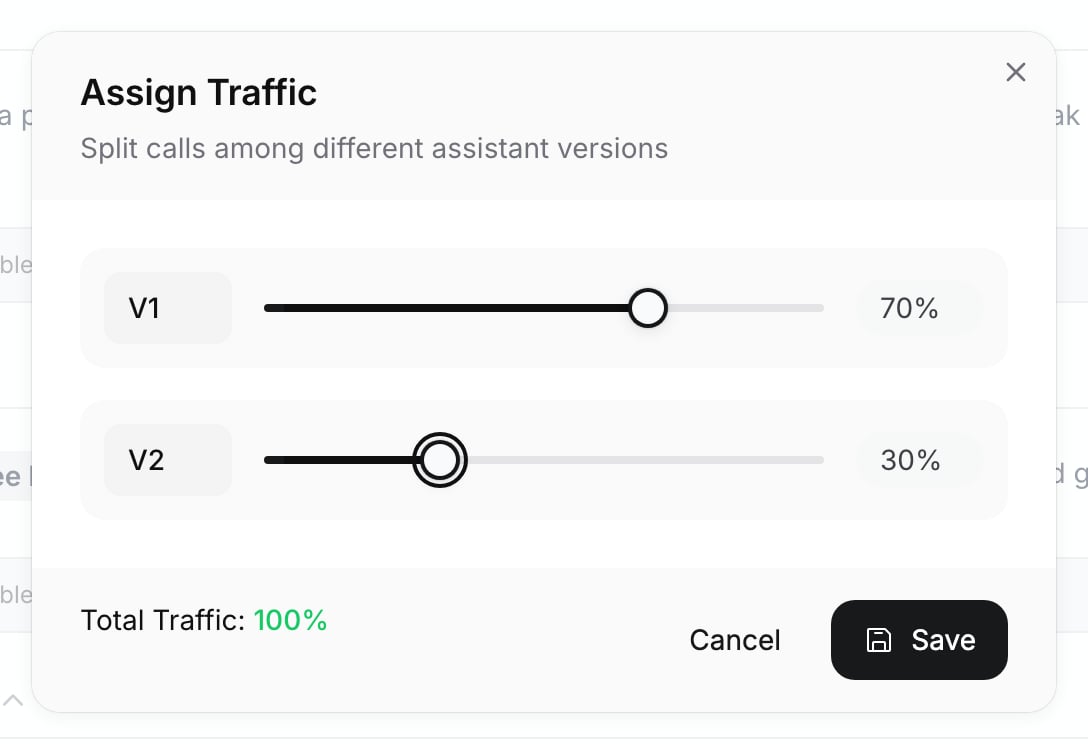
Click the gear in the version bar and choose Assign Traffic (“Split calls among different assistant versions”). Set each version’s share with its slider and click Save; it stays greyed out until the running total reads 100%.
Assign Traffic with a 70/30 split
5
Compare results
From the same gear menu, choose View Analytics. A/B Analytics compares the versions over the last 7 days.
6
Finalize the winner
Once two or more versions exist, the sidebar row reads A/B Tests Live! with a Finalize button. Click it, select the winning version in the analytics table, and click Confirm & Finalize. All traffic goes to that version and A/B testing is turned off (“Version [slug] is now live. A/B testing has been disabled.”).
New calls use the winning version only. Review the calls in Logs.
A green dot next to a version means it receives traffic; a red dot means 0%. Deleting a version asks for confirmation and warns: “If you delete, all traffic will shift to other versions uniformly.” Its share is split equally among the remaining versions: delete the 50% version of a 50/30/20 split and the others get 55/45.WhatsApp agents do not offer Create Versions; the row appears only while a test is already live, so you can finalize it.
The multi-prompt editor has no switch that starts an A/B test; to start one on a multi-prompt agent, contact Ringg. On a multi-prompt agent where A/B testing is already live, version tabs (V1, V2 …) appear above the canvas:
Switch versions: click a tab. The canvas and Global Settings load that version, and your edits apply to it.
Add a version: click + at the end of the tabs. The editor switches to the new version.
Delete a version: open the tab’s … menu and choose Delete version (shown when more than one version exists). It is deleted at once, with no confirmation.
Split traffic: click the gear to open Manage Traffic Split, set each version’s slider and click Save Changes.
The multi-prompt editor has no Finalize action. To send all calls to one version, delete the others.
Calls are shared between versions in proportion to their traffic. Each API, inbound or workflow call picks a version at random, weighted by the split. A campaign divides its contact list by count, in list order: with 70/30, roughly the first 70% of the list goes to one version, so shuffle the list if its order matters. A retry keeps its call’s version, and a callback uses the version of the call it follows up. Each call records the version it used: see version_slug in webhook payloads (sent by Event Subscription) and agent.version in call history.
Initiate Individual Call accepts an optional version_id. With it, the call uses that version and skips the traffic split. Without it, the call uses the agent’s active version, or follows the traffic split while an A/B test runs. Campaigns can’t pin a version. Copy a single-prompt version’s ID from its menu in the version bar.Send your API key in X-API-KEY. from_number is the caller ID.
Initiate Individual Call v2 takes the same optional version_id and calls from a number pool. Pinning a version lets you test a new version from your backend before you give it traffic.