

Before you start
An agent
You pick a language and voice when you create one; this page changes them.
Languages
The list of languages comes from Ringg’s voice configuration, not a fixed list. Secondary Language only offers languages that pair with the primary one; when none do, it is disabled.
Changing Primary Language clears the secondary language and the selected voice, because the voice grid is filtered by language. Changing Secondary Language clears the voice too. Pick a voice again before you save, or Save has nothing to change.
Additional languages
Click Add more languages to open Additional Languages (placeholder “None (optional)”). These help the agent recognise speech in other languages; the agent does not speak in them. Mention the languages in the prompt if callers may switch.- You can pick up to 4. Once you have 4, the rest of the list is greyed out.
- The list leaves out the primary and secondary languages.
- Only these language families are offered: Arabic, English, Tamil, Kannada, Telugu, Hindi, Bengali, Marathi, Gujarati, Punjabi, Malay, Chinese, Italian and Malayalam.
Choose a voice
The Voice part (“Choose the tone of the assistant voice.”) shows a grid of voices for the selected languages. The voice the agent is saved on stays first in the grid.- Provider tabs: All, then one tab per voice provider in the list (for example ElevenLabs, Cartesia, Sarvam or Deepgram). If your workspace can clone voices, an Uploaded tab holds your clones.
- Tag chips under the tabs (a tone or style from each voice) narrow the grid. Selected tags combine: a voice must have all of them. Clear resets them.
- See more shows the full grid.
- Clicking a voice selects it and plays its preview. When the agent has a secondary language, the Preview language icon next to the tabs switches the preview between the two languages.
Changing language, voice and speed in the dashboard
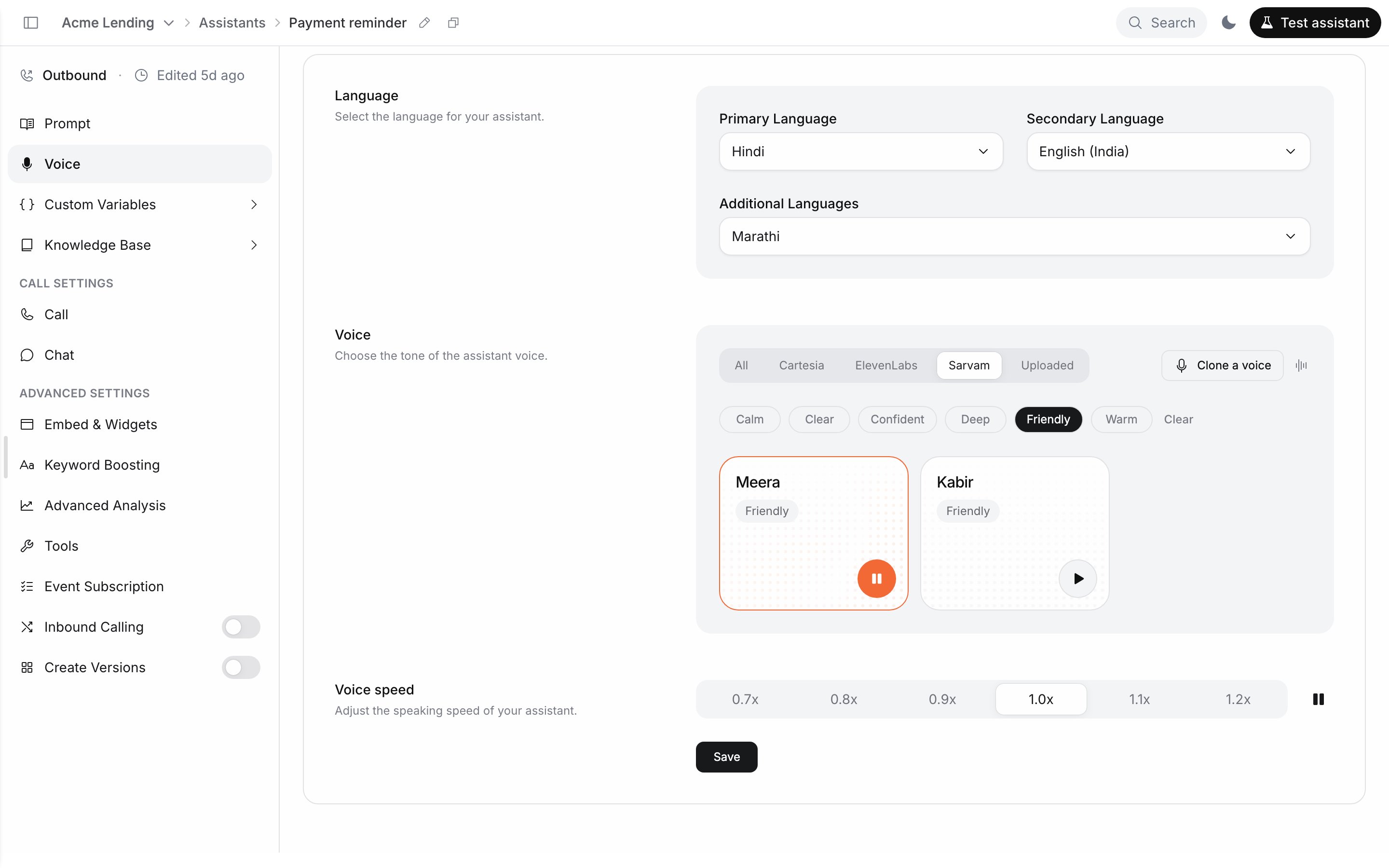
The Voice section with filters applied
“Voice settings saved” appears, Save is disabled again, and the selected voice is first in the grid. On a test call the first message plays in the new voice, language and speed.
Clone a voice
Workspaces with voice cloning enabled see Clone a voice next to the provider tabs. Cloning is off by default; contact Ringg to turn it on. It trains a new voice from a short recording and saves it under Uploaded.
Click Clone voice. While it trains the button reads “Training voice…”. When it is done you see “Voice cloned” and the voice appears under Uploaded, whatever the agent’s language. Clones cannot be deleted from the dashboard. “Clip too long” or “MP3 required” means the file breaks the audio rule above: trim or convert it and upload again.
Languages a voice can be cloned in:
Voice speed
Voice speed (“Adjust the speaking speed of your assistant.”) has six steps: 0.7x, 0.8x, 0.9x, 1.0x (default), 1.1x and 1.2x. The play button next to it previews the selected voice at that speed.
Voice speed set to 0.9x after saving
Keyword Boosting
Keyword Boosting gives the speech recogniser a list of words to listen for, so terms it would otherwise mishear reach the agent correctly: brand names, plan or product names, course names, city names, acronyms. Add the words callers actually say and the agent gets wrong; a test call’s transcript in Logs shows which ones those are. In the dashboard: Advanced Settings → Keyword Boosting in the editor sidebar. On a multi-prompt agent it is Keywords boosting in Global Settings. WhatsApp agents don’t have it. Type into Add keywords, comma-separated…, for exampleAcme Lending, EMI, NACH, and click Add or press Enter. The list saves straight away; there is no separate Save. A word already on the list is skipped with “Word already exists”. To remove a word, click the bin icon on its chip.
You see “Vocabulary updated successfully”, and each word appears as a chip below the field.
Before a voice agent goes live
- Write for the ear: short turns, one question at a time, and a first message that says who is calling and why. See Write prompts for voice.
- Script the other answers: what the agent does on “no”, “call me later” and “wrong person”, and when to end the call.
- Call when people answer: set the calling window and Timezone to your callees’ hours, and turn on voicemail detection for outbound calls.
- Match interruption to the line: Strict on noisy lines, Sensitive when callers feel talked over (Interruption sensitivity).
- Spread and cap calls: a number pool rotates numbers and skips spam-flagged ones; call limits cap calls per person; keep campaign retries modest.
- Test, then scale: test by phone with realistic values, run a small campaign, read its calls in Logs, then upload the full list.
Change voice and language by API
Edit Agent Settings (PATCH /agent/v1) changes one setting per request. Send your API key in X-API-KEY, and find the agent_id in the editor (Find the agent ID).
Cloning is dashboard-only.
Get voice IDs from List Voices (
GET /agent/voices). Pass language to filter; separate several languages with commas to get only voices that speak all of them. Each voice lists the languages it speaks and a voice_previews URL per language.
400 and “Selected primary voice does not support the specified language”.
Language codes the API accepts
The two endpoints accept different codes. On both, the voice must speak the language you set.
Kannada is
kn-IN; ka-IN is rejected. To create an agent in a language Create Agent doesn’t accept, create it in the dashboard, or change its language afterwards with Edit Agent Settings.
Troubleshooting
"No voices available for the given language."
"No voices available for the given language."
No voice speaks the selected primary and secondary languages together. Change Secondary Language to None, or pick another primary language.
Do I need a different agent per language?
Do I need a different agent per language?
Only when the prompt itself differs by language. One agent with a primary and a secondary language covers bilingual callers; for a separate script per language, create one agent each and name them by language.
Next steps
Add variables
Personalise every call with values you pass in.
Tune call settings
Set call length, inactivity and interruptions.