Define the typed variables Ringg AI extracts after each conversation, mark a Boolean goal, test on a past call, and read results in Logs, Analytics and webhooks.
Use Advanced Analysis on an agent for facts you want to report on, filter by or send to your systems, such as payment_promised (a Boolean) or promised_date (a Date). Status, duration and transcript are already in Logs without it.In the dashboard: Agents (listed under Assistants in the sidebar) → open an agent → Advanced Settings → Advanced Analysis. On a multi-prompt agent, open Global Settings → Advanced Analysis (see Global Settings).
Adding a Boolean goal variable and testing it on a past call
1
Add a variable
Open Advanced Analysis and click Add a new variable. The Add variables dialog opens.
Variable name (required): lower-case; spaces become _ as you type.
Type: one of the types below. The default is Boolean.
Enum options (required for Enum): type an option and press Enter or Add. Options are stored lower-case with _ for spaces.
Description (required): “What the analysis should extract from the call.” Write it as an instruction, for example “True if the customer agreed to pay by a specific date.”
Default value: “Fallback used when nothing is extracted.”
Use as goal: Boolean variables only (see The goal).
Analysis variables are separate from the agent’s custom variables, which you fill before a call.
The Add variables dialog
2
Add several at once (optional)
Click Add new variable inside the dialog for another blank form. The button at the bottom changes to Add 2, Add 3 and so on.
3
Save
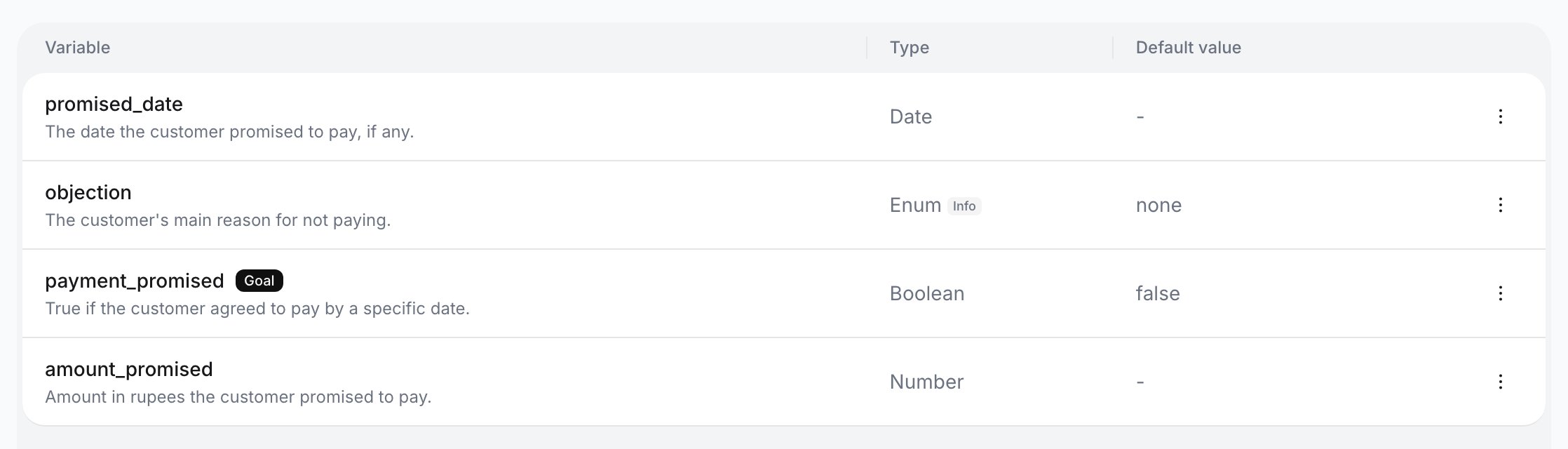
Click Add. You see “Variable added” and the variable appears in the table with its Variable, Type and Default value. The goal variable carries a Goal chip.
The table lists your variable, and Test is now enabled.
Variables after saving
To change a variable, click its row (the dialog is titled Configure variable) or use the row menu: Edit or Delete. Each change saves immediately.A change applies to conversations analysed after you save it. Calls already analysed keep their results and can’t be re-analysed. On a multi-prompt agent, changes go into the draft and apply once you publish.
While adding, paste a JSON array (or one object) into a Variable name field, or drop a JSON file onto the dialog, to fill one form per item:
[ { "variableName": "payment_promised", "type": "boolean", "description": "True if the customer agreed to pay by a specific date.", "defaultValue": false, "useAsGoal": true }, { "variableName": "promised_date", "type": "date", "description": "The date the customer promised to pay, if any." }, { "variableName": "objection", "type": "enum", "values": ["already_paid", "no_money", "dispute", "none"], "description": "The customer's main reason for not paying." }]
Names are converted to snake_case. A type Ringg does not recognise becomes String, with the warning “Some types weren’t recognized”. Review the forms, then click Add.
The goal is one Boolean variable that says whether the conversation succeeded, for example payment_promised. Analytics uses it to calculate the agent’s success rate.
Only a Boolean can be the goal. On other types the switch reads “Only boolean variables can be used as goals.”
An agent has one goal at a time. Turning on Use as goal for another variable asks Replace current goal? first.
Changing the goal variable’s type asks Change variable type? and removes it as the goal.
Context (“Include additional context for better results”): one free-text note for the whole analysis, such as what counts as a valid promise to pay. Click Save; you see “Context saved”.
Log tool calls (“Include tool call logs to enhance advanced analysis.”): a switch. On, the analysis also reads the tool calls made during the conversation, such as an API lookup’s result.
Click Test. It is disabled until you have saved at least one variable.
2
Pick a call
In Test advanced analysis, paste a Call ID (copy it from the call panel in Logs), or pick from Or select from recent call log. The list shows this agent’s completed calls; sort it by date or duration. Picking a call from the list runs the test straight away.
3
Run it
If you pasted a Call ID, click Run analysis. You see the Analysis result next to the Call transcript (copy and download buttons). The link icon opens the call in Logs. Click Test another to try a different one.
The test is a preview: it doesn’t change the call’s stored results or send a webhook.
Analysis result shows a value for each variable that matches what was said in the transcript.
Goal achieved and Cost per goal, once you pick an agent or campaign. Boolean and Enum variables appear as Cohort analysis charts. With one agent selected, a slice opens the matching calls in Logs.
Agents that saved an analysis prompt or keys before the variable table existed keep the older editor. It has a Prompt box (“Enter your prompt for Advanced Analysis”), a list of keys (Define required keys for the prompt) with a type and default value, a tool-call-logs switch, Save and Test Analysis. Its types are String, Number, Integer, Boolean, Array, Date and DateTime. It has no goal. Everyone else gets the variable table described above.
Advanced Analysis variables are set up in the dashboard only; the public API has no operation for them. Read results per call from Get Call Details (the client_analysis field, returned when you send send_analysis=true) or from the client_analysis_completed webhook (Event Subscription). You need an API key and the call’s ID.
The dialog shows the server’s reason, or “Failed to run analysis” with “Check the call ID and make sure you have saved at least one variable before testing.” Check the call ID belongs to this agent and the call completed, then click Retry.
Does it run on WhatsApp chats?
Yes. Every agent, WhatsApp included, offers the Advanced Analysis Complete event and shows results in Logs. Only the Test dialog is limited to completed calls.
A variable is always empty or wrong
Rewrite its Description as a precise instruction, add a Default value, and use Context for definitions. Then run Test on a call where you know the answer.