Generate your Ringg AI workspace API key in the dashboard, copy it from the one-time reveal, send it as X-API-KEY, and rotate it without breaking integrations.
The API key is the secret your backend sends with every Ringg API request. It identifies the workspace the request acts for, and each workspace has one key.In the dashboard: Settings → API key. For the request format and error codes, see Authentication; to go from a new key to a real call, follow the quickstart.
In the dashboard, only the workspace owner can generate or regenerate it. Other members see the button disabled, with “Only the workspace owner can generate API keys. Please contact them to proceed.” The owner is marked with an Owner chip on Workspace members.Each Ringg Space has its own key. A new Ringg Space starts without one: switch to it and generate the key on this page.
Generating an API key, from Generate API Key to the masked key (the key shown is a demo value)
Have your secret manager open before you start: you get one chance to copy the key.
1
Generate the key
On Settings → API key, click Generate API Key. A dialog opens with the full key.
2
Copy it now
Click Copy (it changes to Copied) and paste the key into your secret manager. If copying fails, select the key in the field and copy it by hand.
The one-time reveal (demo key)
3
Close the dialog
Click Done.
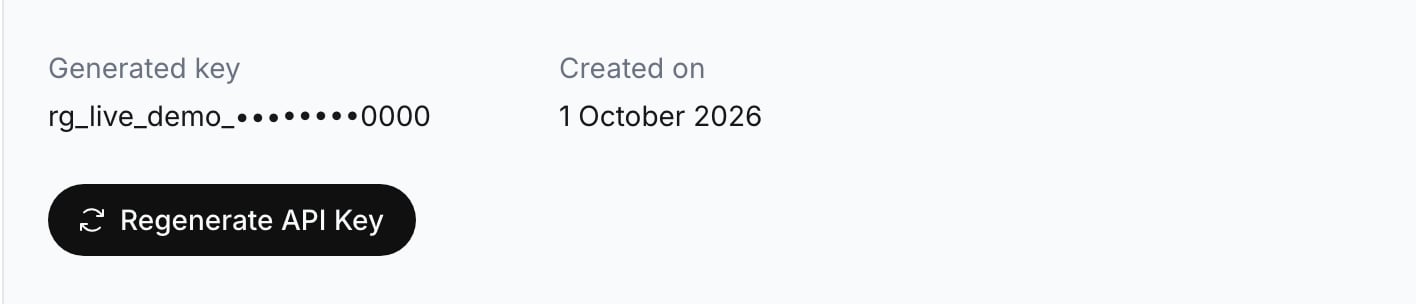
The page shows Generated key (masked) and Created on.
The masked key after the dialog closes
From then on the page shows:
Field
What it is
Generated key
The key’s prefix and last four characters, for example rg_live_••••••••2e63
Created on
The date the current key was generated
New keys start with rg_live_. A key generated earlier can start with ringg_live_ or be a plain UUID, and show no masked form; it keeps working until you regenerate it.
A 200 response with your workspace’s details in workspace_info means the key works. A 401 with {"message": "Invalid credentials"} means it is missing, mistyped or was regenerated.
Keep it in a secret manager or a server-side environment variable such as RINGG_API_KEY.
Call the Ringg API from your backend only. The key must never reach browser JavaScript, a mobile app, a public repository, a screenshot or a support ticket. The web widget has its own public key in the embed code; don’t swap this one in.
Hand it to developers through your company’s secret-sharing tool, not email or chat.
It cannot be shown again. Click Regenerate API Key to get a new one; this revokes the key you didn’t copy.
Requests return 401 after someone regenerated the key
Services still sending the old key are rejected. Compare the last four characters of Generated key with each service’s key and update the ones that differ.
The page says Could not load your API key
Click Try again. The page won’t offer Generate API Key until it knows whether a key exists, so it can’t replace one by accident.