

Get your API key
The workspace owner generates the key in the dashboard under Settings → API Key (open it). New keys start withrg_live_; keys generated earlier may start with ringg_live_ or be a plain UUID, and keep working. The full key is shown once, when it is generated; afterwards the page shows only a masked form. Regenerate API Key revokes the old key immediately, so update every service that uses it.
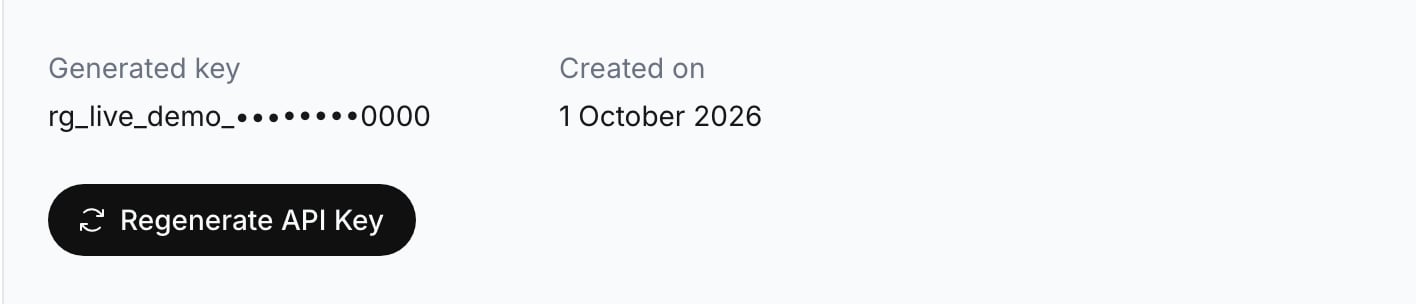
The masked key on Settings → API Key.
Send the key
All endpoints share the base URLhttps://prod-api.ringg.ai/ca/api/v0. GET /workspace is the simplest request to check a key with.
name is not the workspace you expected, the key belongs to another workspace. Each Ringg Space has its own key.
Protect the key in production
- Load the key from a secret manager or an environment variable, not from source code.
- Redact the
X-API-KEYheader in request logging. - Rotate the key as soon as you suspect it leaked. Rotation is a dashboard action; the API cannot create or rotate keys.
- Alert on bursts of
401responses: after a regeneration, they mean a service still has the old key.
Error responses
Other statuses are listed in the API overview.
Next steps
Make your first call
Use the key to place an outbound call with an agent.
API overview
Base URL, resources, IDs and error format.