

Pages in this chapter
What numbers are used for
The Numbers page
A tour of the Phone tab: All Numbers and Number Pools
- Phone: your voice numbers, split into All Numbers (every number, a telephony account filter and the Add number button) and Number Pools (groups that outbound calls rotate across).
- WhatsApp: WhatsApp Business numbers. See WhatsApp numbers.
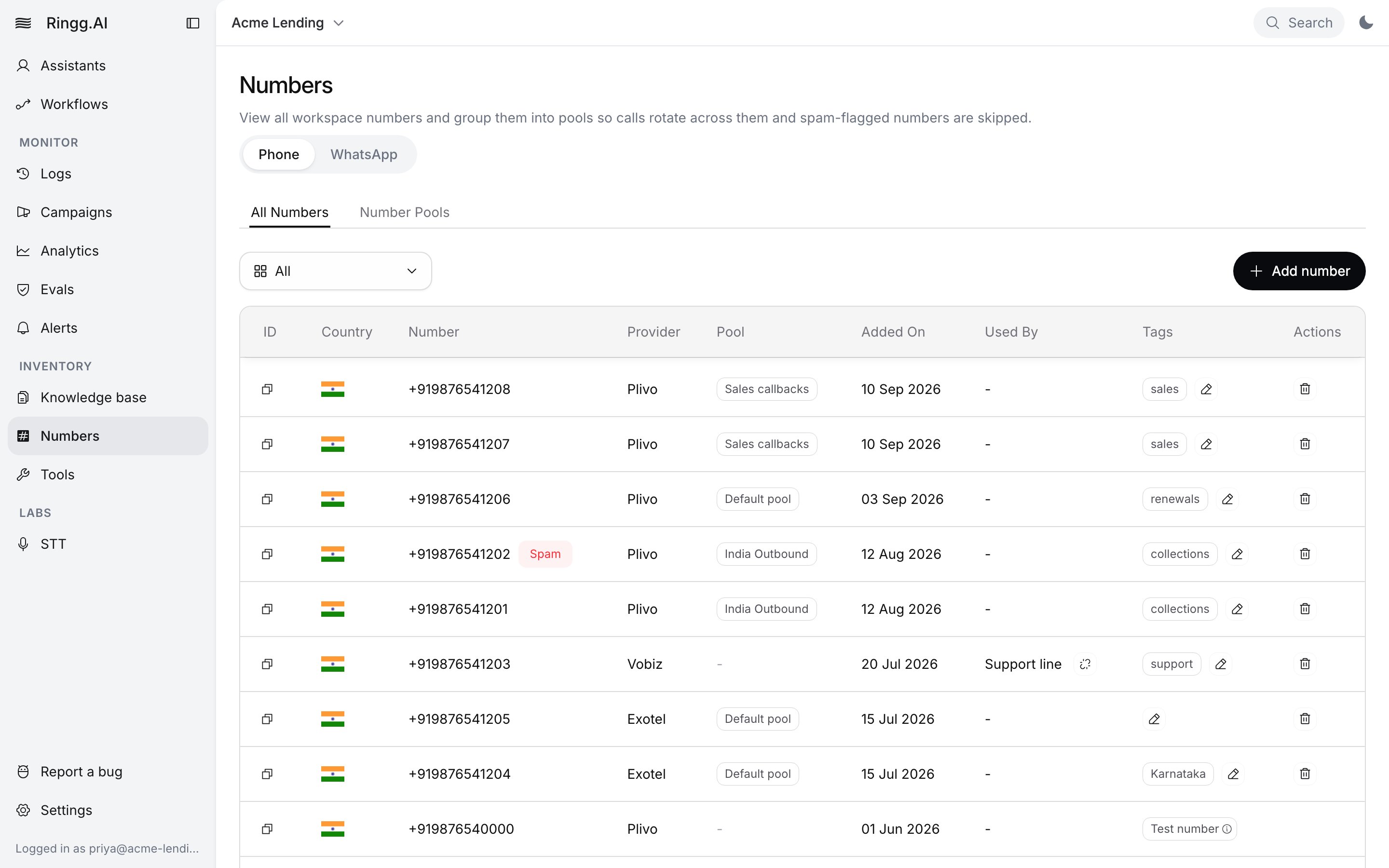
All Numbers on the Phone tab
Ringg-provided numbers vs your own telephony
Pick Ringg-provided to start with no provider account; pick BYOT when you already own numbers or have a carrier contract. Once a number is in the workspace, both kinds are used the same way.
Test numbers
Every workspace sees Ringg’s shared test numbers, marked Test number (“For testing only. Not for live calls or number pools.”). Use them to test an agent before you buy a number.Spam flags and tags
Ringg checks Ringg-provided numbers and flags likely spam. A flagged number shows a red Spam chip in the table; hover it to read the reason. Number pools skip spam-flagged numbers and can buy replacements on their own; see Auto purchase. Outside a pool, a flagged number still places calls: single calls and campaigns that pick it under Individual numbers use it as usual.
Hovering the Spam chip shows the reason
collections, Karnataka). They show in the table and in number pickers.
WhatsApp numbers
WhatsApp numbers live on the WhatsApp tab. They belong to a connected WhatsApp Business account, not to a telephony provider. Until an account is connected, the tab shows “WhatsApp Business is not set up yet.” with a Setup WhatsApp business button. See Connect WhatsApp Business.Supported telephony providers
These providers appear in the Add number dialog. Their credential fields are listed in Connect a provider account.
Countries other than India appear only when international calling is enabled for your workspace; without it, Twilio and Maqsam are hidden (International numbers). SIP shows for enterprise workspaces, except on the Saudi Arabia and UAE regional dashboards. Custom shows only when Ringg has set up a custom telephony account for you.
List numbers by API
Get Workspace Numbers returns the whole All Numbers list in one response, newest first, includingid, is_test_number, is_spam, spam_message, provider, owner, tags, agent and number_pool_id. It has no paging. To narrow it, pass telephony_account_id (a connected account’s ID, or ringg for Ringg-provided and test numbers) or inbound_enabled=true. You need an API key.
id as from_number_id when you place a call.
Next steps
Get a number
Buy a number, import one from your provider, or add one by hand.
Answer inbound calls
Attach a number to an inbound agent and set outbound caller ID.