

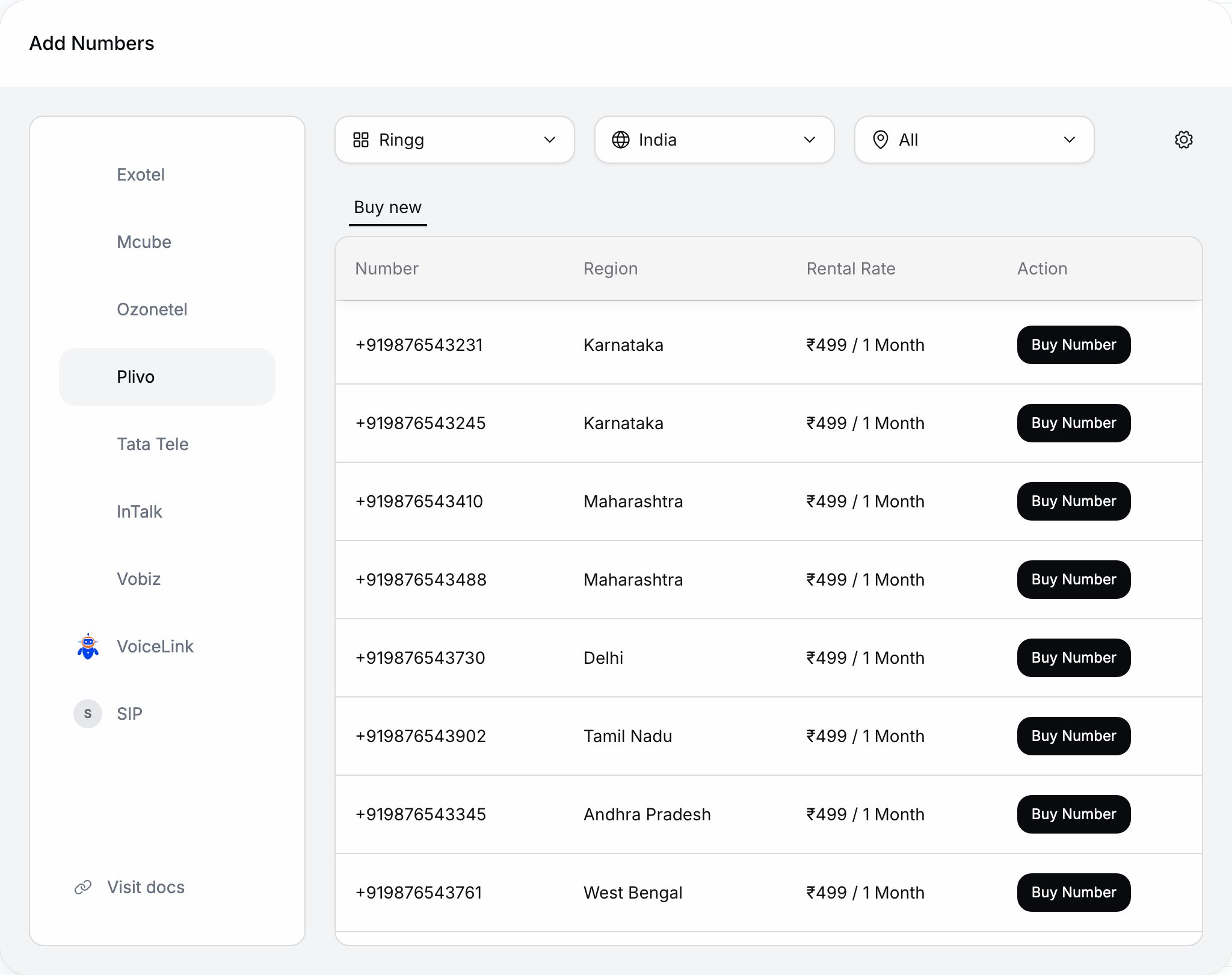
The Add Numbers dialog: providers on the left, the gear opens Configure provider
Supported providers
The providers in the Add number dialog and where each is documented. Every account form’s fields are in Connect a provider account; which providers and countries your workspace sees is in Numbers overview.
If your carrier isn’t listed, see New provider requirements.
How BYOT works
The same flow for an Exotel account: connecting it, then importing one of its numbers
1
Prepare the provider side
Get the credentials. For providers that route calls through an app or flow (Exotel, Ozonetel), configure Ringg’s URLs there first; each provider guide lists them.
2
Connect the account in Ringg
Open Configure provider for the provider, select Add, fill the fields and Save. See Connect a provider account.
3
Import the numbers
With the account selected, use Import your own, Buy new (providers that sell numbers) or Add custom (providers that don’t share a number list). See Import a number.
4
Use them
Attach a number to an inbound agent, or pick it as caller ID for calls and campaigns.
Place a test call in each direction you use. It appears in Logs.
Troubleshooting
These apply to every provider account; provider-specific causes are on each provider’s page.The account won't save
The account won't save
Ringg tests the credentials with most providers when you save. “Invalid credentials for provider” means the provider refused them: re-copy them from the provider’s console without extra spaces, and check the account isn’t suspended and has API access. “Missing required fields for provider” names the empty fields.
Numbers don't appear under Import your own
Numbers don't appear under Import your own
Check the numbers are active and voice-enabled with the provider, and that you selected the right account in Add number.
Calls connect but the agent doesn't respond
Calls connect but the agent doesn't respond
Check the number is attached to the right agent and the agent is live. Open the call in Logs for its status and transcript, and compare it with the provider’s call logs.
Poor audio or dropped calls
Poor audio or dropped calls
Test from a second phone and network and check the provider’s service status. If it persists, contact Ringg support with the Ringg call ID.
Next steps
Import your numbers
Connect the account and bring its numbers in.
Connect a SIP trunk
Your own PBX, SBC or contact centre over SIP.
Attach a number to an agent
Route inbound calls to an agent.