

When to use a campaign
When you create a campaign, Campaign type offers Assistant (“Call a list with one assistant”) and Workflow (“Run a multi-step workflow”). Create a campaign covers Assistant; Launch a workflow campaign covers Workflow.
How a campaign runs
- Upload and verify the calling list. You name the campaign, pick the agent, upload the CSV and map each agent variable to a column. Ringg checks every row; rows that fail are counted as invalid and can be downloaded (Calling list).
- Configure and launch. You choose the numbers (bought or imported, or a number pool), the timezone, start and end time, calling windows, retry count and the between retries, then click Create campaign (Create a campaign).
- Calls go out. Between the start and end time, the agent calls contacts only inside the calling windows. A contact who is busy, does not pick up, or whose call fails is called again after the cooldown, up to the retry count. Retries also wait for the next calling window. When the end time passes, contacts not yet reached, including those waiting for a retry, are marked failed; calls already in progress finish normally.
- Review results. Each call appears in Logs with its transcript, recording and analysis, or reaches your server through Event Subscription (webhooks) (Manage a campaign).
Campaign statuses
The Status column on the campaigns list shows one of these values.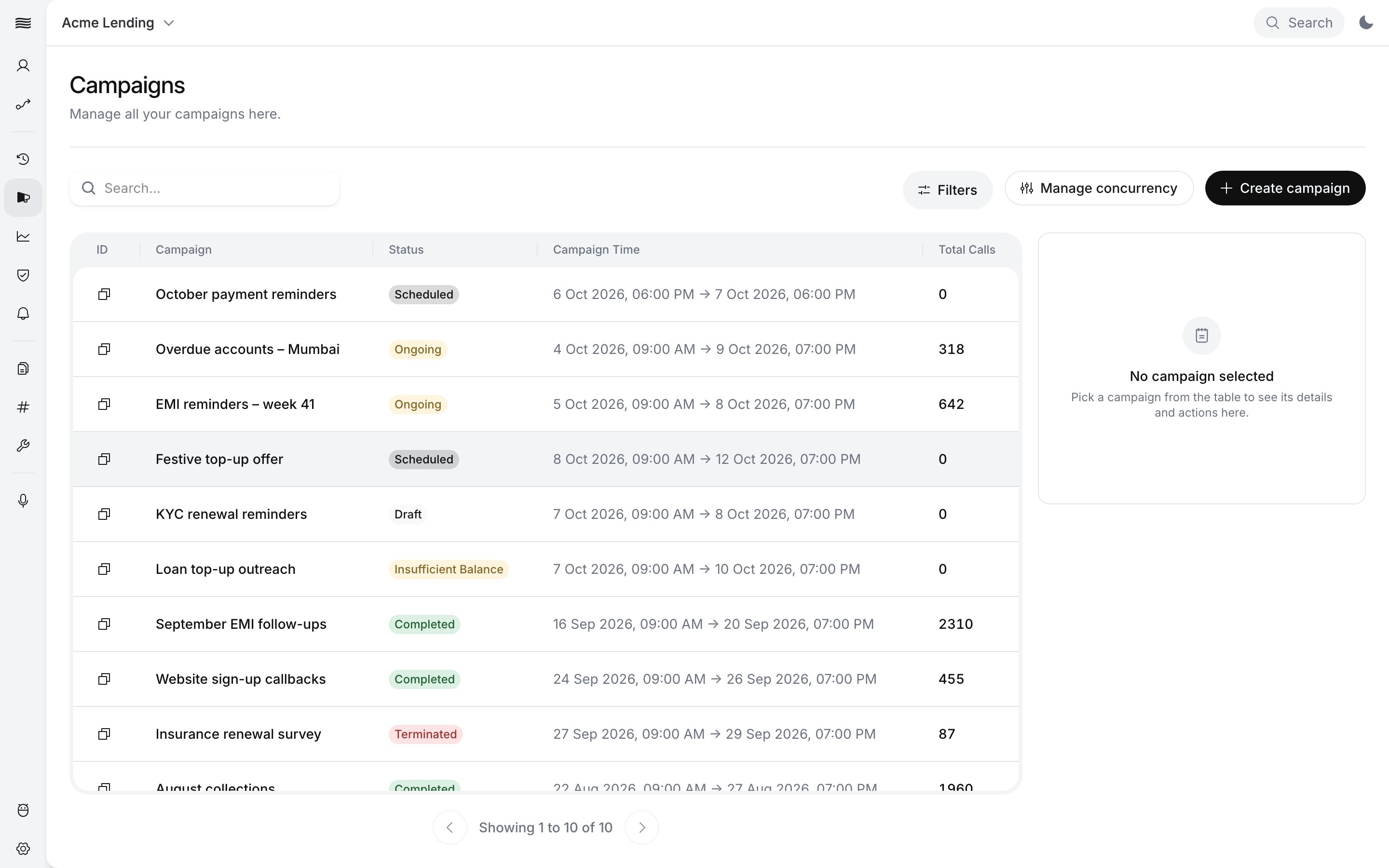
The campaigns list with campaigns in several statuses
There is no pause. To stop a campaign, terminate it: all future calls are cancelled, and a terminated campaign can’t be resumed from the dashboard. See Terminate a campaign.
Concurrency and call limits
sets how fast a campaign works through its list. You buy it on the billing page: up to 50 for self-serve workspaces, up to 1000 for enterprise (Change concurrency). It is shared two ways, both set in Manage concurrency:- Between API calls and campaigns. The Workspace tab splits it by percentage, for example 30% for API calls and 70% for campaigns.
- Between running campaigns. The Campaigns tab sets a percentage per ongoing campaign. Unset, campaign concurrency is split equally between ongoing campaigns.
Next steps
Create a campaign
Upload the list, set calling windows and retries, and launch from the dashboard or the API.
Prepare your calling list
Format the CSV and map its columns to your agent’s variables.
Manage a running campaign
Watch status, split concurrency, terminate and open the campaign’s calls.