Manage Ringg AI campaigns: filter the list, read the detail panel, split concurrency, terminate by dashboard or API, and open a campaign’s calls in Logs.
Once a campaign is launched, its per-call results live in Logs, or reach your server through Event Subscription (webhooks); the campaign itself is managed from the Campaigns page.In the dashboard: Sidebar → Monitor → Campaigns.
Filtering the list, opening a campaign's details, splitting concurrency and opening its calls in Logs
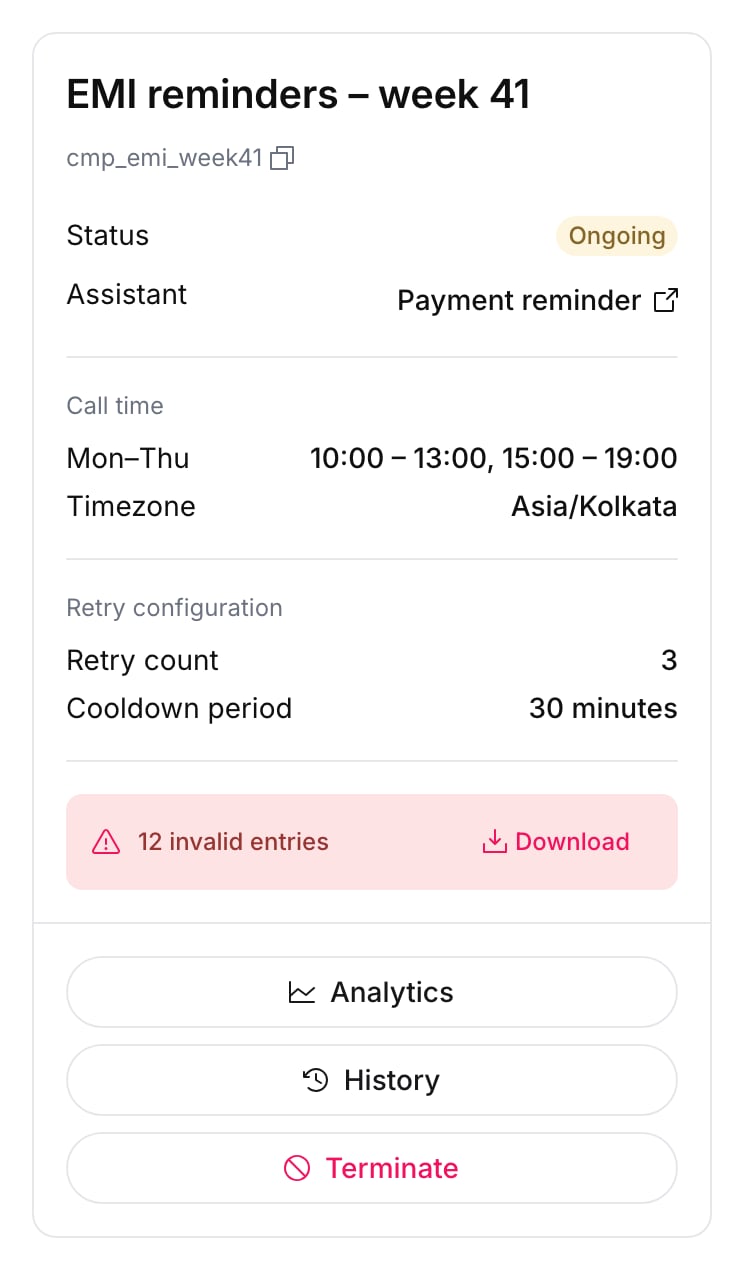
Call time: each calling window by day, and the Timezone.
Retry configuration: Retry count and Cooldown period.
Invalid rows, if any: “N invalid entries” with a Download button for the rejected rows.
The detail panel of an ongoing campaign
The buttons at the bottom depend on the status:
Status
Buttons
Draft
Complete Setup, Terminate
Processing, Verifying, Preparing
Processing… (disabled)
Insufficient Balance
Add Balance (opens billing with the amount needed)
Scheduled, Ongoing
Analytics, History, Terminate
Completed
Analytics, History, Export report
Terminated, Failed, No Valid Contacts
History, Analytics
Export report has two options: Download (“Download a ZIP of the call report”) and Email (queued) (“Queue the report and email it to you”). The dashboard offers the report for 60 days after the campaign’s end time.
Concurrency is the number of calls your workspace can run at the same time. Manage concurrency decides how that capacity is shared. Raise the total itself on the billing page (Change concurrency). In a Ringg Space, see Ringg Space concurrency.
1
Open the panel
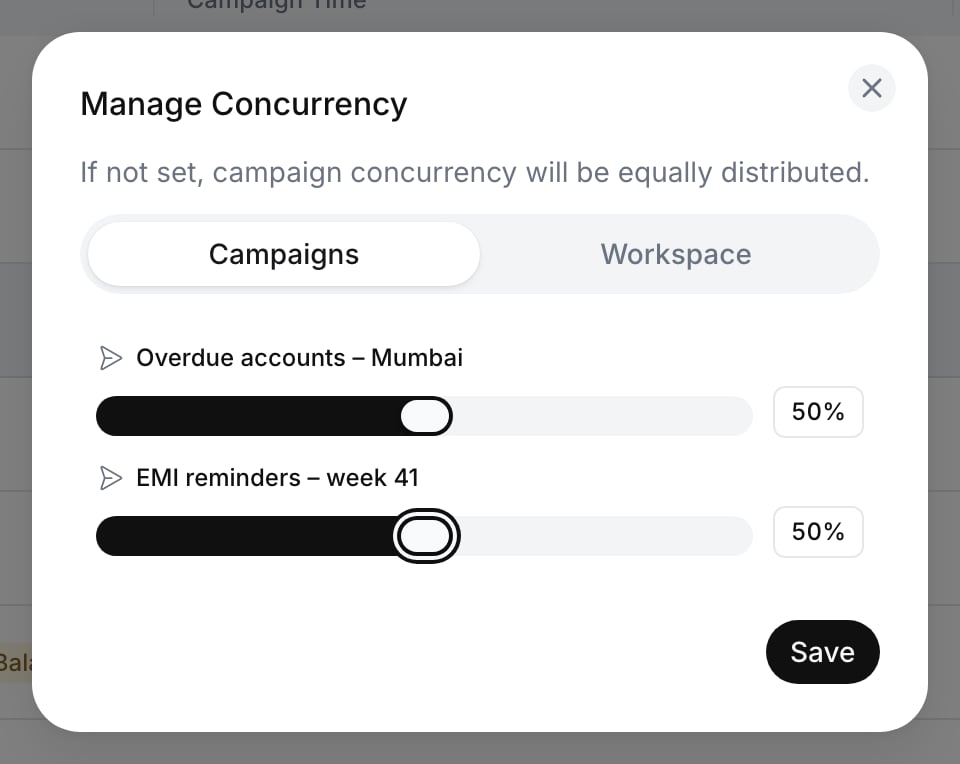
On the Campaigns page, click Manage concurrency. The panel reads “If not set, campaign concurrency will be equally distributed.”
2
Split between API calls and campaigns
On the Workspace tab, drag the API or Campaigns slider. The two always add up to 100%. For example, 30% API leaves 70% for campaigns.
3
Split between campaigns
On the Campaigns tab, set a percentage for each ongoing campaign. The tab needs at least two ongoing campaigns (troubleshooting).
The Campaigns tab of Manage Concurrency
4
Save
Click Save. Only the tab you have open is saved, so save each tab separately.
Terminating cancels the campaign’s calls that are still queued (Registered) or waiting for a Retry. A call already in progress is not hung up: it finishes normally and is not retried. Terminating can’t be undone from the dashboard.
Call Terminate calls by campaign ID (PATCH /campaign/terminate) with the campaign ID (the ID column’s copy button, or bulk_list_id). You need an API key.
The response is 200 with {"message": "Calls terminated successfully!"}, even when no call matched. Only calls created in the last 7 days are cancelled.The same endpoint can also stop calls by agent_id, call_ids or mobile_numbers. See Terminate calls by call IDs.
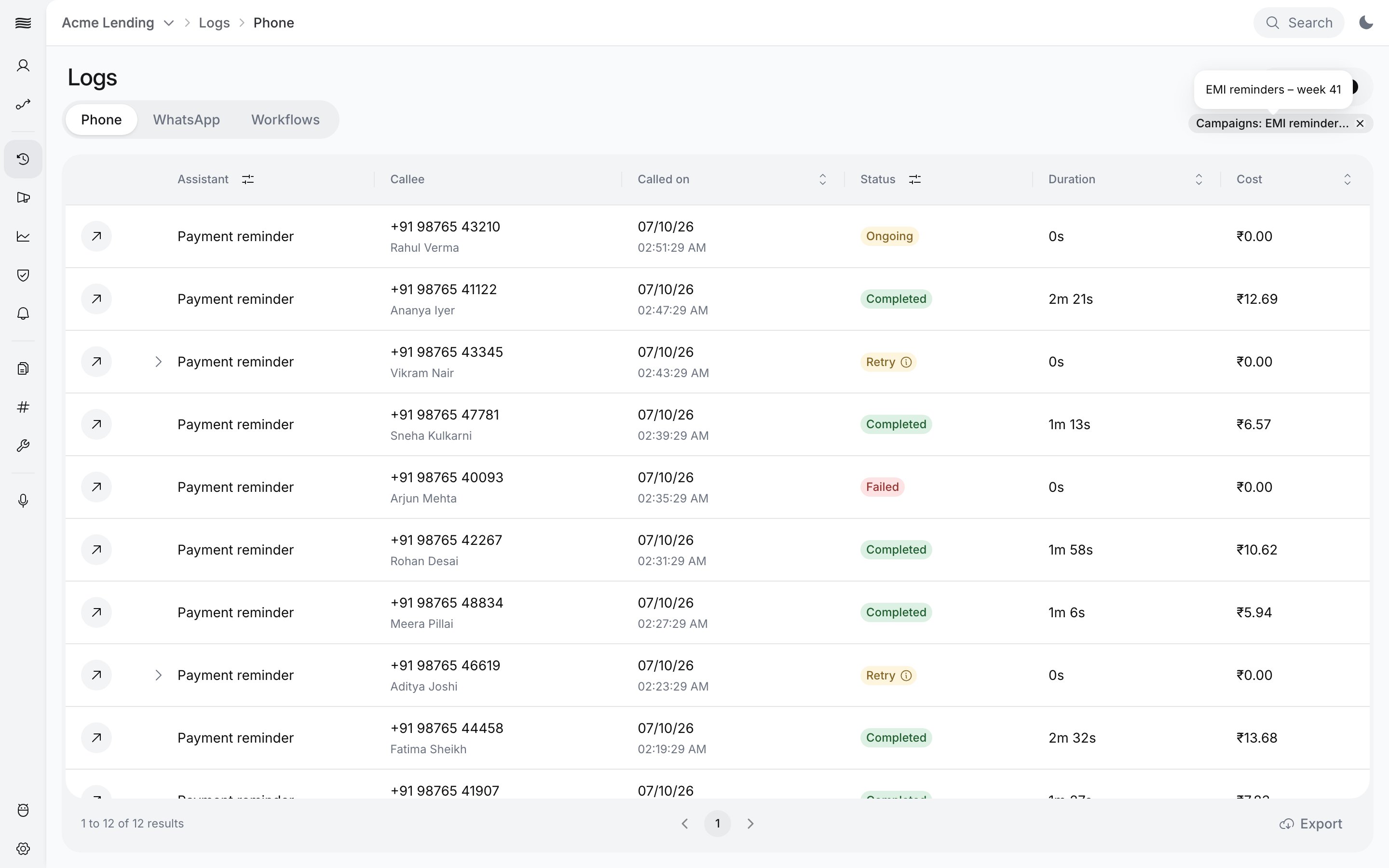
Click History in the detail panel. It opens Logs filtered to this campaign, at /logs?bulk_list_id=<campaign ID>. The usual date range does not apply, so you see every call of the campaign, with its transcript, recording and analysis. You can also pick the campaign under Campaigns in the Logs filters.
Logs filtered to one campaign
Analytics opens Analytics for the same campaign, at /analytics?bulk_list_id=<campaign ID>.By API, pass the campaign ID as bulk_list_id to Get call history:
curl --request GET "https://prod-api.ringg.ai/ca/api/v0/calling/history?bulk_list_id=1b2efee1-a940-4170-a1e4-51f59097ba10&limit=100&offset=0" \
  --header "X-API-KEY: $RINGG_API_KEY"
Instead of polling, have Ringg send each call’s data to your server. Event Subscription is set on the agent, so it covers every call that agent makes, campaign calls included. Set up your endpoint in Event Subscription setup.Call payloads carry bulk_list_id: the campaign ID for campaign calls, and null for single calls. Use it to group results by campaign. See Webhook payloads.
Large lists take longer to verify. The list refreshes on its own; there is nothing to do while the panel shows Processing….
Campaign is Scheduled but no calls go out
Calls are placed only after the start time and only inside a , in the campaign’s timezone. Check Call time and Timezone in the detail panel; they replace the agent’s own calling window for this campaign. Also check your call limits.
The Campaigns tab in Manage concurrency is greyed out
Only one campaign is ongoing (“Only one ongoing campaign — concurrency can’t be split.”), so there is nothing to split; the tab is empty when none are. Use the Workspace tab to change the share between API calls and campaigns.
No. The only stop is Terminate. To call the remaining contacts later, create a new campaign with a list of those contacts.
Can I change the calling windows or retries after launch?
The dashboard has no edit for a launched campaign; the detail panel shows Call time and Retry configuration read-only. Terminate it and create a new campaign with the new settings.