

Objective
Build and publish a workflow that branches on what Ananya’s call found out, so one contact gets a journey instead of a single call.The scenario
One call is not the whole journey. If Rahul promised to pay, the CRM should know; if not, Acme waits a day and nudges him on WhatsApp. A workflow runs that sequence once per contact, with logic between conversations. The call block dials from the number you bought in part 4. The chat step needs WhatsApp Business connected, a message template and a WhatsApp agent on that number.Hands-on
Building, publishing and testing a workflow
1
Open a blank canvas
Click Workflows, then Create workflow. Click the name in the breadcrumb, type
Payment reminder follow-up and press Enter.2
The call
Click the + connector on Start and pick Agent in Call mode. Choose
EMI reminder - Hindi, then click Variables to open Map variables, one row per variable Ananya uses: callee_name from the menu, the rest as literals such as ₹12,450. Under From, pick your workspace number. Keep the default Call window and Retries.3
The branch
Add a Conditional after the call with one rule: source Custom analysis, the call block, field
payment_promised, comparison is, value true.4
Match: log it in the CRM
From Match, add an Action: method POST, URL
https://crm.acme-lending.example/api/promises, and a JSON body with the callee’s number and the promised date from the {} menu.5
No match: wait, then nudge
From No match, add an Await in Duration mode and pick the 1d preset. After it, add an Agent block switched to Chat: Channel WhatsApp, Template
emi_due_reminder (or one of yours), Chat assistant your WhatsApp agent, From your WhatsApp phone number ID. A WhatsApp message needs both the template and the chat agent.6
Save and publish
Click Save (“Workflow saved”); there is no autosave, and the first save creates a Draft. Click Publish and confirm: “Workflow published”. If the editor reports issues instead, the Issues panel names the missing setting, such as “select at least one caller number”; fix it and publish again.Leave Test alone: a test run is real, calls the number you type, spends credits and holds the No match branch for a full day.
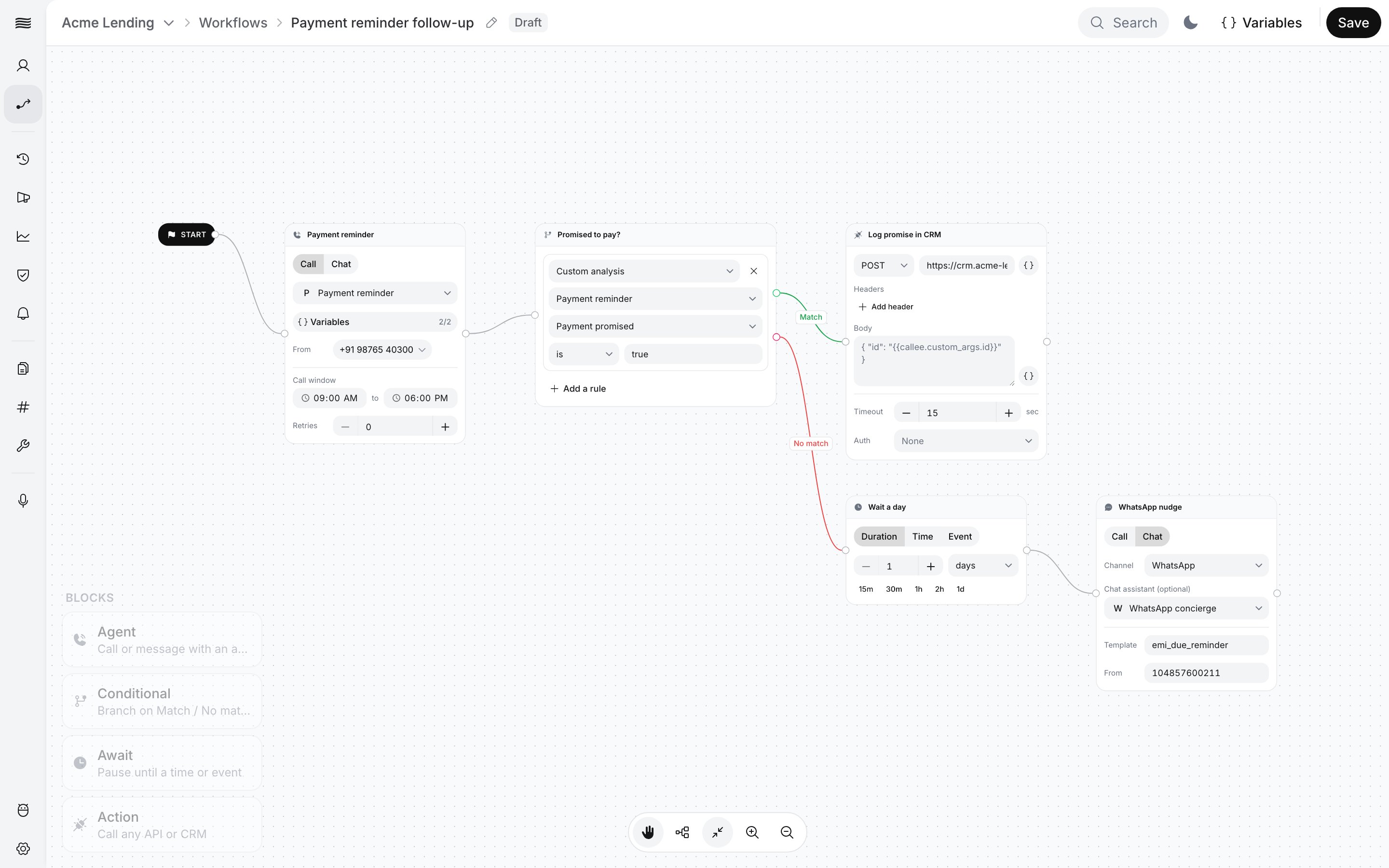
A call, a branch, then a CRM update or a wait and a WhatsApp nudge
Checkpoint
The canvas matches the screenshot: the call, then the Condition with Match into the Action and No match into the Await and the chat. The Workflows list shows Payment reminder follow-up under Active.
Exercise
Add a second rule to the Condition: source Call duration, comparison is over, value30, and set the rules to All. Expected result: the card shows both rules under All, so a two-second call never counts as a promise. On an Active workflow, Save makes the edit a draft version; runs keep using v1 until you publish again.
What you learned
- An agent holds one conversation, a multi-prompt agent holds stages within one call, and a workflow runs a journey across calls, messages and waits.
- A Condition reads earlier steps: call status, duration, Advanced Analysis fields and Action responses. Part 3’s fields are what the branch runs on.
- Save creates a draft and Publish makes it Active; only Active workflows can run as a campaign, and each publish is a version.