Create, preview and publish WhatsApp Flows from the Ringg AI dashboard, screen by screen or as Flow JSON, without opening Meta’s WhatsApp Manager.
You can build a WhatsApp Flow in Ringg instead of Meta’s WhatsApp Manager. The builder shows one screen at a time: its title and content on the left, and on the right a preview you can fill in like the customer would. Ringg saves the Flow to your WhatsApp Business account as a draft, and when you publish it, any of your WhatsApp assistants can send it.There are two ways to start:
Start from
Use it for
The builder
Forms such as lead capture, feedback, site visit requests or KYC details.
Paste JSON
A Flow JSON you already have, such as a design from WhatsApp Manager, from a developer, or the booking design in Flows with live data. See Paste Flow JSON.
Building a two-screen Flow, trying it in the preview, then saving, publishing and duplicating it
1
Open the builder
Go to Tools → WhatsApp Business, select the Flows tab, then Create Flow.
2
Name it
Name: something your team will recognise, such as Site visit request.
Category: the closest match, for example Lead generation or Appointment booking.
3
Add screens and content
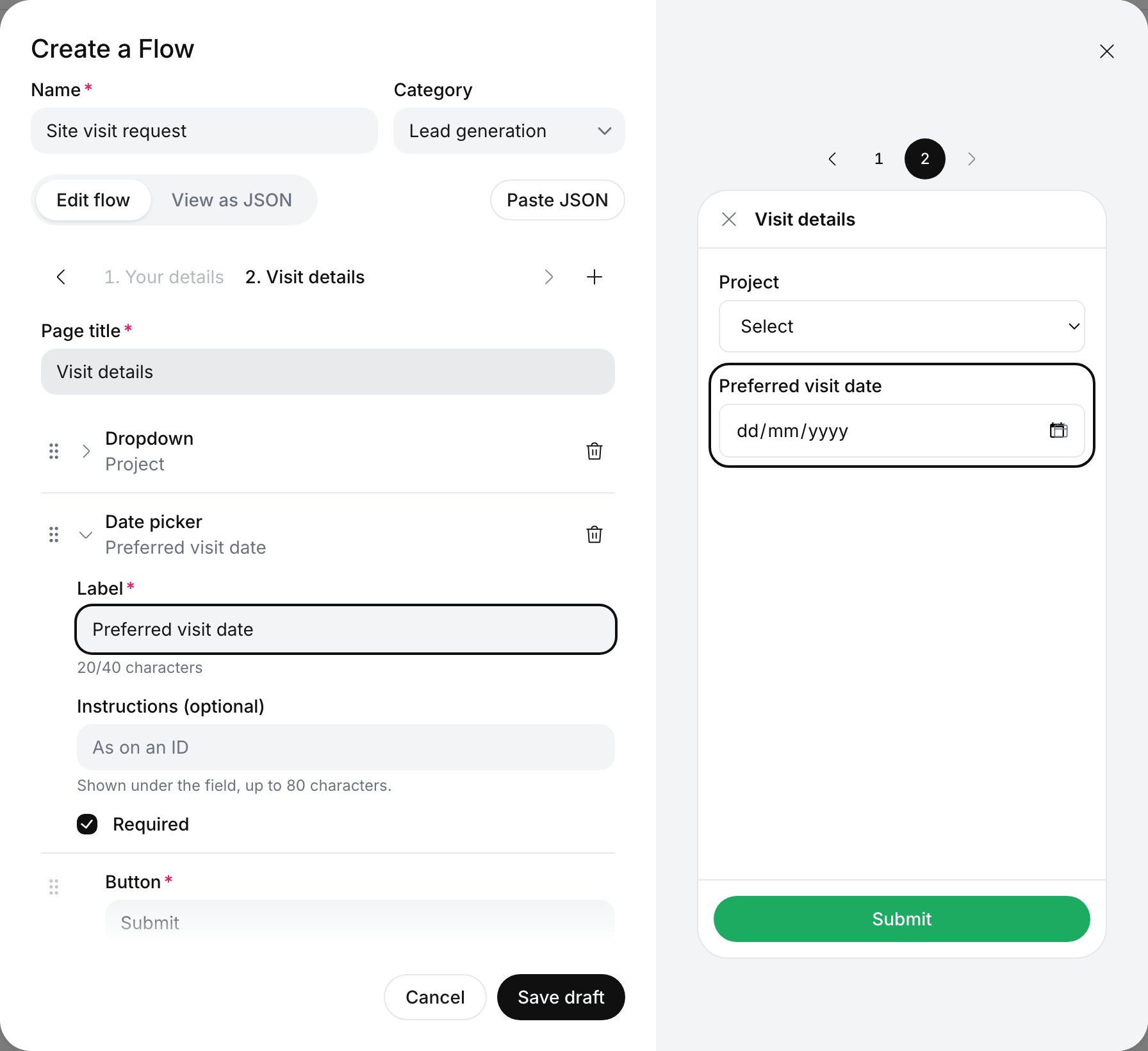
The first screen starts with an empty Short answer. Give the screen a Page title, then select a row to edit it. Drag a row by its handle to reorder it, and use the bin to remove it.
Add content adds text or a question to the screen. See What you can add.
+ next to the screen names adds a screen. The arrows, or the screen names on either side of the current one, move between screens. Delete screen removes the screen you’re on.
Keep it short. Two or three screens with a handful of questions each gets the most submissions.
The second screen of a Flow in the builder, with its preview
4
Name the buttons
Every screen ends with a Button:
On each screen except the last, it takes the customer to the next screen. It says Continue unless you change it.
On the last screen, it submits the form and sends every answer back into the chat, labelled by question. It says Submit until you change it, for example to Request visit.
5
Try it in the preview
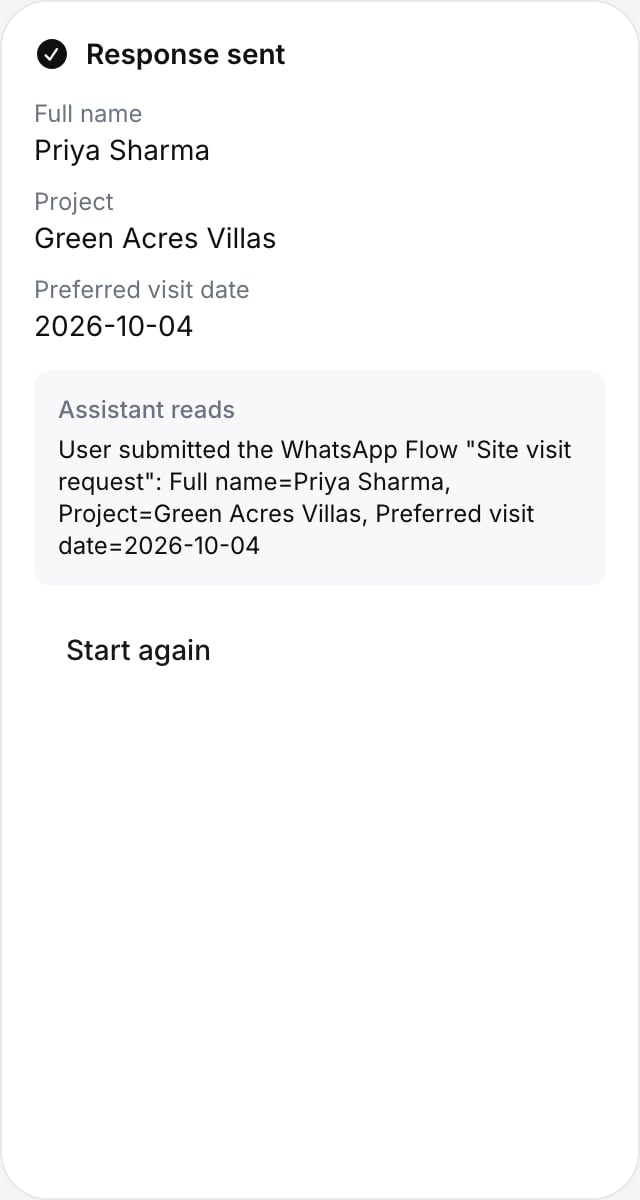
Fill in the preview on the right and tap its buttons to move between screens, as the customer would. Required questions you leave empty are flagged. Select a number above the preview to jump to a screen.When you submit, the preview shows the answers and, under Assistant reads, the exact message your assistant gets:
User submitted the WhatsApp Flow "Site visit request": Full name=Priya Sharma,Project=Green Acres Villas, Preferred visit date=2026-10-04
Select Start again to clear it.
The preview after submitting: the answers and what the assistant reads
6
Save the draft
Select Save draft. Ringg creates the Flow on your WhatsApp account as a draft and keeps it open, so you can carry on editing and select Save. Select Cancel to see its details.If Meta finds a problem, the builder stays open and lists it under Meta found problems in the saved draft. The draft is saved, but it can’t be published until you fix the problem and save again.
7
Publish it
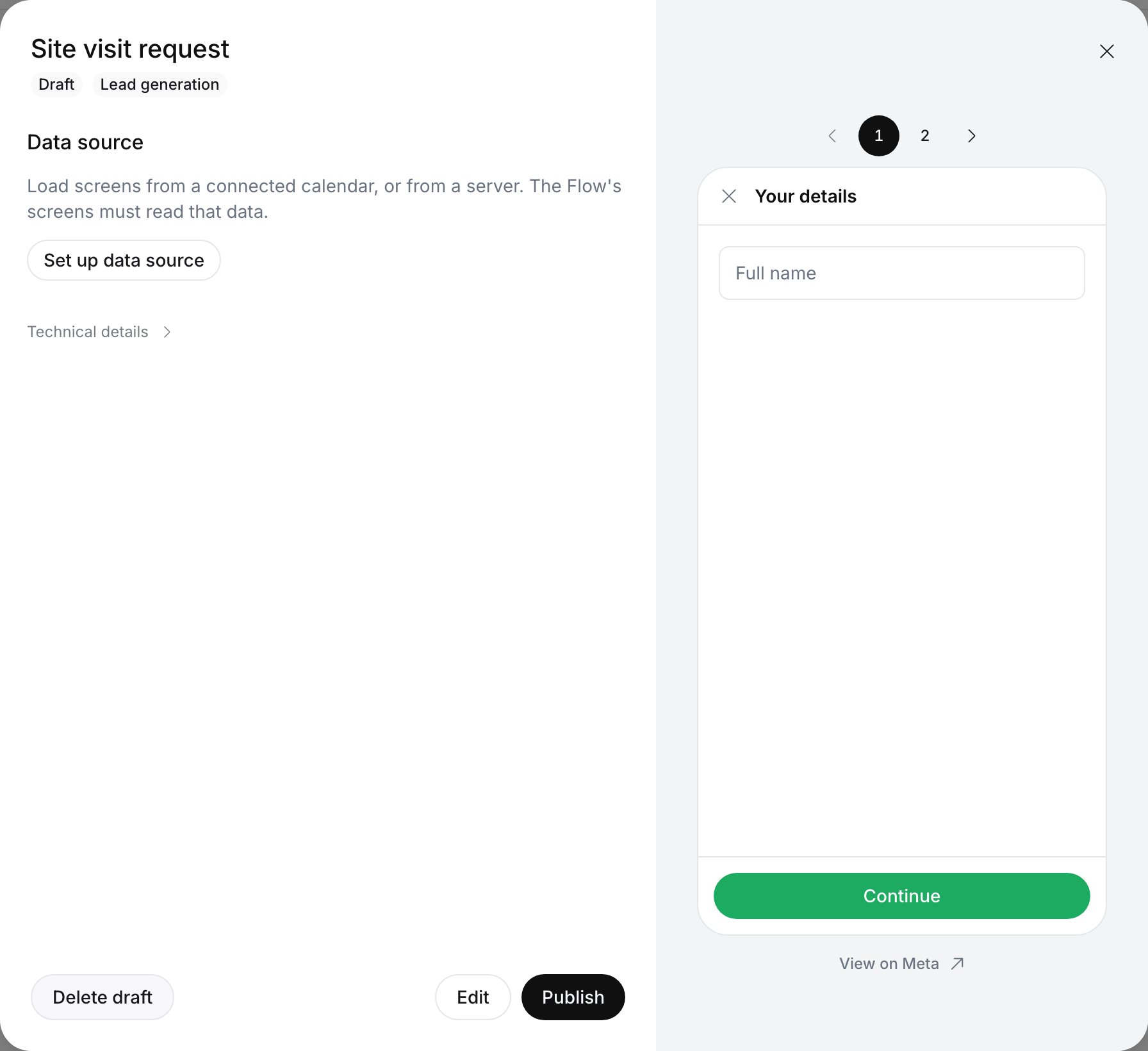
In the details, check the preview once more, select Publish, then Publish again to confirm.
A saved draft's details: Delete draft, Edit and Publish
Add content lists the same components as WhatsApp Manager. The character limits are Meta’s, and the builder shows how many you’ve used.
Group
Content
What the customer gets
Limit
Text
Large heading, Small heading
A title inside the screen
80 characters
Body
A paragraph of text
4,096 characters
Caption
Small print
409 characters
Text answer
Short answer
A one-line field. Choose its Input type: Text, Email, Number or Phone.
Label up to 20 characters
Paragraph
A field for a few lines, such as an address
Label up to 20 characters
Date picker
A calendar to pick a date
Label up to 40 characters
Selection
Single choice
A list where they pick one
Up to 20 options. Label up to 30 characters.
Multiple choice
A list where they pick one or more
Up to 20 options. Label up to 30 characters.
Dropdown
A menu where they pick one
Up to 200 options. Label up to 20 characters.
Opt-in
A checkbox they tick, such as consent to be contacted
Up to 120 characters
Each question also has:
Label: what the customer sees, and the name its answer comes back under.
Required: on by default. The customer can’t continue until they answer.
Instructions (optional): a hint under the field, such as As on your ID. Up to 80 characters. For short answers, paragraphs and date pickers.
Options, for choices and dropdowns: each has a title of up to 30 characters and an optional description of up to 300.
A screen holds up to 49 pieces of content, and a button label is up to 35 characters.
Labels matter. Ringg shows the customer’s answers under these labels in the chat, in Logs and in your webhooks, and your assistant reads them too. Preferred visit date is clearer than Date.
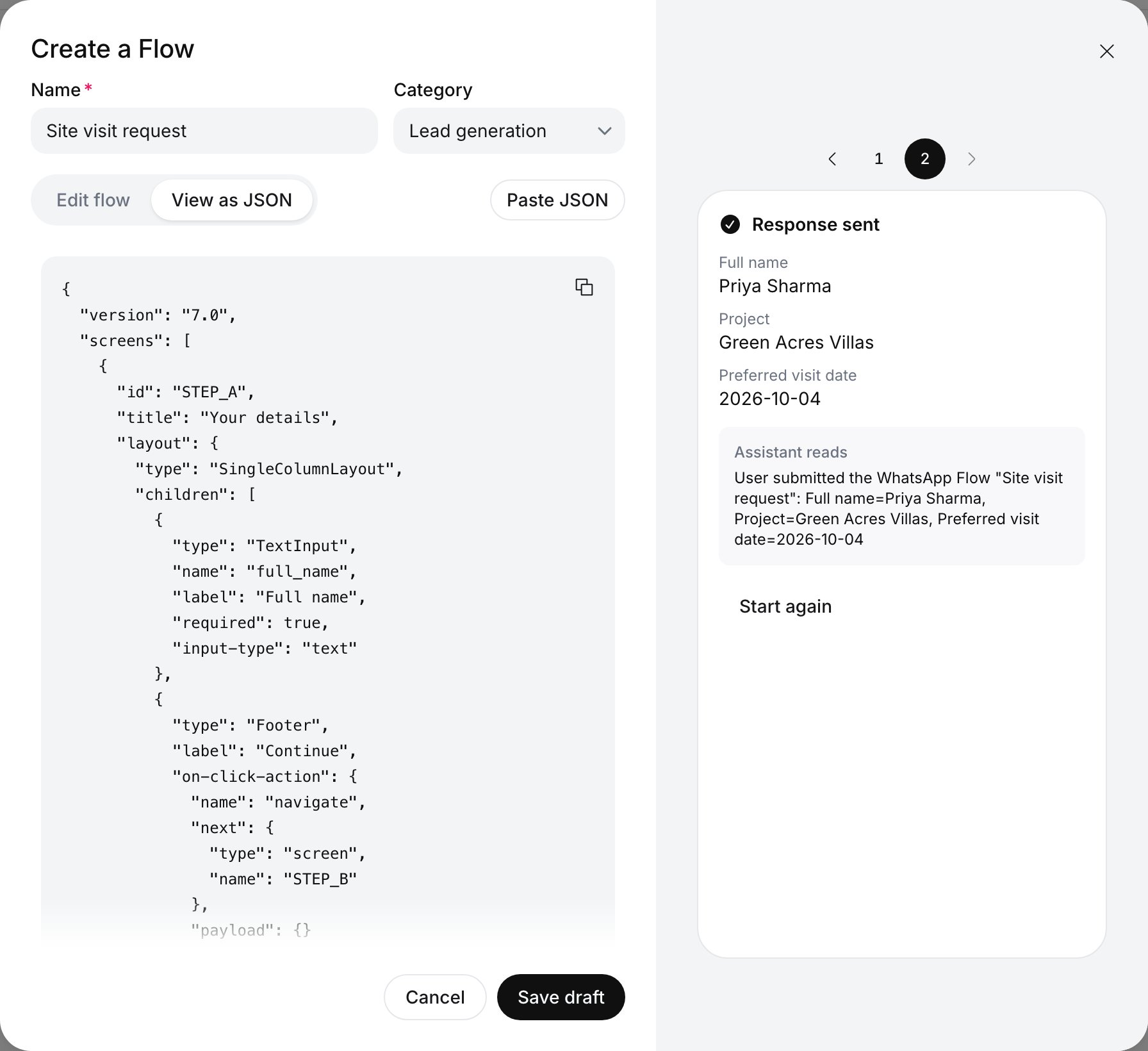
Every Flow is a Flow JSON document that WhatsApp reads. Select View as JSON in the builder to see the complete Flow JSON for what you’ve built. It is read-only: select the copy icon to copy it, for example for a developer or into WhatsApp Manager. Select Edit flow to go back.
View as JSON: the Flow JSON for the Flow being built
To build from a Flow JSON you already have, copy it, then select Paste JSON in the builder. Pasting replaces everything in the builder:
Text, text fields, choices, dropdowns, date pickers and opt-ins become rows you can edit, as if you had added them.
Anything else stays as a JSON row: images, components that read screen data such as ${data.min_date}, buttons that call the Flow’s endpoint, and other components from Meta’s Flow JSON reference. You can open a JSON row to read it, reorder it or remove it, but not edit it.
When a Flow has JSON rows, Ringg sends them to Meta exactly as pasted. To change one, edit the JSON and paste it again.
In a Flow with JSON rows, only the values in the last screen’s complete action come back into the chat. Add every answer you need to its payload, such as "full_name": "${form.full_name}". For a Flow built only from rows you can edit, the builder does this for you.
The preview draws text, text fields, choices, dropdowns, date pickers and opt-ins. A JSON row shows only its type, such as DatePicker. To see it, save the draft and select View on Meta below the preview, which opens the Flow in WhatsApp Manager.
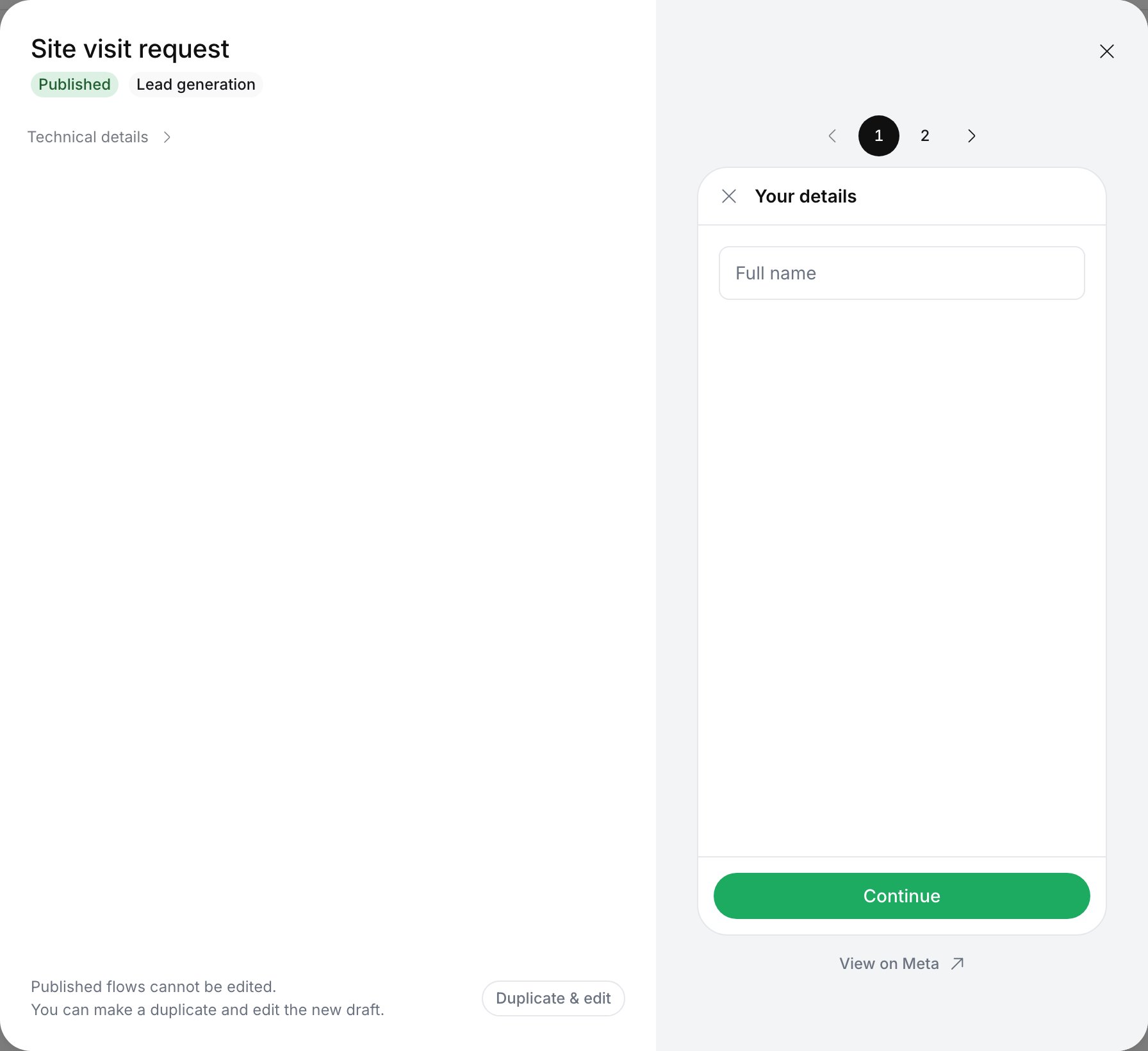
Meta locks a Flow once it’s published, so you change a copy instead:
1
Copy it
Open the Flow in the Flows tab and select Duplicate & edit. This works for Flows made in WhatsApp Manager too.The copy is a new draft named after the original, with (copy) at the end, and it opens in the builder. A copy of a WhatsApp Manager Flow keeps anything the builder can’t edit as JSON rows, as with Paste JSON. Rename the copy if you like.
A published Flow's details, with Duplicate & edit
2
Edit, save and publish the copy
Make your changes, select Save draft, then publish it from its details. If the original used live data, set up its data source again on the copy before publishing.
3
Switch to the copy
In each assistant that sent the original, remove the old Flow under WhatsApp Flows, add the copy, and update its @ tag in the prompt.
A template’s Flow button keeps opening the original. Edit the template to use the copy.
A Flow built in Ringg lives on your WhatsApp Business account, like one made in WhatsApp Manager, so you can see it there too. If you change a draft in WhatsApp Manager, saving it again in Ringg replaces those changes.
How answers are named
Each answer comes back under its question’s label, such as Full name=Priya Sharma. If you change a label in a copy, update any prompt or analysis that mentions the old one.
Flows belong to one WhatsApp Business account
A Flow is created on the account whose Flows tab you build it in. Only assistants with a number on that account can send it.