

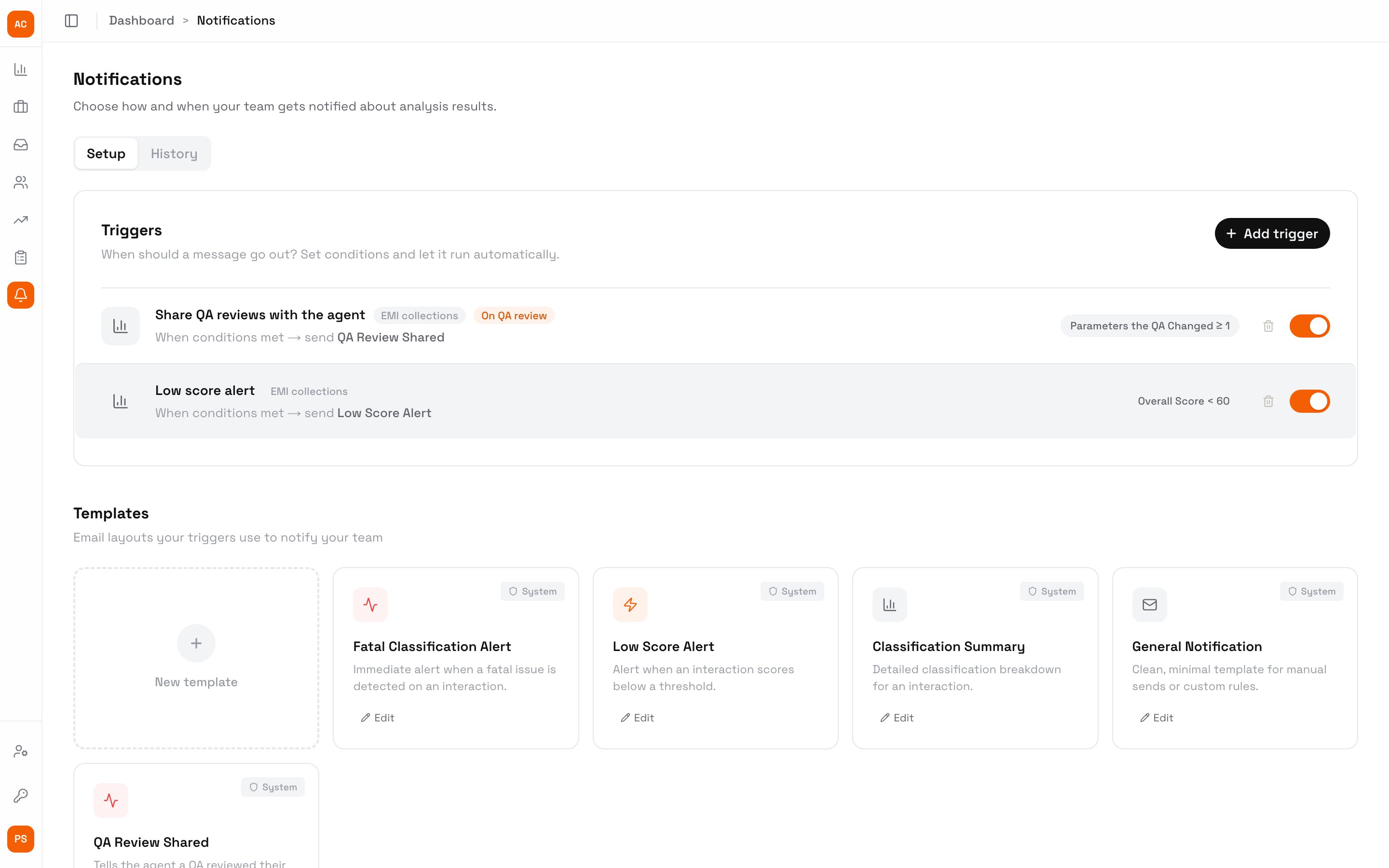
Triggers and templates on the Setup tab
Add a trigger
1
Start a trigger
On Setup, click Add trigger and give it a Trigger name. Pick the Use case: the trigger only fires for calls in it, and its parameters become available as conditions.
2
Choose what starts it
Under What starts it?:
- The AI scores a call: runs once the AI has scored and classified the call.
- A QA reviews a call: runs each time a QA saves a change to their review. Saving an unchanged review, or clearing it, sends nothing.
3
Set the conditions
Under When should this fire?, add conditions and groups. Within a group, pick whether all or any of them must match.
4
Pick the template and recipients
Choose a template under What message should we send?. Under Who should receive it?, pick Agent on the interaction or Specific email addresses, and tick CC the agent’s team lead to copy their current team lead.
The trigger appears on Setup, and every email it sends shows on the History tab.
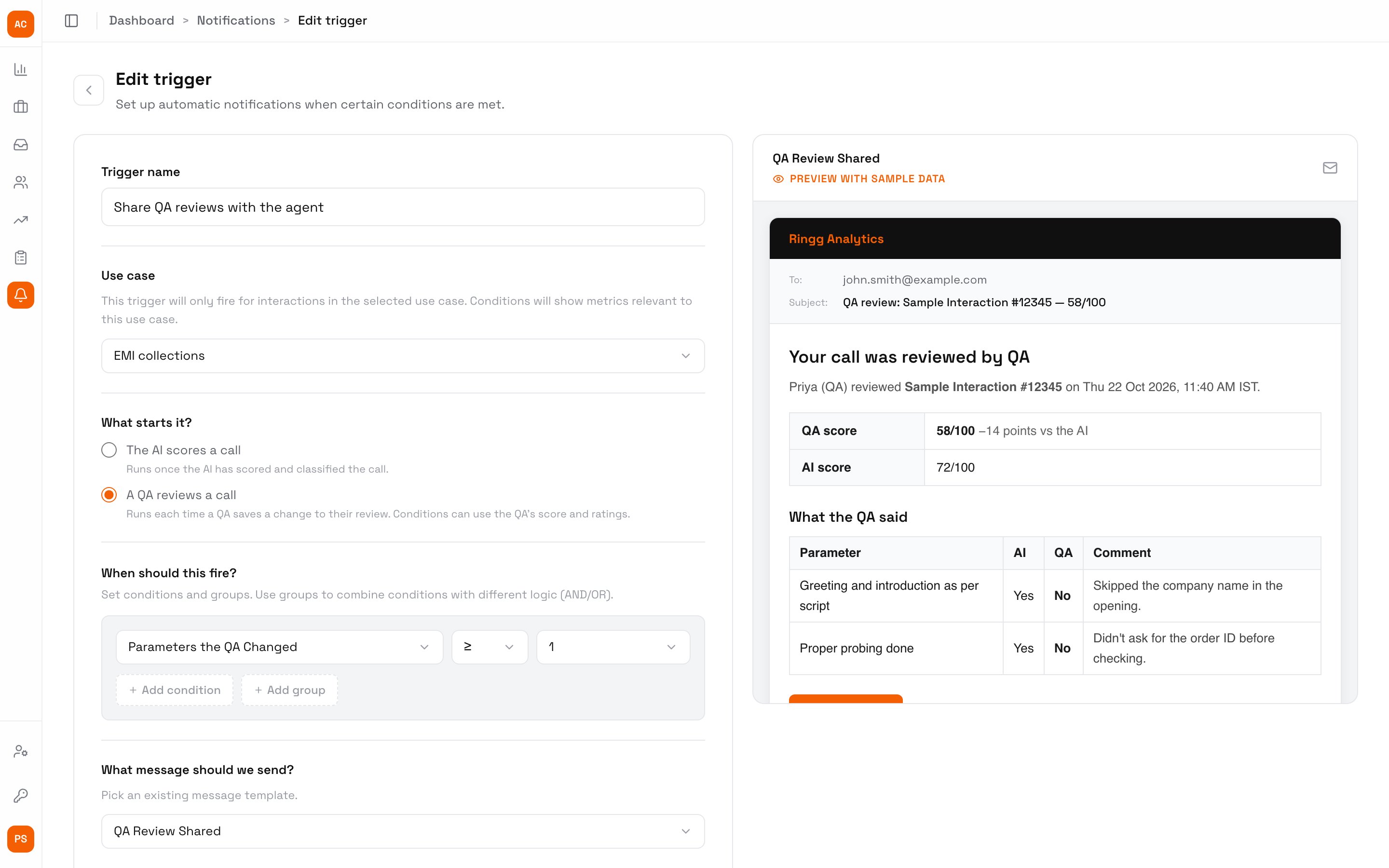
A trigger that shares QA reviews with the agent
Conditions
QA conditions can’t be used with The AI scores a call: there is no review yet at that point.
Templates
A template is the email a trigger sends: a subject and a body built from blocks, with a live preview using sample data. Five come with every workspace, marked System: Fatal Classification Alert, Low Score Alert, Classification Summary, General Notification and QA Review Shared. Click New template under Templates to add your own, or Edit on one to change it. Type@ in a block to insert a variable:
QA variables are empty in emails sent by The AI scores a call triggers.
Send one email by hand
Owners, admins and QAs can email an agent from their report card with Email, using any template.Next steps
QA reviews
What a QA review contains.
Disputes
Dispute emails go out on their own, with the team lead in CC.
Metrics
The parameters your conditions use.