

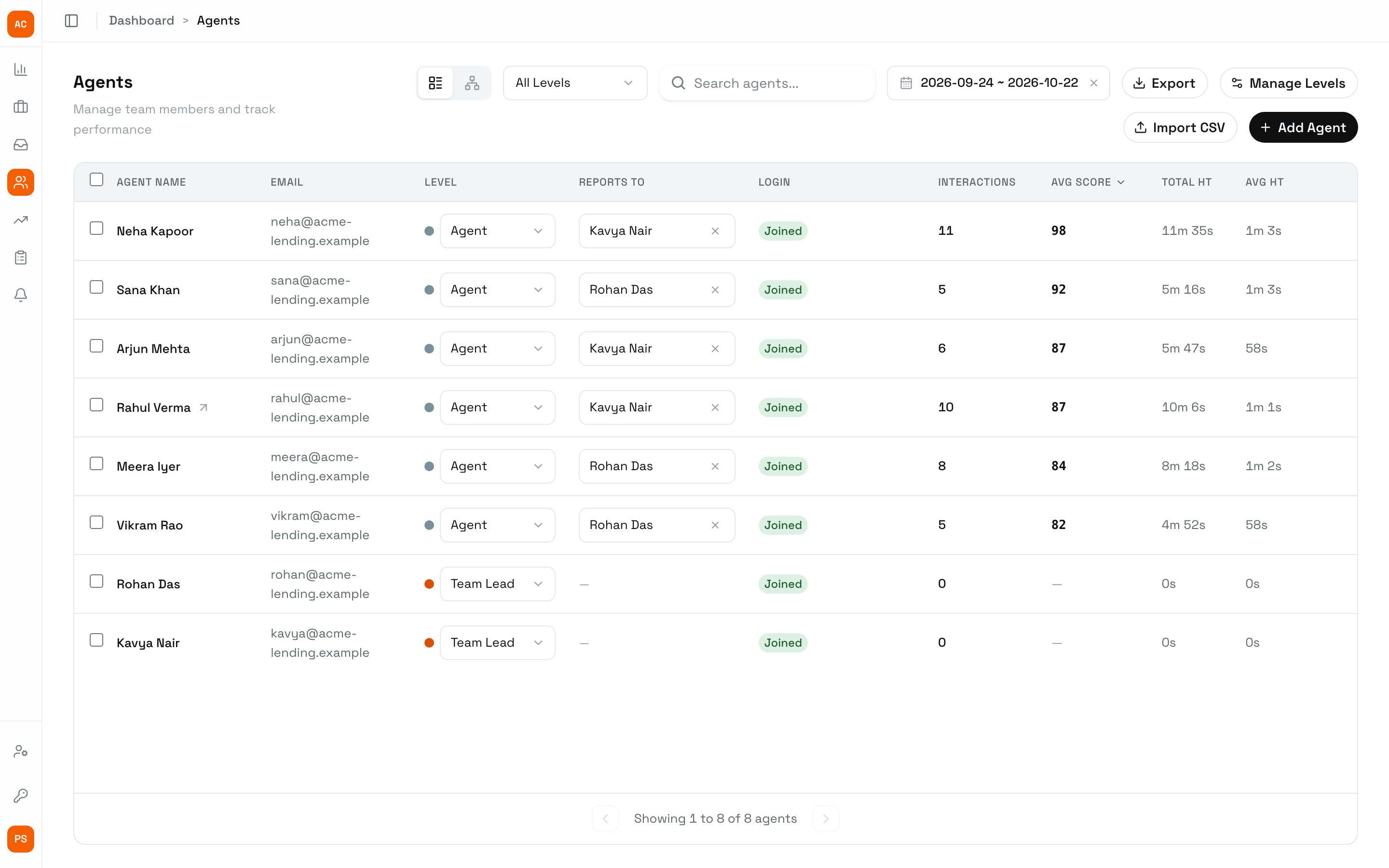
Agents with their level, team lead, login status and scores
Add agents
1
Set up levels
Click Manage Levels and add your levels, for example Agent and Team Lead. An agent at the team-lead level signs in as a team lead.
2
Add agents
Click Add Agent for one, or Import CSV for many. The CSV takes Name, Email, Level and Reports To; download the template from the import dialog. The whole file is checked first, and nothing is added if a row has an error.
3
Set who they report to
Pick each agent’s team lead under Reports to, or drag them onto their team lead in the org chart (the second view switch at the top).
An agent added with an email gets an invite and shows Invited, then Joined once they sign in.
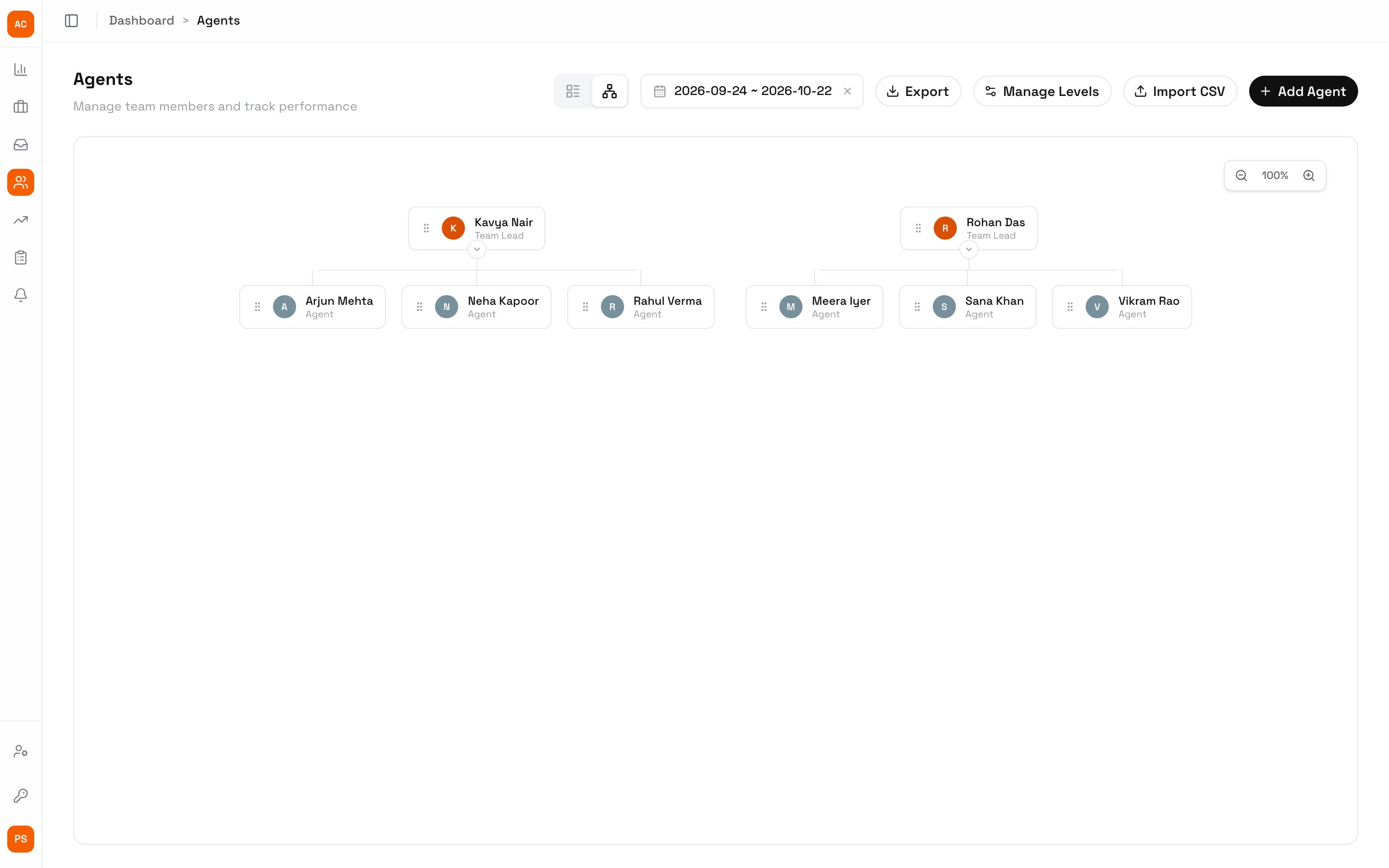
The org chart
Columns
Click an agent to open their report card. Export downloads the table.
What team leads see
A team lead’s Agents page is titled Your team. It lists only their team, read-only: no Add Agent, Import CSV, Manage Levels or Export, and reporting lines can’t be changed. Clicking a row opens that agent’s report card.Next steps
Report cards
Coach an agent from their report card.
Roles and access
What each role can see.
Interactions
Add calls for your agents.