

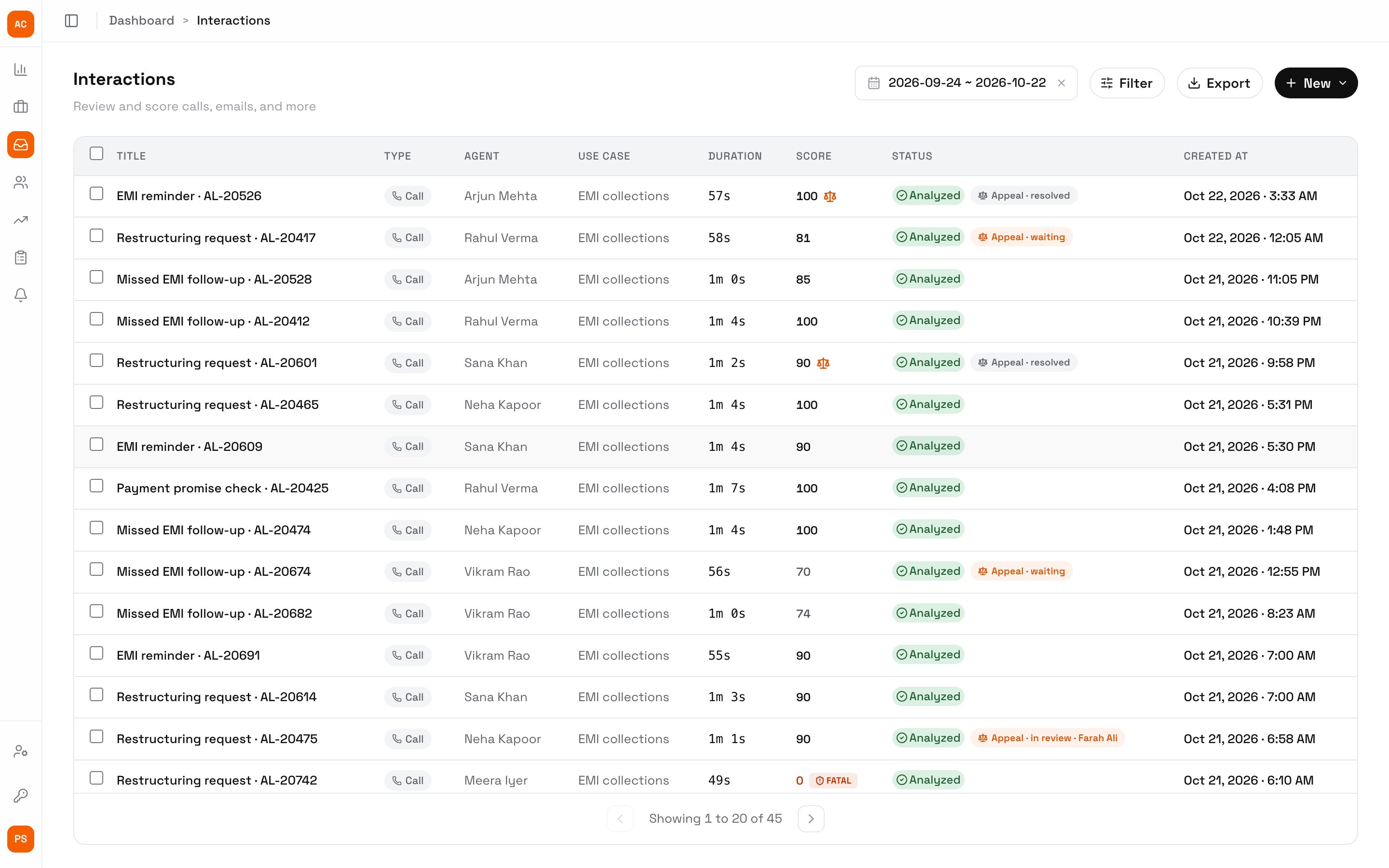
Interactions for the last 30 days
Filter and sort
Click Filter. Active filters show as chips above the list; click a chip’s × to clear it.
The Score column shows the official score: a scale icon marks one set by a QA on a resolved dispute, and FATAL marks a call whose score is 0 because a fatal parameter was missed.
Export downloads the filtered list as a spreadsheet. It’s available to owners, admins, QAs and members.
Open a call
Click a row to open the call in a side panel, or Open full page in that panel for the full-width view below.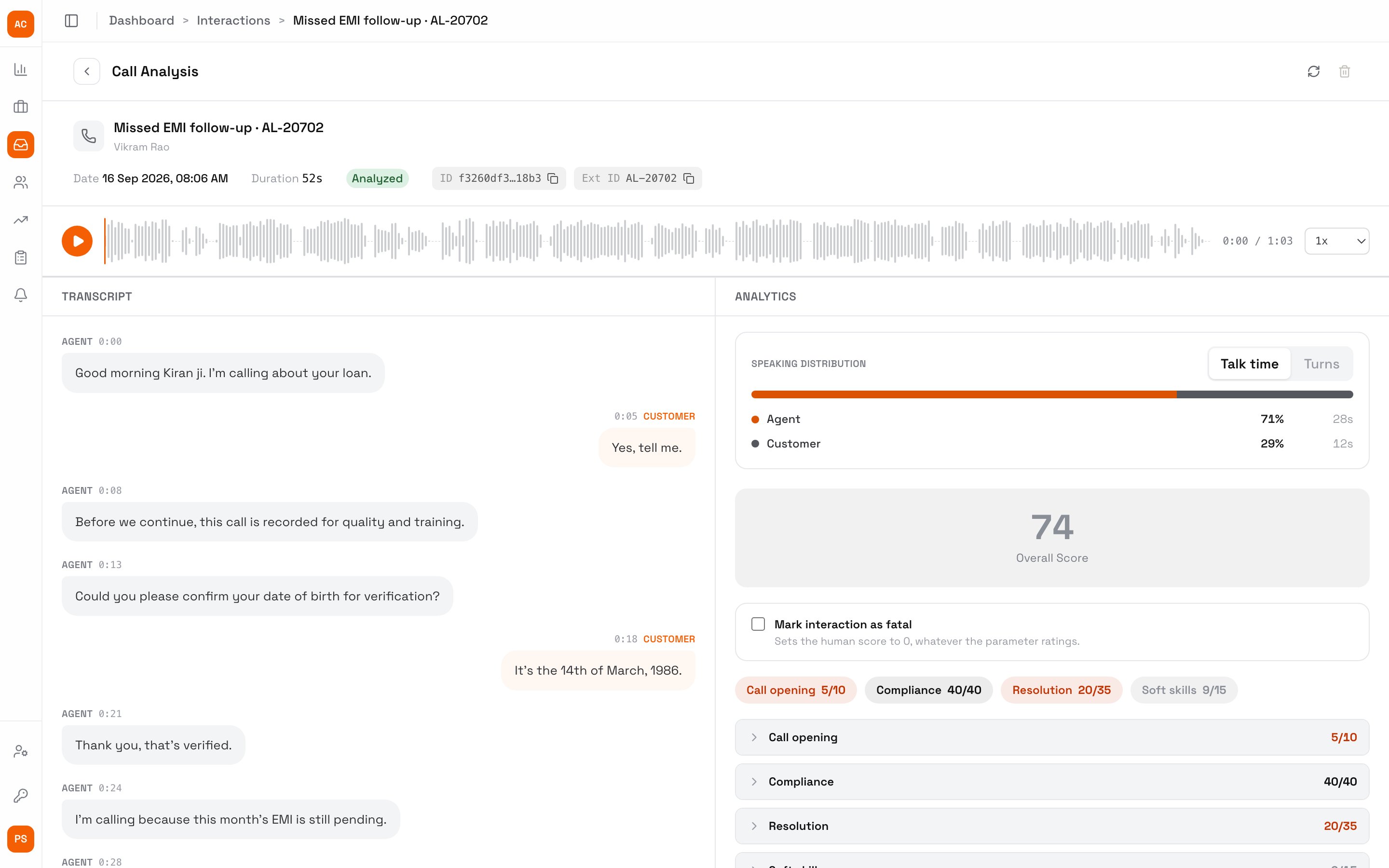
One call: the transcript on the left, the scorecard on the right
If the call has a dispute, its status and result sit at the top of the scorecard.
Next steps
QA reviews
Re-score a call by hand.
Raise a dispute
Agents: appeal a score you think is wrong.
Metrics
The rubric behind every score.