

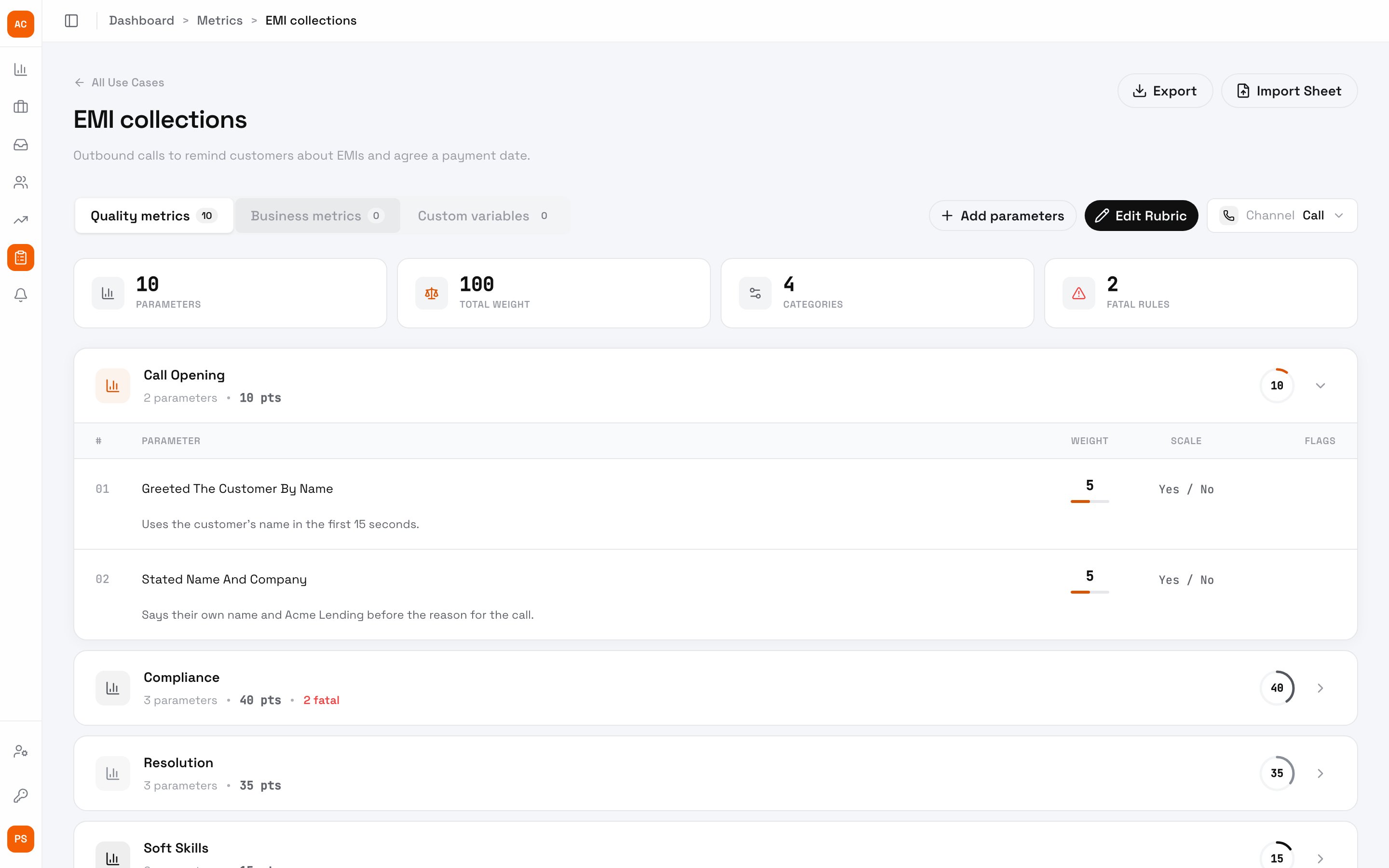
The EMI collections rubric
Set up a rubric
1
Create the use case
On Metrics, click New Use Case and name it for the kind of call, for example “EMI collections”.
2
Add the parameters
Open the use case. On Quality metrics, click Add parameters for one at a time, or Import Sheet to load a spreadsheet of them. Edit Rubric changes existing ones. Pick the channel the rubric applies to under Channel.
3
Check the totals
The cards at the top show the number of parameters, the Total weight, the categories and the Fatal rules.
New calls in the use case are scored against the rubric. Export downloads it as a spreadsheet.
Parameters
Each parameter has a category, a weight, a scale, and a description the AI follows when it rates a call. The call’s score is the share of the total weight it earned, out of 100.- Fatal parameters are the ones a call can’t miss, such as verifying the customer’s identity. Missing one sets the call’s score to 0 and flags it FATAL.
- Optional parameters don’t count toward the score.
Next steps
Interactions
See a call’s rating for each parameter.
Notifications
Alert agents on low scores or fatal misses.
Report cards
Each agent’s results per parameter.