

Overview
Use this guide to connect an Exotel account to Ringg for BYOT voice calling. Exotel requires separate applet setup for outbound and inbound calls:- Outbound calls use a Ringg Outbound Voicebot applet. This applet ID is added to the Ringg Exotel provider configuration.
- Inbound calls use a Ringg Inbound Voicebot applet. Each inbound number must be attached to this applet in Exotel before you import or assign the number in Ringg.
Prerequisites
Before you start, make sure you have:- An active Exotel account with API access
- Exotel account SID, API key, API token, and subdomain
- At least one Exotel phone number, also called an ExoPhone
- A Ringg workspace with admin access
- A Ringg assistant ready to receive calls
Step 1: Prepare Exotel
Create or verify your Exotel account
- Sign in to the Exotel Dashboard.
- Complete KYC verification if it is required for your account.
- Add enough credits for number rental and calling.
Get API credentials
In the Exotel dashboard, go to Settings → API Settings and copy these values:Outbound setup
Use this section when you want Ringg to place outbound calls or campaigns through Exotel.Step 2: Create the Ringg Outbound applet
Create a custom Exotel Voicebot applet for outbound calls.1
Open App Bazaar
In the Exotel console, open App Bazaar and create a custom app.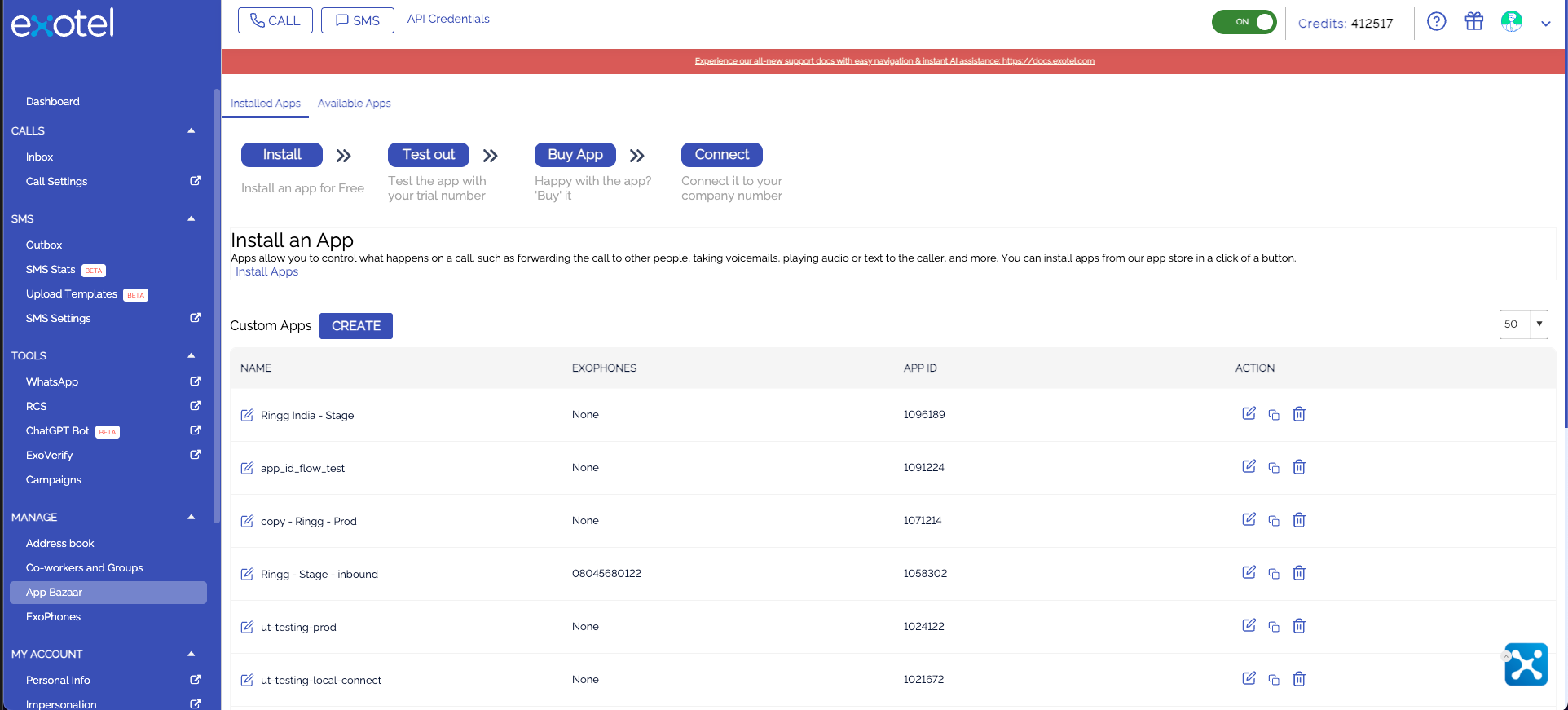
2
Name the app
Name the applet 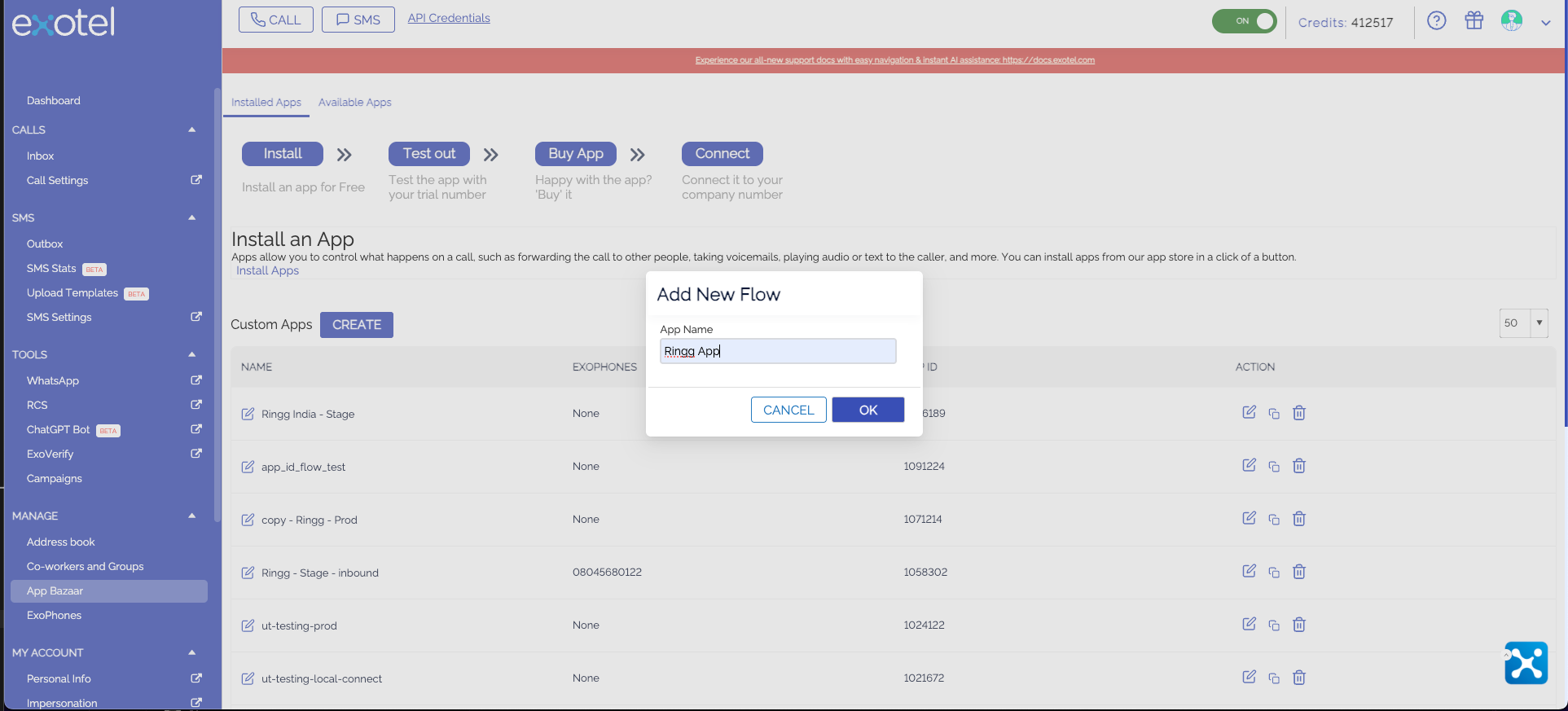
Ringg Outbound.3
Add Voicebot
Drag the Voicebot component into the applet flow.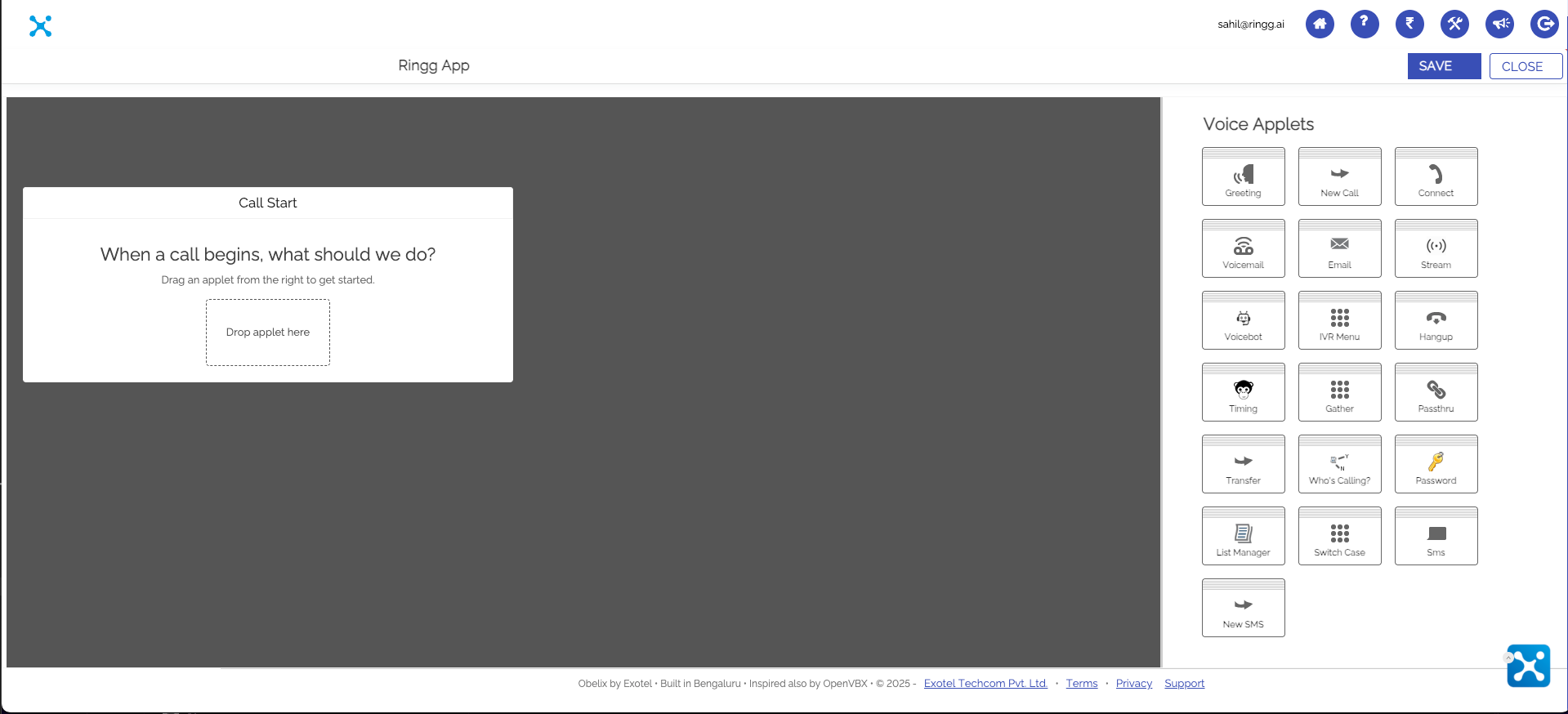
4
Set the outbound WebSocket URL
Configure the Voicebot component with the Ringg outbound WebSocket URL: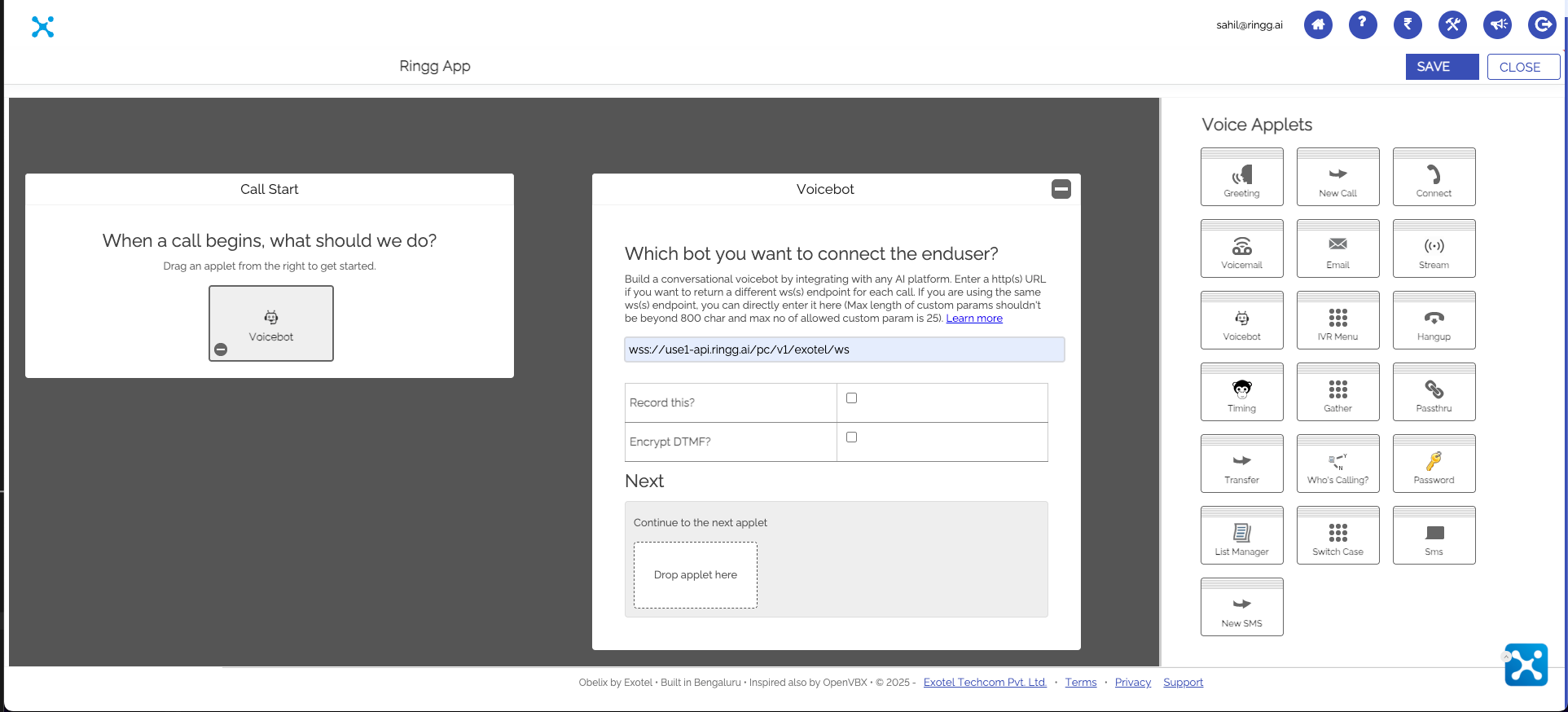
5
Save and copy the app ID
Save the applet and copy its app ID. You will enter this value as
APP_ID in Ringg.The outbound applet ID is different from the API key and API token. Keep it with the other Exotel credentials so you can complete the provider setup in Ringg.
Step 3: Connect Exotel to Ringg for outbound
1
Open Telephony Integration
In the Ringg dashboard, go to Integrations → Telephony Integration.
2
Select Exotel
Click Add Telephony Provider and select Exotel.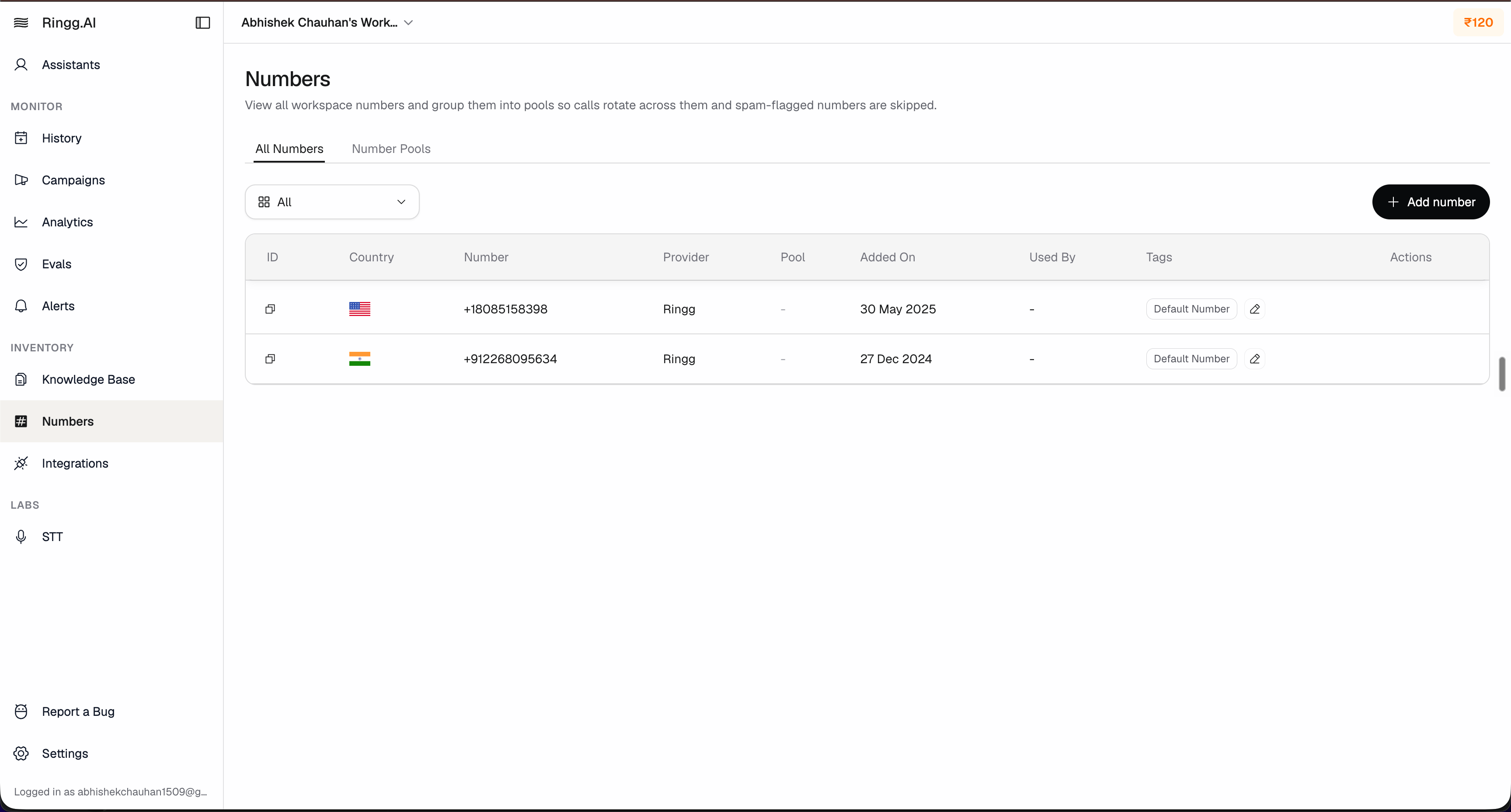
3
Enter Exotel credentials
Fill in the Exotel provider form.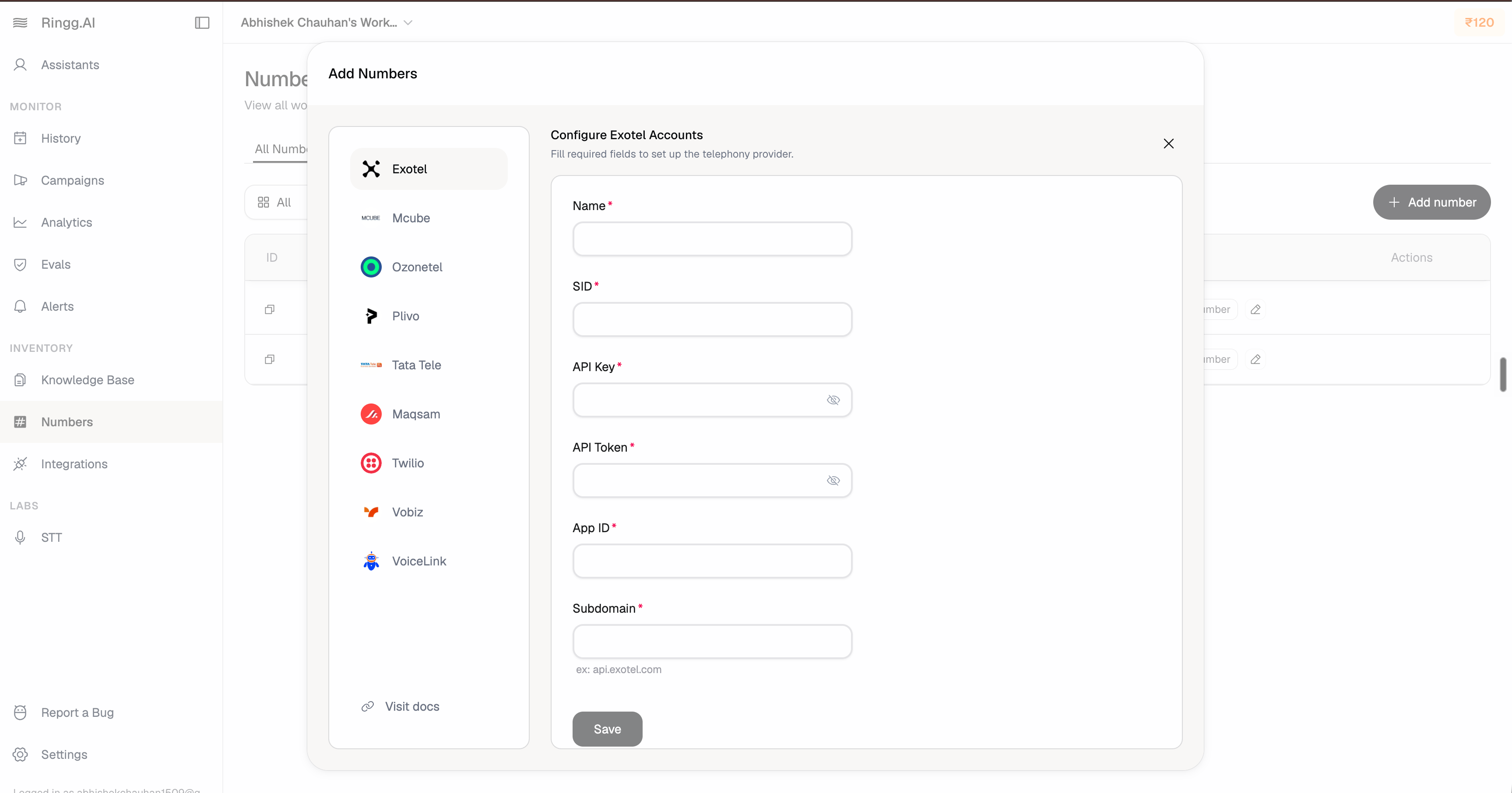
4
Test and save
Click Test Connection. After the connection succeeds, save the provider.
Step 4: Use Exotel numbers for outbound calls
After Exotel is connected, manage outbound caller numbers from the Ringg dashboard:- Buy numbers from the provider, if supported for your workspace
- Import existing Exotel numbers
- Use Exotel numbers as caller IDs for outbound calling
from_number_id or from_number.
Inbound setup
Use this section when you want inbound calls to an Exotel number to reach a Ringg assistant.Step 5: Prepare the number for inbound import
To import and use an inbound Exotel number in Ringg, complete these three steps in order:1
Create the Ringg Inbound applet
In the Exotel console, create a custom Voicebot applet and name it
Ringg Inbound.2
Attach the inbound HTTP URL
Add the Ringg inbound HTTP URL to the Voicebot component.
3
Attach the number and import it in Ringg
Attach the Exotel number to the
Ringg Inbound applet in Exotel. Then import that number in the Ringg dashboard.Step 6: Assign the imported number to an assistant
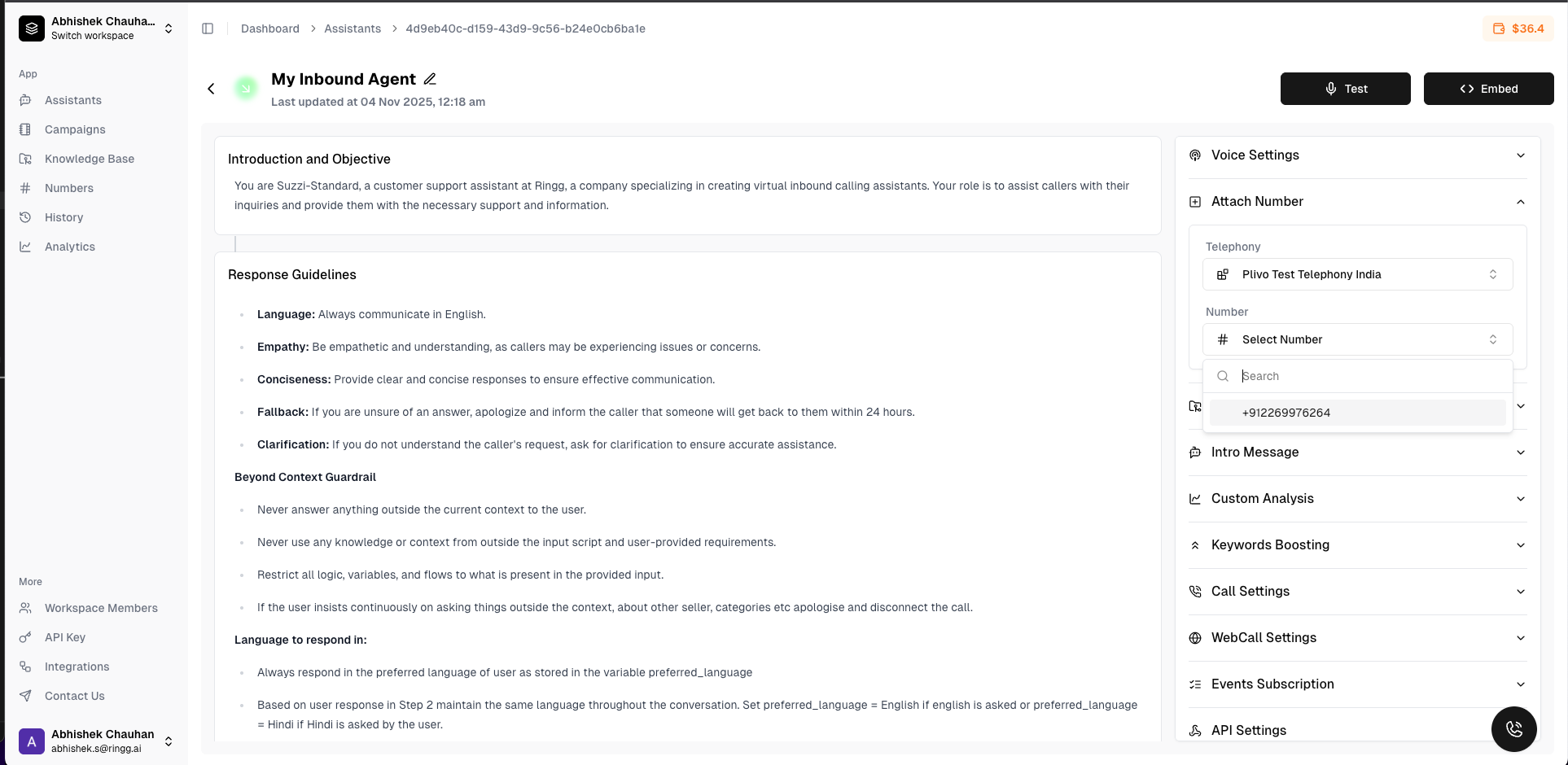
After the number is attached to the inbound applet and imported in Ringg, assign it to the assistant that should answer calls.1
Open Number Management
In the Ringg dashboard, go to Numbers → Manage Numbers.
2
Select the Exotel number
Choose the imported Exotel number you want to configure.
3
Assign an assistant
Select the Ringg assistant that should answer inbound calls to this number.
4
Review call settings
Confirm recording, transcription, and webhook settings for the assistant or workspace.
5
Save the assignment
Save the number configuration.
Test the integration
Test outbound calls
- Start a small test call or campaign from Ringg.
- Use an Exotel number that is imported and available in Ringg.
- Confirm the recipient receives the call.
- Verify call status and call logs in Ringg.
Test inbound calls
- Confirm the number is attached to the
Ringg Inboundapplet in Exotel. - Confirm the number is imported in Ringg and assigned to the correct assistant.
- Call the Exotel number from a real phone.
- Confirm the assigned Ringg assistant answers the call.
- Check Ringg call history for the call record, transcript, recording, and analysis.
- Check Exotel logs if the call does not reach Ringg.
Troubleshooting
Connection test fails
Connection test fails
- Confirm
ACCOUNT_SID,API_KEY,API_TOKEN, andSUB_DOMAINwere copied from Exotel without extra spaces. - Confirm the
APP_IDbelongs to theRingg Outboundapplet. - Confirm the Exotel account has API access and is not suspended.
- Confirm the account has enough credits for calling.
- Recreate the API token in Exotel if you suspect it was rotated or copied incorrectly.
Outbound calls fail
Outbound calls fail
- Confirm the
Ringg OutboundVoicebot applet is saved and useswss://use1-api.ringg.ai/pc/v1/exotel/ws. - Confirm the
APP_IDin Ringg matches theRingg Outboundapplet ID. - Confirm the caller number is active, voice-enabled, and available in Ringg.
- Check Ringg call history and Exotel logs for the failed call.
Inbound calls do not reach Ringg
Inbound calls do not reach Ringg
- Confirm the Exotel number is attached to the
Ringg Inboundapplet in Exotel. - Confirm the
Ringg Inboundapplet uses the inbound HTTP URL provided by Ringg. - Confirm the number is imported into Ringg and assigned to the correct assistant.
- Confirm the Exotel number is active and voice-enabled.
Assistant does not answer
Assistant does not answer
- Confirm the assistant is active and assigned to the Exotel number.
- Check Ringg call history for failed call records or error states.
- Review the assistant’s configuration, knowledge base status, and webhook settings.
- Test with another Exotel number if only one number is failing.
Poor audio quality or dropped calls
Poor audio quality or dropped calls
- Test from a stable phone network and retry with a second device.
- Check Exotel service status and call logs for regional issues.
- Confirm each Voicebot applet contains only the required call flow for Ringg.
- Contact Ringg support with the Ringg call ID and Exotel call SID.
Support
Exotel Documentation
Review Exotel API and Voicebot documentation
Exotel Support
Contact Exotel for account, number, and provider-side issues
Ringg Community
Join our Discord community for tips and support
Contact Support
Reach out to Ringg for integration assistance