> ## Documentation Index
> Fetch the complete documentation index at: https://docs.ringg.ai/llms.txt
> Use this file to discover all available pages before exploring further.
> ## Agent Instructions
> To search or read these docs, connect the Ringg docs MCP server at https://docs.ringg.ai/mcp (no key needed; tools search_ringg_ai and query_docs_filesystem_ringg_ai) instead of browsing pages one by one. Setup for each client: https://docs.ringg.ai/resources/mcp-server/docs-mcp-server/mcp-for-ai-assistants.md
> The dashboard labels agents "Assistants"; these docs say "agent". Both mean the same object, identified by agent_id.
> API base URL: https://prod-api.ringg.ai/ca/api/v0. Send the workspace API key in the X-API-KEY header, from server-side code only.
> Placing a call dials a real phone number and spends credits. Confirm the number with the user before calling.
> To act on a Ringg workspace (place calls, edit agents, read transcripts), use the separate Ringg workspace MCP server at https://mcp.ringg.ai/mcp: https://docs.ringg.ai/resources/mcp-server/workspace-mcp-server/overview.md
# Lesson: Tools
> Add a pre-call API tool that fetches the loan account from Acme's CRM by mobile number, keep the two fields the agent needs, and read them in the prompt.
export const Quiz = ({question, answers, correctFeedback, incorrectFeedback}) => {
const [selected, setSelected] = React.useState(null);
const [checked, setChecked] = React.useState(false);
const quizId = React.useId();
const isCorrect = checked && answers[selected]?.correct;
const reset = () => {
setSelected(null);
setChecked(false);
};
const optionStyle = (answer, i) => {
const base = {
display: "flex",
alignItems: "flex-start",
gap: "0.6rem",
padding: "0.6rem 0.8rem",
marginTop: "0.5rem",
borderRadius: "0.6rem",
border: "1px solid rgba(128, 128, 128, 0.35)",
cursor: checked ? "default" : "pointer",
lineHeight: 1.45
};
if (checked && answer.correct) {
return {
...base,
borderColor: "rgba(22, 163, 74, 0.8)",
background: "rgba(22, 163, 74, 0.12)"
};
}
if (checked && selected === i && !answer.correct) {
return {
...base,
borderColor: "rgba(220, 38, 38, 0.8)",
background: "rgba(220, 38, 38, 0.1)"
};
}
if (!checked && selected === i) {
return {
...base,
borderColor: "currentColor",
background: "rgba(128, 128, 128, 0.12)"
};
}
return base;
};
const buttonStyle = disabled => ({
marginTop: "0.9rem",
padding: "0.45rem 0.9rem",
borderRadius: "0.5rem",
border: "1px solid rgba(128, 128, 128, 0.5)",
background: "rgba(128, 128, 128, 0.1)",
color: "inherit",
font: "inherit",
fontSize: "0.9em",
cursor: disabled ? "not-allowed" : "pointer",
opacity: disabled ? 0.5 : 1
});
return
;
**Part 3: Making your agent smarter · Lesson 3 of 4 · 15 minutes**
## Objective
Add a pre-call API tool that fetches the loan account from the CRM before Ananya says hello, and read its fields in the prompt.
## The scenario
The calling list is exported the night before. By the time Ananya calls, Rahul may already have paid. Acme's CRM at `crm.acme-lending.example` answers a `GET` on `/api/accounts` with the loan account for a phone number: `account_status` (`due`, `paid` or `overdue`) and `rm_phone`, the relationship manager's number. A pre-call tool fetches it on every call, and the prompt reads the result.
You need an endpoint of your own that returns JSON for this. If you have none yet, add the tool with Acme's address anyway: the wiring is the same, and you skip the step that needs a response.
## Hands-on
In Ananya's editor, open **Advanced Settings → Tools**, pick **Pre-call** and click **API** in the side panel.
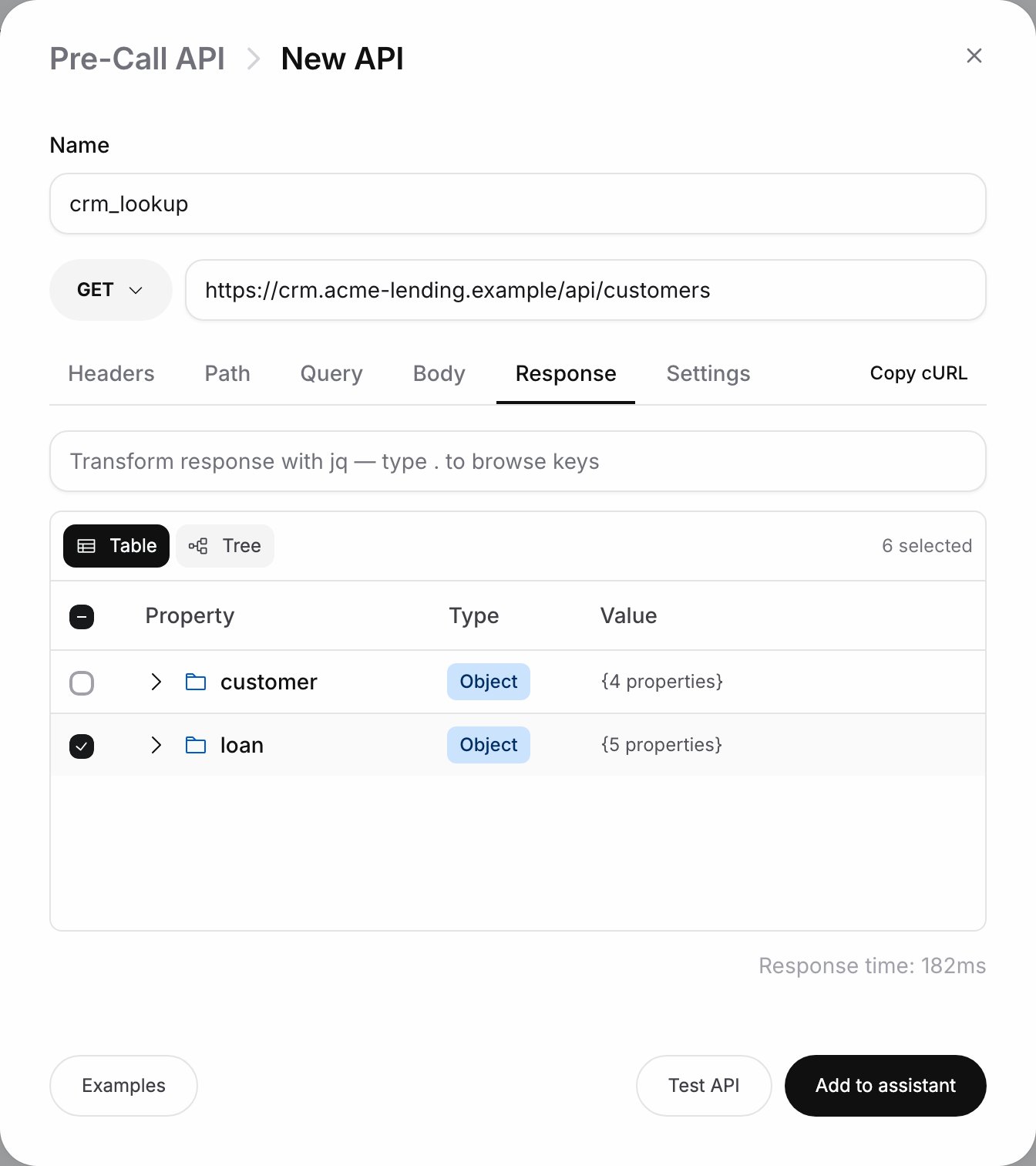
Enter the tool name `crm_lookup`, method **GET** and the URL `https://crm.acme-lending.example/api/accounts`.
On **Query**, add a row with key `phone`, source **Variable** and value `custom_args.mobile_number`, so each call looks up its own customer. On **Headers**, add a **Static** row `Authorization` with your CRM token.
Click **Test API**. On **Response**, tick `account_status` and `rm_phone` and nothing else: pre-call output goes into the prompt, and the rest is noise.
On **Settings**, add `404` under **Block call on status codes**, so no call goes out to a number the CRM does not know. Other 4xx and 5xx only skip this tool's data. Click **Add to assistant**.
In **Prompt**, type `@`, open **crm\_lookup** under **Pre-Call API Settings** and pick a key from **Response Keys**. Add to the script: "The CRM shows this account as `@((crm_lookup.account_status))`. If it is paid, thank the customer and end the call. If they ask for a person, give them their relationship manager's number, `@((crm_lookup.rm_phone))`." Click **Save**.
## Checkpoint
`crm_lookup` is listed on the **Pre-call** tab, and the prompt shows both keys as chips. Place a test call, then open it in **Logs**: the **Transcript** tab lists `crm_lookup` under **Pre-Call**, and clicking it shows the HTTP status, the latency and the **Request** and **Response** (or **Error**) tabs.
## Exercise
Open `crm_lookup`, go to **Settings** and set **Retry count** to `2`. Expected result: a **Backoff** section appears with **Exponential**, **Linear** or **Constant** and the initial and max delay fields. Retries cover timeouts, connection errors, 429 and 500, 502, 503 and 504; any other status, 404 included, is not retried. Click **Save tool**.
## What you learned
* Pre-call tools run before the call connects and their output reaches the prompt as `@((tool.key))`; on-call tools run when the agent decides and must be mentioned as `@||tool||`; post-call tools send results out once the call ends.
* A parameter's source decides its value: **Static** for a fixed header, **Variable** for the call context such as `custom_args.mobile_number`.
* **Block call on status codes** aborts the call; other 4xx and 5xx codes only drop the tool's data, so the prompt must still make sense without it.
This documentation is built and hosted on [Mintlify](https://mintlify.com), a developer documentation platform.
 ## Checkpoint