> ## Documentation Index
> Fetch the complete documentation index at: https://docs.ringg.ai/llms.txt
> Use this file to discover all available pages before exploring further.
> ## Agent Instructions
> To search or read these docs, connect the Ringg docs MCP server at https://docs.ringg.ai/mcp (no key needed; tools search_ringg_ai and query_docs_filesystem_ringg_ai) instead of browsing pages one by one. Setup for each client: https://docs.ringg.ai/resources/mcp-server/docs-mcp-server/mcp-for-ai-assistants.md
> The dashboard labels agents "Assistants"; these docs say "agent". Both mean the same object, identified by agent_id.
> API base URL: https://prod-api.ringg.ai/ca/api/v0. Send the workspace API key in the X-API-KEY header, from server-side code only.
> Placing a call dials a real phone number and spends credits. Confirm the number with the user before calling.
> To act on a Ringg workspace (place calls, edit agents, read transcripts), use the separate Ringg workspace MCP server at https://mcp.ringg.ai/mcp: https://docs.ringg.ai/resources/mcp-server/workspace-mcp-server/overview.md
# Lesson: Advanced Analysis
> Define payment_promised, promised_date and objection as Advanced Analysis variables on the EMI reminder agent, mark the goal, and test them on a past call.
export const Quiz = ({question, answers, correctFeedback, incorrectFeedback}) => {
const [selected, setSelected] = React.useState(null);
const [checked, setChecked] = React.useState(false);
const quizId = React.useId();
const isCorrect = checked && answers[selected]?.correct;
const reset = () => {
setSelected(null);
setChecked(false);
};
const optionStyle = (answer, i) => {
const base = {
display: "flex",
alignItems: "flex-start",
gap: "0.6rem",
padding: "0.6rem 0.8rem",
marginTop: "0.5rem",
borderRadius: "0.6rem",
border: "1px solid rgba(128, 128, 128, 0.35)",
cursor: checked ? "default" : "pointer",
lineHeight: 1.45
};
if (checked && answer.correct) {
return {
...base,
borderColor: "rgba(22, 163, 74, 0.8)",
background: "rgba(22, 163, 74, 0.12)"
};
}
if (checked && selected === i && !answer.correct) {
return {
...base,
borderColor: "rgba(220, 38, 38, 0.8)",
background: "rgba(220, 38, 38, 0.1)"
};
}
if (!checked && selected === i) {
return {
...base,
borderColor: "currentColor",
background: "rgba(128, 128, 128, 0.12)"
};
}
return base;
};
const buttonStyle = disabled => ({
marginTop: "0.9rem",
padding: "0.45rem 0.9rem",
borderRadius: "0.5rem",
border: "1px solid rgba(128, 128, 128, 0.5)",
background: "rgba(128, 128, 128, 0.1)",
color: "inherit",
font: "inherit",
fontSize: "0.9em",
cursor: disabled ? "not-allowed" : "pointer",
opacity: disabled ? 0.5 : 1
});
return
;
**Part 3: Making your agent smarter · Lesson 4 of 4 · 15 minutes**
## Objective
Define the three facts Acme wants from every reminder call as typed Advanced Analysis variables, mark the goal, and test them on a call you already made.
## The scenario
After the call, Acme's collections team needs three things: did the customer promise to pay, by which date, and if not, why. Status, duration and transcript are already in Logs; these three are extracted from the transcript by Advanced Analysis after every conversation. `payment_promised` is the goal, so Analytics can report a success rate in part 6.
## Hands-on
In Ananya's editor, open **Advanced Settings → Advanced Analysis** and click **Add a new variable**. The **Add variables** dialog opens.
Set **Variable name** to `payment_promised` and keep **Type** on **Boolean**. For **Description**, write the instruction "True if the customer agreed to pay by a specific date." Set **Default value** to `false` and switch on **Use as goal**.
Click **Add new variable** inside the dialog for each:
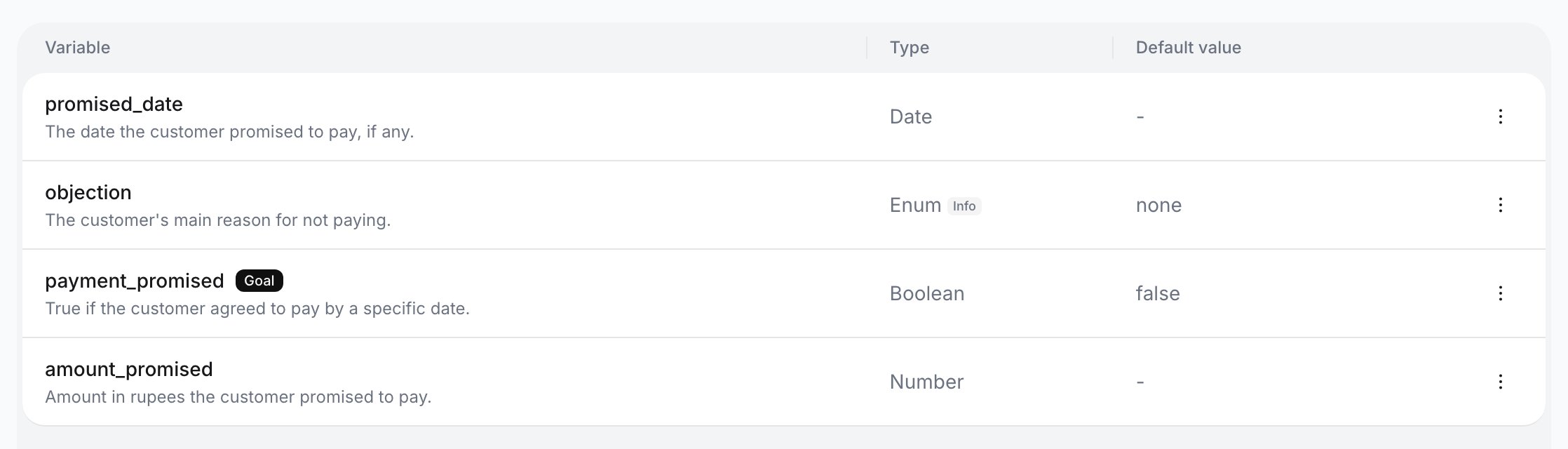
* `promised_date`, type **Date**, description "The date the customer promised to pay, if any."
* `objection`, type **Enum**, with the options `already_paid`, `no_money`, `dispute` and `none` (type each and press Enter), description "The customer's main reason for not paying.", default value `none`.
The button at the bottom now reads **Add 3**. Click it.
Below the table, write in **Context** what counts as a promise: "A promise means the customer named a date, or said they would pay today." Click **Save**: "Context saved". Switch on **Log tool calls** so the analysis also sees what `crm_lookup` returned.
Click **Test**. In **Test advanced analysis**, pick the test call from part 2 under **Or select from recent call log**; picking it runs the test straight away. **Analysis result** appears next to **Call transcript**.
## Checkpoint
The table lists the three variables with their **Type** and **Default value**, and `payment_promised` carries a **Goal** chip. In the test, **Analysis result** shows a value for each that matches what you said on the call: if you named a date, `payment_promised` is true and `promised_date` holds it.
## Exercise
Add `amount_promised` as a **Number** with the description "The amount in rupees the customer said they would pay." and the default value `0`, then click **Test** on the same call. Expected result: a fourth row in the table and a fourth line in **Analysis result**, reading `0` if you named no amount on the call.
## What you learned
* Advanced Analysis variables are filled from the transcript after the call; custom variables are filled before it. They are separate lists.
* Only a Boolean can be the goal, and an agent has one at a time. Analytics' **Goal achieved** comes from it.
* Results appear in the call's **Advanced analysis** tab in Logs, in Logs filters, Analytics cohorts, post-call tools, alerts and the `client_analysis_completed` webhook, which the capstone uses to hand them to the CRM.
This documentation is built and hosted on [Mintlify](https://mintlify.com), a developer documentation platform.
 ## Checkpoint