> ## Documentation Index
> Fetch the complete documentation index at: https://docs.ringg.ai/llms.txt
> Use this file to discover all available pages before exploring further.

> ## Agent Instructions
> To search or read these docs, connect the Ringg docs MCP server at https://docs.ringg.ai/mcp (no key needed; tools search_ringg_ai and query_docs_filesystem_ringg_ai) instead of browsing pages one by one. Setup for each client: https://docs.ringg.ai/resources/mcp-server/docs-mcp-server/mcp-for-ai-assistants.md
> The dashboard labels agents "Assistants"; these docs say "agent". Both mean the same object, identified by agent_id.
> API base URL: https://prod-api.ringg.ai/ca/api/v0. Send the workspace API key in the X-API-KEY header, from server-side code only.
> Placing a call dials a real phone number and spends credits. Confirm the number with the user before calling.
> To act on a Ringg workspace (place calls, edit agents, read transcripts), use the separate Ringg workspace MCP server at https://mcp.ringg.ai/mcp: https://docs.ringg.ai/resources/mcp-server/workspace-mcp-server/overview.md

# Lesson: Workflows

> Build the Payment reminder follow-up workflow: call with the EMI reminder agent, branch on payment_promised, update the CRM or wait a day and nudge on WhatsApp.

export const Quiz = ({question, answers, correctFeedback, incorrectFeedback}) => {
  const [selected, setSelected] = React.useState(null);
  const [checked, setChecked] = React.useState(false);
  const quizId = React.useId();
  const isCorrect = checked && answers[selected]?.correct;
  const reset = () => {
    setSelected(null);
    setChecked(false);
  };
  const optionStyle = (answer, i) => {
    const base = {
      display: "flex",
      alignItems: "flex-start",
      gap: "0.6rem",
      padding: "0.6rem 0.8rem",
      marginTop: "0.5rem",
      borderRadius: "0.6rem",
      border: "1px solid rgba(128, 128, 128, 0.35)",
      cursor: checked ? "default" : "pointer",
      lineHeight: 1.45
    };
    if (checked && answer.correct) {
      return {
        ...base,
        borderColor: "rgba(22, 163, 74, 0.8)",
        background: "rgba(22, 163, 74, 0.12)"
      };
    }
    if (checked && selected === i && !answer.correct) {
      return {
        ...base,
        borderColor: "rgba(220, 38, 38, 0.8)",
        background: "rgba(220, 38, 38, 0.1)"
      };
    }
    if (!checked && selected === i) {
      return {
        ...base,
        borderColor: "currentColor",
        background: "rgba(128, 128, 128, 0.12)"
      };
    }
    return base;
  };
  const buttonStyle = disabled => ({
    marginTop: "0.9rem",
    padding: "0.45rem 0.9rem",
    borderRadius: "0.5rem",
    border: "1px solid rgba(128, 128, 128, 0.5)",
    background: "rgba(128, 128, 128, 0.1)",
    color: "inherit",
    font: "inherit",
    fontSize: "0.9em",
    cursor: disabled ? "not-allowed" : "pointer",
    opacity: disabled ? 0.5 : 1
  });
  return <div style={{
    marginTop: "1.5rem",
    padding: "1rem 1.1rem",
    borderRadius: "0.8rem",
    border: "1px solid rgba(128, 128, 128, 0.35)"
  }}>
      <Badge color="green">Quiz</Badge>
      <p id={quizId + "-question"} style={{
    fontWeight: 600,
    margin: "0.6rem 0 0.2rem"
  }}>
        {question}
      </p>
      <div role="radiogroup" aria-labelledby={quizId + "-question"} aria-disabled={checked}>
        {answers.map((answer, i) => <label key={i} style={optionStyle(answer, i)}>
            <input type="radio" name={"quiz-" + quizId} checked={selected === i} onChange={() => !checked && setSelected(i)} disabled={checked} style={{
    marginTop: "0.3rem",
    flexShrink: 0
  }} />
            <span>{answer.text}</span>
          </label>)}
      </div>
      {checked && <div role="status" aria-live="polite" aria-atomic="true" style={{
    marginTop: "0.9rem",
    padding: "0.7rem 0.9rem",
    borderRadius: "0.6rem",
    lineHeight: 1.5,
    background: isCorrect ? "rgba(22, 163, 74, 0.12)" : "rgba(220, 38, 38, 0.1)"
  }}>
          <strong style={{
    marginRight: "0.4rem"
  }}>{isCorrect ? "✓" : "✗"}</strong>
          {isCorrect ? correctFeedback : incorrectFeedback}
        </div>}
      {!checked ? <button type="button" onClick={() => selected !== null && setChecked(true)} disabled={selected === null} style={buttonStyle(selected === null)}>
          Check answer
        </button> : <button type="button" onClick={reset} style={buttonStyle(false)}>
          Try again
        </button>}
    </div>;
};

export const RelatedTopics = ({items}) => <div className="not-prose mt-12">
    <div className="text-sm font-medium text-gray-500 dark:text-zinc-400 mb-3">Related topics</div>
    <div className="flex flex-col gap-2.5">
      {items.map(([title, href]) => <a key={href} href={href} className="flex items-center gap-2.5 text-sm text-gray-700 hover:text-gray-950 dark:text-zinc-300 dark:hover:text-white">
          <Icon icon="file-text" size={16} color="currentColor" />
          {title}
        </a>)}
    </div>
  </div>;

**Part 5: Designing multi-step conversations · Lesson 2 of 3 · 20 minutes**

## Objective

Build and publish a workflow that branches on what Ananya's call found out, so one contact gets a journey instead of a single call.

## The scenario

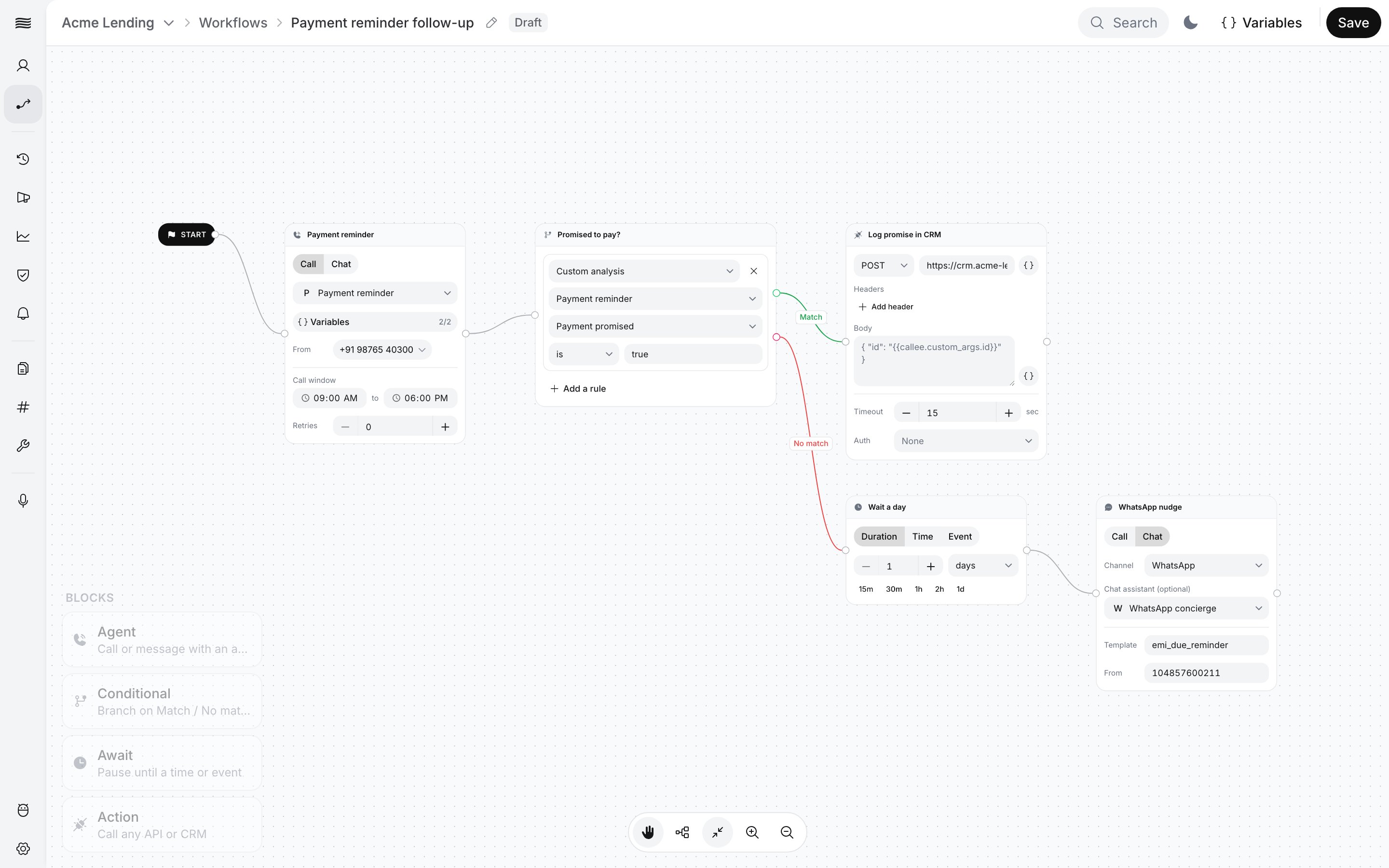
One call is not the whole journey. If Rahul promised to pay, the CRM should know; if not, Acme waits a day and nudges him on WhatsApp. A workflow runs that sequence once per contact, with logic between conversations.

The call block dials from the number you bought in part 4. The chat step needs [WhatsApp Business connected](/documentation/inventory/tools-integrations/connect-whatsapp), a message template and a [WhatsApp agent](/documentation/build-agents/agents/whatsapp-agents/create-an-agent) on that number.

## Hands-on

<Frame caption="Building, publishing and testing a workflow">
  <video alt="Building, publishing and testing a workflow" aria-label="Building, publishing and testing a workflow" controls muted playsInline className="w-full rounded-xl" style={{ aspectRatio: "16 / 10" }} preload="metadata" controlsList="nodownload noremoteplayback" poster="/media/workflows-build/poster.webp">
    <source src="https://mintcdn.com/ringgai-0da73d20/XUOcNie5hfK3q--Y/media/workflows-build/video.webm?fit=max&auto=format&n=XUOcNie5hfK3q--Y&q=85&s=da72a37d890e12e4f5a6afdf30bcce12" type="video/webm; codecs=&#x22;av01.0.09M.08&#x22;" data-path="media/workflows-build/video.webm" />
  </video>
</Frame>

<Steps>
  <Step title="Open a blank canvas">
    Click **Workflows**, then **Create workflow**. Click the name in the breadcrumb, type `Payment reminder follow-up` and press Enter.
  </Step>

  <Step title="The call">
    Click the **+** connector on **Start** and pick **Agent** in **Call** mode. Choose `EMI reminder - Hindi`, then click **Variables** to open **Map variables**, one row per variable Ananya uses: `callee_name` from the menu, the rest as literals such as `₹12,450`. Under **From**, pick your workspace number. Keep the default **Call window** and **Retries**.
  </Step>

  <Step title="The branch">
    Add a **Conditional** after the call with one rule: source **Custom analysis**, the call block, field `payment_promised`, comparison **is**, value `true`.
  </Step>

  <Step title="Match: log it in the CRM">
    From **Match**, add an **Action**: method **POST**, URL `https://crm.acme-lending.example/api/promises`, and a JSON body with the callee's number and the promised date from the `{}` menu.
  </Step>

  <Step title="No match: wait, then nudge">
    From **No match**, add an **Await** in **Duration** mode and pick the **1d** preset. After it, add an **Agent** block switched to **Chat**: **Channel** **WhatsApp**, **Template** `emi_due_reminder` (or one of yours), **Chat assistant** your WhatsApp agent, **From** your WhatsApp phone number ID. A WhatsApp message needs both the template and the chat agent.
  </Step>

  <Step title="Save and publish">
    Click **Save** ("Workflow saved"); there is no autosave, and the first save creates a **Draft**. Click **Publish** and confirm: "Workflow published". If the editor reports issues instead, the **Issues** panel names the missing setting, such as "select at least one caller number"; fix it and publish again.

    Leave **Test** alone: a test run is real, calls the number you type, spends credits and holds the **No match** branch for a full day.
  </Step>
</Steps>

<Frame caption="A call, a branch, then a CRM update or a wait and a WhatsApp nudge">
  <img src="https://mintcdn.com/ringgai-0da73d20/XUOcNie5hfK3q--Y/media/workflows-build/workflow-canvas.webp?fit=max&auto=format&n=XUOcNie5hfK3q--Y&q=85&s=eb990e7432e368cae7b7a2f019c0d7ae" alt="Workflow editor canvas: Start leads to an Agent block (Payment reminder agent, calling from +91 98765 40300, Variables 2/2), then a Condition “Promised to pay?” with the rule Custom analysis · Payment reminder · Payment promised is true. Match leads to the Action “Log promise in CRM” (POST to a CRM URL); No match leads to the Await “Wait a day” (1 day), then an Agent block in Chat mode, “WhatsApp nudge” (WhatsApp, WhatsApp concierge, template emi_due_reminder)" width="2880" height="1800" data-path="media/workflows-build/workflow-canvas.webp" />
</Frame>

## Checkpoint

<Check>
  The canvas matches the screenshot: the call, then the **Condition** with **Match** into the Action and **No match** into the Await and the chat. The **Workflows** list shows **Payment reminder follow-up** under **Active**.
</Check>

## Exercise

Add a second rule to the Condition: source **Call duration**, comparison **is over**, value `30`, and set the rules to **All**. Expected result: the card shows both rules under **All**, so a two-second call never counts as a promise. On an Active workflow, **Save** makes the edit a draft version; runs keep using `v1` until you publish again.

## What you learned

* An agent holds one conversation, a multi-prompt agent holds stages within one call, and a workflow runs a journey across calls, messages and waits.
* A Condition reads earlier steps: call status, duration, Advanced Analysis fields and Action responses. Part 3's fields are what the branch runs on.
* **Save** creates a draft and **Publish** makes it **Active**; only Active workflows can run as a campaign, and each publish is a version.

<Quiz
  question="Rahul's call ends with payment_promised false. In the Payment reminder follow-up workflow, what happens next?"
  answers={[
{ text: "The Action logs the promise in the CRM", correct: false },
{ text: "The run ends, because a No match stops the workflow", correct: false },
{ text: "The Await holds the run for a day, then the chat block sends the WhatsApp template", correct: true },
{ text: "Ananya calls him again immediately", correct: false },
]}
  correctFeedback="Right. The Condition reads the call's Advanced Analysis field; false takes the No match branch into the Await (1d) and then the Agent block in Chat mode, which sends the emi_due_reminder template on WhatsApp. Match is the CRM Action."
  incorrectFeedback="Not quite. The Condition branches on payment_promised: Match goes to the CRM Action, No match to the Await and then the WhatsApp chat block. A workflow runs a journey across calls and messages; nothing redials on its own."
/>

<RelatedTopics items={[["Workflows", "/documentation/build-agents/workflows/overview"], ["Build and run", "/documentation/build-agents/workflows/build-a-workflow"]]} />


This documentation is built and hosted on [Mintlify](https://mintlify.com), a developer documentation platform.