> ## Documentation Index
> Fetch the complete documentation index at: https://docs.ringg.ai/llms.txt
> Use this file to discover all available pages before exploring further.

> ## Agent Instructions
> To search or read these docs, connect the Ringg docs MCP server at https://docs.ringg.ai/mcp (no key needed; tools search_ringg_ai and query_docs_filesystem_ringg_ai) instead of browsing pages one by one. Setup for each client: https://docs.ringg.ai/resources/mcp-server/docs-mcp-server/mcp-for-ai-assistants.md
> The dashboard labels agents "Assistants"; these docs say "agent". Both mean the same object, identified by agent_id.
> API base URL: https://prod-api.ringg.ai/ca/api/v0. Send the workspace API key in the X-API-KEY header, from server-side code only.
> Placing a call dials a real phone number and spends credits. Confirm the number with the user before calling.
> To act on a Ringg workspace (place calls, edit agents, read transcripts), use the separate Ringg workspace MCP server at https://mcp.ringg.ai/mcp: https://docs.ringg.ai/resources/mcp-server/workspace-mcp-server/overview.md

# Lesson: Versions and A/B

> Turn on Create Versions for the EMI reminder agent, add V2 with a shorter first message, split traffic 70/30 with Assign Traffic, and find A/B Analytics.

export const Quiz = ({question, answers, correctFeedback, incorrectFeedback}) => {
  const [selected, setSelected] = React.useState(null);
  const [checked, setChecked] = React.useState(false);
  const quizId = React.useId();
  const isCorrect = checked && answers[selected]?.correct;
  const reset = () => {
    setSelected(null);
    setChecked(false);
  };
  const optionStyle = (answer, i) => {
    const base = {
      display: "flex",
      alignItems: "flex-start",
      gap: "0.6rem",
      padding: "0.6rem 0.8rem",
      marginTop: "0.5rem",
      borderRadius: "0.6rem",
      border: "1px solid rgba(128, 128, 128, 0.35)",
      cursor: checked ? "default" : "pointer",
      lineHeight: 1.45
    };
    if (checked && answer.correct) {
      return {
        ...base,
        borderColor: "rgba(22, 163, 74, 0.8)",
        background: "rgba(22, 163, 74, 0.12)"
      };
    }
    if (checked && selected === i && !answer.correct) {
      return {
        ...base,
        borderColor: "rgba(220, 38, 38, 0.8)",
        background: "rgba(220, 38, 38, 0.1)"
      };
    }
    if (!checked && selected === i) {
      return {
        ...base,
        borderColor: "currentColor",
        background: "rgba(128, 128, 128, 0.12)"
      };
    }
    return base;
  };
  const buttonStyle = disabled => ({
    marginTop: "0.9rem",
    padding: "0.45rem 0.9rem",
    borderRadius: "0.5rem",
    border: "1px solid rgba(128, 128, 128, 0.5)",
    background: "rgba(128, 128, 128, 0.1)",
    color: "inherit",
    font: "inherit",
    fontSize: "0.9em",
    cursor: disabled ? "not-allowed" : "pointer",
    opacity: disabled ? 0.5 : 1
  });
  return <div style={{
    marginTop: "1.5rem",
    padding: "1rem 1.1rem",
    borderRadius: "0.8rem",
    border: "1px solid rgba(128, 128, 128, 0.35)"
  }}>
      <Badge color="green">Quiz</Badge>
      <p id={quizId + "-question"} style={{
    fontWeight: 600,
    margin: "0.6rem 0 0.2rem"
  }}>
        {question}
      </p>
      <div role="radiogroup" aria-labelledby={quizId + "-question"} aria-disabled={checked}>
        {answers.map((answer, i) => <label key={i} style={optionStyle(answer, i)}>
            <input type="radio" name={"quiz-" + quizId} checked={selected === i} onChange={() => !checked && setSelected(i)} disabled={checked} style={{
    marginTop: "0.3rem",
    flexShrink: 0
  }} />
            <span>{answer.text}</span>
          </label>)}
      </div>
      {checked && <div role="status" aria-live="polite" aria-atomic="true" style={{
    marginTop: "0.9rem",
    padding: "0.7rem 0.9rem",
    borderRadius: "0.6rem",
    lineHeight: 1.5,
    background: isCorrect ? "rgba(22, 163, 74, 0.12)" : "rgba(220, 38, 38, 0.1)"
  }}>
          <strong style={{
    marginRight: "0.4rem"
  }}>{isCorrect ? "✓" : "✗"}</strong>
          {isCorrect ? correctFeedback : incorrectFeedback}
        </div>}
      {!checked ? <button type="button" onClick={() => selected !== null && setChecked(true)} disabled={selected === null} style={buttonStyle(selected === null)}>
          Check answer
        </button> : <button type="button" onClick={reset} style={buttonStyle(false)}>
          Try again
        </button>}
    </div>;
};

export const RelatedTopics = ({items}) => <div className="not-prose mt-12">
    <div className="text-sm font-medium text-gray-500 dark:text-zinc-400 mb-3">Related topics</div>
    <div className="flex flex-col gap-2.5">
      {items.map(([title, href]) => <a key={href} href={href} className="flex items-center gap-2.5 text-sm text-gray-700 hover:text-gray-950 dark:text-zinc-300 dark:hover:text-white">
          <Icon icon="file-text" size={16} color="currentColor" />
          {title}
        </a>)}
    </div>
  </div>;

**Part 5: Designing multi-step conversations · Lesson 3 of 3 · 10 minutes**

## Objective

Add a second version of Ananya with a shorter first message and split call traffic between the two, so a prompt change is measured on real calls before it replaces the original.

## The scenario

Calls where the customer hangs up during the first message are wasted, and the team suspects Ananya's opening is too long. Rather than change the prompt for everyone, V2 gets a shorter opening and 30% of the calls. After a week, **A/B Analytics** shows which version did better, and the winner takes all the traffic.

## Hands-on

<Frame caption="Adding a version and splitting traffic in the dashboard">
  <video alt="Adding a version and splitting traffic in the dashboard" aria-label="Adding a version and splitting traffic in the dashboard" controls muted playsInline className="w-full rounded-xl" style={{ aspectRatio: "16 / 10" }} preload="metadata" controlsList="nodownload noremoteplayback" poster="/media/agents-versions/poster.webp">
    <source src="https://mintcdn.com/ringgai-0da73d20/zhzhS2waLZvF8qXk/media/agents-versions/video.webm?fit=max&auto=format&n=zhzhS2waLZvF8qXk&q=85&s=6bab2eafdf725b8a06996fb587015463" type="video/webm; codecs=&#x22;av01.0.09M.08&#x22;" data-path="media/agents-versions/video.webm" />
  </video>
</Frame>

<Steps>
  <Step title="Turn on versions">
    In Ananya's editor sidebar under **Advanced Settings**, switch on **Create Versions**. A version bar appears above the editor, showing **V1**.
  </Step>

  <Step title="Add V2">
    Click **+** in the version bar. With one version, the new one copies it: prompt, voice, variables, knowledge base and tools. V2 shows 0% with a red dot: it gets no calls yet.
  </Step>

  <Step title="Shorten the first message">
    Click **V2** to switch to it. In **Prompt**, replace the first message with "Hello `@{{callee_name}}`, this is Ananya from Acme Lending about your EMI due on `@{{due_date}}`. Is this a good time?" Click **Save**. It stores the prompt on V2 only; V1 is unchanged.
  </Step>

  <Step title="Add a note">
    Open V2's menu and choose **Add notes**. Write "Shorter first message, 30% from 15 October", so that in a week you know what V2 changed and when.
  </Step>

  <Step title="Split the traffic">
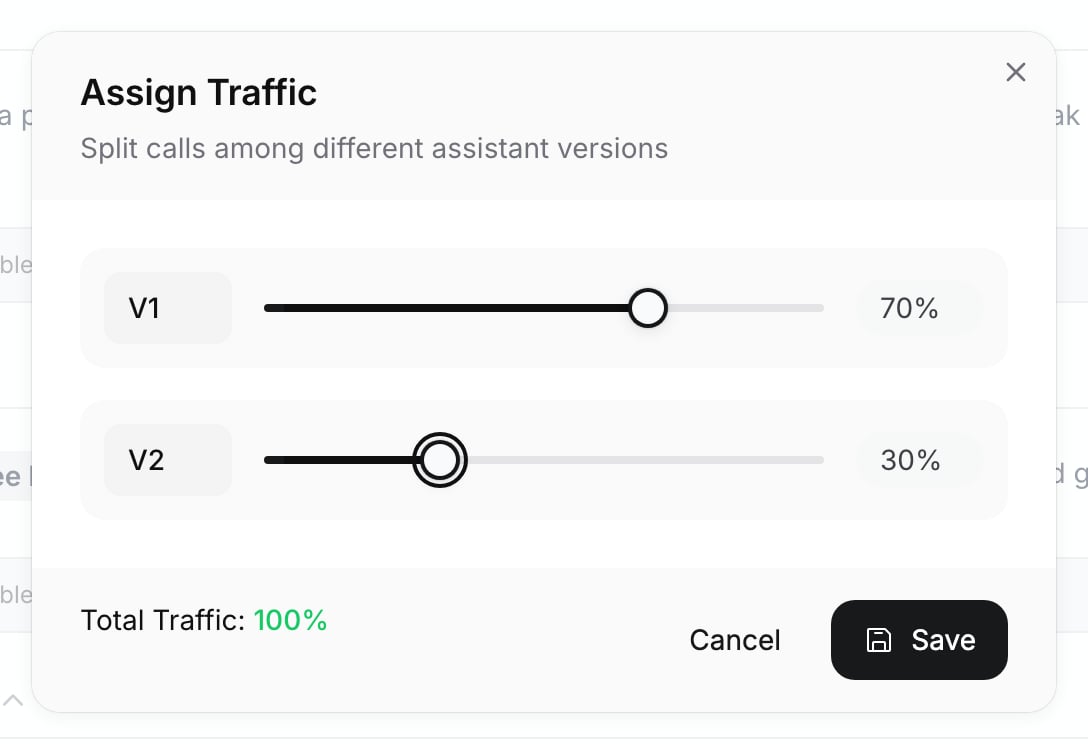
    Click the gear in the version bar and choose **Assign Traffic**. Set V1 to 70% and V2 to 30% with the sliders (they move in 5% steps, and **Save** needs a total of exactly 100%), then click **Save**.
  </Step>
</Steps>

<Frame caption="Assign Traffic with a 70/30 split">
  <img src="https://mintcdn.com/ringgai-0da73d20/zhzhS2waLZvF8qXk/media/agents-versions/assign-traffic.webp?fit=max&auto=format&n=zhzhS2waLZvF8qXk&q=85&s=648d3bd5c3f22b947a1efe22aec04426" alt="Assign Traffic dialog with V1 set to 70% and V2 set to 30%, Total Traffic 100% in green, and Cancel and Save buttons" width="1088" height="744" data-path="media/agents-versions/assign-traffic.webp" />
</Frame>

## Checkpoint

<Check>
  The version bar shows **V1** at 70% and **V2** at 30%, both with a green dot, and the sidebar row reads **A/B Tests Live!** with a **Finalize** button. From the gear menu, **View Analytics** opens **A/B Analytics**, which compares the versions over the last 7 days once calls come in.
</Check>

## Exercise

Open **Assign Traffic** again, set V1 to 100% and V2 to 0%, and save. Expected result: V2's dot turns red, because it now receives no calls. Put the split back to 70/30; part 6 compares the two versions in Analytics.

## What you learned

* A version is a complete copy of the agent's configuration, so attachments such as variables and knowledge bases belong to a version; a single-prompt agent can have up to 5.
* **Save** writes to the version you are viewing, and the traffic split must total 100% in 5% steps.
* Every call records the version it used, so webhooks and call history say which one a call ran on; **Finalize** ends the test by sending all calls to the winner.

<Quiz
  question="You open Assign Traffic and set V1 to 60% and V2 to 30%. What happens when you click Save?"
  answers={[
{ text: "It saves; the remaining 10% goes to the newest version", correct: false },
{ text: "It saves; traffic outside the split is routed to V1", correct: false },
{ text: "Save is not possible until the total is exactly 100%", correct: true },
{ text: "It saves and Finalize is triggered", correct: false },
]}
  correctFeedback="Right. The sliders move in 5% steps and Save needs a total of exactly 100%, so the split has to be 70/30, 65/35 or similar. Finalize is a separate action that sends all traffic to one winner and ends the test."
  incorrectFeedback="Not quite. Nothing is routed by default: Save needs the versions to add up to exactly 100%, in 5% steps. Finalize is a separate action that picks the winner and turns A/B testing off."
/>

<RelatedTopics items={[["Drafts and versions", "/documentation/build-agents/test-and-improve/drafts-and-versions"], ["Test an agent", "/documentation/build-agents/test-and-improve/test-an-agent"]]} />


This documentation is built and hosted on [Mintlify](https://mintlify.com), a developer documentation platform.