> ## Documentation Index
> Fetch the complete documentation index at: https://docs.ringg.ai/llms.txt
> Use this file to discover all available pages before exploring further.
> ## Agent Instructions
> To search or read these docs, connect the Ringg docs MCP server at https://docs.ringg.ai/mcp (no key needed; tools search_ringg_ai and query_docs_filesystem_ringg_ai) instead of browsing pages one by one. Setup for each client: https://docs.ringg.ai/resources/mcp-server/docs-mcp-server/mcp-for-ai-assistants.md
> The dashboard labels agents "Assistants"; these docs say "agent". Both mean the same object, identified by agent_id.
> API base URL: https://prod-api.ringg.ai/ca/api/v0. Send the workspace API key in the X-API-KEY header, from server-side code only.
> Placing a call dials a real phone number and spends credits. Confirm the number with the user before calling.
> To act on a Ringg workspace (place calls, edit agents, read transcripts), use the separate Ringg workspace MCP server at https://mcp.ringg.ai/mcp: https://docs.ringg.ai/resources/mcp-server/workspace-mcp-server/overview.md
# Logs
> Find any Ringg AI call or WhatsApp chat in Logs: filter by date, agent, campaign or status, play recordings, read transcripts and analysis, and export by email.
Open Logs to inspect one conversation your [agents](/documentation/build-agents/agents/agent-types) handled; use [Analytics](/documentation/monitor/analytics) for totals and trends. For the audit trail of who changed what in the workspace, see [Workspace logs](/documentation/manage-account/members#workspace-logs) instead.
The Monitor chapter, in order: Logs (this page) for one call, chat or workflow run, [Analytics](/documentation/monitor/analytics) for volume, goals, connectivity and cost over a period, [Evals](/documentation/monitor/evals) for call quality and test cases, and [Alerts](/documentation/monitor/alerts) for a notification when a metric crosses a threshold.
In the dashboard: **Sidebar → Monitor → Logs**.
## Tabs
Logs has three tabs, one per kind of conversation. Pick yours:
Outbound, inbound and web calls, at `/logs`. The rest of this page.
Chats, at `/logs/whatsapp`, with their own columns, filters and export.
One row per workflow run, at `/logs/runs`, with the path each run took.
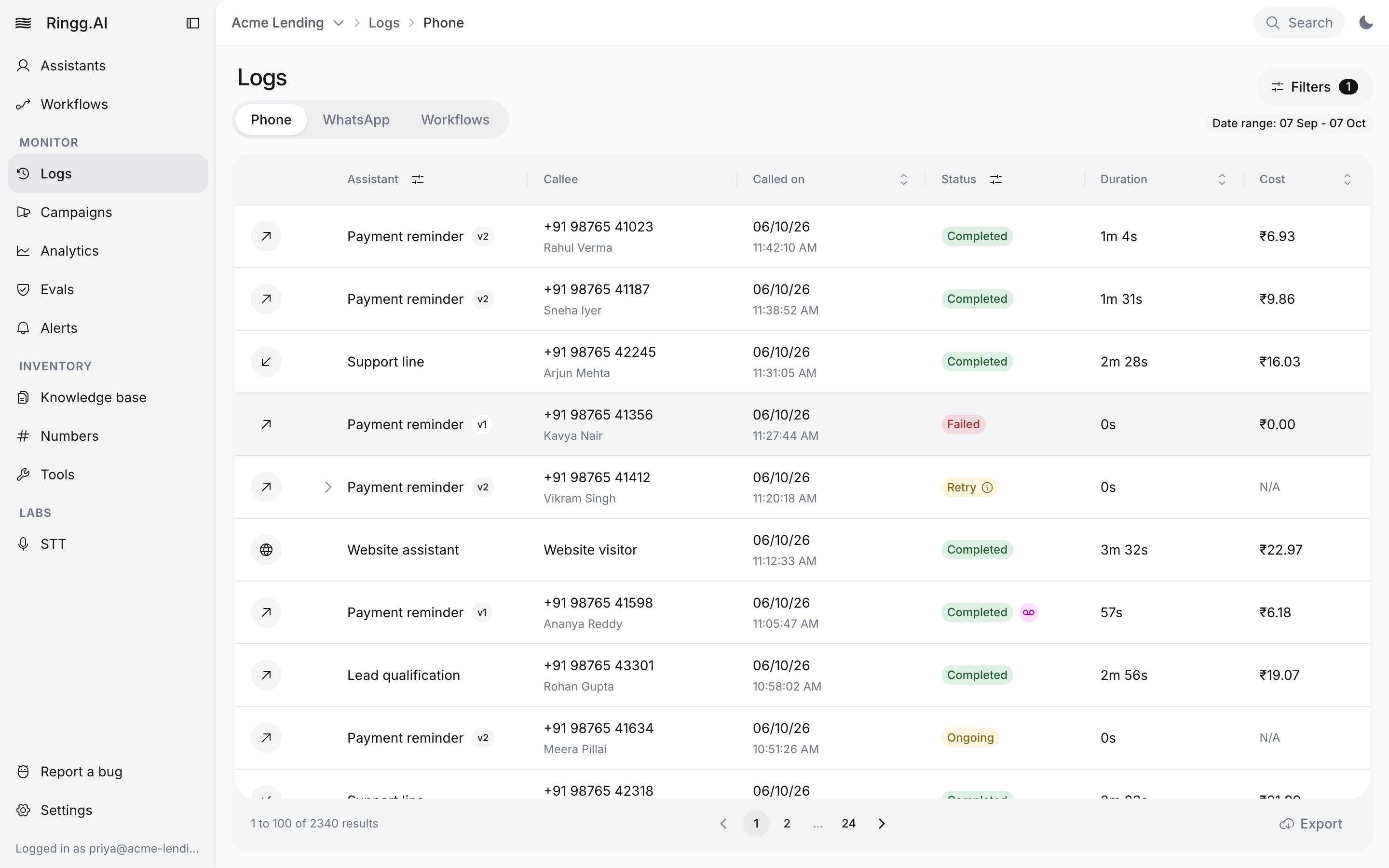
## The call list
| Column | Shows |
| - | - |
| (icon) | The call type: outbound, inbound or web call. Hover for the label. |
| **Assistant** | The agent, with a version chip when the agent has several [versions](/documentation/build-agents/test-and-improve/drafts-and-versions). |
| **Callee** | The callee's number, with their name beneath. For an inbound call, this is the caller. The WhatsApp tab calls it **Contact**. |
| **Called on** | Date and time, for example `18/10/26` and `09:42:10 AM`. The WhatsApp tab calls it **Started on**. |
| **Status** | The [call status](#call-statuses). A voicemail icon marks calls where voicemail was detected. |
| **Duration** | Call length, or **N/A**. |
| **Cost** | Call cost in your [billing](/documentation/manage-account/billing) currency. Phone tab only. |
The list shows 100 rows per page and refreshes every 15 seconds. Click the **Called on**, **Duration** or **Cost** header to sort.
A call that was [retried](/documentation/deploy/campaigns/overview#how-a-campaign-runs) shows a chevron (**Expand attempts**). Each attempt is its own row, labelled **Attempt 1**, **Attempt 2** and so on (oldest last), with a category line under the label where the call has one, the time it was placed (or, for a scheduled callback that hasn't dialled yet, the time it is planned for), its status, duration and cost. Click an attempt to open that attempt's call.
## Filter the list
Click **Filters**. Each applied filter appears as a chip next to the button; click a chip to change it, or its **×** to remove it. **Reset** clears everything. The funnel icons in the **Assistant** and **Status** headers open the same panel.
| Filter | Values |
| - | - |
| **Workspace** | Ringg Spaces to include. Shown only in a primary workspace ([Ringg Spaces](/documentation/manage-account/ringg-spaces/overview)). |
| **Date range** | Presets **Today**, **Week** (the last 7 days) and **Month** (the last month, the default), or any range on the calendar. |
| **Assistants** | One or more agents. Picking an agent selects all its versions; untick versions to narrow it. An archived version is listed as "`slug` (deleted)". |
| **Campaigns** | One or more [campaigns](/documentation/deploy/campaigns/manage-a-campaign). Phone tab only. |
| **Call status** | **All**, **Registered**, **Ongoing**, **Completed**, **Retry**, **Failed**, **Error**, **Cancelled**. The WhatsApp tab has **Chat status**: **All**, **Ongoing**, **Completed**, **Failed**. |
| **Call type** | **All**, **Inbound**, **Outbound**, **Webcall**, **Voicemail**, **Callback**. Phone tab only. |
| **From number** | The number the call came from. |
| **To number** | The number that was called. |
| **Call ID** | One call. The WhatsApp tab has **Chat ID**, which must be a valid UUID. |
| **Custom variables** | Match a [variable](/documentation/build-agents/customize-agent-behaviour/custom-variables) value. Phone tab only. |
| **Advanced analysis** | Match an [Advanced Analysis](/documentation/build-agents/customize-agent-behaviour/advanced-analysis) field. Phone tab only. |
### Date range limits
* Dates more than 2 months before today are greyed out.
* A range picked on the calendar spans at most 60 days. A longer pick keeps the end date and moves the start.
* **Call ID**, **From number**, **To number** and **Campaigns** ignore the date range, so they find the call however old it is.
### Custom variables and Advanced analysis
Both need exactly one assistant selected: with none, the panel says "Select an assistant first to use this filter."; with several, "Select only one assistant to use this filter." The keys offered depend on the selected agent. Build a condition from a key, an operator and a value, for example `callee_name` **contains** `Sharma`, and combine several with AND (the default) or OR. Changing the selected assistant clears them.
| Value type | Operators |
| - | - |
| **String** | **equals**, **not equals**, **contains**, **is any of** |
| **Number** | **equals**, **not equals**, **greater than**, **greater or equal**, **less than**, **less or equal**, **is any of** |
| **Boolean** | **is** |
For **Custom variables**, a **Value type** menu on the condition (**String**, **Number**, **Boolean**) sets how the value is compared, so `false` can be matched as a Boolean rather than the text `"false"`. Advanced analysis keys have no type menu.
## Call statuses
Calls reach Logs from [campaigns](/documentation/deploy/campaigns/overview), [workflows](/documentation/build-agents/workflows/overview), [API calls](/api-reference/endpoint/calling/initiate-individual-call), [inbound numbers](/documentation/inventory/phone-numbers/inbound-agent-number) and [tests](/documentation/build-agents/test-and-improve/test-an-agent). These call statuses are separate from [campaign statuses](/documentation/deploy/campaigns/overview#campaign-statuses).
| Status | Meaning |
| - | - |
| **Registered** | Not dialled yet: queued, scheduled, outside the calling window or held by a call limit. Hover the status for "Next attempt at" when a time is set. |
| **Ongoing** | The carrier accepted the dial, it is ringing, or the conversation is in progress. Inbound calls and webcalls start here. |
| **Retry** | An attempt did not connect and another attempt is scheduled. Hover for the next attempt time. The retry count comes from the [campaign](/documentation/deploy/campaigns/create-a-campaign), the [workflow Agent block](/documentation/build-agents/workflows/block-reference#block-reference) or the API call's `call_retry_config`. |
| **Completed** | The call connected and ended. This includes calls where voicemail was detected and calls that hit the maximum call duration. |
| **Failed** | No conversation, and nothing left to try: busy, no answer or a carrier failure on the last allowed attempt, a DND number, the campaign's end time passing before the call was dialled, or an inbound call or webcall that ended unanswered. |
| **Error** | A system-side failure: the carrier reported an error on the last attempt, the call could not be placed, the [pre-call tool](/documentation/build-agents/customize-agent-behaviour/tools/overview) failed, or the call stayed queued for more than 2 days. |
| **Cancelled** | Stopped on purpose before it connected: terminated through the API, still pending when its campaign was completed or terminated, past its own deadline, its agent was deleted, or an inbound caller over the agent's [inbound rate limit](/documentation/build-agents/customize-agent-behaviour/call-settings#rate-limiting-inbound) was turned away. |
| **Waiting for limit** | Held because the callee reached a [call limit](/documentation/manage-account/call-limits#how-a-call-limit-works) ("Waiting for the callee limit to reset"). Shown in place of **Registered** or **Retry**, with "Will retry at …". |
| **Cancelled by limit** | Dropped because of a [call limit](/documentation/manage-account/call-limits#how-a-call-limit-works) ("Cancelled by the callee limit"). |
The API also returns `forwarded`: an inbound call sent to a transfer number instead of the agent, because the caller exceeded the agent's [inbound rate limit](/documentation/build-agents/customize-agent-behaviour/call-settings#rate-limiting-inbound) with the action **Transfer Call**. Busy and no answer are not statuses; they lead to **Retry**, or to **Failed** once retries run out.
WhatsApp chats use only **Ongoing**, **Completed** and **Failed**.
## Call types
| Type | Meaning |
| - | - |
| **Outbound** | The agent called the customer: single calls, [API calls](/api-reference/endpoint/calling/initiate-individual-call) and [campaigns](/documentation/deploy/campaigns/overview). |
| **Inbound** | The customer called a number [attached to the agent](/documentation/inventory/phone-numbers/inbound-agent-number). |
| **Webcall** | A call from the [web widget](/documentation/deploy/web-and-apps/web-widget/overview) in a browser. |
| **Voicemail** | Calls where voicemail was detected (see [voicemail settings](/documentation/build-agents/customize-agent-behaviour/call-settings)). Their status is **Completed**. |
| **Callback** | A call scheduled back to a callee, for example one who asked to be called later. A retry of the same call is not a callback; it shows as another attempt. |
## The call panel
Click a row to open the call. On a wide screen it opens beside the list; on a narrower one, as a drawer.
The header shows the agent (click it to open the agent), the call ID with a copy button, the status, **Next attempt** for queued calls, **From**, **Cost**, and **Origin**: **Campaign** ([campaigns](/documentation/deploy/campaigns/manage-a-campaign)) or **API** ([Initiate a call](/api-reference/endpoint/calling/initiate-individual-call)). WhatsApp chats show **Channel** **WhatsApp** instead of **Origin**.
Below it is the recording: play or pause, change speed (1x, 1.5x, 2x), and **Download recording** (`call-recording-.mp3`). The transcript follows the playback, and clicking a transcript line seeks the recording to it. If there is no recording, the panel says "Call recording is not available.", or "Call recording has been deleted as per the data purge policy." once it has been purged.
| Tab | Contains |
| - | - |
| **Call details** (**Chat details** for chats) | **Call latency** (with "First utterance began at N seconds."), **Call duration**, **Call transfer details** (the transfer target, see [call transfer](/documentation/build-agents/customize-agent-behaviour/tools/system-tools#call-transfer)), **Custom variables** ([variables](/documentation/build-agents/customize-agent-behaviour/custom-variables)) with their values, then the [general analysis](#general-analysis) Ringg runs on every call. |
| **Advanced analysis** | The fields your agent's [Advanced Analysis](/documentation/build-agents/customize-agent-behaviour/advanced-analysis) extracted. Shown only when there are some. |
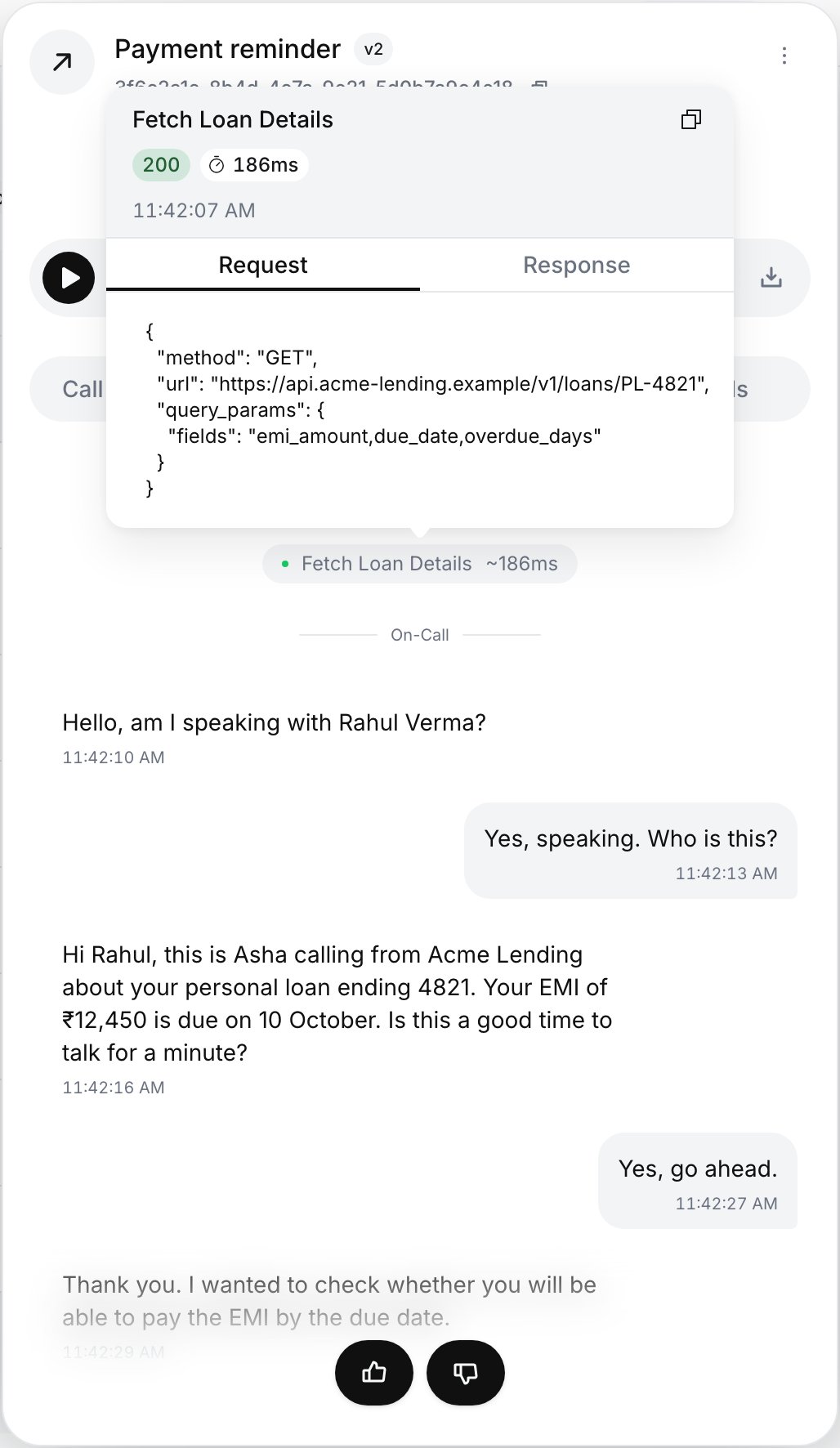
| **Transcript** | The conversation turn by turn, with the [tools](/documentation/build-agents/customize-agent-behaviour/tools/overview) that ran, grouped under **Pre-Call**, **On-Call** and **Post-Call**; tool logs with no phase go under **Misc**. On a [multi-prompt agent](/documentation/build-agents/agents/multi-prompt-agents/overview), a divider such as *Verify identity → Collect payment* marks each move between nodes. |
| **Evals** | Scores from [Evals](/documentation/monitor/evals): each metric with **Good** (70% and above), **Fair** (40–69%) or **Needs review**. Shown only for scored calls; WhatsApp chats never have this tab. |
Click a tool or a node divider in the transcript to open its log: the HTTP status and latency (for API tools), when it ran, and **Request**, **Response** or **Error** tabs. **Copy tool log** copies the full log as JSON.
### General analysis
The bottom of **Call details** lists Ringg's built-in analysis of the call as key-value rows: the summary, key points, action items, classification, sentiment with its reason, whether the caller asked for a callback and when, and the disconnect reason. Until it is ready the tab says "General analysis is currently under process!". Webhooks deliver the built-in analysis as `platform_analysis` ([payloads](/documentation/build-agents/customize-agent-behaviour/webhooks/call-events)), and so does the [API](#with-the-api).
The **⋮** menu has:
* **Test this agent**: opens the agent in test mode on the same channel, prefilled with this call's name, number and variables ([Test an agent](/documentation/build-agents/test-and-improve/test-an-agent)).
* **Download analysis**: the analysis as JSON (`call-analysis-.json`).
* **Copy transcript** and **Download transcript** (a `.txt` file).
### Give feedback
On a **Completed** call, use the thumbs at the bottom of the panel to mark it good or bad. A thumbs-down opens a box ("Tell us what felt off") for a comment. Your rating then shows under **Your feedback**.
## Link to a call
The URL carries the filters and the open call, so you can bookmark or share it.
| URL | Opens |
| - | - |
| `/logs?selected_call=` | The list, with that call open. Clicking a row adds it. A chat link also carries `selected_kind=chat`. |
| `/logs?call_id=` | The list filtered to that one call, with it open. |
| `/logs?bulk_list_id=` | Every call of one campaign, with no date limit. The campaign's **History** button links here ([Find a campaign's calls in Logs](/documentation/deploy/campaigns/manage-a-campaign#find-campaign-calls-in-logs)). |
Figures in [Analytics](/documentation/monitor/analytics#drill-down-into-logs) also open Logs with matching filters.
## WhatsApp chats
The **WhatsApp** tab (`/logs/whatsapp`) lists chats of your [WhatsApp agents](/documentation/build-agents/agents/whatsapp-agents/create-an-agent) and works like the Phone tab, minus audio, cost, feedback and evals.
* **Columns**: **Assistant** (with a version chip), **Contact** (the customer's number; the name is the `name` custom variable, otherwise their WhatsApp profile name), **Started on**, **Status** (**Ongoing**, **Completed**, **Failed**) and **Duration**. A chat stays **Ongoing** until it closes, which can be hours after the last message ([why](/documentation/build-agents/agents/whatsapp-agents/create-an-agent#when-a-chat-opens-and-closes)).
* **Filters**: date range, WhatsApp agents, chat status, **From number** (the customer), **To number** (your business number) and **Chat ID**, for example a webhook's `chat_id`.
* **The chat panel**: **Chat details** (duration, custom variables, platform analysis), **Advanced analysis**, and **Transcript**, where tool calls and template sends appear as pills you can open for their request and response.
* **Export**: the same **Export** menu as calls. The emailed zip holds `chat_history_report.csv`, one row per chat, up to 200,000 chats; the link is valid for 7 days. It includes `To Number` (your number's Meta phone number ID), `External Chat ID` and the transcript as `speaker: text` lines.
## Workflow runs
The **Workflows** tab lists one row per [workflow](/documentation/build-agents/workflows/overview) run, 25 per page, with columns **Status**, **Workflow**, **Callee**, **Calls**, **Started** and **Last update**. Filter from the **Status** header (**Running**, **Completed**, **Failed**, **Cancelled**) and the **Workflow** header.
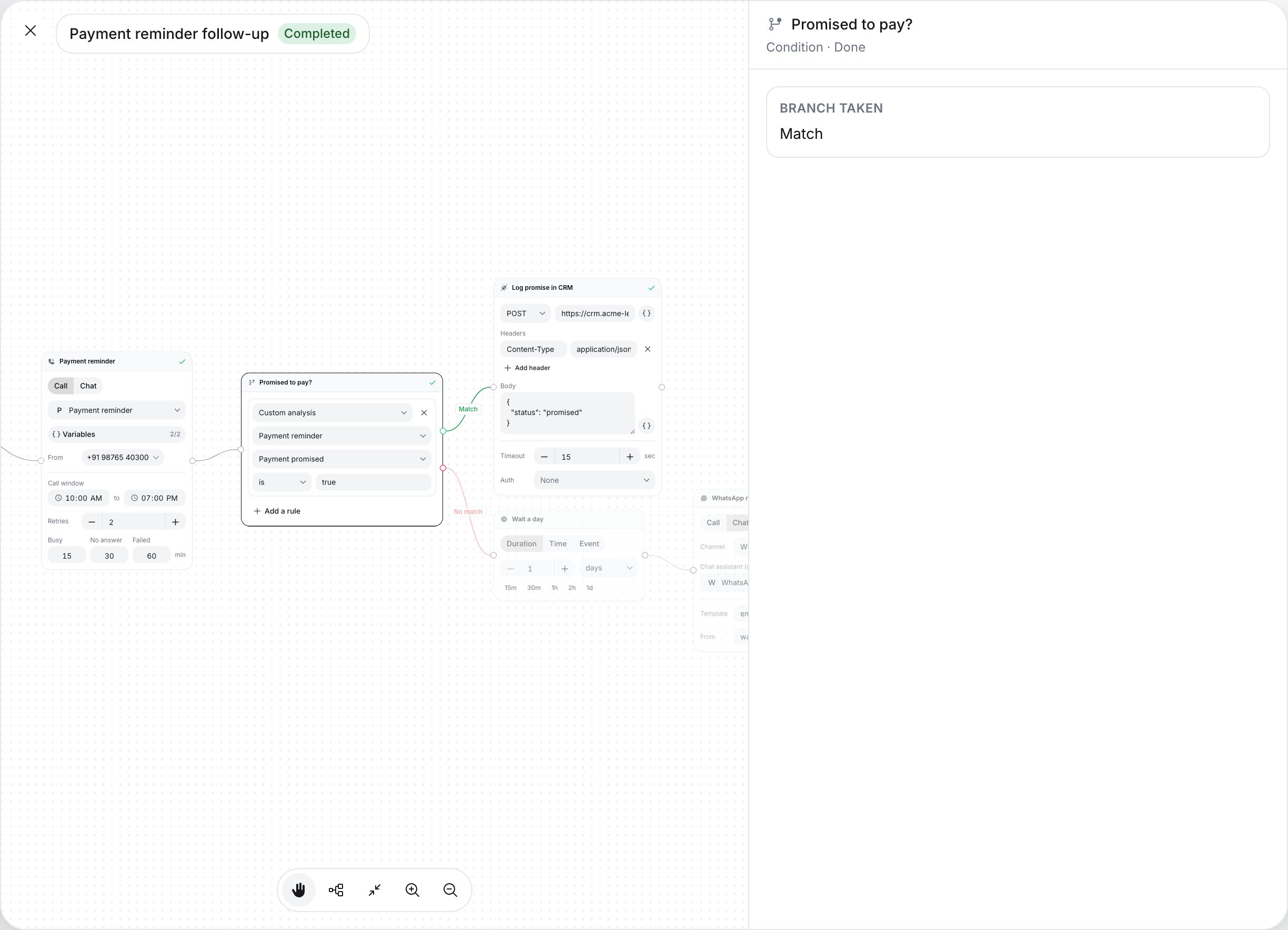
* Click a row to open its path: the canvas with the steps it took. Click a step to see its status and, for a Condition, the **Branch taken**. A call step opens that call's details and transcript. A failed step shows the error.
* Click the number under **Calls** to open the Phone tab limited to that run. A banner reads "Calls placed by run …" with **Back to workflows** and **Clear**.
## Export
Click **Export** in the table footer and choose **Export without analysis** or **Export with analysis**. Nothing downloads: "Call history report (with the applied filters) is being sent to your email." The export uses the filters on screen.
## With the API
| Dashboard | Endpoint |
| - | - |
| The call list | [Get call history](/api-reference/endpoint/history/get-call-history): `GET /calling/history`, filtered by `start_date`, `end_date`, `agent_id`, `status` and `bulk_list_id`, paged with `limit` and `offset` |
| The call panel | [Get call details](/api-reference/endpoint/history/get-call-details): `GET /calling/call-details?id=`; add `send_analysis=true` for the analysis |
| **Export** | [Download call history](/api-reference/endpoint/history/download-call-history): `POST /calling/history/download`; add `include_analysis=true` for the analysis. The response is either a ZIP of the CSV or a message that the export is queued for email. |
You need an [API key](/documentation/manage-account/api-key) sent as `X-API-KEY` (see [Authentication](/api-reference/introduction/authentication)).
```bash cURL theme={null}
curl --request GET "https://prod-api.ringg.ai/ca/api/v0/calling/history?start_date=2026-10-01T00:00:00%2B05:30&end_date=2026-10-06T23:59:59%2B05:30&status=completed&limit=100&offset=0" \
--header "X-API-KEY: $RINGG_API_KEY"
```
```javascript JavaScript theme={null}
const params = new URLSearchParams({
start_date: "2026-10-01T00:00:00+05:30",
end_date: "2026-10-06T23:59:59+05:30",
status: "completed",
limit: "100",
offset: "0",
});
const response = await fetch(
`https://prod-api.ringg.ai/ca/api/v0/calling/history?${params}`,
{ headers: { "X-API-KEY": process.env.RINGG_API_KEY } }
);
console.log(await response.json());
```
```python Python theme={null}
import os
import requests
response = requests.get(
"https://prod-api.ringg.ai/ca/api/v0/calling/history",
params={
"start_date": "2026-10-01T00:00:00+05:30",
"end_date": "2026-10-06T23:59:59+05:30",
"status": "completed",
"limit": 100,
"offset": 0,
},
headers={"X-API-KEY": os.environ["RINGG_API_KEY"]},
)
print(response.json())
```
Query parameters of `GET /calling/history`:
Calls from this time, ISO 8601 with timezone, for example `2026-10-01T00:00:00+05:30`.
Calls up to this time, same format.
One agent's ID. See [Find an agent's ID](/documentation/build-agents/agents/agent-types#find-the-agent-id).
One of `registered`, `ongoing`, `retry`, `error`, `completed`, `failed`, `cancelled`, `forwarded`.
A campaign's ID, to list only its calls.
Calls per page, at most 200. A larger value returns `400`.
Calls to skip.
To get each call as it ends instead of polling, use [Event Subscription](/documentation/build-agents/customize-agent-behaviour/event-subscription) (webhooks). See [webhook setup](/documentation/build-agents/customize-agent-behaviour/webhooks/setup-and-errors) and [payloads](/documentation/build-agents/customize-agent-behaviour/webhooks/call-events).
## Troubleshooting
The call is probably outside the date range (the default is the last month). Search by **Call ID**, **From number** or **To number**, which ignore dates. Workflow calls appear only from the **Workflows** tab.
The calendar does not go further back. Use **Call ID**, a number or a campaign filter, or the [Get call history](/api-reference/endpoint/history/get-call-history) API.
Select exactly one assistant under **Assistants**.
The list is limited to one workflow run. Click **Clear** on the banner first.
Feedback is available only on calls with status **Completed**, not on chats.
The recording was removed under a data purge policy set up for your workspace. Contact Ringg for its details. To keep recordings, use **Download recording**, or save the file from the `recording_url` that [Get call details](/api-reference/endpoint/history/get-call-details) returns. The link may expire; fetch a fresh one from Get call details. The dashboard shows campaign reports for 60 days after a campaign ends ([Manage a campaign](/documentation/deploy/campaigns/manage-a-campaign#the-detail-panel)).
## Next steps
Totals, connect rates and costs over time.
Check call quality automatically.
Notify your team when a metric crosses a threshold.
This documentation is built and hosted on [Mintlify](https://mintlify.com), a developer documentation platform.
 A call that was [retried](/documentation/deploy/campaigns/overview#how-a-campaign-runs) shows a chevron (**Expand attempts**). Each attempt is its own row, labelled **Attempt 1**, **Attempt 2** and so on (oldest last), with a category line under the label where the call has one, the time it was placed (or, for a scheduled callback that hasn't dialled yet, the time it is planned for), its status, duration and cost. Click an attempt to open that attempt's call.
## Filter the list
Click **Filters**. Each applied filter appears as a chip next to the button; click a chip to change it, or its **×** to remove it. **Reset** clears everything. The funnel icons in the **Assistant** and **Status** headers open the same panel.
| Filter | Values |
| - | - |
| **Workspace** | Ringg Spaces to include. Shown only in a primary workspace ([Ringg Spaces](/documentation/manage-account/ringg-spaces/overview)). |
| **Date range** | Presets **Today**, **Week** (the last 7 days) and **Month** (the last month, the default), or any range on the calendar. |
| **Assistants** | One or more agents. Picking an agent selects all its versions; untick versions to narrow it. An archived version is listed as "`slug` (deleted)". |
| **Campaigns** | One or more [campaigns](/documentation/deploy/campaigns/manage-a-campaign). Phone tab only. |
| **Call status** | **All**, **Registered**, **Ongoing**, **Completed**, **Retry**, **Failed**, **Error**, **Cancelled**. The WhatsApp tab has **Chat status**: **All**, **Ongoing**, **Completed**, **Failed**. |
| **Call type** | **All**, **Inbound**, **Outbound**, **Webcall**, **Voicemail**, **Callback**. Phone tab only. |
| **From number** | The number the call came from. |
| **To number** | The number that was called. |
| **Call ID** | One call. The WhatsApp tab has **Chat ID**, which must be a valid UUID. |
| **Custom variables** | Match a [variable](/documentation/build-agents/customize-agent-behaviour/custom-variables) value. Phone tab only. |
| **Advanced analysis** | Match an [Advanced Analysis](/documentation/build-agents/customize-agent-behaviour/advanced-analysis) field. Phone tab only. |
### Date range limits
* Dates more than 2 months before today are greyed out.
* A range picked on the calendar spans at most 60 days. A longer pick keeps the end date and moves the start.
* **Call ID**, **From number**, **To number** and **Campaigns** ignore the date range, so they find the call however old it is.
### Custom variables and Advanced analysis
Both need exactly one assistant selected: with none, the panel says "Select an assistant first to use this filter."; with several, "Select only one assistant to use this filter." The keys offered depend on the selected agent. Build a condition from a key, an operator and a value, for example `callee_name` **contains** `Sharma`, and combine several with AND (the default) or OR. Changing the selected assistant clears them.
| Value type | Operators |
| - | - |
| **String** | **equals**, **not equals**, **contains**, **is any of** |
| **Number** | **equals**, **not equals**, **greater than**, **greater or equal**, **less than**, **less or equal**, **is any of** |
| **Boolean** | **is** |
For **Custom variables**, a **Value type** menu on the condition (**String**, **Number**, **Boolean**) sets how the value is compared, so `false` can be matched as a Boolean rather than the text `"false"`. Advanced analysis keys have no type menu.
## Call statuses
Calls reach Logs from [campaigns](/documentation/deploy/campaigns/overview), [workflows](/documentation/build-agents/workflows/overview), [API calls](/api-reference/endpoint/calling/initiate-individual-call), [inbound numbers](/documentation/inventory/phone-numbers/inbound-agent-number) and [tests](/documentation/build-agents/test-and-improve/test-an-agent). These call statuses are separate from [campaign statuses](/documentation/deploy/campaigns/overview#campaign-statuses).
| Status | Meaning |
| - | - |
| **Registered** | Not dialled yet: queued, scheduled, outside the calling window or held by a call limit. Hover the status for "Next attempt at" when a time is set. |
| **Ongoing** | The carrier accepted the dial, it is ringing, or the conversation is in progress. Inbound calls and webcalls start here. |
| **Retry** | An attempt did not connect and another attempt is scheduled. Hover for the next attempt time. The retry count comes from the [campaign](/documentation/deploy/campaigns/create-a-campaign), the [workflow Agent block](/documentation/build-agents/workflows/block-reference#block-reference) or the API call's `call_retry_config`. |
| **Completed** | The call connected and ended. This includes calls where voicemail was detected and calls that hit the maximum call duration. |
| **Failed** | No conversation, and nothing left to try: busy, no answer or a carrier failure on the last allowed attempt, a DND number, the campaign's end time passing before the call was dialled, or an inbound call or webcall that ended unanswered. |
| **Error** | A system-side failure: the carrier reported an error on the last attempt, the call could not be placed, the [pre-call tool](/documentation/build-agents/customize-agent-behaviour/tools/overview) failed, or the call stayed queued for more than 2 days. |
| **Cancelled** | Stopped on purpose before it connected: terminated through the API, still pending when its campaign was completed or terminated, past its own deadline, its agent was deleted, or an inbound caller over the agent's [inbound rate limit](/documentation/build-agents/customize-agent-behaviour/call-settings#rate-limiting-inbound) was turned away. |
| **Waiting for limit** | Held because the callee reached a [call limit](/documentation/manage-account/call-limits#how-a-call-limit-works) ("Waiting for the callee limit to reset"). Shown in place of **Registered** or **Retry**, with "Will retry at …". |
| **Cancelled by limit** | Dropped because of a [call limit](/documentation/manage-account/call-limits#how-a-call-limit-works) ("Cancelled by the callee limit"). |
The API also returns `forwarded`: an inbound call sent to a transfer number instead of the agent, because the caller exceeded the agent's [inbound rate limit](/documentation/build-agents/customize-agent-behaviour/call-settings#rate-limiting-inbound) with the action **Transfer Call**. Busy and no answer are not statuses; they lead to **Retry**, or to **Failed** once retries run out.
WhatsApp chats use only **Ongoing**, **Completed** and **Failed**.
## Call types
| Type | Meaning |
| - | - |
| **Outbound** | The agent called the customer: single calls, [API calls](/api-reference/endpoint/calling/initiate-individual-call) and [campaigns](/documentation/deploy/campaigns/overview). |
| **Inbound** | The customer called a number [attached to the agent](/documentation/inventory/phone-numbers/inbound-agent-number). |
| **Webcall** | A call from the [web widget](/documentation/deploy/web-and-apps/web-widget/overview) in a browser. |
| **Voicemail** | Calls where voicemail was detected (see [voicemail settings](/documentation/build-agents/customize-agent-behaviour/call-settings)). Their status is **Completed**. |
| **Callback** | A call scheduled back to a callee, for example one who asked to be called later. A retry of the same call is not a callback; it shows as another attempt. |
## The call panel
Click a row to open the call. On a wide screen it opens beside the list; on a narrower one, as a drawer.
The header shows the agent (click it to open the agent), the call ID with a copy button, the status, **Next attempt** for queued calls, **From**, **Cost**, and **Origin**: **Campaign** ([campaigns](/documentation/deploy/campaigns/manage-a-campaign)) or **API** ([Initiate a call](/api-reference/endpoint/calling/initiate-individual-call)). WhatsApp chats show **Channel** **WhatsApp** instead of **Origin**.
Below it is the recording: play or pause, change speed (1x, 1.5x, 2x), and **Download recording** (`call-recording-
A call that was [retried](/documentation/deploy/campaigns/overview#how-a-campaign-runs) shows a chevron (**Expand attempts**). Each attempt is its own row, labelled **Attempt 1**, **Attempt 2** and so on (oldest last), with a category line under the label where the call has one, the time it was placed (or, for a scheduled callback that hasn't dialled yet, the time it is planned for), its status, duration and cost. Click an attempt to open that attempt's call.
## Filter the list
Click **Filters**. Each applied filter appears as a chip next to the button; click a chip to change it, or its **×** to remove it. **Reset** clears everything. The funnel icons in the **Assistant** and **Status** headers open the same panel.
| Filter | Values |
| - | - |
| **Workspace** | Ringg Spaces to include. Shown only in a primary workspace ([Ringg Spaces](/documentation/manage-account/ringg-spaces/overview)). |
| **Date range** | Presets **Today**, **Week** (the last 7 days) and **Month** (the last month, the default), or any range on the calendar. |
| **Assistants** | One or more agents. Picking an agent selects all its versions; untick versions to narrow it. An archived version is listed as "`slug` (deleted)". |
| **Campaigns** | One or more [campaigns](/documentation/deploy/campaigns/manage-a-campaign). Phone tab only. |
| **Call status** | **All**, **Registered**, **Ongoing**, **Completed**, **Retry**, **Failed**, **Error**, **Cancelled**. The WhatsApp tab has **Chat status**: **All**, **Ongoing**, **Completed**, **Failed**. |
| **Call type** | **All**, **Inbound**, **Outbound**, **Webcall**, **Voicemail**, **Callback**. Phone tab only. |
| **From number** | The number the call came from. |
| **To number** | The number that was called. |
| **Call ID** | One call. The WhatsApp tab has **Chat ID**, which must be a valid UUID. |
| **Custom variables** | Match a [variable](/documentation/build-agents/customize-agent-behaviour/custom-variables) value. Phone tab only. |
| **Advanced analysis** | Match an [Advanced Analysis](/documentation/build-agents/customize-agent-behaviour/advanced-analysis) field. Phone tab only. |
### Date range limits
* Dates more than 2 months before today are greyed out.
* A range picked on the calendar spans at most 60 days. A longer pick keeps the end date and moves the start.
* **Call ID**, **From number**, **To number** and **Campaigns** ignore the date range, so they find the call however old it is.
### Custom variables and Advanced analysis
Both need exactly one assistant selected: with none, the panel says "Select an assistant first to use this filter."; with several, "Select only one assistant to use this filter." The keys offered depend on the selected agent. Build a condition from a key, an operator and a value, for example `callee_name` **contains** `Sharma`, and combine several with AND (the default) or OR. Changing the selected assistant clears them.
| Value type | Operators |
| - | - |
| **String** | **equals**, **not equals**, **contains**, **is any of** |
| **Number** | **equals**, **not equals**, **greater than**, **greater or equal**, **less than**, **less or equal**, **is any of** |
| **Boolean** | **is** |
For **Custom variables**, a **Value type** menu on the condition (**String**, **Number**, **Boolean**) sets how the value is compared, so `false` can be matched as a Boolean rather than the text `"false"`. Advanced analysis keys have no type menu.
## Call statuses
Calls reach Logs from [campaigns](/documentation/deploy/campaigns/overview), [workflows](/documentation/build-agents/workflows/overview), [API calls](/api-reference/endpoint/calling/initiate-individual-call), [inbound numbers](/documentation/inventory/phone-numbers/inbound-agent-number) and [tests](/documentation/build-agents/test-and-improve/test-an-agent). These call statuses are separate from [campaign statuses](/documentation/deploy/campaigns/overview#campaign-statuses).
| Status | Meaning |
| - | - |
| **Registered** | Not dialled yet: queued, scheduled, outside the calling window or held by a call limit. Hover the status for "Next attempt at" when a time is set. |
| **Ongoing** | The carrier accepted the dial, it is ringing, or the conversation is in progress. Inbound calls and webcalls start here. |
| **Retry** | An attempt did not connect and another attempt is scheduled. Hover for the next attempt time. The retry count comes from the [campaign](/documentation/deploy/campaigns/create-a-campaign), the [workflow Agent block](/documentation/build-agents/workflows/block-reference#block-reference) or the API call's `call_retry_config`. |
| **Completed** | The call connected and ended. This includes calls where voicemail was detected and calls that hit the maximum call duration. |
| **Failed** | No conversation, and nothing left to try: busy, no answer or a carrier failure on the last allowed attempt, a DND number, the campaign's end time passing before the call was dialled, or an inbound call or webcall that ended unanswered. |
| **Error** | A system-side failure: the carrier reported an error on the last attempt, the call could not be placed, the [pre-call tool](/documentation/build-agents/customize-agent-behaviour/tools/overview) failed, or the call stayed queued for more than 2 days. |
| **Cancelled** | Stopped on purpose before it connected: terminated through the API, still pending when its campaign was completed or terminated, past its own deadline, its agent was deleted, or an inbound caller over the agent's [inbound rate limit](/documentation/build-agents/customize-agent-behaviour/call-settings#rate-limiting-inbound) was turned away. |
| **Waiting for limit** | Held because the callee reached a [call limit](/documentation/manage-account/call-limits#how-a-call-limit-works) ("Waiting for the callee limit to reset"). Shown in place of **Registered** or **Retry**, with "Will retry at …". |
| **Cancelled by limit** | Dropped because of a [call limit](/documentation/manage-account/call-limits#how-a-call-limit-works) ("Cancelled by the callee limit"). |
The API also returns `forwarded`: an inbound call sent to a transfer number instead of the agent, because the caller exceeded the agent's [inbound rate limit](/documentation/build-agents/customize-agent-behaviour/call-settings#rate-limiting-inbound) with the action **Transfer Call**. Busy and no answer are not statuses; they lead to **Retry**, or to **Failed** once retries run out.
WhatsApp chats use only **Ongoing**, **Completed** and **Failed**.
## Call types
| Type | Meaning |
| - | - |
| **Outbound** | The agent called the customer: single calls, [API calls](/api-reference/endpoint/calling/initiate-individual-call) and [campaigns](/documentation/deploy/campaigns/overview). |
| **Inbound** | The customer called a number [attached to the agent](/documentation/inventory/phone-numbers/inbound-agent-number). |
| **Webcall** | A call from the [web widget](/documentation/deploy/web-and-apps/web-widget/overview) in a browser. |
| **Voicemail** | Calls where voicemail was detected (see [voicemail settings](/documentation/build-agents/customize-agent-behaviour/call-settings)). Their status is **Completed**. |
| **Callback** | A call scheduled back to a callee, for example one who asked to be called later. A retry of the same call is not a callback; it shows as another attempt. |
## The call panel
Click a row to open the call. On a wide screen it opens beside the list; on a narrower one, as a drawer.
The header shows the agent (click it to open the agent), the call ID with a copy button, the status, **Next attempt** for queued calls, **From**, **Cost**, and **Origin**: **Campaign** ([campaigns](/documentation/deploy/campaigns/manage-a-campaign)) or **API** ([Initiate a call](/api-reference/endpoint/calling/initiate-individual-call)). WhatsApp chats show **Channel** **WhatsApp** instead of **Origin**.
Below it is the recording: play or pause, change speed (1x, 1.5x, 2x), and **Download recording** (`call-recording-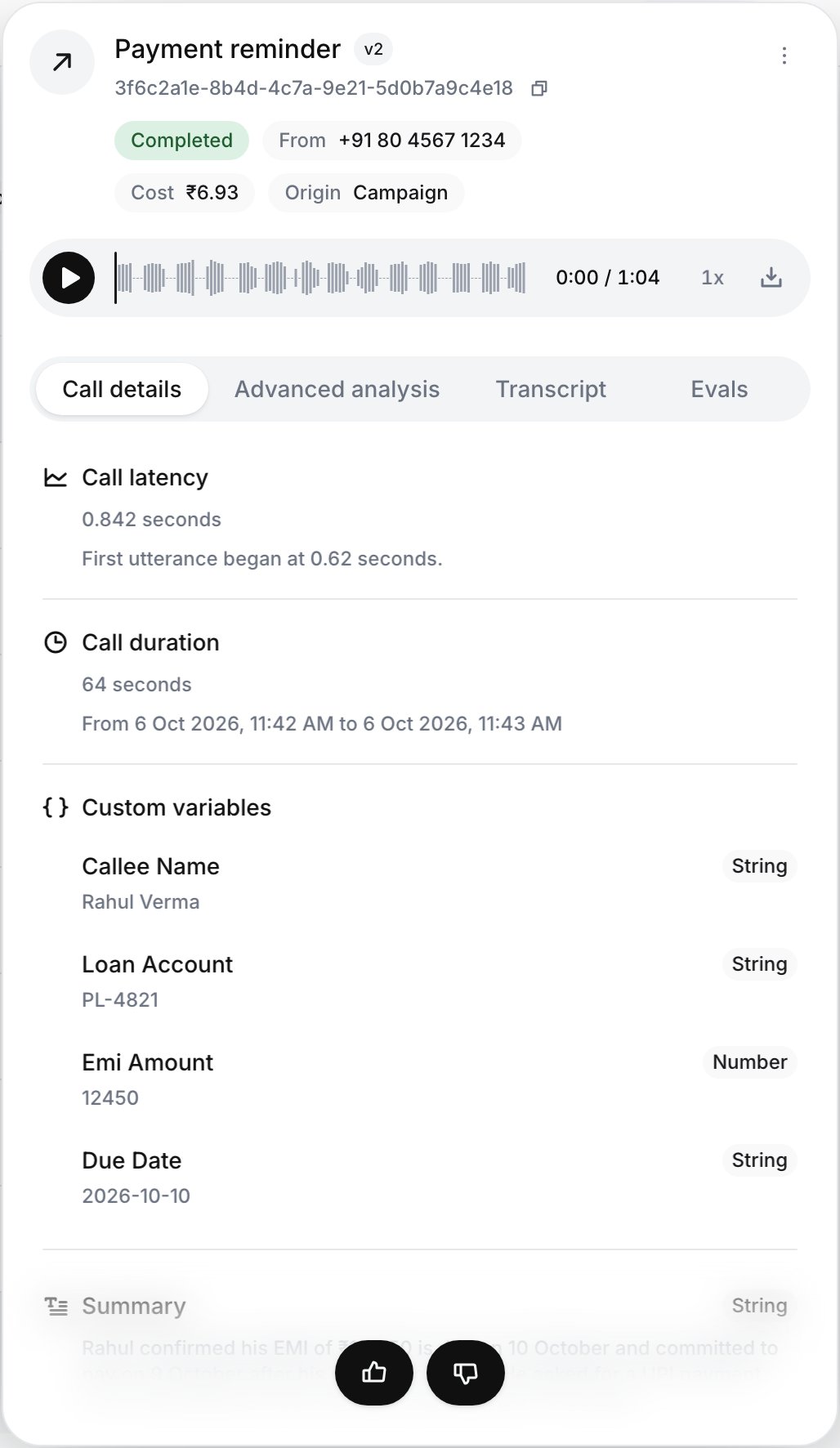 | Tab | Contains |
| - | - |
| **Call details** (**Chat details** for chats) | **Call latency** (with "First utterance began at N seconds."), **Call duration**, **Call transfer details** (the transfer target, see [call transfer](/documentation/build-agents/customize-agent-behaviour/tools/system-tools#call-transfer)), **Custom variables** ([variables](/documentation/build-agents/customize-agent-behaviour/custom-variables)) with their values, then the [general analysis](#general-analysis) Ringg runs on every call. |
| **Advanced analysis** | The fields your agent's [Advanced Analysis](/documentation/build-agents/customize-agent-behaviour/advanced-analysis) extracted. Shown only when there are some. |
| **Transcript** | The conversation turn by turn, with the [tools](/documentation/build-agents/customize-agent-behaviour/tools/overview) that ran, grouped under **Pre-Call**, **On-Call** and **Post-Call**; tool logs with no phase go under **Misc**. On a [multi-prompt agent](/documentation/build-agents/agents/multi-prompt-agents/overview), a divider such as *Verify identity → Collect payment* marks each move between nodes. |
| **Evals** | Scores from [Evals](/documentation/monitor/evals): each metric with **Good** (70% and above), **Fair** (40–69%) or **Needs review**. Shown only for scored calls; WhatsApp chats never have this tab. |
Click a tool or a node divider in the transcript to open its log: the HTTP status and latency (for API tools), when it ran, and **Request**, **Response** or **Error** tabs. **Copy tool log** copies the full log as JSON.
### General analysis
The bottom of **Call details** lists Ringg's built-in analysis of the call as key-value rows: the summary, key points, action items, classification, sentiment with its reason, whether the caller asked for a callback and when, and the disconnect reason. Until it is ready the tab says "General analysis is currently under process!". Webhooks deliver the built-in analysis as `platform_analysis` ([payloads](/documentation/build-agents/customize-agent-behaviour/webhooks/call-events)), and so does the [API](#with-the-api).
| Tab | Contains |
| - | - |
| **Call details** (**Chat details** for chats) | **Call latency** (with "First utterance began at N seconds."), **Call duration**, **Call transfer details** (the transfer target, see [call transfer](/documentation/build-agents/customize-agent-behaviour/tools/system-tools#call-transfer)), **Custom variables** ([variables](/documentation/build-agents/customize-agent-behaviour/custom-variables)) with their values, then the [general analysis](#general-analysis) Ringg runs on every call. |
| **Advanced analysis** | The fields your agent's [Advanced Analysis](/documentation/build-agents/customize-agent-behaviour/advanced-analysis) extracted. Shown only when there are some. |
| **Transcript** | The conversation turn by turn, with the [tools](/documentation/build-agents/customize-agent-behaviour/tools/overview) that ran, grouped under **Pre-Call**, **On-Call** and **Post-Call**; tool logs with no phase go under **Misc**. On a [multi-prompt agent](/documentation/build-agents/agents/multi-prompt-agents/overview), a divider such as *Verify identity → Collect payment* marks each move between nodes. |
| **Evals** | Scores from [Evals](/documentation/monitor/evals): each metric with **Good** (70% and above), **Fair** (40–69%) or **Needs review**. Shown only for scored calls; WhatsApp chats never have this tab. |
Click a tool or a node divider in the transcript to open its log: the HTTP status and latency (for API tools), when it ran, and **Request**, **Response** or **Error** tabs. **Copy tool log** copies the full log as JSON.
### General analysis
The bottom of **Call details** lists Ringg's built-in analysis of the call as key-value rows: the summary, key points, action items, classification, sentiment with its reason, whether the caller asked for a callback and when, and the disconnect reason. Until it is ready the tab says "General analysis is currently under process!". Webhooks deliver the built-in analysis as `platform_analysis` ([payloads](/documentation/build-agents/customize-agent-behaviour/webhooks/call-events)), and so does the [API](#with-the-api).
 The **⋮** menu has:
* **Test this agent**: opens the agent in test mode on the same channel, prefilled with this call's name, number and variables ([Test an agent](/documentation/build-agents/test-and-improve/test-an-agent)).
* **Download analysis**: the analysis as JSON (`call-analysis-
The **⋮** menu has:
* **Test this agent**: opens the agent in test mode on the same channel, prefilled with this call's name, number and variables ([Test an agent](/documentation/build-agents/test-and-improve/test-an-agent)).
* **Download analysis**: the analysis as JSON (`call-analysis-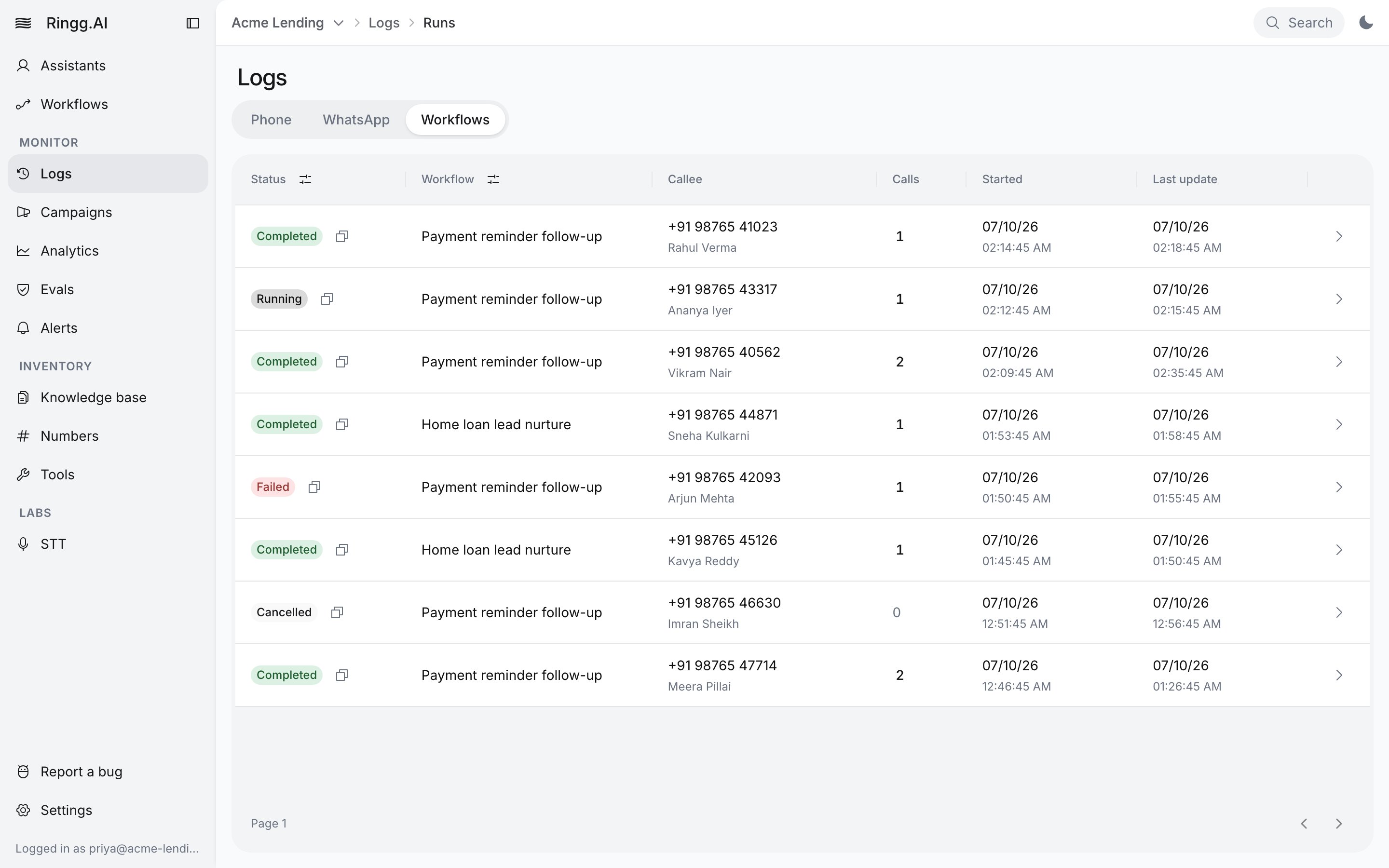
 ## Export
Click **Export** in the table footer and choose **Export without analysis** or **Export with analysis**. Nothing downloads: "Call history report (with the applied filters) is being sent to your email." The export uses the filters on screen.
## With the API
| Dashboard | Endpoint |
| - | - |
| The call list | [Get call history](/api-reference/endpoint/history/get-call-history): `GET /calling/history`, filtered by `start_date`, `end_date`, `agent_id`, `status` and `bulk_list_id`, paged with `limit` and `offset` |
| The call panel | [Get call details](/api-reference/endpoint/history/get-call-details): `GET /calling/call-details?id=
## Export
Click **Export** in the table footer and choose **Export without analysis** or **Export with analysis**. Nothing downloads: "Call history report (with the applied filters) is being sent to your email." The export uses the filters on screen.
## With the API
| Dashboard | Endpoint |
| - | - |
| The call list | [Get call history](/api-reference/endpoint/history/get-call-history): `GET /calling/history`, filtered by `start_date`, `end_date`, `agent_id`, `status` and `bulk_list_id`, paged with `limit` and `offset` |
| The call panel | [Get call details](/api-reference/endpoint/history/get-call-details): `GET /calling/call-details?id=