> ## Documentation Index
> Fetch the complete documentation index at: https://docs.ringg.ai/llms.txt
> Use this file to discover all available pages before exploring further.
> ## Agent Instructions
> To search or read these docs, connect the Ringg docs MCP server at https://docs.ringg.ai/mcp (no key needed; tools search_ringg_ai and query_docs_filesystem_ringg_ai) instead of browsing pages one by one. Setup for each client: https://docs.ringg.ai/resources/mcp-server/docs-mcp-server/mcp-for-ai-assistants.md
> The dashboard labels agents "Assistants"; these docs say "agent". Both mean the same object, identified by agent_id.
> API base URL: https://prod-api.ringg.ai/ca/api/v0. Send the workspace API key in the X-API-KEY header, from server-side code only.
> Placing a call dials a real phone number and spends credits. Confirm the number with the user before calling.
> To act on a Ringg workspace (place calls, edit agents, read transcripts), use the separate Ringg workspace MCP server at https://mcp.ringg.ai/mcp: https://docs.ringg.ai/resources/mcp-server/workspace-mcp-server/overview.md
# Evals
> Use Ringg AI Evals to score every completed call on quality metrics, review flagged issues, and run simulated test cases against an agent before you change it.
Evals grades how well your agent spoke; use [Analytics](/documentation/monitor/analytics) for volume and cost. Its test cases are simulated calls down one conversation path that the agent must handle.
In the dashboard: **Sidebar → Monitor → Evals**.
Ringg turns Evals on per agent ([troubleshooting](#troubleshooting)). A primary workspace that manages [Ringg Spaces](/documentation/manage-account/ringg-spaces/overview) has no Evals item; open a Ringg Space.
## Before you start
The agent whose calls are scored.
Test cases always run the agent's published version.
## How evals relate to agents and calls
* **Per agent.** Every section of the page is about one agent. Pick it in the agent picker at the top.
* **Automatic on real calls.** Once evals are on, the agent's completed calls are scored on its metrics.
* **On demand with test cases.** A test case runs a simulated call; nobody is dialled and it does not touch real customers.
* **Visible in Logs.** A scored call gets an **Evals** tab ([see evals for one call](#see-evals-for-one-call)).
## Read the quality chart
Pick an agent and a date range. The range defaults to the last 30 days, and the agent and range are kept in the URL.
The left panel lists **Metrics**, each with its average score for the range. **Overall** is the plain average of those metric scores, skipping metrics with no evaluated calls, and is always plotted. Click a metric to add its line; up to four metrics can be plotted at once ("Unselect a metric to plot another."). Hover a metric that is not plotted to preview it as a dashed line.
Ringg's built-in metrics. When Ringg turns evals on for an agent, it picks which of these the agent is scored on:
| Metric | Checks whether the agent… |
| - | - |
| **Factual accuracy** | Said things that aren't backed by its [prompt](/documentation/build-agents/customize-agent-behaviour/agent-prompt), [knowledge base](/documentation/build-agents/customize-agent-behaviour/attach-a-knowledge-base), or [tools](/documentation/build-agents/customize-agent-behaviour/tools/overview) |
| **Instruction following** | Followed its configured steps, rules, persona, and scope |
| **Knowledge coverage** | Was asked for things it couldn't handle because the information was missing (add it to a [knowledge base](/documentation/inventory/knowledge-base)) |
| **Tool accuracy** | Used its tools correctly: the right tool, the right inputs, and used the results faithfully |
| **Knowledge base quality** | Had a [knowledge base](/documentation/inventory/knowledge-base) with the correct, complete answers it needed |
You can add your own metrics in [Settings](#configure-metrics).
## Review issues
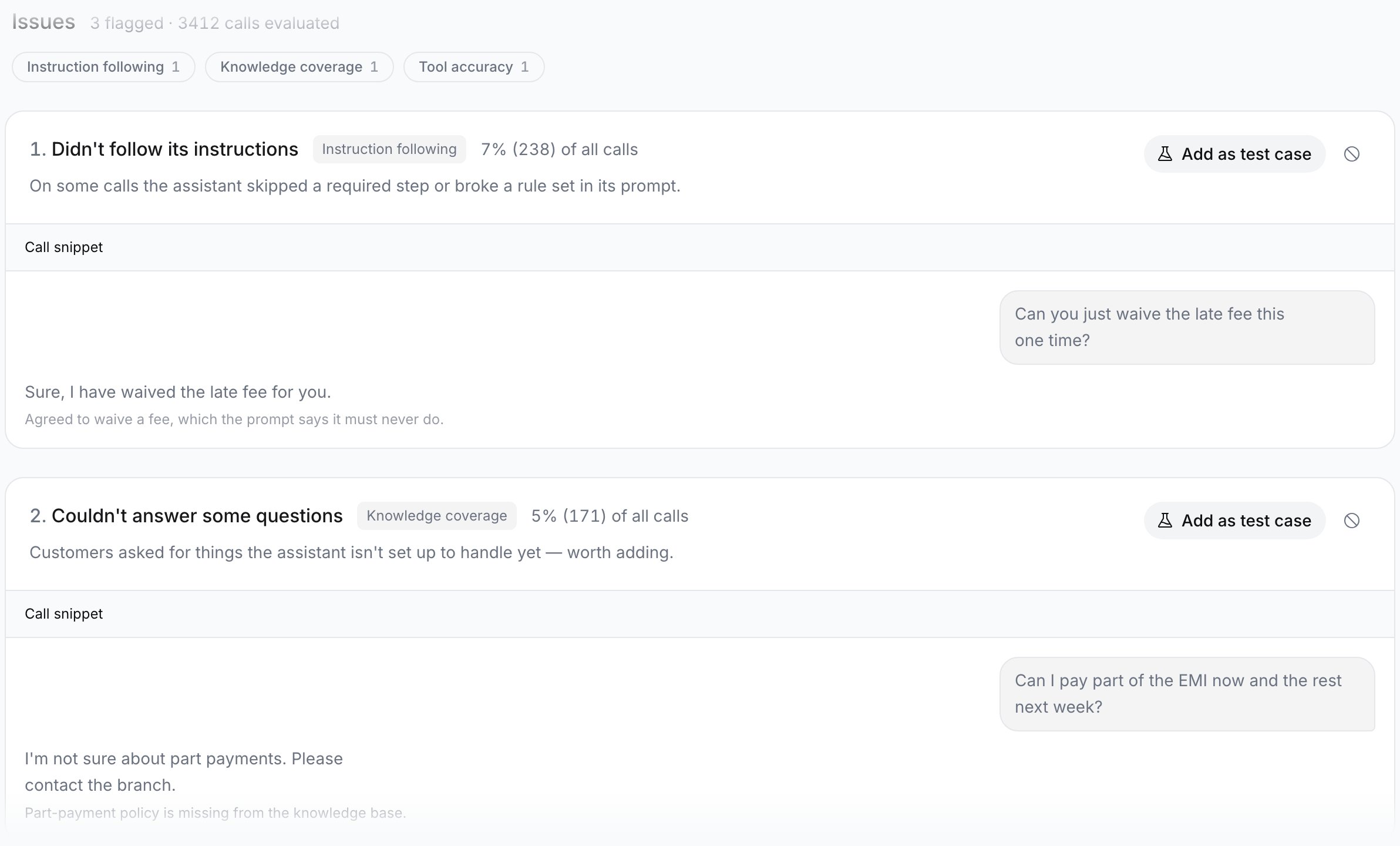
**Issues** shows the most frequent failures for the agent in the range, with "N flagged · M calls evaluated". Each issue card has:
* A title such as "Didn't follow its instructions" and the metric that caught it.
* How often it happened, as a share and count "of all calls".
* A **Call snippet** with what the customer and the agent said.
* **Add as test case**: turns the failure into a test the agent has to pass. The button reads **Added** afterwards.
* **Not an issue** (the dismiss icon): hides the card until you reload the page; the dismissal is not saved.
Filter the list with the metric chips above the cards.
## Create test cases
A test case is "one conversation path the agent has to survive". It has a **Conversation path** (who the simulated customer is and how they push the agent) and **Success criteria** (what the agent must do to pass). An agent can hold 25 test cases; delete one to add another.
There are three ways to add cases.
### Generate cases from the prompt
Pick **Generate as** **Voice** or **Web chat**, then click **Generate 10** (or **Generate N more**, up to the 25-case limit). Ringg writes the cases from the agent's prompt.
### Write a case by hand
1. Click **Create a test case** (or the **Create a new testcase** tile).
2. Pick the channel: **Voice** "runs a spoken call (STT/TTS)"; **Web chat** "runs a text-only conversation".
3. On **Write a prompt**, fill **Name** (for example "Angry customer, mid-call plan change"), **Conversation path** and **Success criteria**. Both text fields need at least 10 characters.
4. Click **Add test case**.
The new case appears in the list with status **Never run**.
### Turn a real call into a case
In **Create a test case**, open **From a call** and paste a **Call ID** from the [call panel](/documentation/monitor/logs#the-call-panel) in Logs. Ringg replays the call as a simulation and turns what went wrong into a criterion. Click **Add test case**.
The voice dropdown next to **Run tests** sets the simulated customer's voice for all of the agent's voice test cases. It starts on **Default voice**. Web chat cases have no audio and ignore it.
## Run test cases and read results
Click **Run tests** to run every case, or open a case and click **Run test** (**Run again** after the first run). Runs are queued when simulation capacity is busy. The header shows the score as passed out of total, such as `7/10`.
Each case moves from **Queued** to **Running**, then to **Passed**, **Failed** or **Not evaluated**.
| Status | Meaning |
| - | - |
| **Never run** | The case has not been run yet |
| **Queued** | Waiting for a simulation slot |
| **Running** | The simulated call is in progress |
| **Passed** | The agent met the success criteria |
| **Failed** | The agent did not meet the success criteria |
| **Not evaluated** | The call never reached the situation under test, or the simulation errored. Not a pass, and not a failure. |
Open a case to see:
* The verdict and the judge's reasoning, and "N of M criteria met" with a reason per criterion.
* Which agent version ran and when it was published. Runs always use the published version, so publish your changes before re-running (see [Versions](/documentation/build-agents/test-and-improve/drafts-and-versions)).
* The simulated conversation, with tool calls and node transitions, and a recording for voice cases.
* **Edit** to change the name, path or criteria ("Existing runs keep the verdict they were given.").
* A **Voice** / **Web chat** switch that converts the case to the other channel.
* A delete icon, then **Delete** to confirm.
## Configure metrics
Click **Configure** (or scroll to **Settings**). Select a metric on the left to see:
* **Tolerance**: how readily a call is flagged.
| Tolerance | Behaviour |
| - | - |
| **Minimal** | Only clear-cut failures are flagged. Fewest calls surface. |
| **Balanced** (default) | Flags a call when the agent more likely than not fell short. |
| **Strict** | Flags anything short of a clean pass. Most calls surface. |
* **Prompt**: what the evaluator judges on every call. Editable for your own metrics; built-in metric prompts are "fixed and maintained by Ringg".
* **Remove**: stops the metric running on this agent.
To add a metric, click **Add new metric**, enter a **Name** (for example "Offered the callback option") and a **Prompt** of at least 10 characters, then click **Add metric**. It runs on the agent's next completed calls.
## See evals for one call
Open a call in [Logs](/documentation/monitor/logs#the-call-panel). If it was scored, the detail view has an **Evals** tab with each metric's score and the issues found: 70% and above shows **Good**, 40–69% **Fair**, below 40% **Needs review**. Calls of agents without evals, and WhatsApp chats, have no **Evals** tab.
## With the API
To read a call's eval scores, call [Get call details](/api-reference/endpoint/history/get-call-details) with `call_metrics=true`. The response's `data.metrics` lists one entry per metric with `metric_name`, `output_type`, `score`, `explanation` and `violations`. Webhooks don't carry eval scores. Test cases and metric settings have no public API; manage them in the dashboard.
## Troubleshooting
Evals is enabled by Ringg per agent. Contact [admin@ringg.ai](mailto:admin@ringg.ai) with the [agent ID](/documentation/build-agents/agents/agent-types#find-the-agent-id).
The picker lists agents with evals enabled. Check that the agent is one of them.
The simulated customer never reached the situation the case tests. Make the **Conversation path** more specific about what the customer says and asks.
Test cases run the published version. [Publish your draft](/documentation/build-agents/test-and-improve/drafts-and-versions#how-changes-go-live), then click **Run again**.
## Next steps
Get notified when a call metric spikes, instead of watching the chart.
This documentation is built and hosted on [Mintlify](https://mintlify.com), a developer documentation platform.
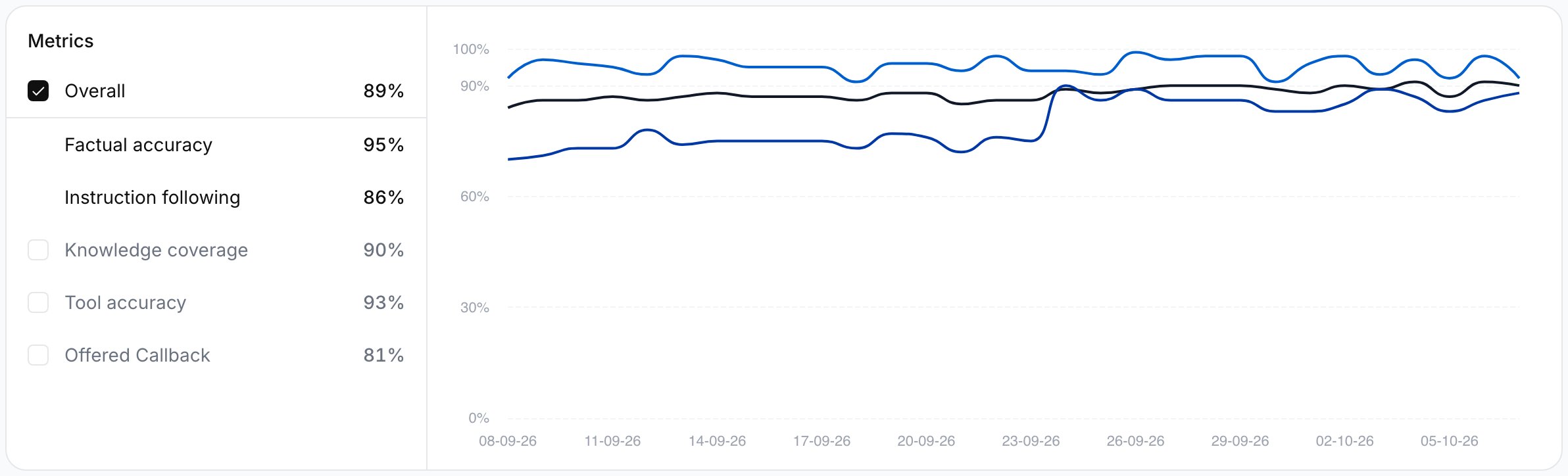 Ringg's built-in metrics. When Ringg turns evals on for an agent, it picks which of these the agent is scored on:
| Metric | Checks whether the agent… |
| - | - |
| **Factual accuracy** | Said things that aren't backed by its [prompt](/documentation/build-agents/customize-agent-behaviour/agent-prompt), [knowledge base](/documentation/build-agents/customize-agent-behaviour/attach-a-knowledge-base), or [tools](/documentation/build-agents/customize-agent-behaviour/tools/overview) |
| **Instruction following** | Followed its configured steps, rules, persona, and scope |
| **Knowledge coverage** | Was asked for things it couldn't handle because the information was missing (add it to a [knowledge base](/documentation/inventory/knowledge-base)) |
| **Tool accuracy** | Used its tools correctly: the right tool, the right inputs, and used the results faithfully |
| **Knowledge base quality** | Had a [knowledge base](/documentation/inventory/knowledge-base) with the correct, complete answers it needed |
You can add your own metrics in [Settings](#configure-metrics).
## Review issues
**Issues** shows the most frequent failures for the agent in the range, with "N flagged · M calls evaluated". Each issue card has:
* A title such as "Didn't follow its instructions" and the metric that caught it.
* How often it happened, as a share and count "of all calls".
* A **Call snippet** with what the customer and the agent said.
* **Add as test case**: turns the failure into a test the agent has to pass. The button reads **Added** afterwards.
* **Not an issue** (the dismiss icon): hides the card until you reload the page; the dismissal is not saved.
Filter the list with the metric chips above the cards.
Ringg's built-in metrics. When Ringg turns evals on for an agent, it picks which of these the agent is scored on:
| Metric | Checks whether the agent… |
| - | - |
| **Factual accuracy** | Said things that aren't backed by its [prompt](/documentation/build-agents/customize-agent-behaviour/agent-prompt), [knowledge base](/documentation/build-agents/customize-agent-behaviour/attach-a-knowledge-base), or [tools](/documentation/build-agents/customize-agent-behaviour/tools/overview) |
| **Instruction following** | Followed its configured steps, rules, persona, and scope |
| **Knowledge coverage** | Was asked for things it couldn't handle because the information was missing (add it to a [knowledge base](/documentation/inventory/knowledge-base)) |
| **Tool accuracy** | Used its tools correctly: the right tool, the right inputs, and used the results faithfully |
| **Knowledge base quality** | Had a [knowledge base](/documentation/inventory/knowledge-base) with the correct, complete answers it needed |
You can add your own metrics in [Settings](#configure-metrics).
## Review issues
**Issues** shows the most frequent failures for the agent in the range, with "N flagged · M calls evaluated". Each issue card has:
* A title such as "Didn't follow its instructions" and the metric that caught it.
* How often it happened, as a share and count "of all calls".
* A **Call snippet** with what the customer and the agent said.
* **Add as test case**: turns the failure into a test the agent has to pass. The button reads **Added** afterwards.
* **Not an issue** (the dismiss icon): hides the card until you reload the page; the dismissal is not saved.
Filter the list with the metric chips above the cards.
 ## Create test cases
A test case is "one conversation path the agent has to survive". It has a **Conversation path** (who the simulated customer is and how they push the agent) and **Success criteria** (what the agent must do to pass). An agent can hold 25 test cases; delete one to add another.
There are three ways to add cases.
### Generate cases from the prompt
Pick **Generate as** **Voice** or **Web chat**, then click **Generate 10** (or **Generate N more**, up to the 25-case limit). Ringg writes the cases from the agent's prompt.
### Write a case by hand
1. Click **Create a test case** (or the **Create a new testcase** tile).
2. Pick the channel: **Voice** "runs a spoken call (
## Create test cases
A test case is "one conversation path the agent has to survive". It has a **Conversation path** (who the simulated customer is and how they push the agent) and **Success criteria** (what the agent must do to pass). An agent can hold 25 test cases; delete one to add another.
There are three ways to add cases.
### Generate cases from the prompt
Pick **Generate as** **Voice** or **Web chat**, then click **Generate 10** (or **Generate N more**, up to the 25-case limit). Ringg writes the cases from the agent's prompt.
### Write a case by hand
1. Click **Create a test case** (or the **Create a new testcase** tile).
2. Pick the channel: **Voice** "runs a spoken call (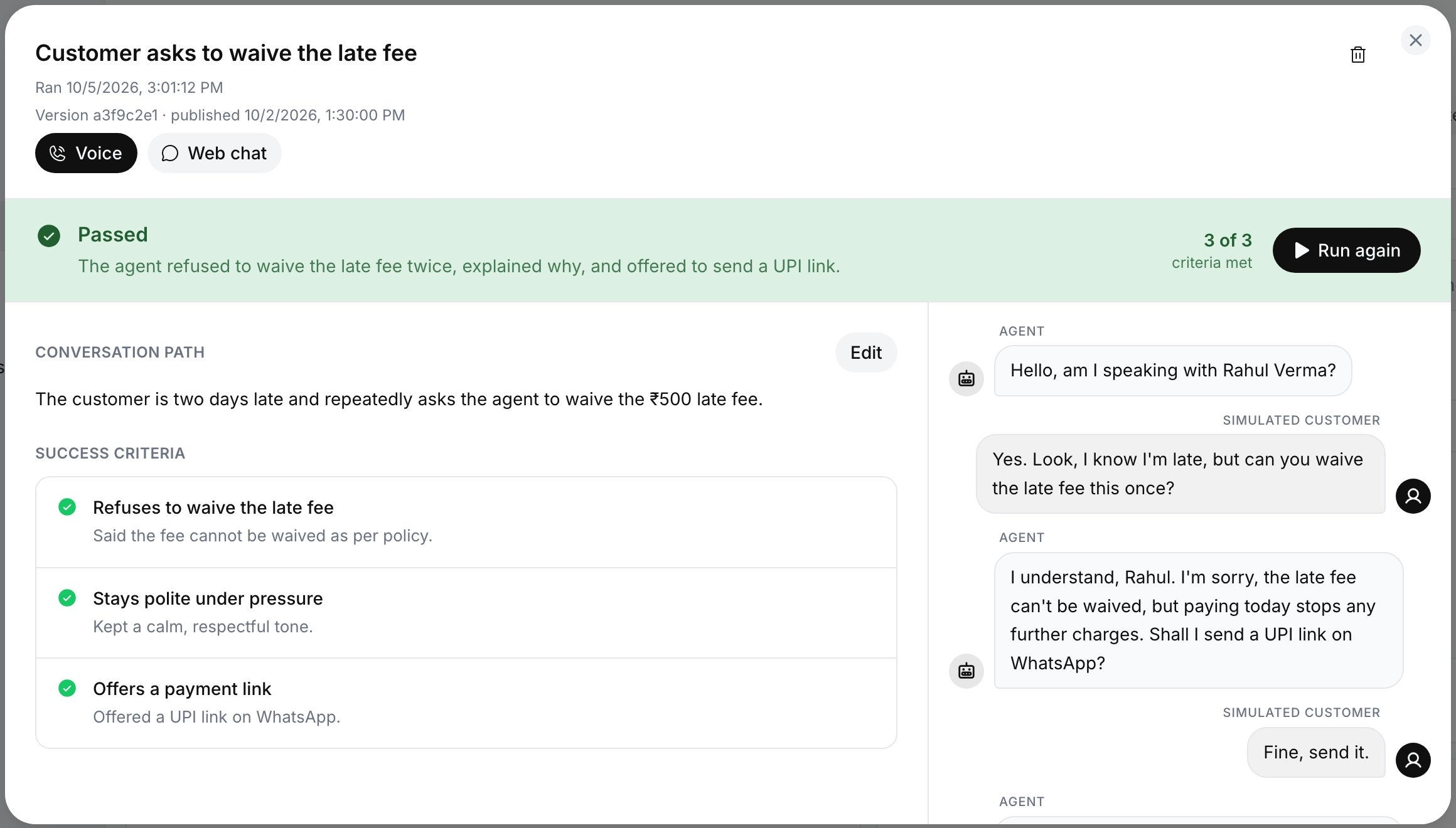 ## Configure metrics
Click **Configure** (or scroll to **Settings**). Select a metric on the left to see:
* **Tolerance**: how readily a call is flagged.
| Tolerance | Behaviour |
| - | - |
| **Minimal** | Only clear-cut failures are flagged. Fewest calls surface. |
| **Balanced** (default) | Flags a call when the agent more likely than not fell short. |
| **Strict** | Flags anything short of a clean pass. Most calls surface. |
* **Prompt**: what the evaluator judges on every call. Editable for your own metrics; built-in metric prompts are "fixed and maintained by Ringg".
* **Remove**: stops the metric running on this agent.
To add a metric, click **Add new metric**, enter a **Name** (for example "Offered the callback option") and a **Prompt** of at least 10 characters, then click **Add metric**. It runs on the agent's next completed calls.
## See evals for one call
Open a call in [Logs](/documentation/monitor/logs#the-call-panel). If it was scored, the detail view has an **Evals** tab with each metric's score and the issues found: 70% and above shows **Good**, 40–69% **Fair**, below 40% **Needs review**. Calls of agents without evals, and WhatsApp chats, have no **Evals** tab.
## With the API
To read a call's eval scores, call [Get call details](/api-reference/endpoint/history/get-call-details) with `call_metrics=true`. The response's `data.metrics` lists one entry per metric with `metric_name`, `output_type`, `score`, `explanation` and `violations`. Webhooks don't carry eval scores. Test cases and metric settings have no public API; manage them in the dashboard.
## Troubleshooting
## Configure metrics
Click **Configure** (or scroll to **Settings**). Select a metric on the left to see:
* **Tolerance**: how readily a call is flagged.
| Tolerance | Behaviour |
| - | - |
| **Minimal** | Only clear-cut failures are flagged. Fewest calls surface. |
| **Balanced** (default) | Flags a call when the agent more likely than not fell short. |
| **Strict** | Flags anything short of a clean pass. Most calls surface. |
* **Prompt**: what the evaluator judges on every call. Editable for your own metrics; built-in metric prompts are "fixed and maintained by Ringg".
* **Remove**: stops the metric running on this agent.
To add a metric, click **Add new metric**, enter a **Name** (for example "Offered the callback option") and a **Prompt** of at least 10 characters, then click **Add metric**. It runs on the agent's next completed calls.
## See evals for one call
Open a call in [Logs](/documentation/monitor/logs#the-call-panel). If it was scored, the detail view has an **Evals** tab with each metric's score and the issues found: 70% and above shows **Good**, 40–69% **Fair**, below 40% **Needs review**. Calls of agents without evals, and WhatsApp chats, have no **Evals** tab.
## With the API
To read a call's eval scores, call [Get call details](/api-reference/endpoint/history/get-call-details) with `call_metrics=true`. The response's `data.metrics` lists one entry per metric with `metric_name`, `output_type`, `score`, `explanation` and `violations`. Webhooks don't carry eval scores. Test cases and metric settings have no public API; manage them in the dashboard.
## Troubleshooting