> ## Documentation Index
> Fetch the complete documentation index at: https://docs.ringg.ai/llms.txt
> Use this file to discover all available pages before exploring further.
> ## Agent Instructions
> To search or read these docs, connect the Ringg docs MCP server at https://docs.ringg.ai/mcp (no key needed; tools search_ringg_ai and query_docs_filesystem_ringg_ai) instead of browsing pages one by one. Setup for each client: https://docs.ringg.ai/resources/mcp-server/docs-mcp-server/mcp-for-ai-assistants.md
> The dashboard labels agents "Assistants"; these docs say "agent". Both mean the same object, identified by agent_id.
> API base URL: https://prod-api.ringg.ai/ca/api/v0. Send the workspace API key in the X-API-KEY header, from server-side code only.
> Placing a call dials a real phone number and spends credits. Confirm the number with the user before calling.
> To act on a Ringg workspace (place calls, edit agents, read transcripts), use the separate Ringg workspace MCP server at https://mcp.ringg.ai/mcp: https://docs.ringg.ai/resources/mcp-server/workspace-mcp-server/overview.md
# API key
> Generate your Ringg AI workspace API key in the dashboard, copy it from the one-time reveal, send it as X-API-KEY, and rotate it without breaking integrations.
The API key is the secret your backend sends with every Ringg API request. It identifies the workspace the request acts for, and each workspace has one key.
In the dashboard: **Settings → API key**. For the request format and error codes, see [Authentication](/api-reference/introduction/authentication); to go from a new key to a real call, follow the [quickstart](/api-reference/introduction/quickstart).
## Who can generate the key
In the dashboard, only the workspace **owner** can generate or regenerate it. Other members see the button disabled, with "Only the workspace owner can generate API keys. Please contact them to proceed." The owner is marked with an **Owner** chip on [Workspace members](/documentation/manage-account/members#roles-and-permissions).
Each [Ringg Space](/documentation/manage-account/ringg-spaces/overview) has its own key. A new Ringg Space starts without one: switch to it and generate the key on this page.
## Generate the key
Have your secret manager open before you start: you get one chance to copy the key.
On **Settings → API key**, click **Generate API Key**. A dialog opens with the full key.
Click **Copy** (it changes to **Copied**) and paste the key into your secret manager. If copying fails, select the key in the field and copy it by hand.
Click **Done**.
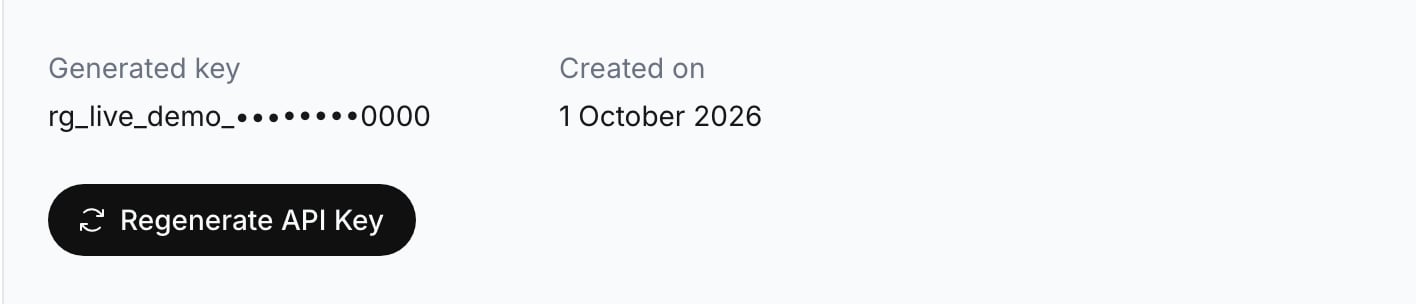
The page shows **Generated key** (masked) and **Created on**.
From then on the page shows:
| Field | What it is |
| - | - |
| **Generated key** | The key's prefix and last four characters, for example `rg_live_••••••••2e63` |
| **Created on** | The date the current key was generated |
New keys start with `rg_live_`. A key generated earlier can start with `ringg_live_` or be a plain UUID, and show no masked form; it keeps working until you regenerate it.
## Use the key
Send the key in the `X-API-KEY` header to `https://prod-api.ringg.ai/ca/api/v0`. [Get Workspace Info](/api-reference/endpoint/workspace/get-workspace-info) (`GET /workspace`) is a quick check that it works:
```bash cURL theme={null}
curl "https://prod-api.ringg.ai/ca/api/v0/workspace" \
-H "X-API-KEY: $RINGG_API_KEY"
```
```javascript JavaScript theme={null}
const response = await fetch("https://prod-api.ringg.ai/ca/api/v0/workspace", {
headers: { "X-API-KEY": process.env.RINGG_API_KEY },
});
console.log(response.status, await response.json());
```
```python Python theme={null}
import os
import requests
response = requests.get(
"https://prod-api.ringg.ai/ca/api/v0/workspace",
headers={"X-API-KEY": os.environ["RINGG_API_KEY"]},
)
print(response.status_code, response.json())
```
A `200` response with your workspace's details in `workspace_info` means the key works. A `401` with `{"message": "Invalid credentials"}` means it is missing, mistyped or was regenerated.
The key acts for the whole workspace. It can [create agents](/api-reference/endpoint/assistant/create-agent), [start campaigns](/api-reference/endpoint/campaign/start-campaign) and [place calls](/api-reference/endpoint/calling/initiate-individual-call) that spend your [balance](/documentation/manage-account/billing).
## Store it safely
* Keep it in a secret manager or a server-side environment variable such as `RINGG_API_KEY`.
* Call the Ringg API from your backend only. The key must never reach browser JavaScript, a mobile app, a public repository, a screenshot or a support ticket. The [web widget](/documentation/deploy/web-and-apps/web-widget/overview) has its own public key in the embed code; don't swap this one in.
* Hand it to developers through your company's secret-sharing tool, not email or chat.
* Don't log request headers.
## Rotate the key
Regenerating replaces the key at once, with no overlap: the old key stops working the moment the new one exists.
Backend services, scripts, Zapier, [MCP clients](/resources/mcp-server/workspace-mcp-server/overview), CRMs. Agree a switch-over time with their owners.
Click **Regenerate API Key**, then **Regenerate** in the confirmation dialog.
The **New API Key** dialog shows it once. Click **Copy**, then **Done**.
Replace the secret everywhere and redeploy. Until a service has the new key, its requests fail with `401`.
If the key has leaked, or might have, rotate it straight away. Keys cannot be created or rotated through the API.
## Troubleshooting
You are not the workspace owner; ask them ([who can generate the key](#who-can-generate-the-key)).
It cannot be shown again. Click **Regenerate API Key** to get a new one; this revokes the key you didn't copy.
Services still sending the old key are rejected. Compare the last four characters of **Generated key** with each service's key and update the ones that differ.
Click **Try again**. The page won't offer **Generate API Key** until it knows whether a key exists, so it can't replace one by accident.
## Next steps
Header format, error codes and a first request.
Have Ringg post call events to your server.
Use the key with Claude, ChatGPT or Cursor over MCP.
This documentation is built and hosted on [Mintlify](https://mintlify.com), a developer documentation platform.