> ## Documentation Index
> Fetch the complete documentation index at: https://docs.ringg.ai/llms.txt
> Use this file to discover all available pages before exploring further.
> ## Agent Instructions
> To search or read these docs, connect the Ringg docs MCP server at https://docs.ringg.ai/mcp (no key needed; tools search_ringg_ai and query_docs_filesystem_ringg_ai) instead of browsing pages one by one. Setup for each client: https://docs.ringg.ai/resources/mcp-server/docs-mcp-server/mcp-for-ai-assistants.md
> The dashboard labels agents "Assistants"; these docs say "agent". Both mean the same object, identified by agent_id.
> API base URL: https://prod-api.ringg.ai/ca/api/v0. Send the workspace API key in the X-API-KEY header, from server-side code only.
> Placing a call dials a real phone number and spends credits. Confirm the number with the user before calling.
> To act on a Ringg workspace (place calls, edit agents, read transcripts), use the separate Ringg workspace MCP server at https://mcp.ringg.ai/mcp: https://docs.ringg.ai/resources/mcp-server/workspace-mcp-server/overview.md
# Bring your own telephony
> Connect your own telephony account (Exotel, Plivo, Twilio, Ozonetel, Vobiz, Tata Tele and more) or a SIP trunk to Ringg AI, then import its numbers.
Bring your own telephony (BYOT) lets your agents call and answer on numbers from your own carrier account instead of numbers bought through Ringg. Use it when you already have numbers, rates or compliance set up with a carrier; if you don't, [buying a Ringg-provided number](/documentation/inventory/phone-numbers/buy-or-import-a-number#buy-a-new-number) from Plivo or Vobiz needs no provider account.
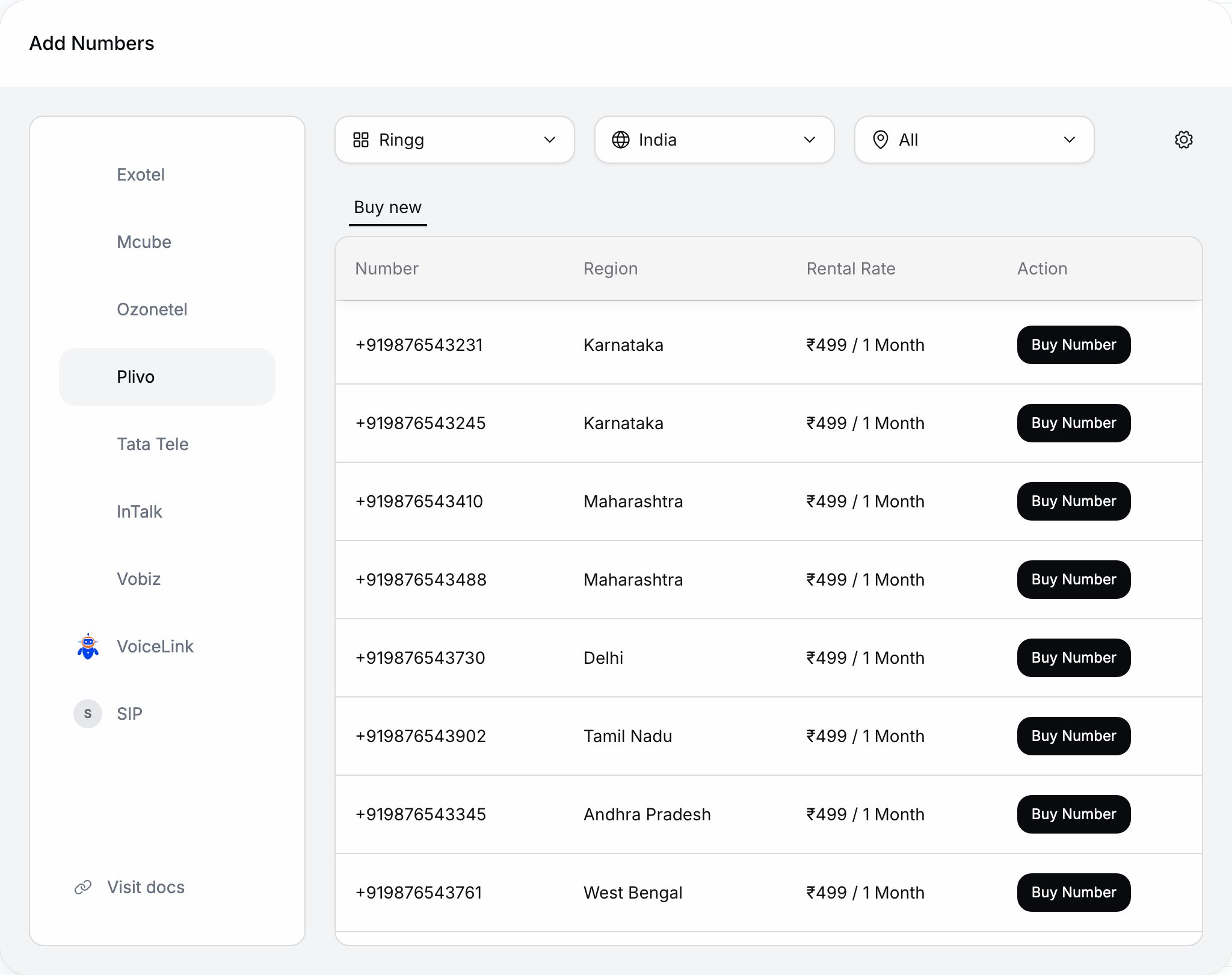
In the dashboard: **Numbers → Add number**, then pick the provider and open **Configure provider** (the gear).
## Supported providers
The providers in the **Add number** dialog and where each is documented. Every account form's fields are in [Connect a provider account](/documentation/inventory/phone-numbers/buy-or-import-a-number#connect-a-provider-account-first); which providers and countries your workspace sees is in [Numbers overview](/documentation/inventory/phone-numbers/overview#supported-telephony-providers).
| Provider | Guide |
| - | - |
| Exotel | [Connect Exotel](/documentation/inventory/phone-numbers/your-own-telephony/exotel) |
| Plivo | [Connect Plivo](/documentation/inventory/phone-numbers/your-own-telephony/plivo) |
| Twilio | [Connect Twilio](/documentation/inventory/phone-numbers/your-own-telephony/twilio) |
| Ozonetel | [Connect Ozonetel](/documentation/inventory/phone-numbers/your-own-telephony/ozonetel) |
| SIP | [SIP trunking](/documentation/inventory/phone-numbers/your-own-telephony/sip-trunking) |
| Ameyo (over SIP, no entry in the dialog; set up with Ringg's team) | [Connect Ameyo](/documentation/inventory/phone-numbers/your-own-telephony/ameyo) |
| Mcube, Tata Tele, Vobiz, VoiceLink, InTalk (import only), Maqsam | [Connect a provider account](/documentation/inventory/phone-numbers/buy-or-import-a-number#connect-a-provider-account-first) |
| Custom | Set up by Ringg; shown only when Ringg has created a custom telephony account for your workspace |
If your carrier isn't listed, see [New provider requirements](/documentation/inventory/phone-numbers/your-own-telephony/new-provider-requirements).
## How BYOT works
Get the credentials. For providers that route calls through an app or flow (Exotel, Ozonetel), configure Ringg's URLs there first; each provider guide lists them.
Open **Configure provider** for the provider, select **Add**, fill the fields and **Save**. See [Connect a provider account](/documentation/inventory/phone-numbers/buy-or-import-a-number#connect-a-provider-account-first).
With the account selected, use **Import your own**, **Buy new** (providers that sell numbers) or **Add custom** (providers that don't share a number list). See [Import a number](/documentation/inventory/phone-numbers/buy-or-import-a-number#import-a-number-you-already-own).
[Attach a number to an inbound agent](/documentation/inventory/phone-numbers/inbound-agent-number), or pick it as caller ID for [calls](/api-reference/endpoint/calling/initiate-individual-call) and [campaigns](/documentation/deploy/campaigns/create-a-campaign).
Place a test call in each direction you use. It appears in [Logs](/documentation/monitor/logs).
## Troubleshooting
These apply to every provider account; provider-specific causes are on each provider's page.
Ringg tests the credentials with most providers when you save. "Invalid credentials for *provider*" means the provider refused them: re-copy them from the provider's console without extra spaces, and check the account isn't suspended and has API access. "Missing required fields for *provider*" names the empty fields.
Check the numbers are active and voice-enabled with the provider, and that you selected the right account in **Add number**.
Check the number is attached to the right agent and the agent is live. Open the call in [Logs](/documentation/monitor/logs) for its status and transcript, and compare it with the provider's call logs.
Test from a second phone and network and check the provider's service status. If it persists, contact Ringg support with the Ringg call ID.
## Next steps
Connect the account and bring its numbers in.
Your own PBX, SBC or contact centre over SIP.
Route inbound calls to an agent.
This documentation is built and hosted on [Mintlify](https://mintlify.com), a developer documentation platform.
 ## Supported providers
The providers in the **Add number** dialog and where each is documented. Every account form's fields are in [Connect a provider account](/documentation/inventory/phone-numbers/buy-or-import-a-number#connect-a-provider-account-first); which providers and countries your workspace sees is in [Numbers overview](/documentation/inventory/phone-numbers/overview#supported-telephony-providers).
| Provider | Guide |
| - | - |
| Exotel | [Connect Exotel](/documentation/inventory/phone-numbers/your-own-telephony/exotel) |
| Plivo | [Connect Plivo](/documentation/inventory/phone-numbers/your-own-telephony/plivo) |
| Twilio | [Connect Twilio](/documentation/inventory/phone-numbers/your-own-telephony/twilio) |
| Ozonetel | [Connect Ozonetel](/documentation/inventory/phone-numbers/your-own-telephony/ozonetel) |
|
## Supported providers
The providers in the **Add number** dialog and where each is documented. Every account form's fields are in [Connect a provider account](/documentation/inventory/phone-numbers/buy-or-import-a-number#connect-a-provider-account-first); which providers and countries your workspace sees is in [Numbers overview](/documentation/inventory/phone-numbers/overview#supported-telephony-providers).
| Provider | Guide |
| - | - |
| Exotel | [Connect Exotel](/documentation/inventory/phone-numbers/your-own-telephony/exotel) |
| Plivo | [Connect Plivo](/documentation/inventory/phone-numbers/your-own-telephony/plivo) |
| Twilio | [Connect Twilio](/documentation/inventory/phone-numbers/your-own-telephony/twilio) |
| Ozonetel | [Connect Ozonetel](/documentation/inventory/phone-numbers/your-own-telephony/ozonetel) |
|