> ## Documentation Index
> Fetch the complete documentation index at: https://docs.ringg.ai/llms.txt
> Use this file to discover all available pages before exploring further.
> ## Agent Instructions
> To search or read these docs, connect the Ringg docs MCP server at https://docs.ringg.ai/mcp (no key needed; tools search_ringg_ai and query_docs_filesystem_ringg_ai) instead of browsing pages one by one. Setup for each client: https://docs.ringg.ai/resources/mcp-server/docs-mcp-server/mcp-for-ai-assistants.md
> The dashboard labels agents "Assistants"; these docs say "agent". Both mean the same object, identified by agent_id.
> API base URL: https://prod-api.ringg.ai/ca/api/v0. Send the workspace API key in the X-API-KEY header, from server-side code only.
> Placing a call dials a real phone number and spends credits. Confirm the number with the user before calling.
> To act on a Ringg workspace (place calls, edit agents, read transcripts), use the separate Ringg workspace MCP server at https://mcp.ringg.ai/mcp: https://docs.ringg.ai/resources/mcp-server/workspace-mcp-server/overview.md
# Phone numbers
> See how Ringg uses phone numbers for inbound agents and outbound caller ID: Ringg-provided vs your own telephony, test numbers, spam flags and providers.
Built and tested [agents](/documentation/build-agents/agents/agent-types) and [workflows](/documentation/build-agents/workflows/overview) need phone numbers before they can reach real people. The one decision on this page is where numbers come from: [Ringg-provided or your own telephony](#ringg-provided-numbers-vs-your-own-telephony).
In the dashboard: **Sidebar → Inventory → Numbers**.
## Pages in this chapter
| Page | Covers |
| - | - |
| [Buy or import a number](/documentation/inventory/phone-numbers/buy-or-import-a-number) | The **Add number** dialog: buy a Ringg-provided number, connect a provider account, import or add your own numbers |
| [Your own telephony](/documentation/inventory/phone-numbers/your-own-telephony/byot-overview) | What connecting Exotel, Plivo, Twilio, Ozonetel, Ameyo or a SIP trunk involves, with a page per provider |
| [Number pools](/documentation/inventory/phone-numbers/number-pools) | Group numbers so outbound calls rotate across them and skip spam-flagged numbers |
| [Inbound agent number](/documentation/inventory/phone-numbers/inbound-agent-number) (Build agents › Inventory) | Point a number at an inbound agent; choose the caller ID for test calls, campaigns and API calls |
## What numbers are used for
| Use | How the number is chosen | Page |
| - | - | - |
| Inbound calls | You attach one number to an inbound agent. Calls to that number reach the agent. | [Attach a number to an agent](/documentation/inventory/phone-numbers/inbound-agent-number) |
| Single outbound call | You pick the caller ID in the test dialog, or send `from_number_id`, `from_number` or `number_pool_id` in the API call. | [Caller ID for outbound calls](/documentation/inventory/phone-numbers/inbound-agent-number#outbound-choose-the-caller-id) |
| Campaigns | You pick **Individual numbers** or a **Number pool** in the campaign's **Select number** card. | [Create a campaign](/documentation/deploy/campaigns/create-a-campaign), [Number pools](/documentation/inventory/phone-numbers/number-pools) |
## The Numbers page
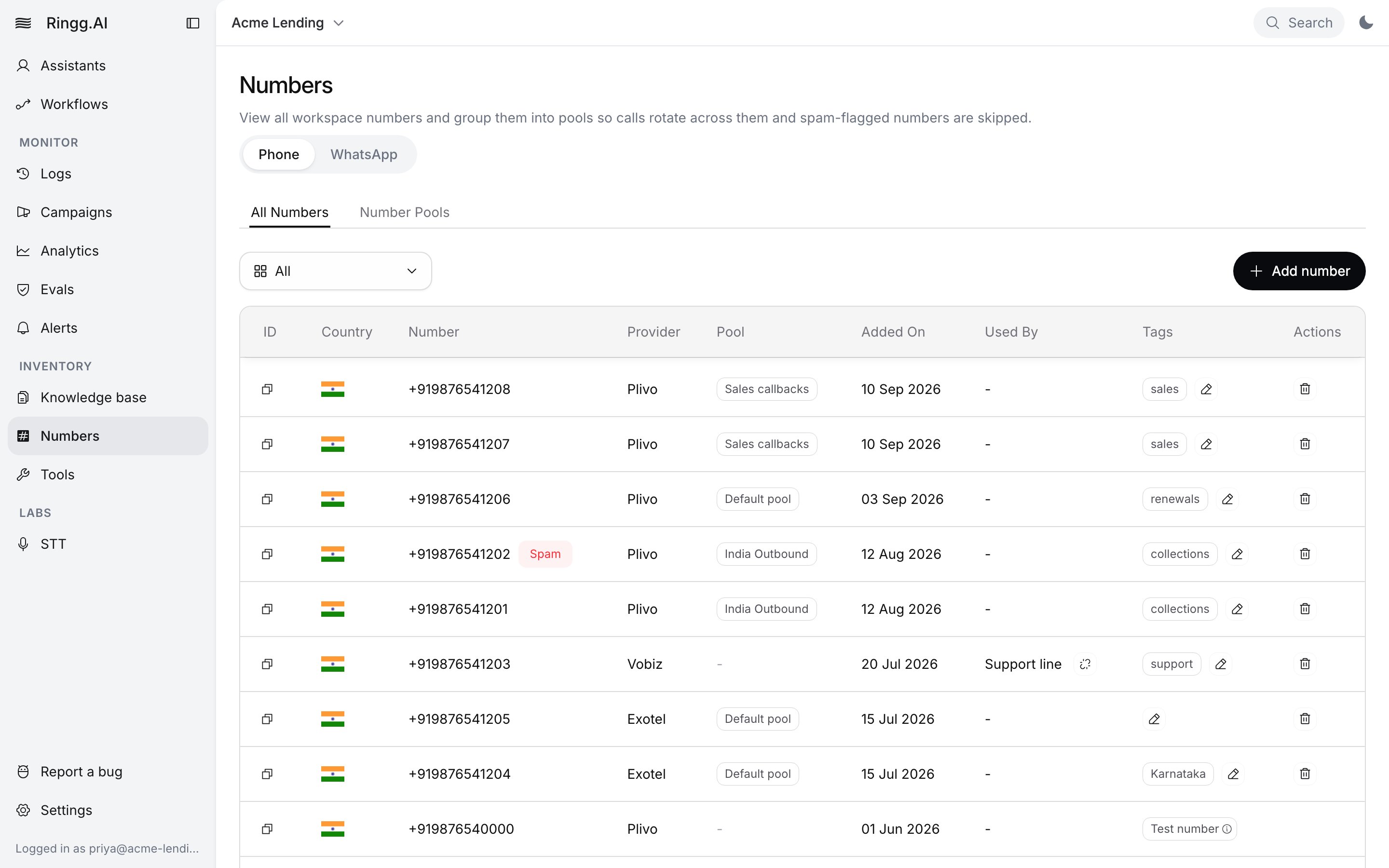
The page has two channel tabs:
* **Phone**: your voice numbers, split into **All Numbers** (every number, a telephony account filter and the **Add number** button) and **Number Pools** ([groups that outbound calls rotate across](/documentation/inventory/phone-numbers/number-pools)).
* **WhatsApp**: WhatsApp Business numbers. See [WhatsApp numbers](#whatsapp-numbers).
The **All Numbers** table has these columns:
| Column | What it shows |
| - | - |
| **ID** | A copy button for the number's ID. The API calls this `from_number_id`. |
| **Country** | The country flag. |
| **Number** | The number in international format, with a **Spam** chip if it has been flagged. |
| **Provider** | The telephony provider that carries the number, for example `plivo` or `exotel`. |
| **Pool** | The number pool it belongs to, or `-`. |
| **Added On** | The date the number was added. |
| **Used By** | The inbound agent the number is attached to, with a **Detach Number** button. |
| **Tags** | Your free-text tags, a **Test number** chip on test numbers, and **Add Tags**. |
| **Actions** | **Remove Number**. |
## Ringg-provided numbers vs your own telephony
| | Ringg-provided | Bring your own telephony (BYOT) |
| - | - | - |
| Who holds the line | Ringg | Your account with the provider |
| Billing | A rental rate per billing period, shown before you buy ([Billing](/documentation/manage-account/billing)) | Your provider bills for the line. Importing a number is free, and Ringg charges no monthly rental. |
| Providers | Plivo and Vobiz | Exotel, Twilio, Ozonetel and [others](#supported-telephony-providers) |
| How to get one | **Add number** → telephony account **Ringg** | [Connect your account](/documentation/inventory/phone-numbers/buy-or-import-a-number#connect-a-provider-account-first), then buy, import or add numbers |
Pick Ringg-provided to start with no provider account; pick BYOT when you already own numbers or have a carrier contract. Once a number is in the workspace, both kinds are used the same way.
## Test numbers
Every workspace sees Ringg's shared test numbers, marked **Test number** ("For testing only. Not for live calls or number pools."). Use them to [test an agent](/documentation/build-agents/test-and-improve/test-an-agent) before you buy a number.
| Limit | Detail |
| - | - |
| Region-bound | The Indian (`+91`) test number calls Indian numbers only; the US test number calls numbers outside India only. The test dialog blocks a mismatch and offers to switch. |
| Testing only | Not offered when you pick numbers for a campaign. |
| No pools | Can't join a number pool. |
| Not editable | Can't be tagged or removed. |
## Spam flags and tags
Ringg checks Ringg-provided numbers and flags likely spam. A flagged number shows a red **Spam** chip in the table; hover it to read the reason. Number pools skip spam-flagged numbers and can buy replacements on their own; see [Auto purchase](/documentation/inventory/phone-numbers/number-pools#auto-purchase). Outside a pool, a flagged number still places calls: single calls and campaigns that pick it under **Individual numbers** use it as usual.
Tags are free text, for labelling numbers by team, region or purpose (`collections`, `Karnataka`). They show in the table and in number pickers.
## WhatsApp numbers
WhatsApp numbers live on the **WhatsApp** tab. They belong to a connected WhatsApp Business account, not to a telephony provider. Until an account is connected, the tab shows "WhatsApp Business is not set up yet." with a **Setup WhatsApp business** button. See [Connect WhatsApp Business](/documentation/inventory/tools-integrations/connect-whatsapp).
## Supported telephony providers
These providers appear in the **Add number** dialog. Their credential fields are listed in [Connect a provider account](/documentation/inventory/phone-numbers/buy-or-import-a-number#connect-a-provider-account-first).
| Provider | Countries you can buy in | Setup guide |
| - | - | - |
| Exotel | India | [Exotel](/documentation/inventory/phone-numbers/your-own-telephony/exotel) |
| Mcube | India | — |
| Ozonetel | India, United States | [Ozonetel](/documentation/inventory/phone-numbers/your-own-telephony/ozonetel) |
| Plivo (also Ringg-provided) | India, United States | [Plivo](/documentation/inventory/phone-numbers/your-own-telephony/plivo) |
| Tata Tele | India | — |
| InTalk | Import only | — |
| Maqsam | Saudi Arabia, United Arab Emirates | — |
| Twilio | United States, Canada | [Twilio](/documentation/inventory/phone-numbers/your-own-telephony/twilio) |
| Vobiz (also Ringg-provided) | India | — |
| VoiceLink | India | — |
| SIP | Numbers added by hand | [SIP trunking](/documentation/inventory/phone-numbers/your-own-telephony/sip-trunking) |
| Custom | Numbers added by hand | — |
Countries other than India appear only when international calling is enabled for your workspace; without it, Twilio and Maqsam are hidden ([International numbers](/documentation/inventory/phone-numbers/buy-or-import-a-number#international-numbers)). **SIP** shows for enterprise workspaces, except on the Saudi Arabia and UAE regional dashboards. **Custom** shows only when Ringg has set up a custom telephony account for you.
## List numbers by API
[Get Workspace Numbers](/api-reference/endpoint/numbers/get-workspace-numbers) returns the whole **All Numbers** list in one response, newest first, including `id`, `is_test_number`, `is_spam`, `spam_message`, `provider`, `owner`, `tags`, `agent` and `number_pool_id`. It has no paging. To narrow it, pass `telephony_account_id` (a connected account's ID, or `ringg` for Ringg-provided and test numbers) or `inbound_enabled=true`. You need an [API key](/documentation/manage-account/api-key).
```bash cURL theme={null}
curl "https://prod-api.ringg.ai/ca/api/v0/workspace/numbers" \
-H "X-API-KEY: $RINGG_API_KEY"
```
```javascript JavaScript theme={null}
const res = await fetch("https://prod-api.ringg.ai/ca/api/v0/workspace/numbers", {
headers: { "X-API-KEY": process.env.RINGG_API_KEY },
});
console.log(await res.json());
```
```python Python theme={null}
import os
import requests
res = requests.get(
"https://prod-api.ringg.ai/ca/api/v0/workspace/numbers",
headers={"X-API-KEY": os.environ["RINGG_API_KEY"]},
)
print(res.json())
```
Pass a number's `id` as `from_number_id` when you [place a call](/api-reference/endpoint/calling/initiate-individual-call).
## Next steps
Buy a number, import one from your provider, or add one by hand.
Attach a number to an inbound agent and set outbound caller ID.
This documentation is built and hosted on [Mintlify](https://mintlify.com), a developer documentation platform.
 ## Ringg-provided numbers vs your own telephony
| | Ringg-provided | Bring your own telephony (
## Ringg-provided numbers vs your own telephony
| | Ringg-provided | Bring your own telephony ( Tags are free text, for labelling numbers by team, region or purpose (`collections`, `Karnataka`). They show in the table and in number pickers.
## WhatsApp numbers
WhatsApp numbers live on the **WhatsApp** tab. They belong to a connected WhatsApp Business account, not to a telephony provider. Until an account is connected, the tab shows "WhatsApp Business is not set up yet." with a **Setup WhatsApp business** button. See [Connect WhatsApp Business](/documentation/inventory/tools-integrations/connect-whatsapp).
## Supported telephony providers
These providers appear in the **Add number** dialog. Their credential fields are listed in [Connect a provider account](/documentation/inventory/phone-numbers/buy-or-import-a-number#connect-a-provider-account-first).
| Provider | Countries you can buy in | Setup guide |
| - | - | - |
| Exotel | India | [Exotel](/documentation/inventory/phone-numbers/your-own-telephony/exotel) |
| Mcube | India | — |
| Ozonetel | India, United States | [Ozonetel](/documentation/inventory/phone-numbers/your-own-telephony/ozonetel) |
| Plivo (also Ringg-provided) | India, United States | [Plivo](/documentation/inventory/phone-numbers/your-own-telephony/plivo) |
| Tata Tele | India | — |
| InTalk | Import only | — |
| Maqsam | Saudi Arabia, United Arab Emirates | — |
| Twilio | United States, Canada | [Twilio](/documentation/inventory/phone-numbers/your-own-telephony/twilio) |
| Vobiz (also Ringg-provided) | India | — |
| VoiceLink | India | — |
| SIP | Numbers added by hand | [SIP trunking](/documentation/inventory/phone-numbers/your-own-telephony/sip-trunking) |
| Custom | Numbers added by hand | — |
Countries other than India appear only when international calling is enabled for your workspace; without it, Twilio and Maqsam are hidden ([International numbers](/documentation/inventory/phone-numbers/buy-or-import-a-number#international-numbers)). **SIP** shows for enterprise workspaces, except on the Saudi Arabia and UAE regional dashboards. **Custom** shows only when Ringg has set up a custom telephony account for you.
## List numbers by API
[Get Workspace Numbers](/api-reference/endpoint/numbers/get-workspace-numbers) returns the whole **All Numbers** list in one response, newest first, including `id`, `is_test_number`, `is_spam`, `spam_message`, `provider`, `owner`, `tags`, `agent` and `number_pool_id`. It has no paging. To narrow it, pass `telephony_account_id` (a connected account's ID, or `ringg` for Ringg-provided and test numbers) or `inbound_enabled=true`. You need an [API key](/documentation/manage-account/api-key).
Tags are free text, for labelling numbers by team, region or purpose (`collections`, `Karnataka`). They show in the table and in number pickers.
## WhatsApp numbers
WhatsApp numbers live on the **WhatsApp** tab. They belong to a connected WhatsApp Business account, not to a telephony provider. Until an account is connected, the tab shows "WhatsApp Business is not set up yet." with a **Setup WhatsApp business** button. See [Connect WhatsApp Business](/documentation/inventory/tools-integrations/connect-whatsapp).
## Supported telephony providers
These providers appear in the **Add number** dialog. Their credential fields are listed in [Connect a provider account](/documentation/inventory/phone-numbers/buy-or-import-a-number#connect-a-provider-account-first).
| Provider | Countries you can buy in | Setup guide |
| - | - | - |
| Exotel | India | [Exotel](/documentation/inventory/phone-numbers/your-own-telephony/exotel) |
| Mcube | India | — |
| Ozonetel | India, United States | [Ozonetel](/documentation/inventory/phone-numbers/your-own-telephony/ozonetel) |
| Plivo (also Ringg-provided) | India, United States | [Plivo](/documentation/inventory/phone-numbers/your-own-telephony/plivo) |
| Tata Tele | India | — |
| InTalk | Import only | — |
| Maqsam | Saudi Arabia, United Arab Emirates | — |
| Twilio | United States, Canada | [Twilio](/documentation/inventory/phone-numbers/your-own-telephony/twilio) |
| Vobiz (also Ringg-provided) | India | — |
| VoiceLink | India | — |
| SIP | Numbers added by hand | [SIP trunking](/documentation/inventory/phone-numbers/your-own-telephony/sip-trunking) |
| Custom | Numbers added by hand | — |
Countries other than India appear only when international calling is enabled for your workspace; without it, Twilio and Maqsam are hidden ([International numbers](/documentation/inventory/phone-numbers/buy-or-import-a-number#international-numbers)). **SIP** shows for enterprise workspaces, except on the Saudi Arabia and UAE regional dashboards. **Custom** shows only when Ringg has set up a custom telephony account for you.
## List numbers by API
[Get Workspace Numbers](/api-reference/endpoint/numbers/get-workspace-numbers) returns the whole **All Numbers** list in one response, newest first, including `id`, `is_test_number`, `is_spam`, `spam_message`, `provider`, `owner`, `tags`, `agent` and `number_pool_id`. It has no paging. To narrow it, pass `telephony_account_id` (a connected account's ID, or `ringg` for Ringg-provided and test numbers) or `inbound_enabled=true`. You need an [API key](/documentation/manage-account/api-key).