> ## Documentation Index
> Fetch the complete documentation index at: https://docs.ringg.ai/llms.txt
> Use this file to discover all available pages before exploring further.
> ## Agent Instructions
> To search or read these docs, connect the Ringg docs MCP server at https://docs.ringg.ai/mcp (no key needed; tools search_ringg_ai and query_docs_filesystem_ringg_ai) instead of browsing pages one by one. Setup for each client: https://docs.ringg.ai/resources/mcp-server/docs-mcp-server/mcp-for-ai-assistants.md
> The dashboard labels agents "Assistants"; these docs say "agent". Both mean the same object, identified by agent_id.
> API base URL: https://prod-api.ringg.ai/ca/api/v0. Send the workspace API key in the X-API-KEY header, from server-side code only.
> Placing a call dials a real phone number and spends credits. Confirm the number with the user before calling.
> To act on a Ringg workspace (place calls, edit agents, read transcripts), use the separate Ringg workspace MCP server at https://mcp.ringg.ai/mcp: https://docs.ringg.ai/resources/mcp-server/workspace-mcp-server/overview.md
# Campaigns
> Understand Ringg AI campaigns: an agent calls every contact in a CSV inside calling windows, with retries. See each status and how concurrency is shared.
A campaign is a batch of outbound calls by one [agent](/documentation/build-agents/agents/agent-types) to a [calling list](/documentation/deploy/campaigns/calling-list). This chapter covers [creating a campaign](/documentation/deploy/campaigns/create-a-campaign), the [calling list](/documentation/deploy/campaigns/calling-list) it dials, [launching a workflow campaign](/documentation/deploy/campaigns/workflow-campaign#workflow-campaigns) and [managing one](/documentation/deploy/campaigns/manage-a-campaign) after launch.
In the dashboard: **Sidebar → Monitor → Campaigns**. Campaigns are not available on a primary (hub) workspace; open one of its [Ringg Spaces](/documentation/manage-account/ringg-spaces/overview).
## When to use a campaign
| You want to | Use | Why |
| - | - | - |
| Call a list of contacts (reminders, renewals, surveys, lead follow-ups) on a schedule | A campaign | Calling windows, retries, email notifications and one report for the whole list |
| Call one person the moment your own system decides (a form fill, a failed payment) | [Initiate individual call](/api-reference/endpoint/calling/initiate-individual-call) | No CSV and no schedule. Your backend sends one request per call |
| Run several steps per contact (call, wait, branch on the outcome, call again) | A workflow campaign | The workflow's steps decide what happens to each contact. See [Workflows](/documentation/build-agents/workflows/overview) |
When you create a campaign, **Campaign type** offers **Assistant** ("Call a list with one assistant") and **Workflow** ("Run a multi-step workflow"). [Create a campaign](/documentation/deploy/campaigns/create-a-campaign) covers **Assistant**; [Launch a workflow campaign](/documentation/deploy/campaigns/workflow-campaign#workflow-campaigns) covers **Workflow**.
## How a campaign runs
1. **Upload and verify the calling list.** You name the campaign, pick the agent, upload the CSV and map each [agent variable](/documentation/build-agents/customize-agent-behaviour/custom-variables) to a column. Ringg checks every row; rows that fail are counted as invalid and can be downloaded ([Calling list](/documentation/deploy/campaigns/calling-list)).
2. **Configure and launch.** You choose the caller ID numbers ([bought or imported](/documentation/inventory/phone-numbers/buy-or-import-a-number), or a [number pool](/documentation/inventory/phone-numbers/number-pools)), the timezone, start and end time, calling windows, retry count and the cooldown between retries, then click **Create campaign** ([Create a campaign](/documentation/deploy/campaigns/create-a-campaign)).
3. **Calls go out.** Between the start and end time, the agent calls contacts only inside the calling windows. A contact who is busy, does not pick up, or whose call fails is called again after the cooldown, up to the retry count. Retries also wait for the next calling window. When the end time passes, contacts not yet reached, including those waiting for a retry, are marked failed; calls already in progress finish normally.
4. **Review results.** Each call appears in [Logs](/documentation/monitor/logs) with its transcript, recording and analysis, or reaches your server through [Event Subscription (webhooks)](/documentation/build-agents/customize-agent-behaviour/event-subscription) ([Manage a campaign](/documentation/deploy/campaigns/manage-a-campaign)).
## Campaign statuses
The **Status** column on the campaigns list shows one of these values.
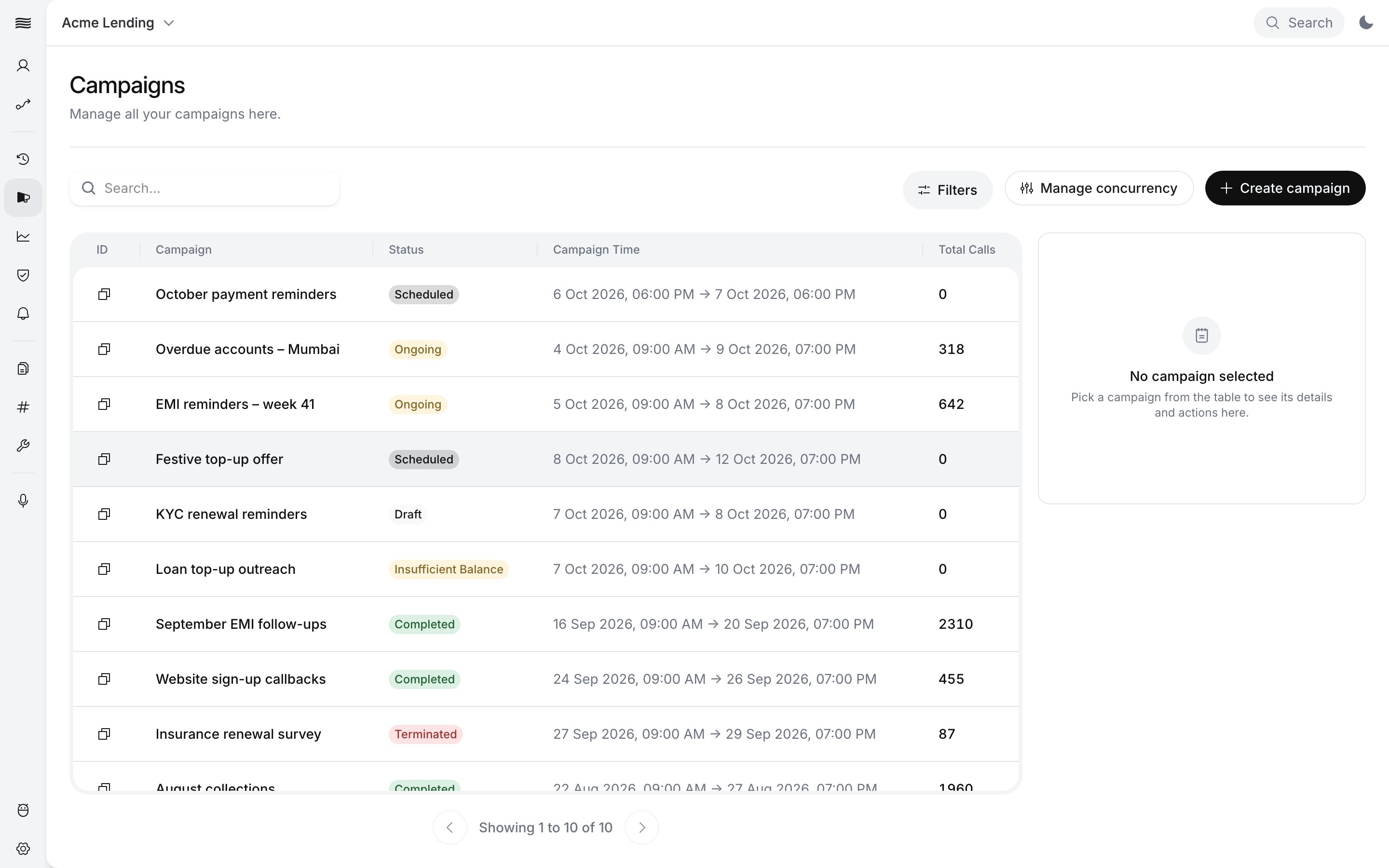 | Status (API value) | What it means | What you can do |
| - | - | - |
| Verifying (`verifying`) | Ringg is checking the rows of the calling list. | Wait. |
| Draft (`draft`) | The list is verified, but the campaign has not been launched yet. | **Complete Setup** to finish step 2, or **Terminate**. |
| Preparing (`preparing`) | The campaign was launched and its calls are being prepared. | Wait. |
| Processing (`in_db`) | The campaign's calls are being created, just after **Preparing**. [Get all campaigns](/api-reference/endpoint/campaign/get-all-campaigns) reports this step as `preparing`. | Wait. The panel shows **Processing...** |
| Scheduled (`scheduled`) | The campaign is waiting for its start time. | **Analytics**, **History**, **Terminate**. |
| Ongoing (`ongoing`) | Calls are being placed. | **Analytics**, **History**, **Terminate**. |
| Completed (`completed`) | The campaign has finished. | **Analytics**, **History**, **Export report**. |
| Terminated (`terminated`) | Someone stopped the campaign. No future calls are placed. | **History**, **Analytics**. |
| No Valid Contacts (`no_valid_contacts`) | Every row in the calling list was invalid, so there is nobody to call. | Fix the CSV ([Invalid rows](/documentation/deploy/campaigns/calling-list#invalid-rows)) and create a new campaign. |
| Failed (`failed`) | The campaign could not be processed or run. | **History**, **Analytics**. Create a new campaign. |
| Insufficient Balance (`insufficient_balance`) | Your balance is too low to run this campaign. | **Add Balance**. Once the balance covers it, the campaign returns to **Draft**; click **Complete Setup** to launch it. See [When balance runs out](/documentation/manage-account/billing#when-balance-runs-out). |
There is no pause. To stop a campaign, terminate it: all future calls are cancelled, and a terminated campaign can't be resumed from the dashboard. See [Terminate a campaign](/documentation/deploy/campaigns/manage-a-campaign#terminate-a-campaign).
## Concurrency and call limits
**Concurrency** sets how fast a campaign works through its list. You buy it on the billing page: up to 50 for self-serve workspaces, up to 1000 for enterprise ([Change concurrency](/documentation/manage-account/billing#change-concurrency)). It is shared two ways, both set in [**Manage concurrency**](/documentation/deploy/campaigns/manage-a-campaign#manage-concurrency):
* **Between API calls and campaigns.** The **Workspace** tab splits it by percentage, for example 30% for API calls and 70% for campaigns.
* **Between running campaigns.** The **Campaigns** tab sets a percentage per ongoing campaign. Unset, campaign concurrency is split equally between ongoing campaigns.
**Call limits** cap how often one person can be called in a rolling window, for example 3 calls in 24 hours. They are set for the workspace or for an agent ([agent call limits](/documentation/build-agents/customize-agent-behaviour/call-settings#call-limits)), not per campaign, and each retry counts as a call. A call over the limit waits for the next free slot inside the campaign's calling windows. If that slot falls after the campaign's end time, the call is cancelled by the limit; a call still waiting when the campaign ends is marked failed with the other unreached contacts. See [Call limits](/documentation/manage-account/call-limits).
## Next steps
Upload the list, set calling windows and retries, and launch from the dashboard or the API.
Format the CSV and map its columns to your agent's variables.
Watch status, split concurrency, terminate and open the campaign's calls.
This documentation is built and hosted on [Mintlify](https://mintlify.com), a developer documentation platform.
| Status (API value) | What it means | What you can do |
| - | - | - |
| Verifying (`verifying`) | Ringg is checking the rows of the calling list. | Wait. |
| Draft (`draft`) | The list is verified, but the campaign has not been launched yet. | **Complete Setup** to finish step 2, or **Terminate**. |
| Preparing (`preparing`) | The campaign was launched and its calls are being prepared. | Wait. |
| Processing (`in_db`) | The campaign's calls are being created, just after **Preparing**. [Get all campaigns](/api-reference/endpoint/campaign/get-all-campaigns) reports this step as `preparing`. | Wait. The panel shows **Processing...** |
| Scheduled (`scheduled`) | The campaign is waiting for its start time. | **Analytics**, **History**, **Terminate**. |
| Ongoing (`ongoing`) | Calls are being placed. | **Analytics**, **History**, **Terminate**. |
| Completed (`completed`) | The campaign has finished. | **Analytics**, **History**, **Export report**. |
| Terminated (`terminated`) | Someone stopped the campaign. No future calls are placed. | **History**, **Analytics**. |
| No Valid Contacts (`no_valid_contacts`) | Every row in the calling list was invalid, so there is nobody to call. | Fix the CSV ([Invalid rows](/documentation/deploy/campaigns/calling-list#invalid-rows)) and create a new campaign. |
| Failed (`failed`) | The campaign could not be processed or run. | **History**, **Analytics**. Create a new campaign. |
| Insufficient Balance (`insufficient_balance`) | Your balance is too low to run this campaign. | **Add Balance**. Once the balance covers it, the campaign returns to **Draft**; click **Complete Setup** to launch it. See [When balance runs out](/documentation/manage-account/billing#when-balance-runs-out). |
There is no pause. To stop a campaign, terminate it: all future calls are cancelled, and a terminated campaign can't be resumed from the dashboard. See [Terminate a campaign](/documentation/deploy/campaigns/manage-a-campaign#terminate-a-campaign).
## Concurrency and call limits
**Concurrency** sets how fast a campaign works through its list. You buy it on the billing page: up to 50 for self-serve workspaces, up to 1000 for enterprise ([Change concurrency](/documentation/manage-account/billing#change-concurrency)). It is shared two ways, both set in [**Manage concurrency**](/documentation/deploy/campaigns/manage-a-campaign#manage-concurrency):
* **Between API calls and campaigns.** The **Workspace** tab splits it by percentage, for example 30% for API calls and 70% for campaigns.
* **Between running campaigns.** The **Campaigns** tab sets a percentage per ongoing campaign. Unset, campaign concurrency is split equally between ongoing campaigns.
**Call limits** cap how often one person can be called in a rolling window, for example 3 calls in 24 hours. They are set for the workspace or for an agent ([agent call limits](/documentation/build-agents/customize-agent-behaviour/call-settings#call-limits)), not per campaign, and each retry counts as a call. A call over the limit waits for the next free slot inside the campaign's calling windows. If that slot falls after the campaign's end time, the call is cancelled by the limit; a call still waiting when the campaign ends is marked failed with the other unreached contacts. See [Call limits](/documentation/manage-account/call-limits).
## Next steps
Upload the list, set calling windows and retries, and launch from the dashboard or the API.
Format the CSV and map its columns to your agent's variables.
Watch status, split concurrency, terminate and open the campaign's calls.
This documentation is built and hosted on [Mintlify](https://mintlify.com), a developer documentation platform.