> ## Documentation Index
> Fetch the complete documentation index at: https://docs.ringg.ai/llms.txt
> Use this file to discover all available pages before exploring further.
> ## Agent Instructions
> To search or read these docs, connect the Ringg docs MCP server at https://docs.ringg.ai/mcp (no key needed; tools search_ringg_ai and query_docs_filesystem_ringg_ai) instead of browsing pages one by one. Setup for each client: https://docs.ringg.ai/resources/mcp-server/docs-mcp-server/mcp-for-ai-assistants.md
> The dashboard labels agents "Assistants"; these docs say "agent". Both mean the same object, identified by agent_id.
> API base URL: https://prod-api.ringg.ai/ca/api/v0. Send the workspace API key in the X-API-KEY header, from server-side code only.
> Placing a call dials a real phone number and spends credits. Confirm the number with the user before calling.
> To act on a Ringg workspace (place calls, edit agents, read transcripts), use the separate Ringg workspace MCP server at https://mcp.ringg.ai/mcp: https://docs.ringg.ai/resources/mcp-server/workspace-mcp-server/overview.md
# Manage a campaign
> Manage Ringg AI campaigns: filter the list, read the detail panel, split concurrency, terminate by dashboard or API, and open a campaign's calls in Logs.
Once a [campaign](/documentation/deploy/campaigns/overview) is launched, its per-call results live in [Logs](/documentation/monitor/logs), or reach your server through [Event Subscription (webhooks)](/documentation/build-agents/customize-agent-behaviour/event-subscription); the campaign itself is managed from the **Campaigns** page.
In the dashboard: **Sidebar → Monitor → Campaigns**.
## The campaigns list
The **Campaigns** page shows 50 campaigns per page:
| Column | Shows |
| - | - |
| **ID** | A copy button for the campaign ID, which is the `bulk_list_id` in the API and webhooks. |
| **Campaign** | The campaign name. A **Draft** campaign's name is a link that reopens setup. |
| **Status** | The current status. See [Campaign statuses](/documentation/deploy/campaigns/overview#campaign-statuses). |
| **Campaign Time** | Start → end, for example `18 Oct 2026, 09:00 AM → 19 Oct 2026, 09:00 AM`. |
| **Total Calls** | The number of valid contacts loaded from the list, not the calls placed so far. |
The list refreshes every 30 seconds, and every 2 seconds while a campaign is **Preparing**. Terminated campaigns that never placed a call are not listed.
### Search and filters
* **Search...** matches campaign names.
* **Filters → Status** narrows the list. Each option covers several statuses:
| Filter option | Includes |
| - | - |
| **Draft** | Draft |
| **Ongoing** | Ongoing, Scheduled, Processing, Verifying, Preparing |
| **Completed** | Completed |
| **Insufficient balance** | Insufficient Balance |
| **Failed / Terminated** | Failed, Terminated, No Valid Contacts |
With no option ticked, every campaign is shown.
## The detail panel
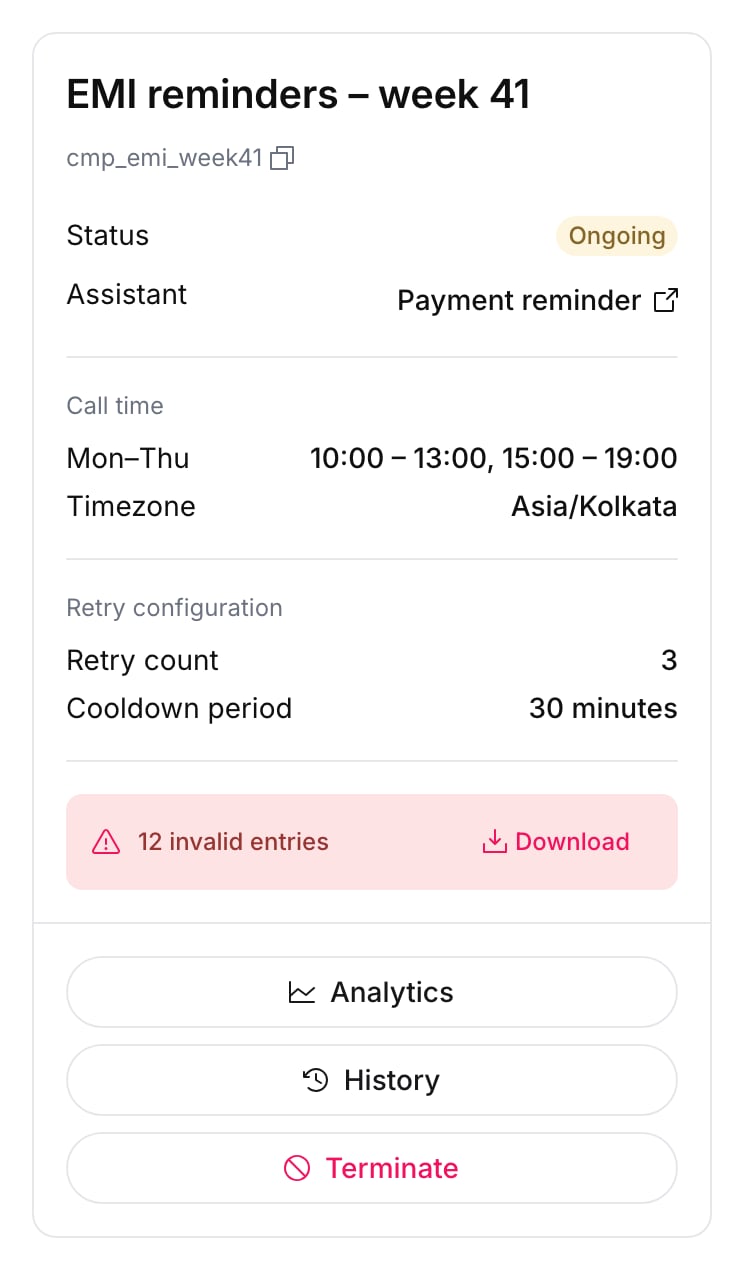
Click a row to open its details on the right. Under the campaign name and its ID (click to copy), the panel shows:
* **Status** ([what each status means](/documentation/deploy/campaigns/overview#campaign-statuses)) and **Assistant** (a link to the agent).
* **Call time**: each calling window by day, and the **Timezone**.
* **Retry configuration**: **Retry count** and **Cooldown period**.
* Invalid rows, if any: "N invalid entries" with a **Download** button for the rejected rows.
The buttons at the bottom depend on the status:
| Status | Buttons |
| - | - |
| Draft | **Complete Setup**, **Terminate** |
| Processing, Verifying, Preparing | **Processing...** (disabled) |
| Insufficient Balance | **Add Balance** (opens [billing](/documentation/manage-account/billing#add-balance-prepaid) with the amount needed) |
| Scheduled, Ongoing | **Analytics**, **History**, **Terminate** |
| Completed | **Analytics**, **History**, **Export report** |
| Terminated, Failed, No Valid Contacts | **History**, **Analytics** |
**Export report** has two options: **Download** ("Download a ZIP of the call report") and **Email (queued)** ("Queue the report and email it to you"). The dashboard offers the report for 60 days after the campaign's end time.
## Manage concurrency
Concurrency is the number of calls your workspace can run at the same time. **Manage concurrency** decides how that capacity is shared. Raise the total itself on the billing page ([Change concurrency](/documentation/manage-account/billing#change-concurrency)). In a Ringg Space, see [Ringg Space concurrency](/documentation/manage-account/ringg-spaces/create-and-manage#concurrency).
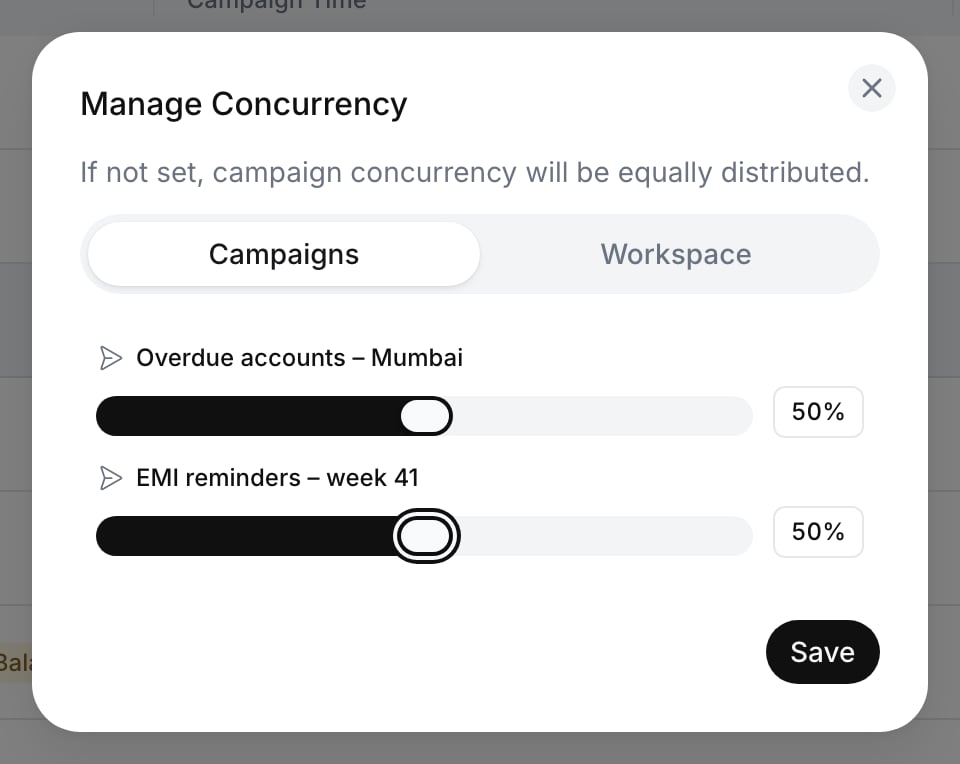
On the **Campaigns** page, click **Manage concurrency**. The panel reads "If not set, campaign concurrency will be equally distributed."
On the **Workspace** tab, drag the **API** or **Campaigns** slider. The two always add up to 100%. For example, 30% API leaves 70% for campaigns.
On the **Campaigns** tab, set a percentage for each ongoing campaign. The tab needs at least two ongoing campaigns ([troubleshooting](#troubleshooting)).
Click **Save**. Only the tab you have open is saved, so save each tab separately.
Through the API, [Make large campaign calls async](/api-reference/endpoint/campaign/make-large-campaign-calls-async) accepts a `concurrency_percentage` for the campaign you are starting.
## Terminate a campaign
Terminating cancels the campaign's calls that are still queued (**Registered**) or waiting for a **Retry**. A call already in progress is not hung up: it finishes normally and is not retried. Terminating can't be undone from the dashboard.
### Terminate in the dashboard
Click its row on the **Campaigns** list.
Click **Terminate** in the detail panel. The dialog asks "Termination will stop all future calls. Are you sure you want to proceed?" Click **Confirm**.
You see "Campaign terminated" and the status changes to **Terminated**.
### Terminate with the API
Call [Terminate calls by campaign ID](/api-reference/endpoint/terminate/campaign) (`PATCH /campaign/terminate`) with the campaign ID (the **ID** column's copy button, or `bulk_list_id`). You need an [API key](/documentation/manage-account/api-key).
```bash cURL theme={null}
curl --request PATCH "https://prod-api.ringg.ai/ca/api/v0/campaign/terminate" \
--header "X-API-KEY: $RINGG_API_KEY" \
--header "Content-Type: application/json" \
--data '{ "campaign_id": "1b2efee1-a940-4170-a1e4-51f59097ba10" }'
```
```javascript JavaScript theme={null}
const res = await fetch("https://prod-api.ringg.ai/ca/api/v0/campaign/terminate", {
method: "PATCH",
headers: { "X-API-KEY": process.env.RINGG_API_KEY, "Content-Type": "application/json" },
body: JSON.stringify({ campaign_id: "1b2efee1-a940-4170-a1e4-51f59097ba10" }),
});
console.log(await res.json());
```
```python Python theme={null}
import os
import requests
res = requests.patch(
"https://prod-api.ringg.ai/ca/api/v0/campaign/terminate",
headers={"X-API-KEY": os.environ["RINGG_API_KEY"]},
json={"campaign_id": "1b2efee1-a940-4170-a1e4-51f59097ba10"},
)
print(res.json())
```
The response is `200` with `{"message": "Calls terminated successfully!"}`, even when no call matched. Only calls created in the last 7 days are cancelled.
The same endpoint can also stop calls by `agent_id`, `call_ids` or `mobile_numbers`. See [Terminate calls by call IDs](/api-reference/endpoint/terminate/call-ids).
## Find campaign calls in Logs
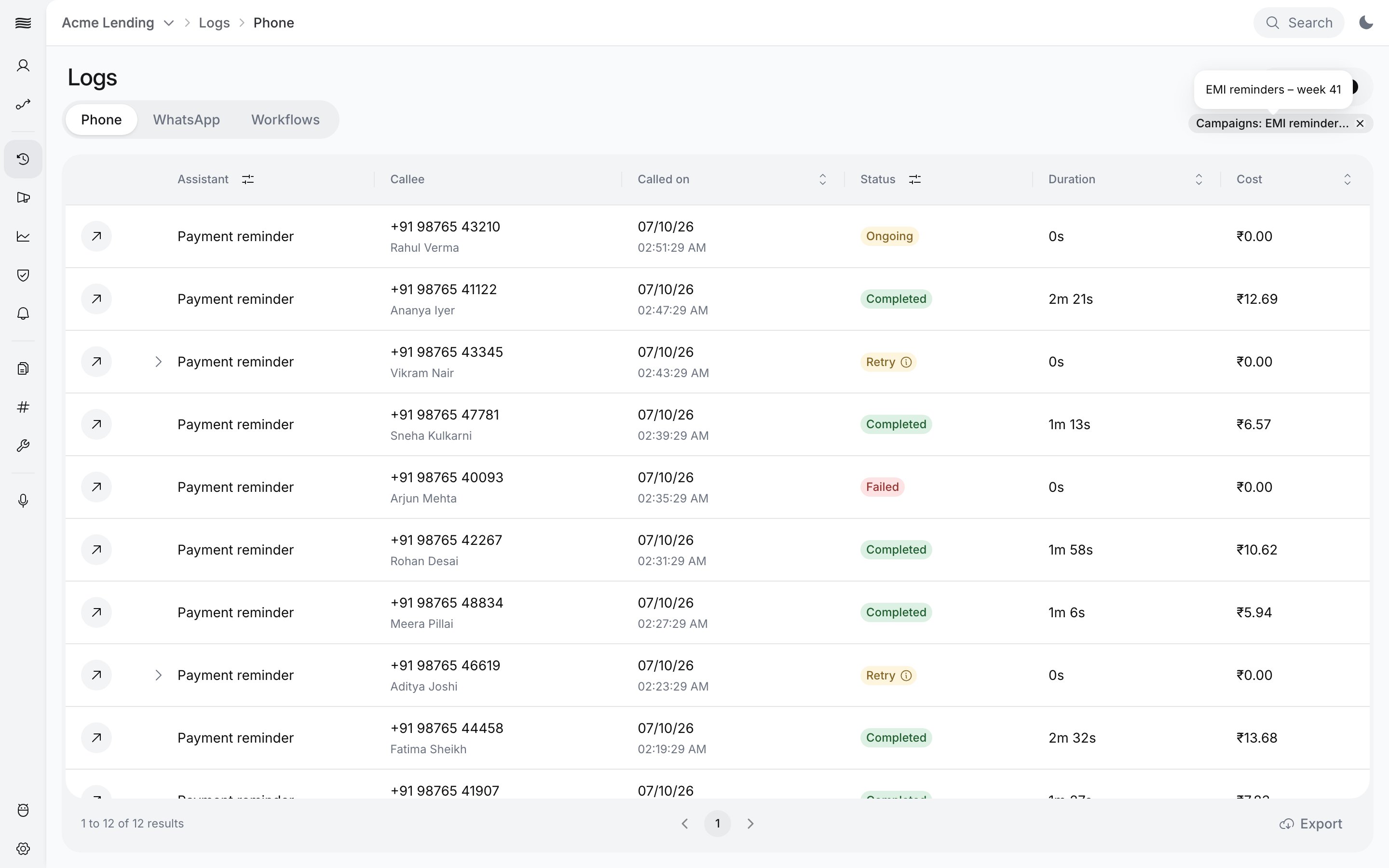
Click **History** in the detail panel. It opens [Logs](/documentation/monitor/logs) filtered to this campaign, at `/logs?bulk_list_id=`. The usual date range does not apply, so you see every call of the campaign, with its transcript, recording and analysis. You can also pick the campaign under **Campaigns** in the Logs filters.
**Analytics** opens [Analytics](/documentation/monitor/analytics) for the same campaign, at `/analytics?bulk_list_id=`.
By API, pass the campaign ID as `bulk_list_id` to [Get call history](/api-reference/endpoint/history/get-call-history):
```bash cURL theme={null}
curl --request GET "https://prod-api.ringg.ai/ca/api/v0/calling/history?bulk_list_id=1b2efee1-a940-4170-a1e4-51f59097ba10&limit=100&offset=0" \
--header "X-API-KEY: $RINGG_API_KEY"
```
```javascript JavaScript theme={null}
const res = await fetch(
"https://prod-api.ringg.ai/ca/api/v0/calling/history?bulk_list_id=1b2efee1-a940-4170-a1e4-51f59097ba10&limit=100&offset=0",
{ headers: { "X-API-KEY": process.env.RINGG_API_KEY } },
);
console.log(await res.json());
```
```python Python theme={null}
import os
import requests
res = requests.get(
"https://prod-api.ringg.ai/ca/api/v0/calling/history",
headers={"X-API-KEY": os.environ["RINGG_API_KEY"]},
params={"bulk_list_id": "1b2efee1-a940-4170-a1e4-51f59097ba10", "limit": 100, "offset": 0},
)
print(res.json())
```
To list your campaigns and their statuses, use [Get all campaigns](/api-reference/endpoint/campaign/get-all-campaigns).
## Get results through Event Subscription
Instead of polling, have Ringg send each call's data to your server. Event Subscription is set on the [agent](/documentation/build-agents/customize-agent-behaviour/event-subscription), so it covers every call that agent makes, campaign calls included. Set up your endpoint in [Event Subscription setup](/documentation/build-agents/customize-agent-behaviour/webhooks/setup-and-errors).
Call payloads carry `bulk_list_id`: the campaign ID for campaign calls, and `null` for single calls. Use it to group results by campaign. See [Webhook payloads](/documentation/build-agents/customize-agent-behaviour/webhooks/call-events).
## Troubleshooting
Large lists take longer to verify. The list refreshes on its own; there is nothing to do while the panel shows **Processing...**.
Calls are placed only after the start time and only inside a calling window, in the campaign's timezone. Check **Call time** and **Timezone** in the detail panel; they replace the agent's own calling window for this campaign. Also check your [call limits](/documentation/manage-account/call-limits).
Only one campaign is ongoing ("Only one ongoing campaign — concurrency can't be split."), so there is nothing to split; the tab is empty when none are. Use the **Workspace** tab to change the share between API calls and campaigns.
The campaign ended more than [60 days](#the-detail-panel) ago.
No. The only stop is [**Terminate**](#terminate-a-campaign). To call the remaining contacts later, create a new campaign with a list of those contacts.
The dashboard has no edit for a launched campaign; the detail panel shows **Call time** and **Retry configuration** read-only. Terminate it and create a new campaign with the new settings.
## Next steps
Filter, open and export the calls of a campaign.
Volume, goals, connectivity and cost for the campaign.
Notify your team when a metric crosses a threshold.
This documentation is built and hosted on [Mintlify](https://mintlify.com), a developer documentation platform.
 The buttons at the bottom depend on the status:
| Status | Buttons |
| - | - |
| Draft | **Complete Setup**, **Terminate** |
| Processing, Verifying, Preparing | **Processing...** (disabled) |
| Insufficient Balance | **Add Balance** (opens [billing](/documentation/manage-account/billing#add-balance-prepaid) with the amount needed) |
| Scheduled, Ongoing | **Analytics**, **History**, **Terminate** |
| Completed | **Analytics**, **History**, **Export report** |
| Terminated, Failed, No Valid Contacts | **History**, **Analytics** |
**Export report** has two options: **Download** ("Download a ZIP of the call report") and **Email (queued)** ("Queue the report and email it to you"). The dashboard offers the report for 60 days after the campaign's end time.
## Manage concurrency
Concurrency is the number of calls your workspace can run at the same time. **Manage concurrency** decides how that capacity is shared. Raise the total itself on the billing page ([Change concurrency](/documentation/manage-account/billing#change-concurrency)). In a Ringg Space, see [Ringg Space concurrency](/documentation/manage-account/ringg-spaces/create-and-manage#concurrency).
The buttons at the bottom depend on the status:
| Status | Buttons |
| - | - |
| Draft | **Complete Setup**, **Terminate** |
| Processing, Verifying, Preparing | **Processing...** (disabled) |
| Insufficient Balance | **Add Balance** (opens [billing](/documentation/manage-account/billing#add-balance-prepaid) with the amount needed) |
| Scheduled, Ongoing | **Analytics**, **History**, **Terminate** |
| Completed | **Analytics**, **History**, **Export report** |
| Terminated, Failed, No Valid Contacts | **History**, **Analytics** |
**Export report** has two options: **Download** ("Download a ZIP of the call report") and **Email (queued)** ("Queue the report and email it to you"). The dashboard offers the report for 60 days after the campaign's end time.
## Manage concurrency
Concurrency is the number of calls your workspace can run at the same time. **Manage concurrency** decides how that capacity is shared. Raise the total itself on the billing page ([Change concurrency](/documentation/manage-account/billing#change-concurrency)). In a Ringg Space, see [Ringg Space concurrency](/documentation/manage-account/ringg-spaces/create-and-manage#concurrency).
 **Analytics** opens [Analytics](/documentation/monitor/analytics) for the same campaign, at `/analytics?bulk_list_id=