> ## Documentation Index
> Fetch the complete documentation index at: https://docs.ringg.ai/llms.txt
> Use this file to discover all available pages before exploring further.
> ## Agent Instructions
> To search or read these docs, connect the Ringg docs MCP server at https://docs.ringg.ai/mcp (no key needed; tools search_ringg_ai and query_docs_filesystem_ringg_ai) instead of browsing pages one by one. Setup for each client: https://docs.ringg.ai/resources/mcp-server/docs-mcp-server/mcp-for-ai-assistants.md
> The dashboard labels agents "Assistants"; these docs say "agent". Both mean the same object, identified by agent_id.
> API base URL: https://prod-api.ringg.ai/ca/api/v0. Send the workspace API key in the X-API-KEY header, from server-side code only.
> Placing a call dials a real phone number and spends credits. Confirm the number with the user before calling.
> To act on a Ringg workspace (place calls, edit agents, read transcripts), use the separate Ringg workspace MCP server at https://mcp.ringg.ai/mcp: https://docs.ringg.ai/resources/mcp-server/workspace-mcp-server/overview.md
# Calling list
> Format a Ringg AI campaign calling list: CSV rules, the 20 MB limit, mobile_number and callee_name, country code, variable mapping and invalid rows.
A calling list is the CSV a [campaign](/documentation/deploy/campaigns/overview) dials: one row per contact, one column per value. Each of your [agent's variables](/documentation/build-agents/customize-agent-behaviour/custom-variables) is filled from a column you map to it, so `@{{callee_name}}` in the prompt becomes the right name on every call.
In the dashboard: **Sidebar → Monitor → Campaigns → Create campaign → Upload calling list**.
## Before you start
The campaign's agent. Its variables decide the columns you need.
Add a variable for each value that changes per contact.
## File rules
| Rule | Value |
| - | - |
| Format | `.csv` only. Other files are rejected with "Please upload a CSV file". |
| Maximum file size | 20 MB. Larger files are rejected with "File exceeds 20MB limit". |
| Maximum rows | 100 per list, or 5,000 once [Company details](/documentation/manage-account/members#company-details-kyc) are saved. Invalid rows count toward it. A longer list is rejected with "You can only upload up to N contacts." Contact Ringg for a higher limit. |
| Header row | Required. The first row holds the column names; every later row is one contact. |
| Separator | Comma. Wrap a value that contains a comma in double quotes (`"Sharma, Priya"`). |
| Blank lines | Ignored. |
| Columns | Any number. You map the ones the agent needs; the rest are not mapped to any variable. |
## Required columns
Every agent has [two variables that cannot be removed](/documentation/build-agents/customize-agent-behaviour/custom-variables#the-two-permanent-variables), so every CSV needs at least two columns:
The phone number to call ([format](#phone-numbers-and-country-code)). The column can have any header; you map it to `mobile_number`.
The person's name. The column can have any header; you map it to `callee_name`.
Add a column for each other variable the agent's [prompt](/documentation/build-agents/customize-agent-behaviour/agent-prompt) uses. If the prompt says "your payment of `@{{amount_due}}` is due on `@{{due_date}}`", the CSV needs columns for `amount_due` and `due_date`.
Name each column exactly after its variable (`mobile_number`, `callee_name`, `due_date`) and the dashboard maps them for you. Matching is exact, including case: `Mobile Number` is not auto-mapped to `mobile_number`.
## Example
A calling list for a "Payment reminder" agent whose prompt uses `callee_name`, `mobile_number`, `amount_due` and `due_date`:
```text payment-reminders.csv theme={null}
callee_name,mobile_number,amount_due,due_date,customer_id
Priya Sharma,9876543210,"₹4,500",12 October,CUST-1042
Rahul Verma,9876540123,"₹1,200",15 October,CUST-1043
Ananya Iyer,9876540124,"₹8,999",15 October,CUST-1044
```
The agent doesn't use `customer_id`, so it stays in the file unmapped.
## Map variables to columns
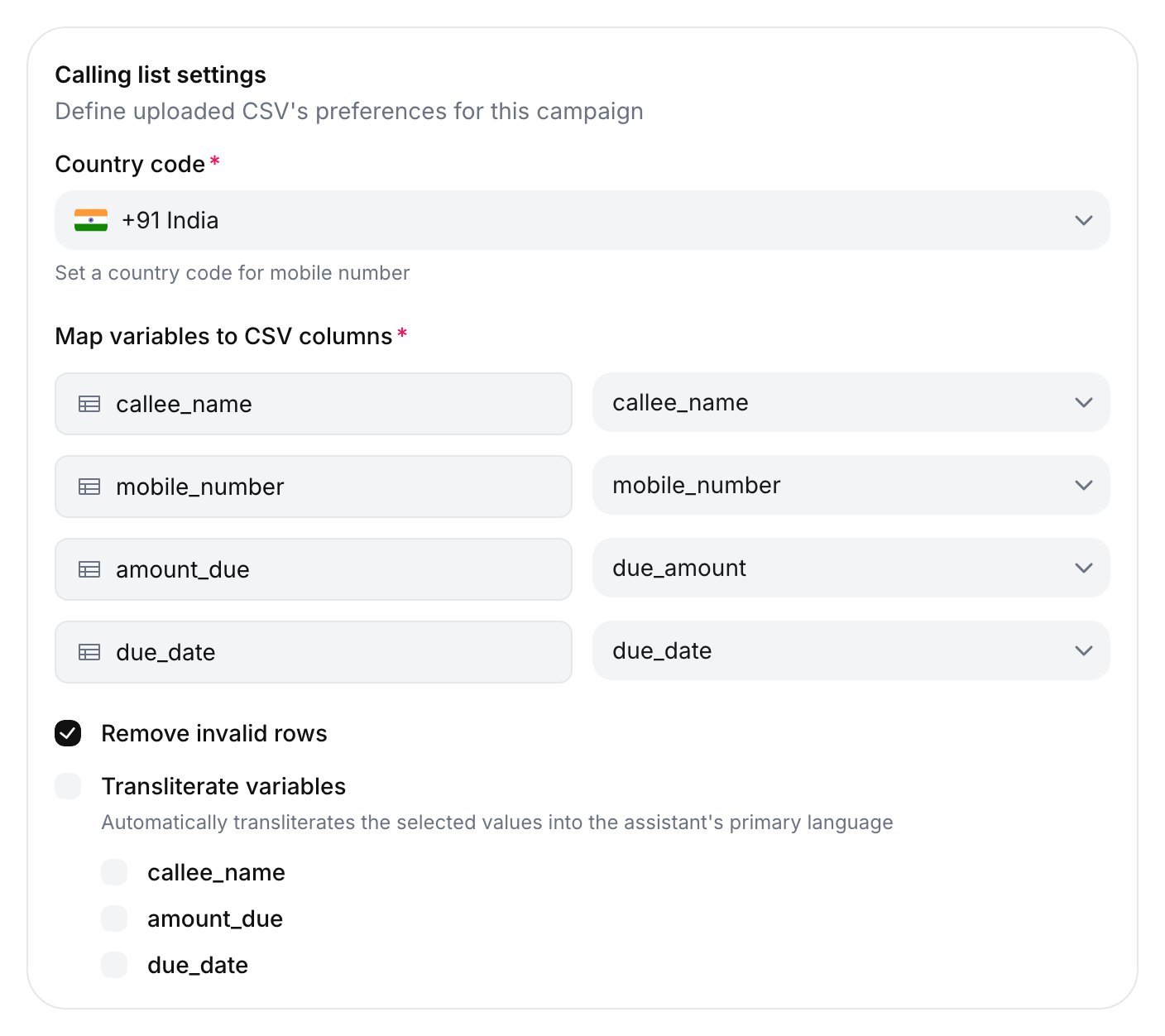
After you choose a file, the **Calling list settings** card shows **Map variables to CSV columns**: one row per agent variable, each with a column dropdown (**Select CSV column**).
* Auto-mapped variables are filled in ([exact-name rule](#required-columns)); map the rest by hand. **Next** stays disabled until every variable has a column.
* The variables listed are those of the agent's latest [version](/documentation/build-agents/test-and-improve/drafts-and-versions). A variable added to the agent later is asked for on the next campaign.
Through the API, the same mapping is the `variables_map` field of [Upload campaign contact list](/api-reference/endpoint/campaign/upload-campaign-contact-list) and [Upload large campaign CSV](/api-reference/endpoint/campaign/upload-large-campaign-csv):
A JSON string of `{"variable_name": "CSV column"}`, one entry per agent variable.
```json theme={null}
{"callee_name": "callee_name", "mobile_number": "mobile_number", "amount_due": "amount_due", "due_date": "due_date"}
```
After **Next**, the dashboard shows "CSV verified successfully" and opens step 2 of [Create a campaign](/documentation/deploy/campaigns/create-a-campaign).
## Phone numbers and country code
You pick one **Country code** for the whole list ("Set a country code for mobile number"). It defaults to **+91**. Choose the country of the people on the list, for example **+1** for a US list.
Write numbers in national format, `9876543210` for an Indian mobile under **+91**, or with the code: `+919876543210`, `919876543210` and `09876543210` are read the same way. Spaces, dashes, dots and brackets are ignored.
In an **Assistant** campaign, the selected code replaces any code already on a number. Under **+91**, `+447700900123` is dialled as `+917700900123`. To call several countries, create one campaign per country code.
## Invalid rows
During verification, Ringg checks each row and counts the ones it can't call as invalid. A row is invalid when its phone number is missing, when the number is not valid for the chosen **Country code**, or when its `callee_name` could not be [transliterated](#transliteration). Duplicate numbers are not invalid: each row gets its own call.
* Invalid rows are never called; the rest of the list is used. **Remove invalid rows** is on by default. Off, you also get an email with the invalid rows attached.
* Through the API, [Upload campaign contact list](/api-reference/endpoint/campaign/upload-campaign-contact-list) (`POST /campaign/save`) with `remove_invalid_rows` set to `false` fails the whole upload if any row is invalid.
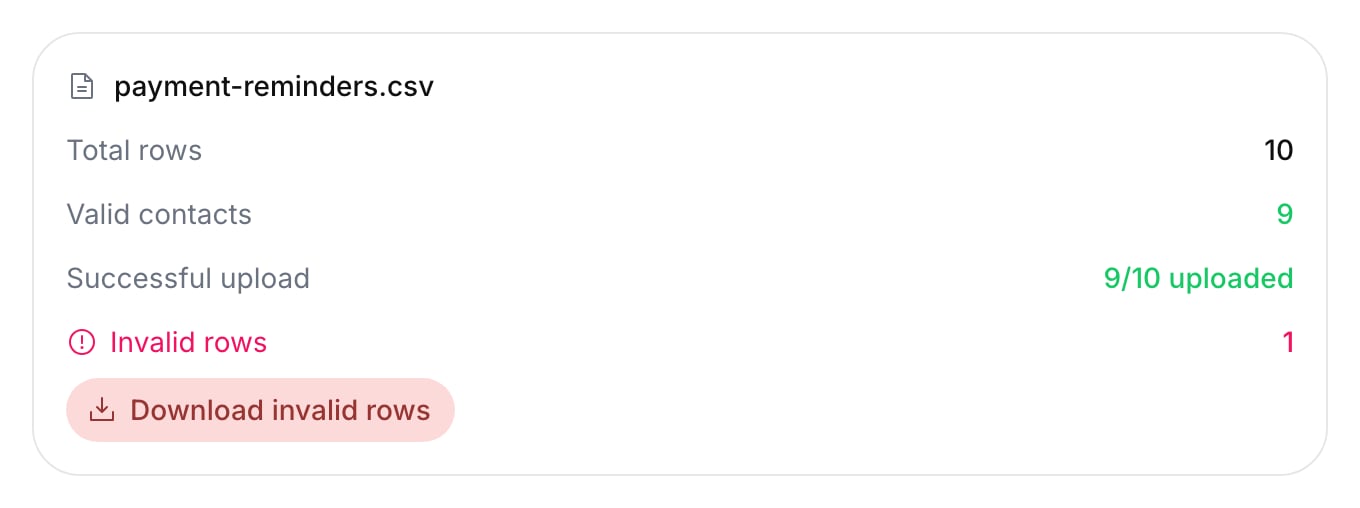
* When verification finishes, step 2 shows **Total rows**, **Valid contacts**, **Successful upload** (for example `98/100 uploaded`) and, if any, **Invalid rows** with a **Download invalid rows** button. The download is a CSV of the rejected rows (`invalid_entries.csv`).
* After launch, the campaign's detail panel shows "N invalid entries" with a **Download** button.
* If every row is invalid, the campaign gets the status [**No Valid Contacts**](/documentation/deploy/campaigns/overview#campaign-statuses) and a "No valid contacts" message appears ([what to do](#troubleshooting)).
## Transliteration
**Transliterate variables** rewrites the values of the variables you tick into the agent's [primary language](/documentation/build-agents/customize-agent-behaviour/voice-and-language#languages) before the calls. Use it when the list holds names in Latin script and the agent speaks Hindi, so `Priya Sharma` is read out naturally.
It is off by default. Tick the parent checkbox to select every variable, or tick single ones. `mobile_number` is not offered.
Through the API:
* `transliterate_fields` is a JSON string array of the agent's variable names (not CSV headers), such as `["callee_name"]`. Each must be mapped in `variables_map`; `mobile_number` is refused with `400`. This is the field the dashboard sends.
* `transliterate_callee_name` (`true` or `false`) covers `callee_name` only. Sent with `transliterate_fields`, the two are combined.
Both [Upload large campaign CSV](/api-reference/endpoint/campaign/upload-large-campaign-csv) (`POST /campaign/upload-csv`) and [Upload campaign contact list](/api-reference/endpoint/campaign/upload-campaign-contact-list) (`POST /campaign/save`) accept both fields. If the agent has no language set, values are left as they are.
## Troubleshooting
A variable is still unmapped: every variable needs a column in **Map variables to CSV columns**. Other causes are in [Create a campaign](/documentation/deploy/campaigns/create-a-campaign#troubleshooting).
Auto-mapping needs the header to match the variable name exactly, including case and underscores. Rename the header (`callee_name`, not `Name`) or pick the column by hand.
Every row failed verification. Check the phone numbers against the chosen **Country code** first. Download the invalid rows, fix them, and create a new campaign.
## Next steps
Upload this file, set calling windows and retries, and launch.
Start one workflow run per row of the same kind of list.
This documentation is built and hosted on [Mintlify](https://mintlify.com), a developer documentation platform.
 Through the API, the same mapping is the `variables_map` field of [Upload campaign contact list](/api-reference/endpoint/campaign/upload-campaign-contact-list) and [Upload large campaign CSV](/api-reference/endpoint/campaign/upload-large-campaign-csv):
 ## Transliteration
**Transliterate variables** rewrites the values of the variables you tick into the agent's [primary language](/documentation/build-agents/customize-agent-behaviour/voice-and-language#languages) before the calls. Use it when the list holds names in Latin script and the agent speaks Hindi, so `Priya Sharma` is read out naturally.
It is off by default. Tick the parent checkbox to select every variable, or tick single ones. `mobile_number` is not offered.
Through the API:
* `transliterate_fields` is a JSON string array of the agent's variable names (not CSV headers), such as `["callee_name"]`. Each must be mapped in `variables_map`; `mobile_number` is refused with `400`. This is the field the dashboard sends.
* `transliterate_callee_name` (`true` or `false`) covers `callee_name` only. Sent with `transliterate_fields`, the two are combined.
Both [Upload large campaign CSV](/api-reference/endpoint/campaign/upload-large-campaign-csv) (`POST /campaign/upload-csv`) and [Upload campaign contact list](/api-reference/endpoint/campaign/upload-campaign-contact-list) (`POST /campaign/save`) accept both fields. If the agent has no language set, values are left as they are.
## Troubleshooting
## Transliteration
**Transliterate variables** rewrites the values of the variables you tick into the agent's [primary language](/documentation/build-agents/customize-agent-behaviour/voice-and-language#languages) before the calls. Use it when the list holds names in Latin script and the agent speaks Hindi, so `Priya Sharma` is read out naturally.
It is off by default. Tick the parent checkbox to select every variable, or tick single ones. `mobile_number` is not offered.
Through the API:
* `transliterate_fields` is a JSON string array of the agent's variable names (not CSV headers), such as `["callee_name"]`. Each must be mapped in `variables_map`; `mobile_number` is refused with `400`. This is the field the dashboard sends.
* `transliterate_callee_name` (`true` or `false`) covers `callee_name` only. Sent with `transliterate_fields`, the two are combined.
Both [Upload large campaign CSV](/api-reference/endpoint/campaign/upload-large-campaign-csv) (`POST /campaign/upload-csv`) and [Upload campaign contact list](/api-reference/endpoint/campaign/upload-campaign-contact-list) (`POST /campaign/save`) accept both fields. If the agent has no language set, values are left as they are.
## Troubleshooting