> ## Documentation Index
> Fetch the complete documentation index at: https://docs.ringg.ai/llms.txt
> Use this file to discover all available pages before exploring further.
> ## Agent Instructions
> To search or read these docs, connect the Ringg docs MCP server at https://docs.ringg.ai/mcp (no key needed; tools search_ringg_ai and query_docs_filesystem_ringg_ai) instead of browsing pages one by one. Setup for each client: https://docs.ringg.ai/resources/mcp-server/docs-mcp-server/mcp-for-ai-assistants.md
> The dashboard labels agents "Assistants"; these docs say "agent". Both mean the same object, identified by agent_id.
> API base URL: https://prod-api.ringg.ai/ca/api/v0. Send the workspace API key in the X-API-KEY header, from server-side code only.
> Placing a call dials a real phone number and spends credits. Confirm the number with the user before calling.
> To act on a Ringg workspace (place calls, edit agents, read transcripts), use the separate Ringg workspace MCP server at https://mcp.ringg.ai/mcp: https://docs.ringg.ai/resources/mcp-server/workspace-mcp-server/overview.md
# Workflows
> Chain voice calls, chats, waits, API requests and branches into one Ringg AI workflow that runs for each contact, then launch it at a CSV list as a campaign.
export const RelatedTopics = ({items}) =>
;
A workflow is a graph of steps that Ringg runs once for each contact: call them with one [agent](/documentation/build-agents/agents/agent-types), branch on how the call went, wait a day, update your CRM, then follow up with another agent or a message. Use one when the journey spans several conversations; a single agent, even a [multi-prompt](/documentation/build-agents/agents/multi-prompt-agents/overview) one, holds one conversation. This chapter has two pages: this overview and [Build, test and run a workflow](/documentation/build-agents/workflows/build-a-workflow), which holds the procedure and the block reference.
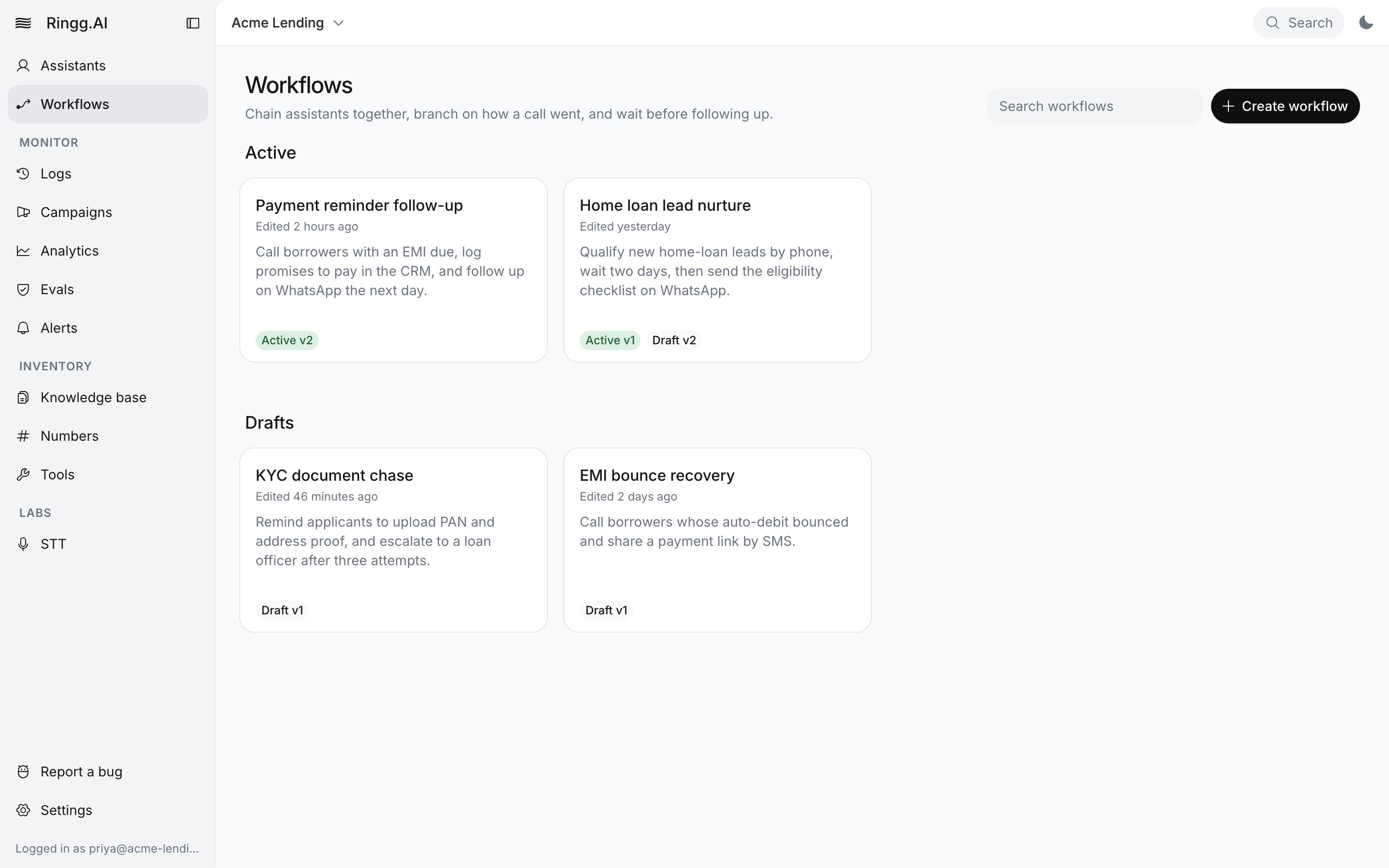
In the dashboard: **Sidebar → Workflows**.
## Workflow, agent or campaign?
| You want to… | Use |
| - | - |
| Hold one conversation (phone, web or WhatsApp) | An [agent](/documentation/build-agents/agents/create-an-agent) |
| Move one call through stages (greet, qualify, transfer) | A [multi-prompt agent](/documentation/build-agents/agents/multi-prompt-agents/overview): one conversation, several prompts on a canvas |
| Call a [CSV list](/documentation/deploy/campaigns/calling-list) with one agent, with retries and calling hours | A [campaign](/documentation/deploy/campaigns/create-a-campaign) of type **Assistant** |
| Call, then follow up on the result (call again, message, wait a day) | A workflow |
| Update your CRM or call your API between conversations | A workflow with an **Action** block |
| Run that multi-step journey for every row of a CSV | A workflow launched as a [campaign](/documentation/deploy/campaigns/workflow-campaign#workflow-campaigns) of type **Workflow** |
The trade-off: a workflow gives you logic between conversations, but you build and test each agent separately, and every run can place several calls.
## How a workflow runs
```mermaid theme={null}
flowchart LR
T[Test or workflow campaign] --> S[Start]
S --> C[Agent: Call]
C --> D{Conditional}
D -- Match --> A[Action: update CRM]
D -- No match --> W[Await]
W --> M[Agent: Chat]
A --> E[Run ends]
M --> E
```
* You build on a canvas, from a **Start** marker, connecting blocks left to right.
* Each contact gets their own **run**: one pass through the graph, carrying that contact's name, number and [variables](/documentation/build-agents/workflows/build-a-workflow#variables-and-data-between-steps).
* A Conditional block sends the run down **Match** or **No match**. An Await block in Event mode adds a **Timeout** branch.
* A run ends at a block with nothing connected after it. There is no "end" block. A run still going after 3 days is cancelled.
* [**Logs → Workflows**](/documentation/monitor/logs#workflow-runs) records every run, with the path it took and the calls it placed.
## Building blocks
The **Blocks** panel offers four blocks. The Agent block has a **Call** and a **Chat** mode.
| Block | What it does | Branches out |
| - | - | - |
| **Agent** (Call) | Calls the contact with one of your [agents](/documentation/build-agents/agents/create-an-agent), from your [numbers](/documentation/inventory/phone-numbers/buy-or-import-a-number), inside a call window, with retries. | One |
| **Agent** (Chat) | Sends a WhatsApp, SMS or email message, optionally handing the conversation to a chat agent. | One |
| **Conditional** | Checks rules against earlier steps: call status, duration, [Advanced Analysis](/documentation/build-agents/customize-agent-behaviour/advanced-analysis) fields, API responses, variables. | **Match** / **No match** |
| **Await** | Pauses the run for a duration, until a time, or until a named event arrives. | One, plus **Timeout** in Event mode |
| **Action** | Calls any HTTP API (GET, POST, PUT, PATCH, DELETE); later steps can read its JSON response. | One |
Every setting is in the [block reference](/documentation/build-agents/workflows/block-reference#block-reference).
## How a workflow starts
| Trigger | Where | Available |
| - | - | - |
| **Test** | Workflow editor, top bar ([Test a run](/documentation/build-agents/workflows/test-and-publish#test-a-run)) | Yes. One run with values you type. |
| **File upload** | [**Campaigns → Create campaign**](/documentation/deploy/campaigns/workflow-campaign#workflow-campaigns), type **Workflow** | Yes. One run per CSV row, now or at a scheduled time. |
| **Webhook URL** | Same campaign screen | No, marked **Coming soon** |
| **Event trigger** | Same campaign screen | No, marked **Coming soon** |
## Statuses and versions
| Status | Meaning |
| - | - |
| **Draft** | Saved but never published. You can edit and test it. |
| **Active** | Published. It can be picked for a workflow campaign. |
| **Archived** | Read-only and can't start new runs. Archiving can't be undone. |
The list groups workflows into **Active**, **Drafts** and a collapsed **Archived** section. A card can also carry **Scheduled**, **Triggering** or **Paused**; those workflows sit under **Active**, and nothing in the editor sets these three states.
Each publish creates a version (`v1`, `v2`, shown in the breadcrumb); see [Publish and versions](/documentation/build-agents/workflows/test-and-publish#publish-and-versions).
## Next steps
Add blocks, pass data between steps, test a run, publish and launch it at a list.
Each row of a calling list starts one run of the published workflow.
This documentation is built and hosted on [Mintlify](https://mintlify.com), a developer documentation platform.
 Each publish creates a version (`v1`, `v2`, shown in the breadcrumb); see [Publish and versions](/documentation/build-agents/workflows/test-and-publish#publish-and-versions).
## Next steps
Each publish creates a version (`v1`, `v2`, shown in the breadcrumb); see [Publish and versions](/documentation/build-agents/workflows/test-and-publish#publish-and-versions).
## Next steps