> ## Documentation Index
> Fetch the complete documentation index at: https://docs.ringg.ai/llms.txt
> Use this file to discover all available pages before exploring further.
> ## Agent Instructions
> To search or read these docs, connect the Ringg docs MCP server at https://docs.ringg.ai/mcp (no key needed; tools search_ringg_ai and query_docs_filesystem_ringg_ai) instead of browsing pages one by one. Setup for each client: https://docs.ringg.ai/resources/mcp-server/docs-mcp-server/mcp-for-ai-assistants.md
> The dashboard labels agents "Assistants"; these docs say "agent". Both mean the same object, identified by agent_id.
> API base URL: https://prod-api.ringg.ai/ca/api/v0. Send the workspace API key in the X-API-KEY header, from server-side code only.
> Placing a call dials a real phone number and spends credits. Confirm the number with the user before calling.
> To act on a Ringg workspace (place calls, edit agents, read transcripts), use the separate Ringg workspace MCP server at https://mcp.ringg.ai/mcp: https://docs.ringg.ai/resources/mcp-server/workspace-mcp-server/overview.md
# Voice and language
> Choose a Ringg AI agent's languages, pick or clone a voice, set its speed from 0.7x to 1.2x, boost keywords for speech recognition, and change them by API.
In the dashboard: **Sidebar → Assistants →** open an agent **→ Voice**. On a [WhatsApp agent](/documentation/build-agents/agents/whatsapp-agents/create-an-agent), **Voice** is under **Calls**. On a [multi-prompt agent](/documentation/build-agents/agents/multi-prompt-agents/global-settings#global-settings), it is in **Global Settings**.
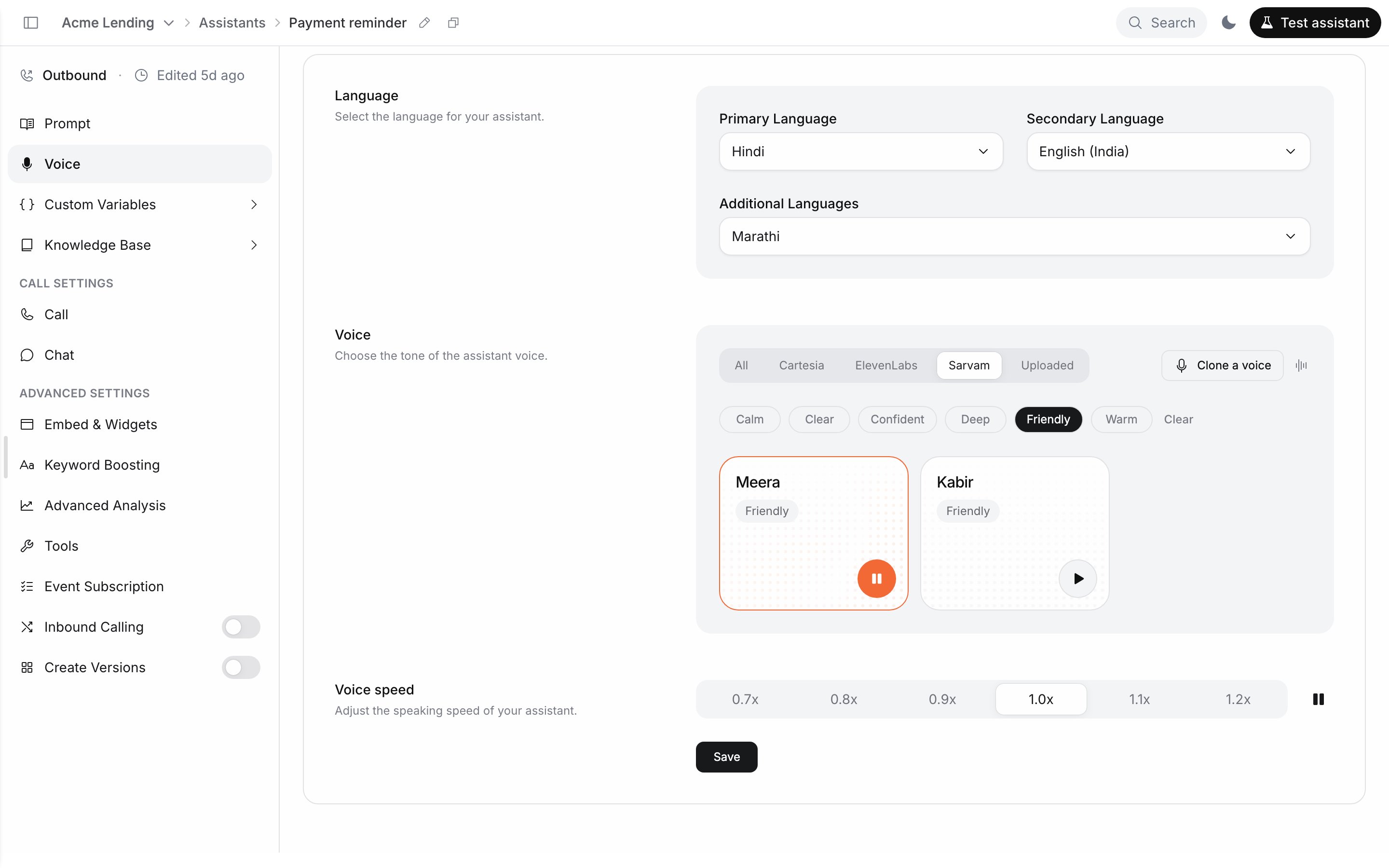
The section has three parts, **Language**, **Voice** and **Voice speed**, and one **Save** button at the bottom for all of them.
## Before you start
You pick a language and voice when you create one; this page changes them.
## Languages
| Field | Required | What it does |
| - | - | - |
| **Primary Language** | Yes | The language the agent speaks and listens in by default |
| **Secondary Language** | No | A second language the agent can switch to. The first option is **None** |
| **Additional Languages** | No | Extra languages callers may speak. Behind **Add more languages** |
The list of languages comes from Ringg's voice configuration, not a fixed list. **Secondary Language** only offers languages that pair with the primary one; when none do, it is disabled.
Changing **Primary Language** clears the secondary language and the selected voice, because the voice grid is filtered by language. Changing **Secondary Language** clears the voice too. Pick a voice again before you save, or **Save** has nothing to change.
### Additional languages
Click **Add more languages** to open **Additional Languages** (placeholder "None (optional)"). These help the agent recognise speech in other languages; the agent does not speak in them. Mention the languages in the [prompt](/documentation/build-agents/customize-agent-behaviour/agent-prompt#write-prompts-for-voice) if callers may switch.
* You can pick up to 4. Once you have 4, the rest of the list is greyed out.
* The list leaves out the primary and secondary languages.
* Only these language families are offered: Arabic, English, Tamil, Kannada, Telugu, Hindi, Bengali, Marathi, Gujarati, Punjabi, Malay, Chinese, Italian and Malayalam.
Saving additional languages switches the agent's speech-to-text provider to Soniox. Add them only when callers really mix languages, then [test](/documentation/build-agents/test-and-improve/test-an-agent) again.
## Choose a voice
The **Voice** part ("Choose the tone of the assistant voice.") shows a grid of voices for the selected languages. The voice the agent is saved on stays first in the grid.
* **Provider tabs**: **All**, then one tab per voice provider in the list (for example ElevenLabs, Cartesia, Sarvam or Deepgram). If your workspace can clone voices, an **Uploaded** tab holds your clones.
* **Tag chips** under the tabs (a tone or style from each voice) narrow the grid. Selected tags combine: a voice must have all of them. **Clear** resets them.
* **See more** shows the full grid.
* Clicking a voice selects it and plays its preview. When the agent has a secondary language, the **Preview language** icon next to the tabs switches the preview between the two languages.
If you pick a voice that cannot speak the agent's primary language, a **Change agent language?** dialog explains that the agent's language will switch to the voice's language and the secondary language will be cleared. Click **Yes, switch** or **Cancel**.
The video changes the primary language, filters and previews voices, sets the speed and saves.
Click **Save**.
"Voice settings saved" appears, **Save** is disabled again, and the selected voice is first in the grid. On a [test call](/documentation/build-agents/test-and-improve/test-an-agent) the first message plays in the new voice, language and speed.
### Clone a voice
Workspaces with voice cloning enabled see **Clone a voice** next to the provider tabs. Cloning is off by default; contact Ringg to turn it on. It trains a new voice from a short recording and saves it under **Uploaded**.
| Field | Rule |
| - | - |
| **Voice name** | Free text, for example "Studio Narrator" |
| **Training audio** | One MP3 file, 20 seconds or less (10–20 seconds recommended), one clear speaker, up to 25 MB |
| **Primary language** | One of the languages in the table below; default **English (India)** |
| **Gender** | **Male** (default) or **Female** |
Click **Clone voice**. While it trains the button reads "Training voice…". When it is done you see "Voice cloned" and the voice appears under **Uploaded**, whatever the agent's language. Clones cannot be deleted from the dashboard. "Clip too long" or "MP3 required" means the file breaks the audio rule above: trim or convert it and upload again.
Languages a voice can be cloned in:
| Code | Label in the dialog |
| - | - |
| `en-IN` | English (India) |
| `hi-IN` | Hindi |
| `mr-IN` | Marathi |
| `kn-IN` | Kannada (kn-IN) |
| `te-IN` | Telugu |
| `gu-IN` | Gujarati |
| `bn-IN` | Bengali |
| `ta-IN` | Tamil |
| `es-ES` | Spanish (Spain) |
| `od-IN` | Odia |
| `pa-IN` | Punjabi |
| `my-MM` | Burmese |
| `ar-AE` | Arabic |
## Voice speed
**Voice speed** ("Adjust the speaking speed of your assistant.") has six steps: **0.7x**, **0.8x**, **0.9x**, **1.0x** (default), **1.1x** and **1.2x**. The play button next to it previews the selected voice at that speed.
## Keyword Boosting
Keyword Boosting gives the speech recogniser a list of words to listen for, so terms it would otherwise mishear reach the agent correctly: brand names, plan or product names, course names, city names, acronyms. Add the words callers actually say and the agent gets wrong; a test call's transcript in [Logs](/documentation/monitor/logs) shows which ones those are.
In the dashboard: **Advanced Settings → Keyword Boosting** in the editor sidebar. On a multi-prompt agent it is **Keywords boosting** in [Global Settings](/documentation/build-agents/agents/multi-prompt-agents/global-settings#global-settings). WhatsApp agents don't have it.
Type into **Add keywords, comma-separated...**, for example `Acme Lending, EMI, NACH`, and click **Add** or press Enter. The list saves straight away; there is no separate **Save**. A word already on the list is skipped with "Word already exists". To remove a word, click the bin icon on its chip.
You see "Vocabulary updated successfully", and each word appears as a chip below the field.
## Before a voice agent goes live
* **Write for the ear**: short turns, one question at a time, and a first message that says who is calling and why. See [Write prompts for voice](/documentation/build-agents/customize-agent-behaviour/agent-prompt#write-prompts-for-voice).
* **Script the other answers**: what the agent does on "no", "call me later" and "wrong person", and when to end the call.
* **Call when people answer**: set the [calling window](/documentation/build-agents/customize-agent-behaviour/call-settings#calling-window) and **Timezone** to your callees' hours, and turn on [voicemail detection](/documentation/build-agents/customize-agent-behaviour/call-settings#voicemail) for outbound calls.
* **Match interruption to the line**: **Strict** on noisy lines, **Sensitive** when callers feel talked over ([Interruption sensitivity](/documentation/build-agents/customize-agent-behaviour/call-settings#interruption-sensitivity)).
* **Spread and cap calls**: a [number pool](/documentation/inventory/phone-numbers/number-pools) rotates numbers and skips spam-flagged ones; [call limits](/documentation/manage-account/call-limits) cap calls per person; keep campaign retries modest.
* **Test, then scale**: [test by phone](/documentation/build-agents/test-and-improve/test-an-agent) with realistic values, run a small campaign, read its calls in [Logs](/documentation/monitor/logs), then upload the full list.
## Change voice and language by API
[Edit Agent Settings](/api-reference/endpoint/assistant/edit-assistant) (`PATCH /agent/v1`) changes one setting per request. Send your [API key](/documentation/manage-account/api-key) in `X-API-KEY`, and find the `agent_id` in the editor ([Find the agent ID](/documentation/build-agents/agents/agent-types#find-the-agent-id)).
| Operation | Field | Matches |
| - | - | - |
| `edit_voice` | `voice_id` and `language` | Selecting a voice, and **Primary Language** |
| `edit_voice` | `secondary_voice_id` (`""` clears it) | The voice for the secondary language |
| `edit_voice` | `additional_languages` | **Additional Languages** |
| `edit_voice_speed` | `voice_speed` | **Voice speed** |
| `edit_vocab` | `vocab`: a list of words, 100 words at most in total. It replaces the whole list | **Keyword Boosting** |
Cloning is dashboard-only.
Get voice IDs from [List Voices](/api-reference/endpoint/assistant/get-assistant-voices) (`GET /agent/voices`). Pass `language` to filter; separate several languages with commas to get only voices that speak all of them. Each voice lists the `languages` it speaks and a `voice_previews` URL per language.
```bash cURL theme={null}
curl "https://prod-api.ringg.ai/ca/api/v0/agent/voices?language=en-IN,hi-IN" \
-H "X-API-KEY: $RINGG_API_KEY"
```
```javascript JavaScript theme={null}
const response = await fetch("https://prod-api.ringg.ai/ca/api/v0/agent/voices?language=en-IN,hi-IN", {
headers: { "X-API-KEY": process.env.RINGG_API_KEY },
});
console.log(await response.json());
```
```python Python theme={null}
import os
import requests
response = requests.get(
"https://prod-api.ringg.ai/ca/api/v0/agent/voices",
headers={"X-API-KEY": os.environ["RINGG_API_KEY"]},
params={"language": "en-IN,hi-IN"},
)
print(response.json())
```
Then set the voice:
```bash cURL theme={null}
curl -X PATCH "https://prod-api.ringg.ai/ca/api/v0/agent/v1" \
-H "X-API-KEY: $RINGG_API_KEY" \
-H "Content-Type: application/json" \
-d '{
"operation": "edit_voice",
"agent_id": "00000000-0000-4000-8000-0000000000a1",
"voice_id": "3b5c7d2a-8e9f-4a1b-9c6d-2e5f8a7b3c4d",
"language": "en-IN"
}'
```
```javascript JavaScript theme={null}
const response = await fetch("https://prod-api.ringg.ai/ca/api/v0/agent/v1", {
method: "PATCH",
headers: {
"X-API-KEY": process.env.RINGG_API_KEY,
"Content-Type": "application/json",
},
body: JSON.stringify({
operation: "edit_voice",
agent_id: "00000000-0000-4000-8000-0000000000a1",
voice_id: "3b5c7d2a-8e9f-4a1b-9c6d-2e5f8a7b3c4d",
language: "en-IN",
}),
});
console.log(await response.json());
```
```python Python theme={null}
import os
import requests
response = requests.patch(
"https://prod-api.ringg.ai/ca/api/v0/agent/v1",
headers={"X-API-KEY": os.environ["RINGG_API_KEY"]},
json={
"operation": "edit_voice",
"agent_id": "00000000-0000-4000-8000-0000000000a1",
"voice_id": "3b5c7d2a-8e9f-4a1b-9c6d-2e5f8a7b3c4d",
"language": "en-IN",
},
)
print(response.json())
```
A voice that does not speak the language is rejected with `400` and "Selected primary voice does not support the specified language".
### Language codes the API accepts
The two endpoints accept different codes. On both, the voice must speak the language you set.
| Endpoint | Accepted codes |
| - | - |
| [Create Agent](/api-reference/endpoint/assistant/create-agent) (`primary_language`, `secondary_language`) | `en-US`, `en-GB`, `en-AU`, `en-IN`, `hi-IN`, `ta-IN`, `te-IN`, `bn-IN`, `mr-IN`, `kn-IN`, `ms-MY`, `zh-CN`, `od-IN`, `pa-IN`, `my-MM` |
| [Edit Agent Settings](/api-reference/endpoint/assistant/edit-assistant) (`language`, `additional_languages`) | `ar-AE`, `bn-IN`, `de-DE`, `en-AU`, `en-GB`, `en-IN`, `en-US`, `es-ES`, `fr-FR`, `gu-IN`, `hi-IN`, `it-IT`, `ja-JP`, `kn-IN`, `ko-KR`, `ml-IN`, `mr-IN`, `ms-MY`, `my-MM`, `nl-NL`, `od-IN`, `pa-IN`, `pt-BR`, `ru-RU`, `ta-IN`, `te-IN`, `zh-CN` |
Kannada is `kn-IN`; `ka-IN` is rejected. To create an agent in a language Create Agent doesn't accept, create it in the dashboard, or change its language afterwards with Edit Agent Settings.
## Troubleshooting
No voice speaks the selected primary and secondary languages together. Change **Secondary Language** to **None**, or pick another primary language.
Only when the prompt itself differs by language. One agent with a primary and a secondary language covers bilingual callers; for a separate script per language, create one agent each and name them by language.
## Next steps
Personalise every call with values you pass in.
Set call length, inactivity and interruptions.
This documentation is built and hosted on [Mintlify](https://mintlify.com), a developer documentation platform.
 Click **Save**.
 ## Keyword Boosting
Keyword Boosting gives the speech recogniser a list of words to listen for, so terms it would otherwise mishear reach the agent correctly: brand names, plan or product names, course names, city names, acronyms. Add the words callers actually say and the agent gets wrong; a test call's transcript in [Logs](/documentation/monitor/logs) shows which ones those are.
In the dashboard: **Advanced Settings → Keyword Boosting** in the editor sidebar. On a multi-prompt agent it is **Keywords boosting** in [Global Settings](/documentation/build-agents/agents/multi-prompt-agents/global-settings#global-settings). WhatsApp agents don't have it.
Type into **Add keywords, comma-separated...**, for example `Acme Lending, EMI, NACH`, and click **Add** or press Enter. The list saves straight away; there is no separate **Save**. A word already on the list is skipped with "Word already exists". To remove a word, click the bin icon on its chip.
## Keyword Boosting
Keyword Boosting gives the speech recogniser a list of words to listen for, so terms it would otherwise mishear reach the agent correctly: brand names, plan or product names, course names, city names, acronyms. Add the words callers actually say and the agent gets wrong; a test call's transcript in [Logs](/documentation/monitor/logs) shows which ones those are.
In the dashboard: **Advanced Settings → Keyword Boosting** in the editor sidebar. On a multi-prompt agent it is **Keywords boosting** in [Global Settings](/documentation/build-agents/agents/multi-prompt-agents/global-settings#global-settings). WhatsApp agents don't have it.
Type into **Add keywords, comma-separated...**, for example `Acme Lending, EMI, NACH`, and click **Add** or press Enter. The list saves straight away; there is no separate **Save**. A word already on the list is skipped with "Word already exists". To remove a word, click the bin icon on its chip.