> ## Documentation Index
> Fetch the complete documentation index at: https://docs.ringg.ai/llms.txt
> Use this file to discover all available pages before exploring further.

> ## Agent Instructions
> To search or read these docs, connect the Ringg docs MCP server at https://docs.ringg.ai/mcp (no key needed; tools search_ringg_ai and query_docs_filesystem_ringg_ai) instead of browsing pages one by one. Setup for each client: https://docs.ringg.ai/resources/mcp-server/docs-mcp-server/mcp-for-ai-assistants.md
> The dashboard labels agents "Assistants"; these docs say "agent". Both mean the same object, identified by agent_id.
> API base URL: https://prod-api.ringg.ai/ca/api/v0. Send the workspace API key in the X-API-KEY header, from server-side code only.
> Placing a call dials a real phone number and spends credits. Confirm the number with the user before calling.
> To act on a Ringg workspace (place calls, edit agents, read transcripts), use the separate Ringg workspace MCP server at https://mcp.ringg.ai/mcp: https://docs.ringg.ai/resources/mcp-server/workspace-mcp-server/overview.md

# WhatsApp agents

> Learn what a Ringg AI WhatsApp agent is, how a chat runs, how it differs from a voice agent, and the order to connect Meta, add a number, build and test it.

export const RelatedTopics = ({items}) => <div className="not-prose mt-12">
    <div className="text-sm font-medium text-gray-500 dark:text-zinc-400 mb-3">Related topics</div>
    <div className="flex flex-col gap-2.5">
      {items.map(([title, href]) => <a key={href} href={href} className="flex items-center gap-2.5 text-sm text-gray-700 hover:text-gray-950 dark:text-zinc-300 dark:hover:text-white">
          <Icon icon="file-text" size={16} color="currentColor" />
          {title}
        </a>)}
    </div>
  </div>;

A WhatsApp agent is one of the four [agent types](/documentation/build-agents/agents/agent-types#agent-types-by-channel), next to outbound, inbound and webcall. It has the same prompt, knowledge base, custom variables and tools as a voice agent, but it replies in WhatsApp messages on a WhatsApp Business number you connect through Meta. When a customer calls that number from WhatsApp, the same agent answers by voice; it can't place WhatsApp calls.

Use it when customers already reach you on WhatsApp, or to follow up a call in writing. You don't need a WhatsApp agent to *send* a WhatsApp message from a voice agent: once WhatsApp Business is connected, any agent can send a template or text through the [WhatsApp tools](/documentation/build-agents/customize-agent-behaviour/tools/whatsapp-tools#on-call).

## The chapter in order

| Step | Page | What you end up with |
| - | - | - |
| 1 | [Connect WhatsApp Business](/documentation/inventory/tools-integrations/connect-whatsapp) (Inventory) | A WhatsApp Business account linked to your workspace through Meta's sign-in |
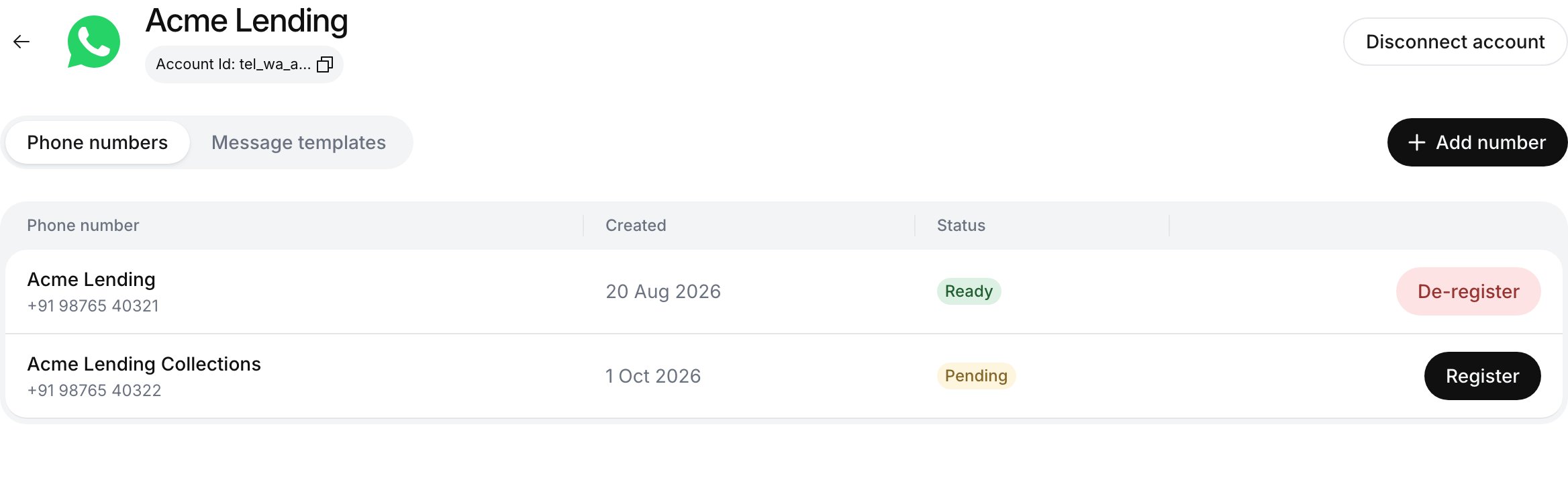
| 2 | [Add and register a number](/documentation/inventory/tools-integrations/connect-whatsapp#add-a-number) | A number marked **Ready**, your own or one bought through Ringg |
| 3 | [Message templates](/documentation/inventory/tools-integrations/connect-whatsapp#message-templates) (optional) | Meta-approved messages for anything you send outside the 24-hour window |
| 4 | [Create a WhatsApp agent](/documentation/build-agents/agents/whatsapp-agents/create-an-agent) | The agent attached to the number, with a chat prompt and session timeouts |
| 5 | [On-call](/documentation/build-agents/customize-agent-behaviour/tools/whatsapp-tools#on-call) and [post-call](/documentation/build-agents/customize-agent-behaviour/tools/whatsapp-tools#post-call) tools | Messages sent from any agent, during a call or after it |
| 6 | [Start a conversation by API](/documentation/deploy/whatsapp/start-a-conversation) or [WhatsApp Relay](/documentation/deploy/whatsapp/relay-overview) (Deploy) | Outbound first messages from your backend; or the agent on a number that stays in your own Meta account |
| 7 | [WhatsApp chats in Logs](/documentation/monitor/logs#whatsapp-chats) (Monitor) and [chat events](/documentation/build-agents/customize-agent-behaviour/webhooks/whatsapp-chat-events#whatsapp-chat-events) (Webhooks) | Every chat readable and exportable in Logs, and a webhook when a chat closes |

<Frame caption="Step 2 ends here: the connected account's Phone numbers tab with a Ready number">
  <img src="https://mintcdn.com/ringgai-0da73d20/XUOcNie5hfK3q--Y/media/whatsapp-onboarding/phone-numbers.webp?fit=max&auto=format&n=XUOcNie5hfK3q--Y&q=85&s=67a78cd98a702b3185e7358881d2ef40" alt="WhatsApp account page for Acme Lending showing the Phone numbers tab with one Ready number and one Pending number that has a Register button" width="2336" height="712" data-path="media/whatsapp-onboarding/phone-numbers.webp" />
</Frame>

## How a chat runs

1. A customer messages your WhatsApp Business number, or your backend [messages them first](/documentation/deploy/whatsapp/start-a-conversation) with a template.
2. The agent attached to that number opens a chat. Pre-call tools run, then the agent replies from its prompt, knowledge base and on-call tools.
3. The chat closes when the agent calls **End Chat** or the customer goes quiet for the agent's idle timeout ([session timeouts](/documentation/build-agents/agents/whatsapp-agents/create-an-agent#when-a-chat-opens-and-closes)). Post-call tools and analysis then run, and each stage can notify your [webhook](/documentation/build-agents/customize-agent-behaviour/webhooks/whatsapp-chat-events#whatsapp-chat-events).

## WhatsApp compared with voice

| | Voice agent | WhatsApp agent |
| - | - | - |
| Number | Telephony number ([Numbers](/documentation/inventory/phone-numbers/overview)) | Registered WhatsApp Business number |
| Structure | [Single-prompt or multi-prompt](/documentation/build-agents/agents/agent-types#agent-types-by-build-style) | Single-prompt only |
| Webhook events | `call_*`, `recording_completed`, analysis events | `chat_completed`, analysis events |
| Conversations | **Logs → Phone** | **Logs → WhatsApp** |
| [Analytics](/documentation/monitor/analytics) | Yes | No, Analytics covers calls only |

## Good to know

<AccordionGroup>
  <Accordion title="Why a template is needed after 24 hours">
    WhatsApp delivers free-form text only within 24 hours of the customer's last message. Outside that window only an approved template goes through. That is why **Send WhatsApp Text** is an on-call tool only, while **Send WhatsApp Template** also works post-call.
  </Accordion>

  <Accordion title="How replies are formatted">
    WhatsApp has its own markup: `*bold*`, `_italic_`, `~strikethrough~`, and lists that start with `- `. It has no headings, tables or Markdown links. The WhatsApp agent template already tells the model this; keep those rules if you rewrite the prompt.
  </Accordion>
</AccordionGroup>

## Next steps

<Columns cols={2}>
  <Card title="Connect WhatsApp Business" icon="plug" href="/documentation/inventory/tools-integrations/connect-whatsapp">
    Link your account through Meta, register a number and create templates.
  </Card>

  <Card title="Create a WhatsApp agent" icon="bot" href="/documentation/build-agents/agents/whatsapp-agents/create-an-agent">
    Attach the registered number and write a chat prompt.
  </Card>
</Columns>

<RelatedTopics items={[["Connect WhatsApp", "/documentation/inventory/tools-integrations/connect-whatsapp"], ["Create a WhatsApp agent", "/documentation/build-agents/agents/whatsapp-agents/create-an-agent"], ["WhatsApp tools", "/documentation/build-agents/customize-agent-behaviour/tools/whatsapp-tools"], ["WhatsApp chat events", "/documentation/build-agents/customize-agent-behaviour/webhooks/whatsapp-chat-events"], ["Start a conversation", "/documentation/deploy/whatsapp/start-a-conversation"], ["WhatsApp Relay", "/documentation/deploy/whatsapp/relay-overview"], ["WhatsApp Relay integration guide", "/documentation/deploy/whatsapp/relay-integration-guide"], ["WhatsApp Relay troubleshooting", "/documentation/deploy/whatsapp/relay-troubleshooting"], ["WhatsApp chats in Logs", "/documentation/monitor/logs#whatsapp-chats"]]} />


This documentation is built and hosted on [Mintlify](https://mintlify.com), a developer documentation platform.